
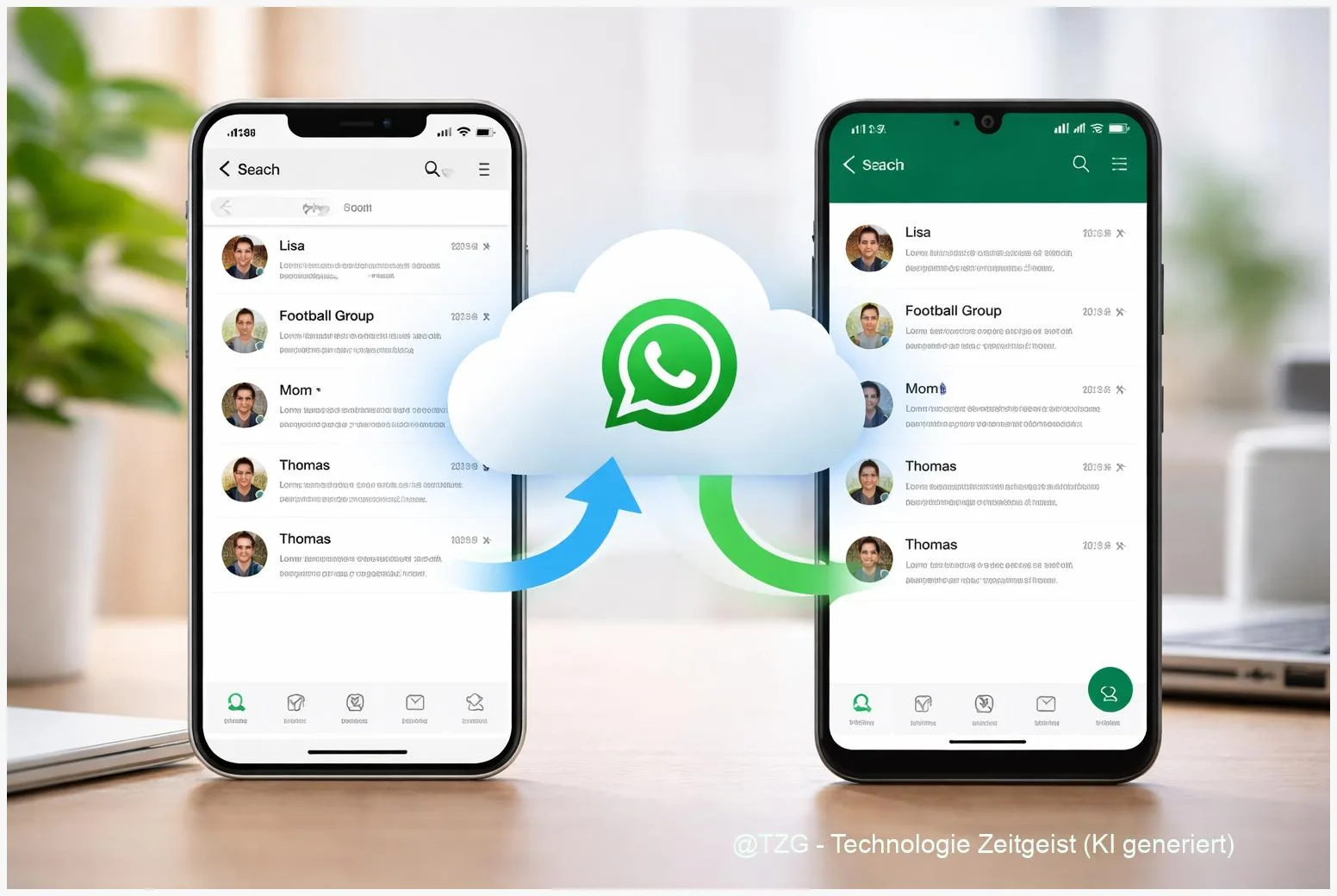
Switching phones is stressful when your WhatsApp history matters: family photos, school groups, work chats, voice notes. With a clean WhatsApp backup, you can move your chats to a new iPhone or Android without guessing which step comes first. This guide shows the safest, official paths: restoring from iCloud on iPhone, restoring from Google Drive on Android, and what to do when you switch between iPhone and Android.
Introduction
Your new phone is ready, the SIM is in, and then WhatsApp asks a question that decides everything: restore chats or start fresh? Many people only notice at that moment that “backup” in WhatsApp is not the same as “my photos are in the cloud” or “my phone is backed up.” WhatsApp chat history is tied to your phone number and, depending on your device, to iCloud (iPhone) or Google Drive (Android).
The good news: if you prepare for five minutes and follow the right path, the restore is usually straightforward. The less good news: iCloud backups don’t restore directly onto Android, and Google Drive backups don’t restore directly onto iPhone. That’s why this tutorial covers both: same-platform restore (iPhone→iPhone, Android→Android) and the official transfer options when you switch platforms.
Basics and Overview: What a WhatsApp backup really is
WhatsApp stores your chats on your phone and can save a copy (a backup) to a cloud service, so you can restore it after reinstalling or moving to a new device. On iPhone, that cloud backup uses iCloud. On Android, it typically uses Google Drive. This matters because WhatsApp backups are platform-specific: an iCloud backup is meant for iPhone restores, and a Google Drive backup is meant for Android restores.
A WhatsApp backup is not a universal “export file” — it’s a restore point tied to your phone number and your cloud account.
There is also an official “chat transfer” process for moving history between iPhone and Android. This is different from a backup restore and usually happens during the setup of the new phone.
| Option or Variant | Description | Suitable for |
|---|---|---|
| Restore from iCloud (iPhone) | Reinstall WhatsApp, verify your number, then restore chat history from your iCloud backup. | iPhone to new iPhone, or reinstalling on the same iPhone. |
| Restore from Google Drive (Android) | Reinstall WhatsApp, sign in with the same Google account, then restore the detected Drive backup. | Android to new Android, or reinstalling on the same Android phone. |
Preparation and Prerequisites (do this before you switch)
A smooth restore is mostly about matching accounts and avoiding interruptions. Before you touch the new phone, make sure your old phone can still open WhatsApp and that you know which cloud account it uses.
Quick checklist:
- Same phone number: Restores and transfers require the same number. If you plan to change numbers, do that carefully first (inside WhatsApp) before moving devices.
- Correct cloud account: iPhone: the right Apple ID with iCloud Drive enabled for WhatsApp. Android: the right Google account on the phone.
- Enough storage: You need free space on the new phone (and in iCloud/Google Drive) for messages and media.
- Stable internet: Prefer Wi‑Fi. Large chat histories can take a while.
- Update apps and OS: Install current WhatsApp and system updates on both devices to reduce compatibility issues.
Optional but recommended: enable end-to-end encrypted backups. That means even the cloud provider can’t read your backup; you protect it with a password or key. Keep that password/key safe — without it, you can’t restore the encrypted backup.
Step-by-Step Instruction: Back up and restore WhatsApp chats
The steps differ slightly depending on whether you stay on the same platform or switch. Use the matching path below and don’t mix them.
-
On your old phone, run a fresh manual backup.
Open WhatsApp → Settings → Chats → Chat Backup and start a backup. If you’re on iPhone, this targets iCloud; on Android, Google Drive. Wait until the process finishes. -
Set up your new phone’s account basics.
iPhone: sign in with the Apple ID that holds your backup and make sure iCloud is active. Android: add the Google account that holds the backup and ensure Google Play services are working. -
Install WhatsApp on the new phone.
Use the official App Store / Google Play listing. Avoid “cleaner” or “clone” apps for the migration step. -
Verify the same phone number.
When WhatsApp asks for your number, enter it exactly as before. You’ll confirm via SMS or call. -
Restore on the same platform (iPhone → iPhone).
When WhatsApp detects an iCloud backup, tap Restore Chat History. If you don’t see the prompt, stop and check iCloud Drive/Apple ID settings before continuing. -
Restore on the same platform (Android → Android).
When WhatsApp detects a Google Drive backup, tap Restore. If prompted, confirm the Google account. Let messages restore first; media may continue downloading afterward. -
Switch platforms (Android ↔ iPhone) using the official transfer method.
For cross-platform moves, use WhatsApp’s supported transfer flow during device setup (for example, iPhone → Android typically uses a cable connection and a QR code). Follow the on-screen prompts on both phones and only activate WhatsApp on the new phone when instructed.
How you know it worked: WhatsApp opens with your chat list populated. It’s normal if some media thumbnails take longer to appear, especially on slower Wi‑Fi.
Tips, Troubleshooting, and Variants
If something goes wrong, resist the urge to tap through and “set up anyway.” Many restore issues are account mismatches or storage problems that you can fix quickly.
Common stumbling blocks and fixes:
- No backup found (iPhone): Check you’re signed into the same Apple ID and that iCloud Drive is enabled for WhatsApp. Also confirm iCloud storage isn’t full.
- No backup found (Android): Confirm the same Google account is on the phone and that Google Play services are active. Then reinstall WhatsApp and try again.
- Restore stuck or very slow: Switch to stable Wi‑Fi, plug the phone into power, and leave WhatsApp open. If it stays stuck for a long time, restart the phone and retry.
- Not enough space: Free space on the phone first. If your cloud storage is full, remove older device backups or upgrade storage.
- Encrypted backup can’t be restored: You must enter the correct password/key. If it’s lost, WhatsApp can’t recover it for you.
Two practical tips for future moves: First, set chat backups to run automatically (for many people, daily is the safest). Second, consider excluding videos from the backup if storage is tight — videos often take the most space.
Related reading on TechZeitGeist: if your move is Android → iPhone, the broader setup steps can help alongside WhatsApp’s prompts: Switch from Android to iPhone: transfer apps, photos and chats. If your main pain point is storage pressure during backups, this guide can help you free space: Google Photos backup: auto-save photos and free up space.
Conclusion
A reliable WhatsApp backup is mainly about three things: the same phone number, the right cloud account, and enough storage plus time for the restore to finish. If you stay on the same platform, restoring from iCloud (iPhone) or Google Drive (Android) is usually the simplest path. If you switch between iPhone and Android, use the official transfer flow during setup instead of hoping a cloud backup will “just work.” Once you’ve completed the move, turn on automatic backups so your next phone upgrade feels routine, not risky.
Did your restore work on the first try, or did one small setting block it? Share your setup (iPhone/Android + backup method) so others can avoid the same trap.




Leave a Reply