
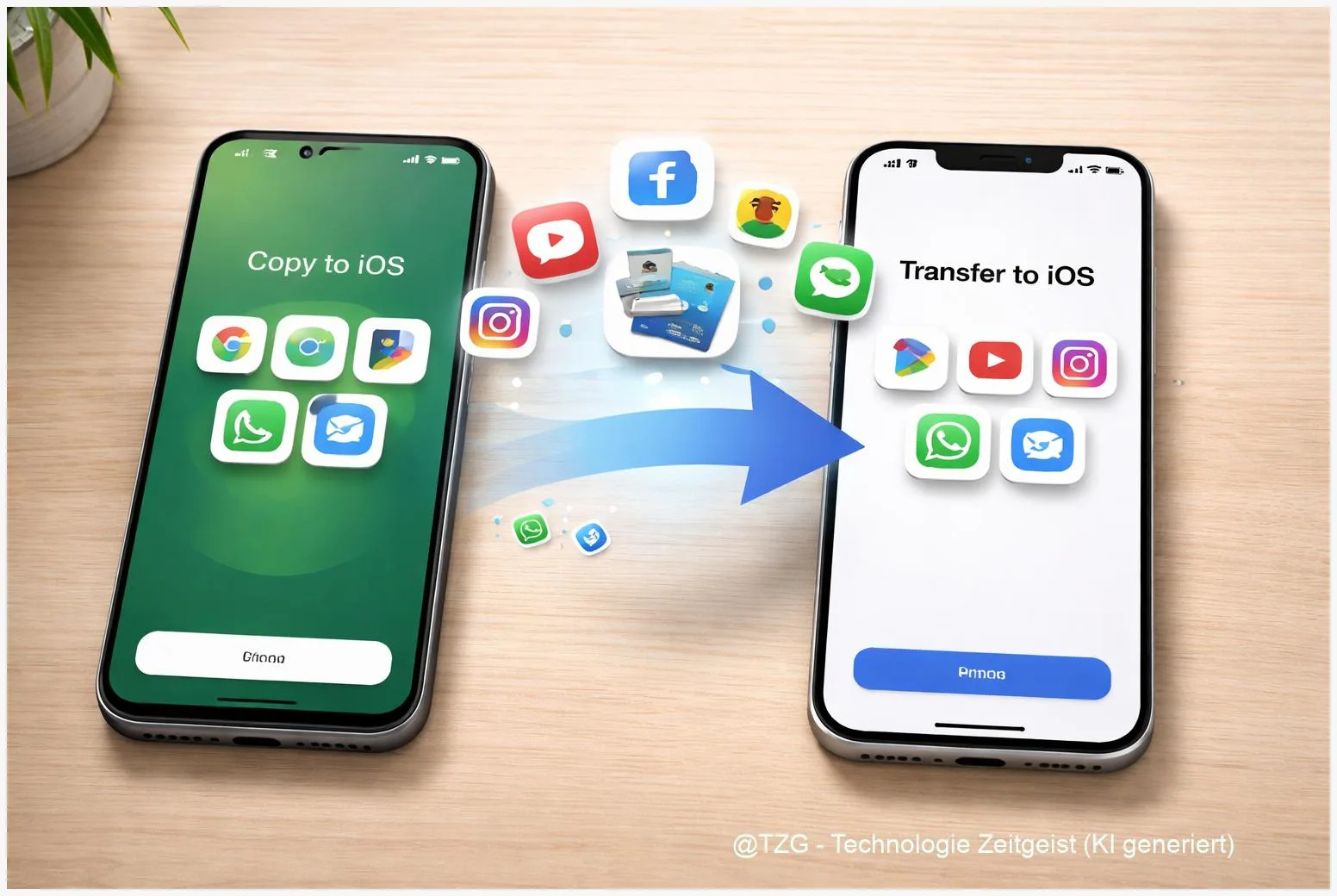
Switching from Android to iPhone often fails at the same point: your new phone is ready, but your photos, WhatsApp chats, and everyday essentials still live on the old device. This guide shows you how to switch from Android to iPhone with Apple’s Move to iOS tool, what it can (and can’t) migrate, and how to handle common leftovers like photos in the cloud. After these steps, your iPhone should feel “yours” on day one.
Introduction
Moving to a new phone is rarely about the hardware. It’s about continuity: your family photos, the group chats that organize your week, and the apps you rely on for school, work, banking, tickets, and two-factor logins. When you switch platforms, that continuity can break in small but stressful ways—missing message history, duplicate photo libraries, or apps that need to be set up again.
The good news: modern iPhones are built for onboarding Android users. Apple’s official “Move to iOS” process transfers the most important data during the first iPhone setup, and WhatsApp supports moving chat history through the same path. This tutorial keeps it practical: what to do before you start, the exact screens to look for, and what to try if the transfer stalls or something doesn’t show up.
Basics and Overview: switch from Android to iPhone without losing data
The cleanest way to migrate is Apple’s Move to iOS app. It’s installed on your Android phone and works only while your iPhone is being set up for the first time (or after an erase/reset). During the setup, the iPhone creates a private, temporary Wi‑Fi connection so the two devices can copy data directly.
What typically transfers: contacts, photos and videos from the camera roll, messages (SMS/MMS), calendars, and some account settings. What typically does not transfer: Android apps themselves and most app-internal data. Instead, the iPhone can suggest App Store equivalents for apps that exist on both platforms.
The biggest “gotcha” is timing: many transfers—especially WhatsApp—only work during the initial iPhone setup.
For WhatsApp, the migration is officially supported via Move to iOS on eligible versions. For photos, you also have a second, very common option: keep your library in a cloud service (like Google Photos) and simply sign in on iPhone. That can be easier than a one-time copy if you already use cloud backup.
| Option or Variant | Description | Suitable for |
|---|---|---|
| Move to iOS (direct transfer) | One-time transfer during iPhone setup over a direct Wi‑Fi connection. | New or freshly reset iPhone; you want most data copied at once. |
| Cloud sync (Google account / Google Photos) | Sign in on iPhone and sync contacts/photos from the cloud instead of copying them. | You already back up to Google; you want an ongoing cross-device library. |
Preparation and Prerequisites
Plan 30–90 minutes depending on your photo library and chat history. Ideally, do the move at home with stable Wi‑Fi and both phones connected to power. The goal is to avoid interruptions: transfers usually fail because something sleeps, disconnects, or runs out of space.
Before you start, check these basics:
- Your iPhone must be in setup mode (new or erased). If it’s already configured, Move to iOS can’t do the full migration.
- Update both phones: install the latest iOS and Android updates available for your devices, and update key apps (especially WhatsApp).
- Install Move to iOS on Android from Google Play.
- Have enough free storage on the iPhone for what you plan to import (photos and WhatsApp media can be large).
- Know your important logins: Apple ID (or create one), your Google account password, and your WhatsApp phone number verification method.
- Disable blockers that can break local transfers: VPN apps, aggressive battery savers, or “Wi‑Fi assistant” features if they frequently switch networks.
Optional but recommended: enable a fresh photo backup (for example in Google Photos) and confirm your contacts are synced to your Google account. This gives you a safety net if you later choose cloud sync instead of copying everything.
Step-by-Step Instruction
The steps below assume you want a full first-time migration using Move to iOS, including WhatsApp. Keep both devices close together and don’t switch apps during the transfer unless a prompt asks you to.
- Start iPhone setup. Turn on the iPhone and follow the on-screen steps (language, region, Wi‑Fi). When you reach Apps & Data, choose Move Data from Android.
- Open Move to iOS on Android. Accept permissions and continue until you see a screen to enter a code.
- Enter the code shown on the iPhone. The iPhone displays a one-time code; type it into the Android device. If asked, allow the Android phone to join a temporary Wi‑Fi network created by the iPhone.
- Select what to transfer. Choose categories like contacts, messages, photos/videos, and other available items. Confirm and start the transfer. Keep both screens on; you’ll usually see a progress bar on both devices.
- Move WhatsApp when prompted. If your versions are eligible, Move to iOS can offer a WhatsApp transfer. Follow the on-screen WhatsApp prompts on Android, then continue the transfer until it completes. Don’t open WhatsApp on the iPhone yet.
- Finish iPhone setup. After Move to iOS says the transfer is complete, tap Done on Android. On iPhone, continue setup, sign in with your Apple ID, and reach the Home Screen.
- Install your apps from the App Store. On iPhone, open the App Store and install the apps you used on Android. Some may appear as suggestions; others you’ll search manually.
- Complete WhatsApp on iPhone. Install WhatsApp from the App Store, open it, verify the same phone number, and follow the prompt to import the moved chat history. Stay on Wi‑Fi and keep the phone awake until it finishes.
- Check your photos and contacts. Open Photos and Contacts on iPhone. If something is missing, don’t panic—photos can still be coming in, and cloud-based contacts may need a few minutes after account sign-in.
If everything worked, you should see your key contacts, a populated Photos library (or at least a growing import), and WhatsApp chats available after verification. From that point, it’s mostly about logging into apps again and enabling the security features you want on iOS.
Tips, Troubleshooting, and Variants
The iPhone is already set up. Move to iOS is designed for the initial setup. If you already configured the iPhone, the most reliable route is: back up what matters, then erase the iPhone and start again. If you only need a few items (like contacts or photos), use cloud sync variants instead of resetting.
Transfer stalls or fails. Common fixes are surprisingly simple: turn off VPN on both devices, plug both phones into power, keep them close, and restart the process. Also check that Android isn’t forcing the Move to iOS app to sleep (battery optimization settings can be strict on some devices).
WhatsApp didn’t move. WhatsApp’s official method requires specific minimum versions and happens during iPhone setup via Move to iOS. If WhatsApp was not offered, update WhatsApp and Move to iOS on Android and try again from a fresh iPhone setup. If you must keep the current iPhone setup, you may have to accept starting WhatsApp without old chat history.
Photos: copy vs. cloud. If you already use Google Photos, an easy variant is: confirm backup on Android, then install Google Photos on iPhone and sign in. Your library appears without a one-time device-to-device copy. Google’s own Android-to-iOS guidance also describes this account-based approach for ongoing sync.
Apps and logins. Many apps don’t “transfer” because they’re tied to app stores and security models. Expect to sign in again, re-enable two-factor authentication, and reconnect wearables. For banking and authenticator apps, follow the provider’s official migration steps and keep your old phone available until you’ve confirmed access.
Conclusion
If you do it at the right moment—during iPhone setup—switching from Android to iPhone is mostly a guided process. Move to iOS handles the core data transfer, while apps themselves are reinstalled from the App Store and set up again with your accounts. WhatsApp can move too, but it’s picky about versions and timing, so preparation pays off. If anything feels missing after the move, cloud sync (especially for photos and contacts) is a practical fallback that can still get you back to normal without starting over.
What was the hardest part of your switch—photos, chats, or app logins? Share your experience, and pass this guide along to anyone setting up a new iPhone.




Leave a Reply