
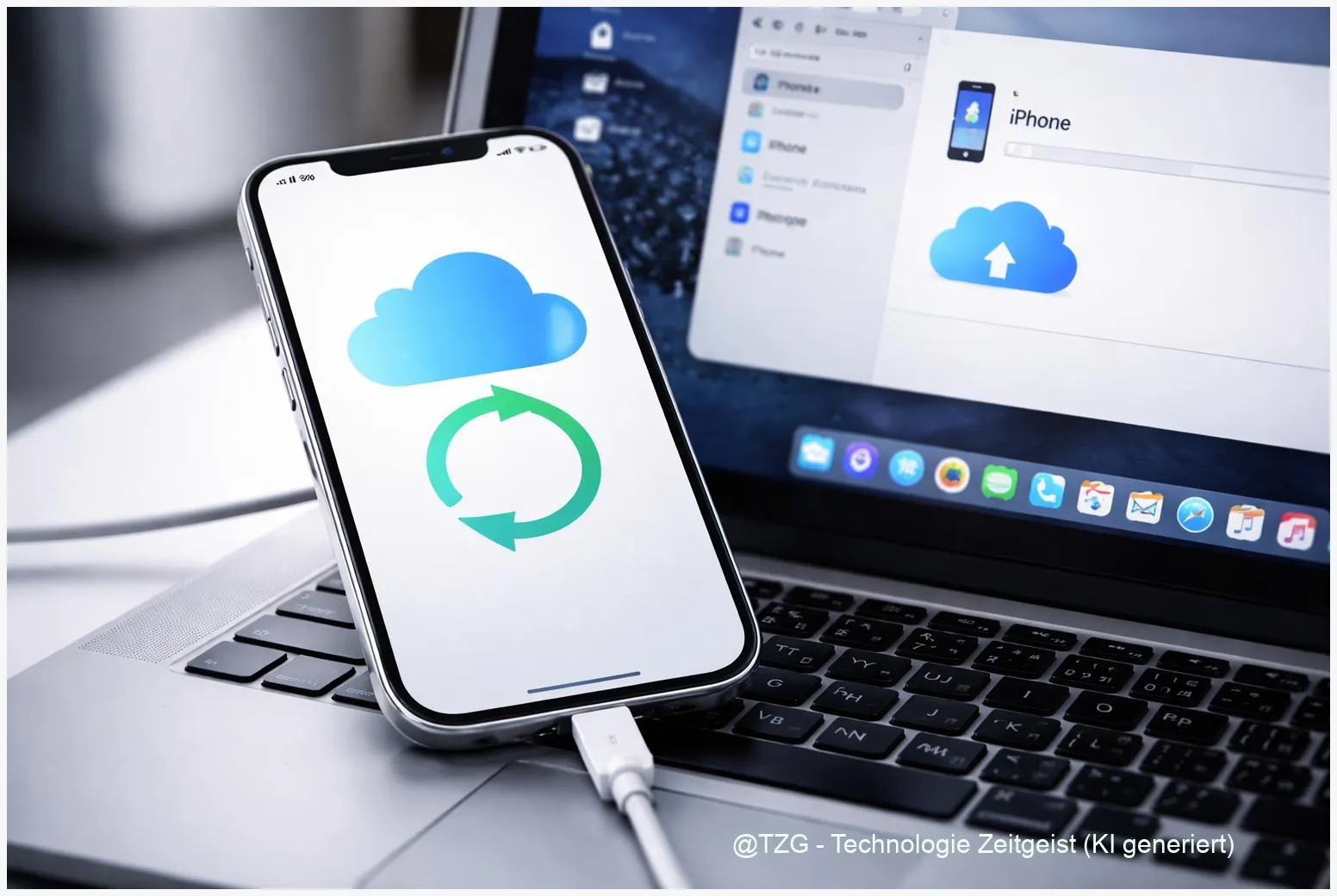
If your iPhone is lost, damaged, or replaced, a recent backup is what brings your photos, chats, app data, and settings back. This guide shows how to back up iPhone step by step using iCloud and a computer (Mac or Windows), so you can choose the method that fits your routine. You’ll also learn what an encrypted backup is, how to check that a backup really finished, and what to do when storage or Wi‑Fi gets in the way.
Introduction
A backup is easy to postpone—until the day you drop your phone, run out of storage during an update, or switch to a new iPhone and realize your latest data isn’t coming along. Even small things matter: your home screen layout, app logins, messages, and the photos you took last weekend.
The good news: iPhone backups are a solved problem, as long as you pick one method and make it a habit. Apple offers two practical routes: iCloud Backup (wireless and automatic) and a local backup on a Mac or Windows PC (often faster, and you control the storage).
Below you’ll get a calm, step-by-step walkthrough for both options, plus checkpoints to confirm success and fixes for the most common stumbling blocks—especially “not enough iCloud storage” and forgotten encrypted backup passwords.
Basics and Overview: how to back up iPhone step by step
An iPhone backup is a packaged copy of important device data that can be restored onto the same iPhone or a new one. It’s different from iCloud sync: sync keeps certain data (like Photos, Contacts, Notes) continuously updated across devices, while a backup is a snapshot you can restore from after something goes wrong.
Two common backup paths are:
- iCloud Backup: stored online in your iCloud storage, typically runs automatically when your iPhone is on Wi‑Fi and charging.
- Computer backup: stored locally on a Mac (via Finder) or on Windows (via iTunes or Apple’s Windows device software, depending on your setup).
The safest everyday setup is not “either cloud or computer”, but “one reliable backup you actually keep up to date”—and, if possible, a second one before big changes like iOS updates or phone replacement.
A key term you’ll see is encrypted backup. On a computer, encryption means your backup file is protected by a password and can include more sensitive data (Apple notes that certain categories, such as Health data, are included when you encrypt the backup). If you forget that password, you usually cannot use that backup—so treat it like a real account password.
| Option or Variant | Description | Suitable for |
|---|---|---|
| iCloud Backup | Wireless, automatic backups to your iCloud storage when conditions are met. | Most people who want set-and-forget protection. |
| Computer (Mac/Windows) backup | Local backup via Finder, iTunes, or Apple’s Windows tools; can be encrypted with a password. | Large storage needs, faster restores, or limited iCloud space. |
Preparation and Prerequisites
Five minutes of preparation prevents most backup failures. Before you start, check what method you’ll use and make sure the basics are in place.
For iCloud Backup, make sure:
- You’re signed in with your Apple Account (Apple ID) on the iPhone.
- Wi‑Fi is stable (backups can fail on weak networks).
- Your iPhone has enough battery—or keep it on a charger.
- You have enough iCloud storage for the backup (free plans typically start with 5 GB total storage).
For a computer backup, prepare:
- A Mac with Finder (macOS Catalina or newer) or a Windows PC with current Apple device software/iTunes installed.
- A reliable USB cable (many “charging-only” cables cause connection drops).
- Enough free disk space on the computer for the backup.
- If you plan to encrypt: a password you can store safely (ideally in a password manager).
Practical checkpoint: on your iPhone, open Settings and confirm your Apple Account name appears at the top. That simple detail prevents the classic situation of trying to back up while not signed in.
Step-by-Step Instruction
Follow the steps for your preferred method. If you’re unsure, start with iCloud for convenience, and add a computer backup before major changes (new iPhone, repair, or big iOS update).
-
Back up to iCloud (wireless):
On your iPhone, open Settings → tap your name (Apple Account) → iCloud → iCloud Backup. Turn on Back Up This iPhone (wording can vary slightly). Then tap Back Up Now and stay on Wi‑Fi until it finishes.
-
Confirm the iCloud backup succeeded:
In the same iCloud Backup screen, look for the status line showing the last successful backup time. If you only see an error message, jump to the troubleshooting section below.
-
Back up to a Mac (Finder):
Connect your iPhone to your Mac with a USB cable. Open Finder and select your iPhone in the sidebar (it may appear under “Locations”). If asked on the iPhone, tap Trust and enter your passcode.
-
Start the Mac backup (optionally encrypted):
In the device view, choose the option to back up data to this Mac, then click Back Up Now. To include more sensitive data and protect the file, enable Encrypt local backup and set a password you can recover later.
-
Back up to Windows (iTunes / Apple device software):
Connect your iPhone via USB. Open iTunes (or the Apple device management app on Windows, depending on your installation). Select your iPhone, go to the backup section, choose This computer, and click Back Up Now. For the most complete local backup, enable Encrypt local backup and set a password.
-
Verify the computer backup finished:
On Mac, Finder shows the latest backup date/time in the device screen. On Windows, iTunes/device software shows the last backup time in the summary area. If the timestamp updates, you have a usable restore point.
If everything went well, you should see a recent “last backup” time either in iCloud settings (on iPhone) or in Finder/iTunes. That timestamp is your proof that the backup isn’t just “enabled”, but actually completed.
Tips, Troubleshooting, and Variants
Most backup problems fall into a few predictable categories. These fixes cover the situations people hit most often.
Problem: “Not enough iCloud storage.” First, check what is taking space in Settings → your name → iCloud. You can sometimes free space by removing old device backups you no longer need. If your iPhone holds more than your available iCloud storage, a computer backup is the quickest alternative. If you rely on iCloud backups long-term, you may need to upgrade iCloud storage so the backup can complete.
Problem: iCloud backup is stuck or won’t start. Confirm you’re on Wi‑Fi (not mobile data), plug the iPhone into power, and keep the screen locked for a while. If it still fails, restart the iPhone and try again. Also check whether Apple’s iCloud services are currently available by reviewing Apple’s system status page in the Sources section.
Problem: Computer doesn’t see the iPhone. Unlock the iPhone and accept the Trust This Computer prompt. Try a different USB port and cable, and avoid USB hubs. On Windows, updating iTunes/Apple software often resolves driver issues.
Problem: Forgotten encrypted backup password. This is the most painful one: without the password, you usually can’t restore that encrypted backup. If you still have access to the iPhone, you can create a new encrypted backup with a password you can store safely. Going forward, keep the password in a reputable password manager.
Variant tip: Use both methods strategically. Keep iCloud Backup enabled for everyday protection, and do a computer backup before major events (new iPhone purchase, repair, beta tests, or big storage clean-ups). That combination gives you convenience plus a second restore point.
If you want to reduce the chance of backup errors caused by a nearly full phone, a storage clean-up can help before backing up. TechZeitGeist also covers practical maintenance routines like iPhone storage cleanup basics and everyday iPhone privacy settings (site navigation may vary).
Conclusion
Backing up an iPhone is less about technical skill and more about picking a reliable routine. iCloud Backup is the simplest option when you want automatic protection, as long as Wi‑Fi and iCloud storage are available. A computer backup via Finder on Mac or iTunes/Apple tools on Windows gives you more control and can be faster for large restores. If you enable encryption, store the password carefully—otherwise the backup can become unusable. Once you see a recent “last backup” timestamp, you’ve done the important part.
Try setting up one backup method today, then tell us which route fits your daily life better—iCloud, computer, or a mix of both—and share this guide with someone who’s about to switch iPhones.




Leave a Reply