
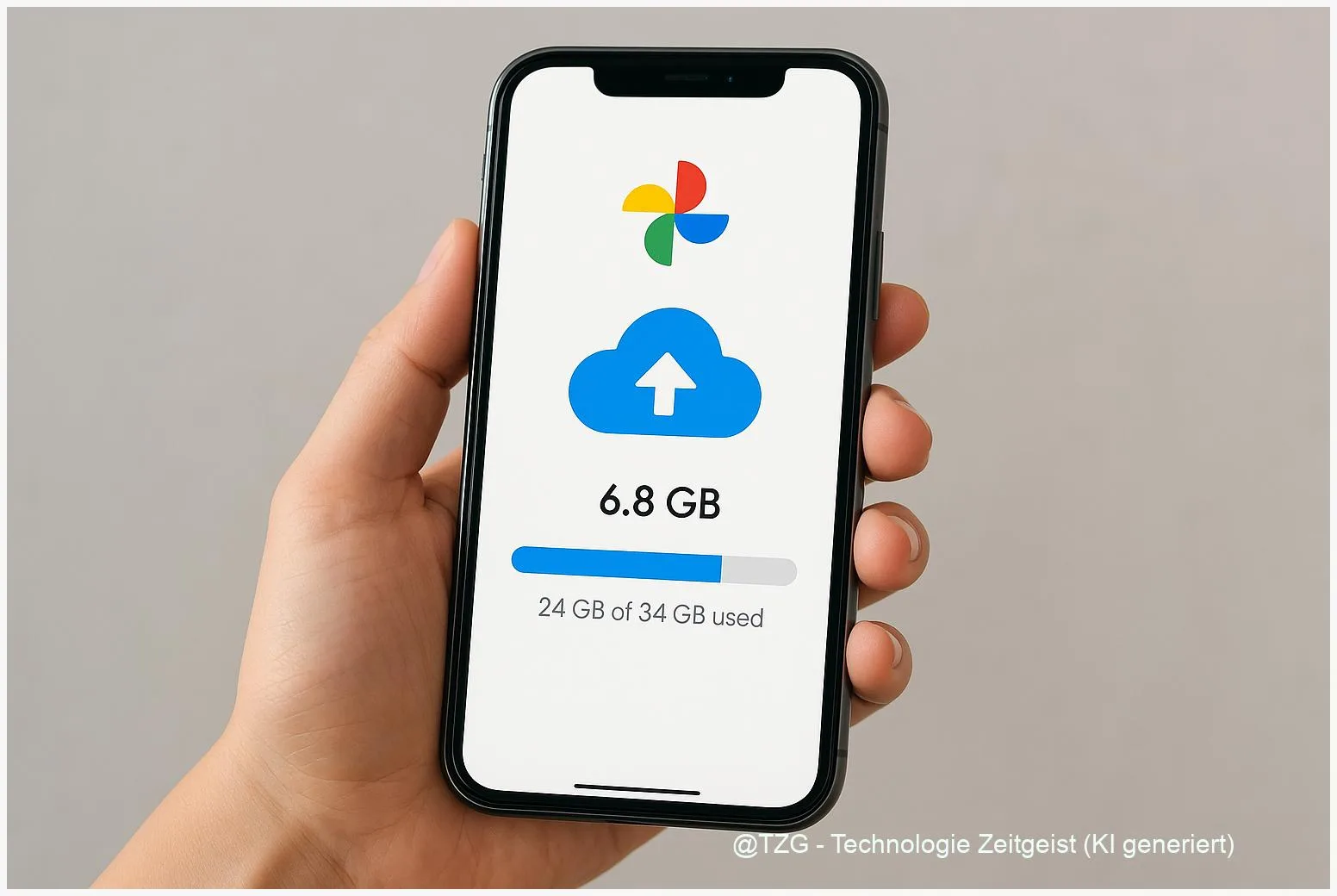
A full camera roll is stressful: the phone warns about storage, apps stop updating, and you hesitate to record videos. With Google Photos backup, your iPhone or Android can automatically upload photos and videos to your Google Account, so they stay available even if your device is lost. After the upload, Google Photos can remove the already backed-up local copies to free storage safely.
Introduction
Your phone storage usually fills up quietly: a weekend trip, a few 4K videos, group chats, and suddenly you get the message that there’s “not enough space.” Many people react by deleting random images, only to regret it later.
Cloud backup solves two problems at once: your memories are protected if the phone breaks or gets lost, and you can regain device storage without manually hunting down files. Google Photos is a popular option because it works on both iPhone and Android and keeps your library accessible on the web as well.
The key is doing it in the right order: first confirm that everything is backed up, then use Google Photos’ built-in “Free up space” function to remove only the local copies that are already safe in the cloud. The steps below guide you through that process in a calm, device-friendly way.
Basics and Overview: Google Photos backup and “Free up space”
Google Photos can automatically upload your photos and videos from your phone to your Google Account. Once uploaded, you can view them in the Google Photos app and on the website photos.google.com, as long as you’re signed in and have an internet connection.
Two terms matter most:
Backup means uploading a copy to your Google Account’s cloud storage. Free up space is a separate action that deletes only the device copies of items that are already backed up, so your phone storage increases. According to Google’s help pages, “Free up space” removes local copies while keeping the cloud versions available in Google Photos.
Treat “Free up space” like recycling: it clears what’s safely stored elsewhere, but only after you’ve checked that the transfer is complete.
You can also choose an upload quality in Google Photos settings (for example “Original quality” or a storage-saving option). Whichever you choose, the uploaded files count against your Google Account storage quota (shared with Google Drive and Gmail).
| Option or Variant | Description | Suitable for |
|---|---|---|
| Original quality | Uploads in full resolution; uses more cloud storage. | People who print photos, archive important moments, or edit videos. |
| Storage saver | Uploads with compression to reduce file size; still good for everyday viewing. | Phones with lots of media, users who want to stretch the free storage longer. |
Preparation and Prerequisites
Before you start, set yourself up for a smooth first backup. The initial upload can take a while, especially with many videos.
Check these prerequisites first:
- Google account: Make sure you’re signed into the correct Google Account in Google Photos (tap your profile icon to verify).
- Wi‑Fi and power: For large libraries, use a stable Wi‑Fi connection and keep the phone charging. This reduces interruptions.
- Permissions: On iPhone, Google Photos needs permission to access your photos in iOS Settings. On Android, allow access to photos/media when prompted.
- Enough cloud storage: Google Photos uses your Google Account storage. If it’s full, backup will pause until you free cloud storage or upgrade.
- Know what will be backed up: On Android, you can add “Device folders” (for example WhatsApp images or screenshots) to backup in Google Photos settings.
Optional but helpful: open the Google Photos app and look for backup status in the app (Google provides a “check your backup” view). Only use “Free up space” after the status indicates your items are backed up.
Step-by-Step Instruction
The goal is simple: enable automatic backup, confirm it finishes, then free device storage without deleting cloud copies.
- Install or update Google Photos from the App Store (iPhone) or Google Play (Android), then open it.
- Sign in and confirm your account: tap the profile icon (top right) and verify the email address is the one you want to use long-term.
- Turn on backup: open Photos settings and enable Backup (menu names can vary slightly by version). Choose an upload quality (for example “Original quality” or “Storage saver”).
- (Android) Add extra folders if needed: in Google Photos settings, look for Back up device folders and enable folders you also want protected (like Messenger, screenshots, or downloads).
- (iPhone) Check iOS photo permission: open the iPhone Settings app > Privacy (or Privacy & Security) > Photos > Google Photos, then allow access (often “All Photos” for a full library backup).
- Wait until backup completes: in Google Photos, check the backup status (Google’s help pages describe where to review this). Stay on Wi‑Fi and power for big uploads.
- Free storage on your phone: in Google Photos, tap your profile icon and choose Free up space. Confirm the prompt. Google Photos will delete only the local copies that are already backed up.
- Verify the result: open a few older photos and videos in Google Photos. If they load normally, the cloud copy is accessible. Then check your phone’s storage in system settings to see the freed space.
If everything worked, you’ll notice two changes: your device storage increases, and older photos may no longer appear in your phone’s offline gallery unless you download them again.
Tips, Troubleshooting, and Variants
“Backup paused” or “Waiting for Wi‑Fi”: Check if Google Photos is set to back up only on Wi‑Fi. Also verify battery saver modes; some phones restrict background uploads. Plugging in and keeping the app open can help, especially during the first big backup.
Cloud storage is full: Backup won’t complete if your Google Account storage is full. Google Photos offers a storage management view, and you can also review storage at Google’s storage pages. Only run “Free up space” after backup is complete.
Confusing but important: “Delete” is not “Free up space”: If you delete a photo inside Google Photos, it usually goes to the Google Photos trash and can also affect the cloud library across devices. “Free up space” is the safer tool when your goal is only to remove device copies.
Need some files offline? Keep a small “Favorites” set downloaded locally, or download specific albums before a trip. Another variant is using “Delete from device” for single items instead of cleaning everything at once.
Privacy and shared devices: Backup is tied to the signed-in Google Account. If multiple people use one device, double-check the account before enabling backup. Consider a screen lock and two-step verification for the Google Account to protect access.
If you want to go deeper into organizing your library after the backup, TechZeitGeist guides can help: TechZeitGeist tutorials on everyday tech and storage and cleanup guides.
Conclusion
Once set up properly, Google Photos can take the pressure off your phone storage without turning photo management into a weekly chore. The safe routine is always the same: enable backup, confirm it finishes, and only then use “Free up space” to remove local copies that are already stored in your Google Account. That way, your gallery stays accessible across devices while your iPhone or Android regains room for updates, apps, and new videos.
Have you ever freed up space too early or struggled with a stalled upload? Share what happened and which step solved it for you—your tip might save someone else’s photos.




Leave a Reply