
If your iPhone keeps saying storage is full, apps may stop updating, photos won’t save, and messages can fail. This guide shows how to free up iPhone storage safely using Apple’s built-in tools: identify what’s taking space, offload apps without losing data, optimize photos, and clear big leftovers like message attachments and Safari website data. You’ll end with a cleaner iPhone and a simple routine that prevents the same problem from coming back.
Introduction
Your iPhone can feel “fine” for months, and then suddenly everything starts to break at once: you can’t install an iOS update, the camera refuses to take a photo, and apps keep showing “Storage Almost Full.” In everyday use, storage fills up quietly—through videos shot in 4K, downloaded playlists, large chat attachments, or apps that keep caches (temporary files) to load faster.
The tricky part: deleting things at random can cost time and data. The safer approach is to use the iPhone Storage view in Settings, which shows what’s actually consuming space and offers Apple-approved actions like offloading unused apps or optimizing photo storage with iCloud. The steps below focus on freeing space quickly while keeping your important content intact.
Basics and Overview: What “iPhone Storage” Really Means
There are two different “storages” that often get mixed up: device storage (what’s physically inside your iPhone) and iCloud storage (online storage linked to your Apple Account). When your iPhone says it’s full, it’s almost always the device storage that’s the bottleneck—not iCloud.
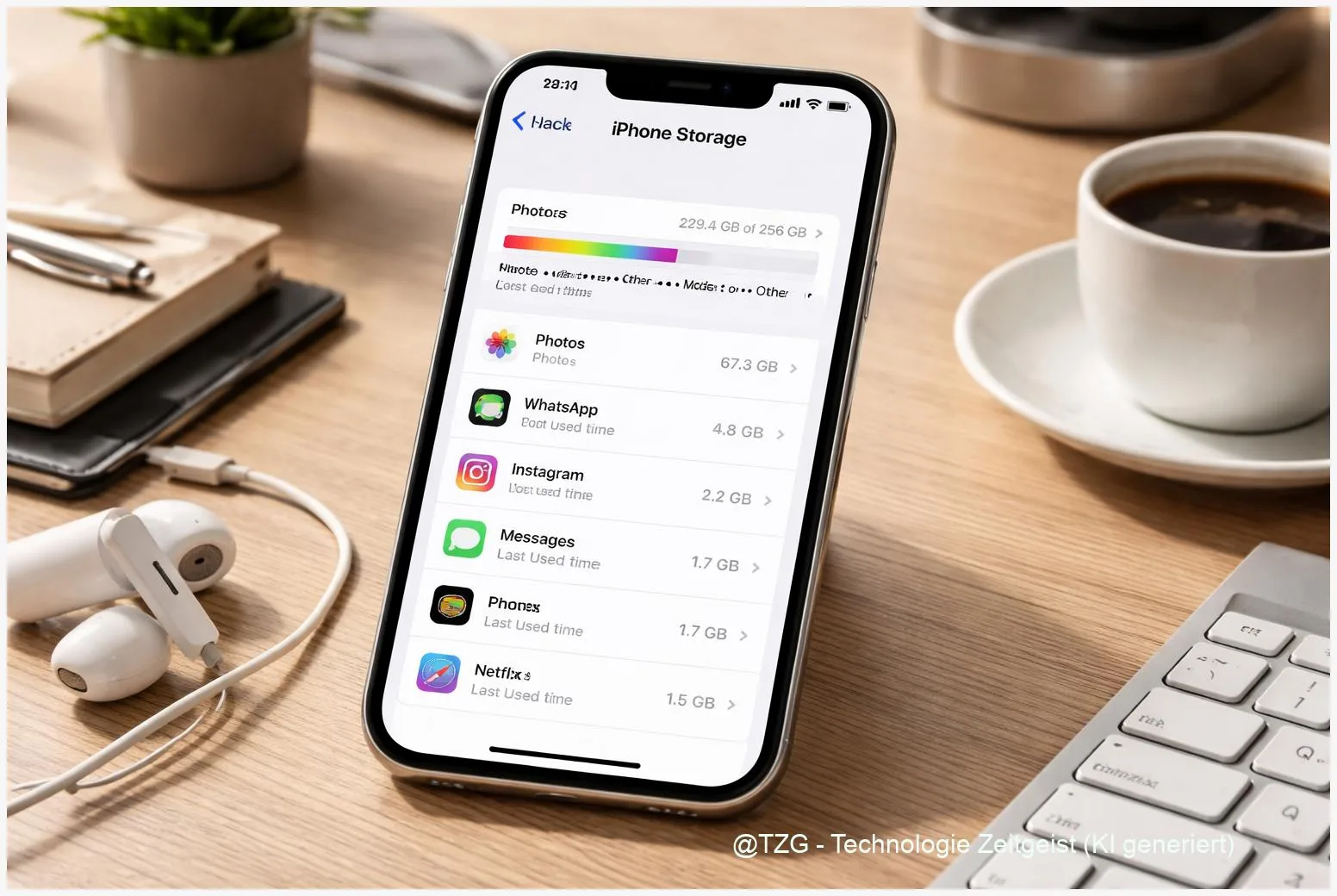
Apple’s built-in overview is under Settings > General > iPhone Storage. You’ll see a bar chart, a list of apps (often sorted by size), and sometimes recommendations like reviewing large attachments. This screen is your “control center” for cleanup.
The safest storage cleanup is targeted: first identify the top space users, then apply the least destructive fix (optimize, offload, review) before you delete.
One key term is Offload App. Offloading removes the app itself but keeps its documents and data on the device, so you can reinstall later without starting from zero. Another important lever is iCloud Photos with “Optimize iPhone Storage,” which stores full-resolution media in iCloud and keeps smaller device-friendly versions locally.
| Option or Variant | Description | Suitable for |
|---|---|---|
| Offload unused apps | Removes the app but keeps data; re-download later from the App Store. | Rarely used apps you still want to keep “ready.” |
| Optimize iPhone photo storage | Keeps originals in iCloud, stores smaller versions on the iPhone. | People with many photos/videos and stable Wi‑Fi. |
Preparation and Prerequisites: Do This Before You Remove Anything
Before you start freeing space, take two minutes to reduce risk. Storage cleanups are usually safe, but a little prep prevents unpleasant surprises—especially with photos, messages, and apps you rely on.
Quick checklist:
- Know your goal: For smooth updates and daily use, try to keep several GB free. If your iPhone is extremely full, some actions (like syncing photos) may need patience.
- Connect to Wi‑Fi and power: Re-downloading apps or re-syncing photos works best on Wi‑Fi. If possible, plug in the phone.
- Make a backup: Use iCloud Backup or a computer backup (Finder on macOS, Apple Devices/iTunes on Windows). This is the safety net if you delete something you later regret.
- Check iCloud Photos status (if you use it): In Settings > [your name] > iCloud > Photos, confirm whether Photos is syncing.
- Be cautious with “Delete App”: Offloading is reversible; deleting an app may remove local data depending on the app.
If you want a second perspective before deleting anything, TechZeitGeist also has a general cleanup walkthrough: iPhone storage cleanup step-by-step.
Step-by-Step Instruction: Free Up iPhone Storage Without Guessing
The order matters. Start with the biggest, safest wins first, then move toward more “final” deletions only if you still need space.
- Open the storage overview: Go to Settings > General > iPhone Storage. Wait a few seconds so the list and recommendations fully load.
- Use Apple’s recommendations first (if shown): If you see items like “Review Large Attachments” or “Offload Unused Apps,” tap them. These are usually high-impact with low risk.
- Enable “Offload Unused Apps” (safe, reversible): In the iPhone Storage screen, tap Enable for “Offload Unused Apps.” Your iPhone can remove rarely used apps when space is needed. You’ll still see the app icon with a small cloud symbol; tap it later to re-download.
- Offload a specific large app (manual control): In the app list, tap a large app you don’t use often. Choose Offload App (not “Delete App”). This is helpful for games and travel apps you only need sometimes.
- Optimize photos if photos/videos are a top space user: Go to Settings > [your name] > iCloud > Photos. Turn on syncing (if you use iCloud Photos) and select Optimize iPhone Storage. Full-resolution originals stay in iCloud; the phone keeps space-saving versions locally.
- Review Message attachments: Back in Settings > General > iPhone Storage, tap Messages (if it’s large). Look for sections like large attachments and remove what you don’t need—videos in chats are common storage “quiet killers.”
- Clear Safari website data if it’s bloated: Go to Settings > Apps > Safari and choose Clear History and Website Data. This can remove cached website files and cookies. Expect to be logged out of some sites afterward.
- Recheck your free space: Return to iPhone Storage. If your free space increased and the phone feels responsive again, stop. Over-cleaning often creates new problems (missing offline content, repeated re-downloads).
What “success” looks like: the storage bar shows more free space, apps update normally, and the camera saves photos again. If the iPhone Storage screen still looks stuck, give it a minute—iOS sometimes recalculates categories after changes.
Tips, Troubleshooting, and Variants: When Storage Still Won’t Budge
Some storage issues are more stubborn than “delete a few apps.” These practical fixes cover the most common blockers without relying on risky cleaner apps.
Problem: “Clear History and Website Data” is greyed out. This can happen if there’s no Safari data to remove, or if Screen Time restrictions limit changes. Check Settings > Screen Time for content and privacy restrictions that affect Safari.
Problem: Photos take up space even after enabling iCloud Photos. Optimization is not instant. Your iPhone needs time (and usually Wi‑Fi) to upload originals and start replacing local files with smaller versions. If you have very little free space, start with offloading apps and deleting large message attachments first, then let Photos finish syncing.
Problem: You see a large “System Data” section. Apple doesn’t offer a simple “delete System Data” button. It can include caches, logs, and temporary files. A restart can help in some cases, and keeping some free space reduces how aggressively iOS caches content. If it stays unusually high, make sure iOS is up to date once you have enough space to update.
Variant: You want fewer cleanups in the future. Two settings help most people: keep Offload Unused Apps enabled, and use Optimize iPhone Storage if you store lots of photos. For a more detailed routine, TechZeitGeist also covers common storage “habits” that refill phones quickly: storage full fixes step-by-step (iPhone and Android).
Conclusion
When your iPhone is full, the fastest fix isn’t deleting random apps—it’s using the Storage overview to target the real space hogs. Offloading unused apps is a low-risk way to reclaim room while keeping app data. Optimizing photo storage with iCloud can take pressure off your device long-term, and cleaning up large message attachments and Safari website data removes hidden leftovers. Once you’ve freed enough space for updates and everyday use, keeping a small buffer of free storage helps your iPhone stay stable and responsive.
If you found a particular step especially effective (or surprisingly tricky), share what happened—your experience can help others pick the safest cleanup path for their own iPhone.




Leave a Reply