
If ChatGPT feels inconsistent from chat to chat, you’re not alone. This guide shows how to set up ChatGPT for everyday work, school, and personal tasks using Custom Instructions, Voice Mode, and key privacy controls. You’ll learn what each setting does, what to prepare, and the exact steps to configure ChatGPT on web and mobile—so the assistant stays helpful, sounds natural, and shares less data than you intend.
Introduction
Many people try ChatGPT for quick answers—then stop using it daily because it doesn’t behave “the same way” twice. One day it writes in the right tone, the next day it’s too long. Sometimes it forgets that you prefer bullet points, or you’re unsure what happens to your chat data afterward. And if you want to talk instead of type, Voice Mode can feel confusing until you know where the buttons and permissions are.
The good news: most of this is solved with a few settings that you set once and then benefit from every day. Custom Instructions can define your default style and context. Voice Mode can turn commuting time into productive time. And privacy controls can reduce what is saved or used for training, depending on your needs.
Below you’ll set everything up step by step, with practical examples you can copy and adapt.
Basics and Overview: What you configure when you set up ChatGPT
To use ChatGPT smoothly day to day, it helps to separate three ideas: Custom Instructions, Voice Mode, and privacy/data controls. Custom Instructions are short text fields where you tell ChatGPT what it should know about you (context) and how it should respond (format, tone). OpenAI’s help documentation notes a limit of about 1,500 characters per field, so clarity matters more than length.
Good daily results usually come from small, stable defaults (instructions) plus clear per-chat requests—not from rewriting your preferences every time.
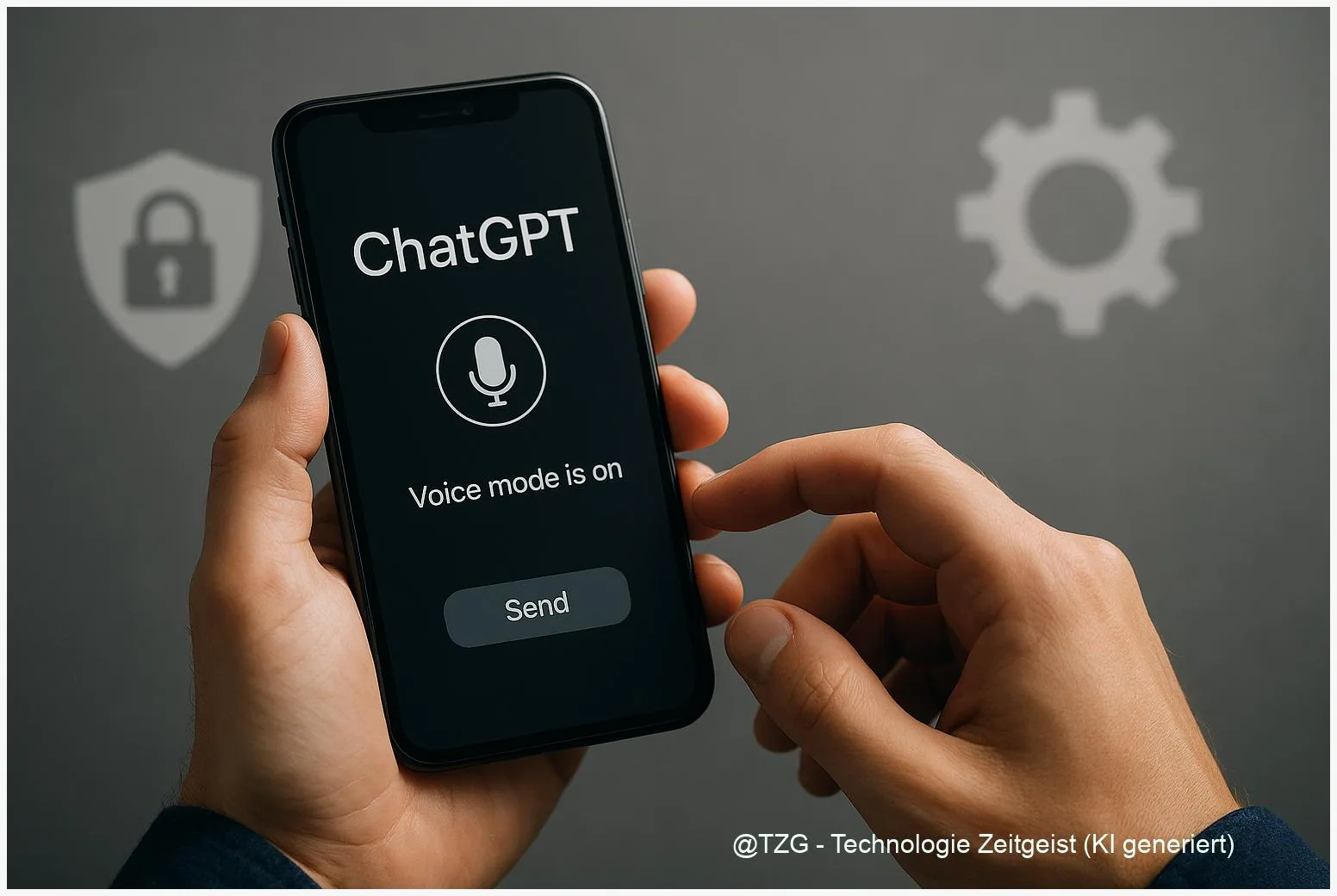
Voice Mode lets you talk with ChatGPT in the web app and in the iOS/Android apps. It requires microphone permission, and you can choose from multiple voices. Finally, privacy controls decide whether chats are saved, and whether your content may be used to improve models. These settings can be different from “deleting a chat” and are worth checking before you rely on ChatGPT for personal or work topics.
| Option or Variant | Description | Suitable for |
|---|---|---|
| Custom Instructions | Persistent preferences for style, format, and personal context across chats. | Anyone who repeats the same needs (study notes, work emails, coding help). |
| Temporary Chat / History off | Less (or no) saving of chats and reduced use for model improvement, depending on the mode. | Sensitive topics, private planning, or “one-off” questions you don’t want stored. |
Preparation and Prerequisites
Before changing settings, take two minutes to prepare. It prevents most “why can’t I find that menu?” moments and helps you choose the right privacy level from the start.
Check the following:
- You’re signed in to the same ChatGPT account on all devices you use (web, iOS, Android). Many settings sync at the account level.
- Update the app (iOS/Android) or refresh the browser tab. Newer features like Voice Mode options can appear gradually.
- Microphone permission: on iPhone/iPad go to Settings > Privacy & Security > Microphone; on Android go to Settings > Apps > ChatGPT > Permissions.
- Decide your default privacy stance: Do you want chat history saved? Do you want your content used to improve models? This affects your daily workflow.
Helpful to draft in a notes app first (so you can edit calmly): one short Custom Instruction for “about me” and one for “how to respond”. Keep it general—avoid account numbers, addresses, medical details, or anything you wouldn’t want to appear in an accidental screenshot.
Step-by-Step Instruction
Follow these steps in order. You can do everything on the web at chatgpt.com, but Voice Mode is often easiest to test on a phone.
- Open settings. On web/desktop, open ChatGPT and look for your profile/menu area, then choose Settings. On mobile, open the side menu and tap your profile or settings entry.
-
Set Custom Instructions (Personalization). Find the area typically called Personalization or Custom Instructions. Turn it on if there’s a toggle, then fill in both fields.
Example for “What should ChatGPT know about you?” (keep it broad): “I’m a student and part-time worker in Europe. I prefer practical explanations and real examples. I use Windows and Android most days.”
Example for “How should ChatGPT respond?”: “Use clear steps, short paragraphs, and bullet points when helpful. Ask one clarifying question if information is missing. Keep a neutral, factual tone.”
- Configure Voice Mode. On mobile, tap the voice icon (often near the message box). The first time, allow microphone access and pick a voice. If you see an option for a separate voice mode versus an integrated voice experience, choose the one you prefer and test it for 30 seconds.
-
Adjust privacy: history and training controls. In Data Controls (wording can vary), decide:
- Keep chat history on, but turn off the option typically called Improve the model for everyone (this aims to stop your content being used for training while keeping history).
- Or switch off Chat History to avoid saving chats at all (stronger privacy, but less convenience).
- Use Temporary Chats for sensitive one-off conversations (designed not to appear in history and not be used for training; OpenAI notes temporary chats are removed after a limited retention period, commonly up to 30 days for safety monitoring).
- Run a quick daily-use test. Start a new chat and ask for something you do often, for example: “Turn these notes into a 7-point study summary, with a short quiz at the end.” Check whether the tone and structure match your instructions. Then try one short voice question to confirm the microphone works.
Add a final safety habit: if you paste text from work or school, remove names and identifiers first. If you need a reminder, put it into your Custom Instructions as a gentle default (“If content looks sensitive, remind me to anonymize”).
Tips, Troubleshooting, and Variants
Custom Instructions don’t seem to work: Make sure you started a new chat after editing them. Also keep instructions specific and non-contradictory (for example, don’t ask for “very short” and “very detailed” at the same time). If results drift, rewrite your instruction into two or three simple sentences.
Voice Mode can’t hear you: Check microphone permission at the operating system level first. If permission is fine, test in a quiet room and watch whether the mic indicator reacts while you speak. On web, also check the browser’s site permission for the microphone.
You want privacy without losing convenience: A common compromise is keeping history on while turning off model improvement/training in Data Controls. For truly sensitive topics, switch to a Temporary Chat. Treat it like choosing between “saving a document” and “using a disposable sticky note”.
Two practical variants for daily use:
(1) Create one “Work/Study” instruction set focused on structure and citations, and keep prompts short.
(2) For personal planning, keep instructions friendly but strict about not storing personal identifiers.
If you want more everyday productivity routines, TechZeitGeist also covers structured setup guides such as setting up iPhone Focus mode for automatic notifications control and making Windows 11 faster by disabling startup programs safely.
Conclusion
Once you set up ChatGPT with a few stable defaults, it becomes far more predictable. Custom Instructions reduce repetitive typing and keep answers in the format you actually want. Voice Mode lowers the barrier to use ChatGPT in everyday moments—while walking, commuting, or cooking. Privacy settings are the final piece: decide whether chats should be stored and whether your content should contribute to model improvement, and use Temporary Chats when a topic feels sensitive.
After a short test chat and a quick voice check, you’ll have a setup that feels like “your” assistant—without oversharing or constantly re-explaining your preferences.
Try the setup for two days, then adjust one setting at a time—and share which Custom Instructions helped you most in daily life.




Leave a Reply