
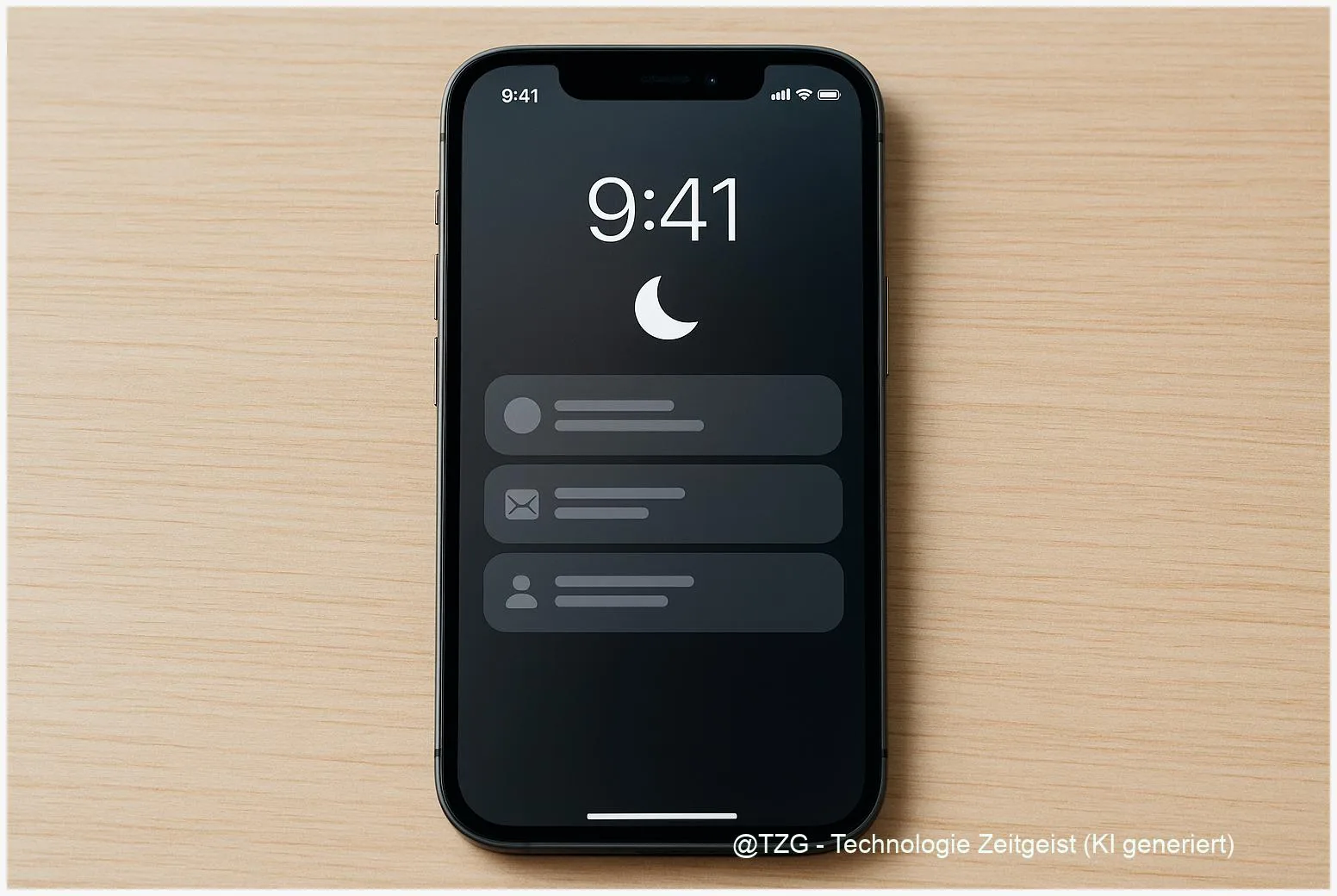
Too many pings at the wrong time? This guide shows how to set up iPhone Focus mode so notifications follow your day automatically: work, school, driving, downtime, or sleep. You will learn how to allow only the right people and apps, hide distracting badges, and turn Focus on by time, location, or when you open a specific app. The result: fewer interruptions, without missing what truly matters.
Introduction
Most people do not want “no notifications”. They want the right notifications at the right time. A group chat can be fun at night, but distracting during class. A delivery alert matters when you are at home, but not in a meeting. And some calls should always reach you, even when everything else is quiet.
Apple’s Focus feature is built for exactly that: it filters interruptions across the iPhone (and optionally across your other Apple devices). You define which people and apps may notify you, and you can let iOS switch modes automatically based on a schedule, your location, or the app you are using.
The steps below are designed for current iOS versions. Menu names may shift slightly, but the logic stays the same: decide what you want to allow, then decide when it should apply.
Basics and Overview: what Focus does on an iPhone
Focus is the modern, flexible version of “Do Not Disturb”. Instead of silencing everything, it can allow notifications from selected people and apps while blocking the rest. You can also adjust how your iPhone looks and behaves: for example, hide notification badges, dim the Lock Screen, or link a specific Home Screen page to reduce temptation.
Two terms help a lot:
Allowed people/apps are exceptions that can still break through. Schedules (also called automations) decide when a Focus turns on, such as at 9:00, when you arrive at work, or when you open a study app.
Focus works best when it is strict by default and only makes a few clear exceptions.
Apple also offers presets like Do Not Disturb, Work, Sleep, and Driving. You can keep them simple, or create a custom Focus for very specific situations (for example: “Exam”, “Gym”, or “Family time”).
| Option or Variant | Description | Suitable for |
|---|---|---|
| Work / School Focus | Allow only essential contacts and productivity apps; hide badges and social notifications. | Deep work, study sessions, meetings. |
| Location-based Focus | Turns on automatically when you arrive at a place (for example, office or gym). | People with regular routines and consistent locations. |
Preparation and Prerequisites
Before you start, take two minutes to prevent the most common setup problems. Focus is available on iPhones running iOS 15 or later, and it works best when your notification basics are already tidy.
Quick checklist:
- Update iOS: go to Settings > General > Software Update. Newer versions often add small Focus options or fix bugs.
- Decide your “must reach me” list: 2–5 people (family, partner, boss, emergency contact) and 3–8 apps (messages, calendar, authenticator, navigation).
- Check Location Services (only if you want location-based activation): Settings > Privacy & Security > Location Services must be on.
- Check app notifications: if an app has notifications disabled completely, it cannot notify you even when you allow it in Focus.
- Cross-device behavior: if you also use iPad, Mac, or Apple Watch, you may want “Share Across Devices” so Focus syncs automatically.
If you are unsure which Focus to start with, begin with “Work” or “Do Not Disturb”. You can always refine the allowed lists later without breaking anything.
Step-by-Step Instruction
The following steps create a Focus that filters notifications and activates automatically. The wording may vary slightly depending on iOS version and language, but the path is consistent.
- Open Focus settings: go to Settings > Focus. You will see presets like Do Not Disturb, Work, Sleep, and Driving.
- Create or choose a Focus: tap a preset (for example Work) or tap the + button to create a custom Focus. Give it a name, icon, and color so you recognize it quickly in Control Center.
- Set “People” exceptions: in the Focus settings, choose who can contact you. Depending on iOS version, you can either allow notifications from selected people or silence notifications from selected people. Add only the contacts that truly matter.
- Set “Apps” exceptions: choose which apps may send notifications during this Focus. Common picks: Phone, Messages, Calendar, a navigation app, and an authenticator app.
- Fine-tune options: look for settings such as hiding notification badges, showing the Focus status, or allowing time-sensitive notifications (alerts that an app marks as urgent, such as a ride arriving). Enable only what you trust.
- Add an automatic schedule: tap Add Schedule (or similar). Choose one trigger:
- Time: set days and hours (for example Mon–Fri, 09:00–17:00).
- Location: select a place; Focus can turn on when you arrive and turn off when you leave.
- App: pick an app; Focus activates while you use it (useful for reading, studying, or workout apps).
- Test it from Control Center: swipe to open Control Center, tap Focus, and select your mode. You should see a Focus icon on the Lock Screen/status area, and notifications should now follow your rules.
If everything is configured correctly, you will still receive allowed calls/messages, while other apps become quiet. If something feels too strict or too loose, adjust the People/Apps lists first—those two settings solve most real-life issues.
Tips, Troubleshooting, and Variants
If Focus does not behave as expected, it is usually a small setting conflict rather than a “broken” iPhone. These checks are quick and safe.
Common stumbling blocks and fixes:
- “I still get too many notifications.” Re-check the allowed apps list. It is easy to allow a chat app “just in case” and then get pulled back in. Keep the list short.
- “I miss important calls/messages.” Add the person to the allowed list, and check call settings like allowing calls from specific groups or allowing repeated calls (useful for emergencies).
- “Location-based Focus never turns on.” Make sure Location Services are enabled and that your iPhone has permission to use location. Indoors, GPS can be less reliable; a time schedule can be a more stable fallback.
- “Focus turns on on my Mac too, and I don’t want that.” In Settings > Focus, disable Share Across Devices (wording can vary). Then each device can keep its own schedule.
- “People see that I silenced notifications.” Turn off Share Focus Status. This protects privacy in situations where you do not want to signal availability.
Helpful variants: Use the Sleep Focus if you want a more structured night routine, because it can integrate with sleep schedules set in the Health app. Use Driving Focus for safer trips; it can activate automatically (for example via motion, Bluetooth, or CarPlay, depending on your setup).
Extra tip for long-term success: after a week, open Settings > Focus and adjust based on what annoyed you most. Focus is not a one-time setup—it is a personal filter that should evolve with your routine.
Conclusion
Focus mode is one of the simplest ways to make an iPhone feel calmer without disconnecting completely. When you set clear People and App exceptions, you stay reachable for what matters and avoid the rest. Adding a time, location, or app-based schedule makes the setup feel “automatic”, so you do not have to remember to toggle Do Not Disturb. If something feels off, adjust the allowed lists first and keep your rules intentionally strict.
Try setting up one Focus for the next seven days (Work or Study is a good start) and note what still distracts you—share your setup or questions with others who want a calmer phone, too.




Leave a Reply