
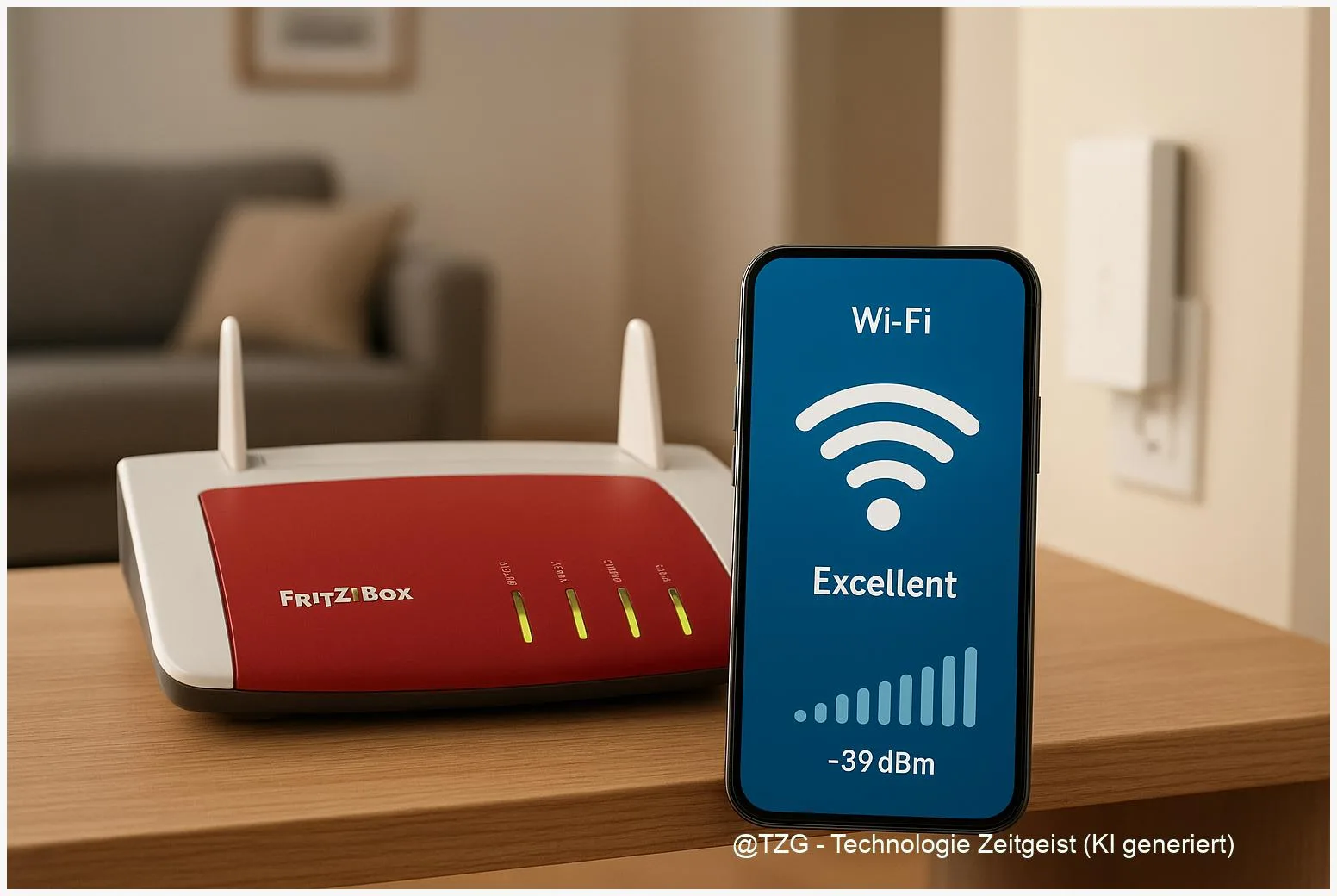
Weak signal in the bedroom, buffering in the living room, and video calls that suddenly turn choppy? This guide shows how to FRITZ!Box WLAN optimieren with practical, safe steps: place the router correctly, reduce interference, pick the right 2.4 GHz/5 GHz settings, and (if needed) expand coverage with FRITZ!Mesh. After 20–40 minutes, you should know exactly what to change and how to verify that your Wi‑Fi is faster and more stable.
Introduction
Most Wi‑Fi problems at home feel random: a phone is fast next to the router, but slow two rooms away; streaming works until someone starts a download; or your laptop keeps switching between networks. In many cases, the internet line is not the real issue. The bottleneck is the wireless link between your FRITZ!Box and your devices.
The good news: you can improve range and speed without buying new hardware immediately. Typical wins come from simple changes such as moving the router to a better spot, choosing the right frequency band (2.4 GHz vs. 5 GHz), and letting the FRITZ!Box handle channel selection automatically unless you have proven interference.
The steps below keep things evergreen: menus may look slightly different across FRITZ!OS versions, but the logic stays the same—measure first, change one thing at a time, then verify.
Basics and Overview: FRITZ!Box WLAN optimieren without guesswork
Your FRITZ!Box broadcasts Wi‑Fi on one or two main “bands”: 2.4 GHz (longer reach, often slower, more crowded) and 5 GHz (shorter reach, usually faster, often cleaner). Many modern devices can use both and switch automatically.
Another key term is channel. Think of channels as lanes on a road. If many nearby networks use the same lane, everyone slows down. FRITZ!Box can scan the environment and pick channels automatically. Manual channel selection can help in specific cases, but it can also make things worse if your neighborhood changes.
Most “bad Wi‑Fi” is not one single setting—it is a mix of placement, interference, and the wrong band for the room you are in.
If you have large areas to cover, Mesh Wi‑Fi becomes important. With AVM’s FRITZ!Mesh, a FRITZ!Repeater or FRITZ!Powerline device can join the network and coordinate settings centrally, so devices roam more smoothly between access points.
| Option or Variant | Description | Suitable for |
|---|---|---|
| Keep Wi‑Fi channels on Auto | The FRITZ!Box scans nearby networks and selects channels dynamically for 2.4 GHz and 5 GHz. | Most homes, especially with changing neighbor networks. |
| Manual channel selection | You fix a channel after checking interference; often used to avoid a very crowded channel. | Persistent interference that Auto does not solve, and you can re-check occasionally. |
Preparation and Prerequisites
Before changing settings, set yourself up for a clean test. The goal is to avoid “phantom fixes” where several changes happen at once and you never know what actually helped.
Do this first:
- Log in to the FRITZ!Box interface: on a device connected to your home network, open the router interface (often reachable via the local FRITZ!Box address) and sign in.
- Update FRITZ!OS if an update is available. Updates can improve stability and wireless behavior.
- Note your current Wi‑Fi name (SSID) and password. If you change Wi‑Fi settings, some devices may need to reconnect.
- Choose one test spot where Wi‑Fi is currently bad (for example: bedroom desk). You will come back to this spot after each change.
- Have a basic measurement method: run a speed test in the same place, or check signal quality in a Wi‑Fi app. Consistency matters more than perfect accuracy.
If you already use repeaters or powerline adapters, check whether they are integrated into Mesh. In a Mesh setup, the Mesh Master (your FRITZ!Box) typically controls core Wi‑Fi parameters, which affects how you troubleshoot.
Step-by-Step Instruction
Work through the steps in order. After each step, re-test in your chosen “problem spot” and keep the change only if it helps.
- Improve placement first: place the FRITZ!Box as central and as high as practical (a shelf is often better than the floor). Keep distance from thick walls, metal surfaces, aquariums, and large speakers. If the router sits in a cabinet, try moving it outside for a quick comparison.
- Separate signal issues from internet issues: if possible, test with one device close to the FRITZ!Box. If it is still slow, the bottleneck may be the internet line or the device itself. If it is fast nearby but slow far away, focus on Wi‑Fi coverage.
- Prefer 5 GHz for speed, 2.4 GHz for reach: if your FRITZ!Box uses one shared Wi‑Fi name for both bands, devices usually choose automatically. If a device keeps sticking to 2.4 GHz near the router, consider temporarily using separate names for 2.4 GHz and 5 GHz so you can connect the device to the band you want.
- Use Auto channel selection as the default: in the FRITZ!Box settings, look for the Wi‑Fi channel section (often labeled “Radio Channel” / “Funkkanal”). Enable automatic channel selection so the router can react to changing neighbor networks.
- Only if problems persist: set channels manually (carefully): after checking which channels are crowded, set a fixed channel. For 2.4 GHz, the commonly recommended non-overlapping choices are channels 1, 6, or 11. For 5 GHz, lower channels like 36–48 are often used for stability, because parts of the 5 GHz band may be subject to radar detection rules (DFS) that can trigger channel changes.
- Expand coverage with Mesh if rooms are consistently weak: add a FRITZ!Repeater (or compatible FRITZ!Powerline) and integrate it into FRITZ!Mesh. Place it about halfway between the FRITZ!Box and the weak area (not at the very edge where Wi‑Fi is already bad). In many AVM setups, pairing is done via a connect button on both devices and then confirmed in the interface.
- Verify the result: repeat your test (same device, same spot). You are looking for fewer dropouts, higher consistent speed, and lower latency spikes—not just a one-time peak number.
If everything worked, the “bad spot” should feel less fragile: video calls stay clear, pages load reliably, and devices do not constantly disconnect or roam to the wrong access point.
Tips, Troubleshooting, and Variants
Problem: Speed is fine near the router, but drops sharply behind one wall. That is normal with dense materials. Try moving the FRITZ!Box a meter or two, rotating its position, or switching the affected device to 2.4 GHz for that room. If the weak zone is permanent, a Mesh repeater placed in the hallway often beats any channel tweak.
Problem: 5 GHz is fast but seems to “disappear” sometimes. In some regions and channels, 5 GHz must check for radar signals (DFS). That can lead to waiting times or forced channel changes. Using lower 5 GHz channels (often 36–48) can improve stability in such cases.
Problem: After changing Wi‑Fi settings, devices won’t reconnect. Reboot the device’s Wi‑Fi (or forget and re-add the network). Also check whether you changed the Wi‑Fi name, split bands into two SSIDs, or enabled a new security mode. Keep security modern (WPA2/WPA3, depending on device support) and avoid legacy options unless you must support older hardware.
Variant: One SSID vs. two SSIDs. One name is simpler and enables band steering (devices are guided to the better band). Two names can help when a specific device behaves badly and you want to force it onto 5 GHz or 2.4 GHz. If you split SSIDs, label them clearly (for example “HomeWiFi-5G”).
Quick win for busy households: if your FRITZ!OS offers device prioritization, you can prioritize a work laptop or video-call device. This does not create speed from nothing, but it can reduce stutter when the connection is saturated.
Conclusion
Reliable Wi‑Fi with a FRITZ!Box is usually achieved through a few focused moves: place the router well, use 5 GHz where you want speed, keep automatic channel selection as your default, and only go manual after you have confirmed real interference. If certain rooms remain weak, Mesh expansion is often the most predictable upgrade because it improves the physical coverage, not just a setting on paper.
Once you test changes one by one, Wi‑Fi stops feeling like magic. You gain a repeatable routine: measure, adjust, verify—until your home network fits your rooms and your daily usage.
Try the steps in your most problematic room and share what helped most—placement, 5 GHz, a channel change, or Mesh. Your setup might help other readers troubleshoot faster.




Leave a Reply