
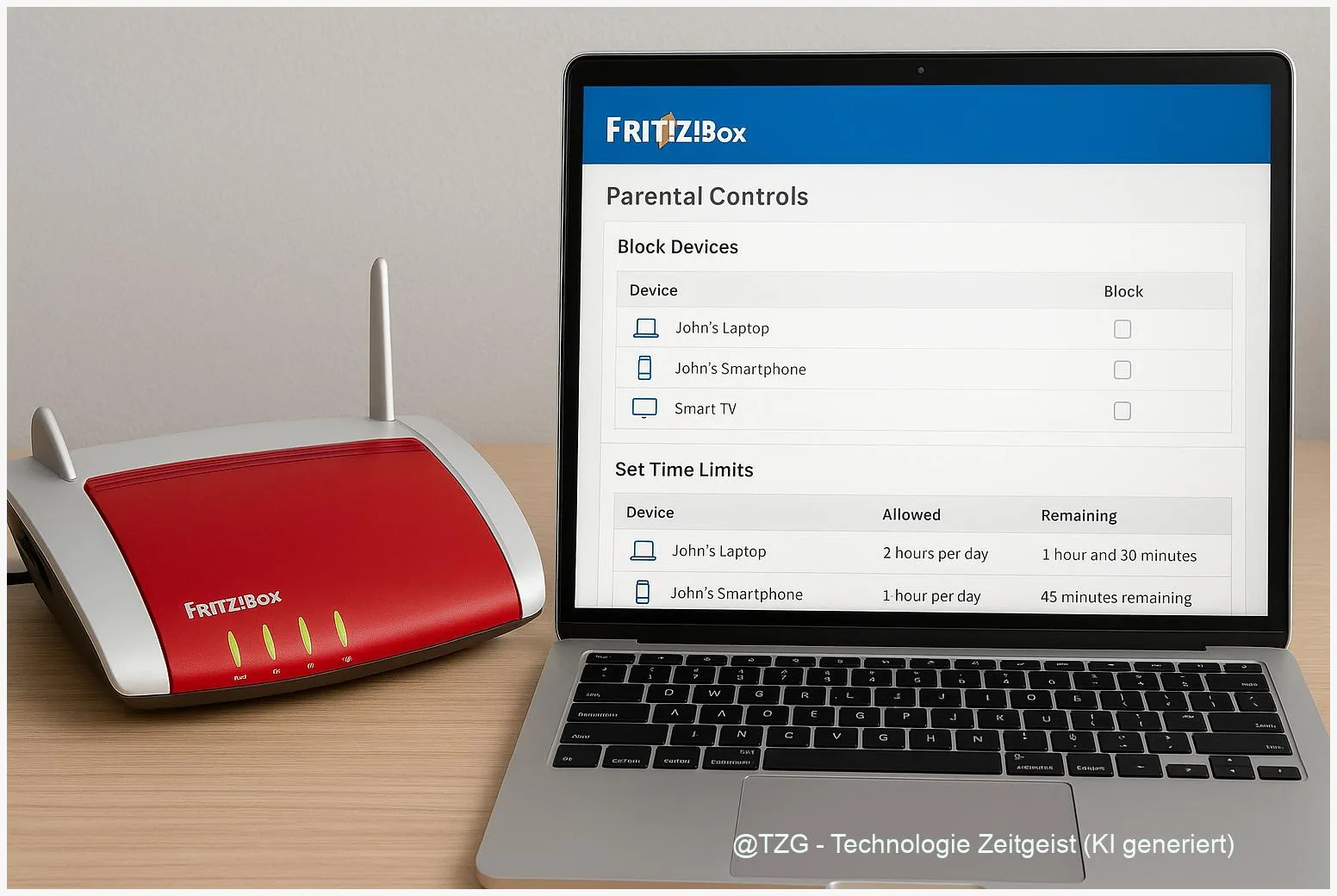
Need calmer screen-time rules at home without installing extra apps? This guide shows how to set up FRITZ!Box parental controls so you can block specific devices and set daily time limits in a few minutes. You’ll create access profiles, assign them to phones, tablets, and PCs, and learn how to handle exceptions (for example, homework nights) without losing control. Everything happens directly in the FRITZ!Box interface.
Introduction
Many families run into the same everyday problem: the Wi‑Fi works perfectly, but “just five more minutes” turns into late-night scrolling, gaming, or videos. You can try to solve this with rules and reminders, but it’s hard to enforce when every phone, tablet, console, and laptop has its own settings.
A FRITZ!Box can help because it sits at the center of your home internet. Instead of configuring each device separately, you set clear limits on the router level: when and how long a device may access the internet, and when it should be blocked completely. That keeps the approach consistent—especially useful if devices are shared, guests connect, or settings get reset after updates.
The steps below focus on practical control: creating time rules, assigning devices reliably, and handling common “why is it still online?” moments without turning your network into a constant project.
FRITZ!Box parental controls: basics you should know
In FRITZ!OS (the FRITZ!Box operating system), parental controls are mainly organized through access profiles. An access profile is a rule set that can include time windows (allowed hours), a daily time budget (total online minutes per day), and optional filters (for example, allowed/blocked websites or blocked network applications). You then assign that profile to a specific device in your home network.
The key idea is simple: you don’t control “a child” on the router—you control devices. A phone or console gets rules, no matter who is holding it.
FRITZ!Box can also block a device’s internet access quickly via a device block (useful for immediate “pause”). Local access inside your home network may still work, but internet traffic is restricted by the router.
| Option or Variant | Description | Suitable for |
|---|---|---|
| Time schedule (allowed hours) | Internet works only during defined time windows (e.g., weekdays 5–8 pm). | Clear daily routines and bedtime rules. |
| Daily time budget | A device can go online for a set amount of time per day; when it’s used up, access is blocked. | Flexible days where timing varies (sports, homework, travel). |
Preparation and Prerequisites
Before you start, take five minutes to make sure you can reach the FRITZ!Box and that the device list is clean. Parental controls only work reliably when you assign rules to the correct device entry.
Checklist:
- Access to the FRITZ!Box interface: You need the router password and a device connected to your home network. Typically you open the interface via the local address fritz.box in a browser.
- FRITZ!OS up to date (recommended): Menus can look slightly different across versions and models, but the parental controls are stable across current systems.
- Know which device is which: In the home network list, devices often show a name (e.g., “iPhone”), a MAC address, and whether they’re connected via Wi‑Fi or LAN.
- Decide on your rule style: Do you prefer fixed hours (schedule) or a daily allowance (time budget)? You can combine both, but starting simple reduces surprises.
- Optional safety step: Set a strong FRITZ!Box password and avoid sharing it. Otherwise, limits can be changed as easily as any other router setting.
Step-by-Step Instruction
The exact wording can differ slightly by model, but you will usually find everything under Internet and Filters / Parental Controls. If your interface offers an “Advanced View”, enable it so all options are visible.
- Open the FRITZ!Box interface in your browser and sign in as an administrator (or a FRITZ!Box user with permission to change internet filters).
- Go to the parental controls area: Navigate to Internet → Filter (or a similarly named section) and look for Parental Controls / Access Profiles.
- Create a new access profile: Choose Add / New profile, give it a clear name (for example, “Kids-Weekdays” or “Tablet-Limits”).
- Set the time rules:
- Schedule: Define allowed time windows per day (for example, Mon–Fri evening, weekend mornings).
- Time budget: Set a daily online allowance. When it runs out, the FRITZ!Box blocks internet access for that device until the next day.
- (Optional) Add filters: If you want more than time control, configure website filters (allowed/blocked lists) or block specific network applications (feature availability can depend on FRITZ!OS and model).
- Save the profile and return to the device assignment list (usually a table of all known home network devices).
- Assign the profile to the right device: Find the phone/tablet/PC/console and select your new profile in the drop-down menu for that device. Confirm with Apply / OK.
- Test on the device: Disconnect and reconnect Wi‑Fi, then open a simple website. If it’s outside the allowed time (or the budget is set to 0), the device should not reach the internet.
If everything is correct, you’ll see the device listed under parental controls with your selected profile. Many FRITZ!Boxes also show remaining online time for profiles that use a daily budget.
Tips, Troubleshooting, and Variants
Problem: “I assigned limits, but the device still has internet.” First check whether the device is using mobile data (LTE/5G) instead of Wi‑Fi. Router rules can only control traffic that actually goes through the FRITZ!Box. Also confirm you assigned the profile to the correct device entry—new phones and tablets may appear twice (old name + new name) after resets.
Problem: “The wrong device got blocked.” Rename devices in the FRITZ!Box home network list so they are unmistakable (for example, “Emma-iPad” instead of “iPad”). If possible, keep a note of the MAC address for key devices.
Tip: Use a quick block for immediate breaks. Besides schedules and budgets, FRITZ!Box offers a direct device block in the parental controls overview. This is useful for dinner, homework focus, or when guests’ devices should be paused without changing profiles.
Variant: Tickets for extra time. Many FRITZ!Box models support “tickets” that extend permitted online time temporarily. This can be a calmer alternative to changing the schedule every time—especially for special occasions. Use it sparingly so the rule stays credible.
Practical boundary: A daily time budget can be affected by background network activity (for example, apps that constantly sync). If you notice that time seems to “disappear”, a schedule-based rule is often more predictable for smartphones.
If you want to go further, combining router-level limits with device-level settings (for example, iOS Screen Time or Android Family controls) can cover both Wi‑Fi and mobile data. For related step-by-step guides, see TechZeitGeist (site overview) and explore their smartphone privacy and home network tutorials.
Conclusion
When you set rules directly on your router, you remove a lot of day-to-day friction: the same limits apply even if an app is reinstalled, a device is reset, or a new browser is used. The most reliable approach is to create one or two clear access profiles, assign them carefully to the correct devices, and test once outside the allowed time window.
Start simple—schedule or daily budget—and only add website or app filters if you really need them. With that, you can shape screen time into something predictable, without turning every evening into a negotiation.
If you found a setup that works well in your household, share your approach—or your biggest stumbling block—in the comments and help others fine-tune their FRITZ!Box parental controls.




Leave a Reply