
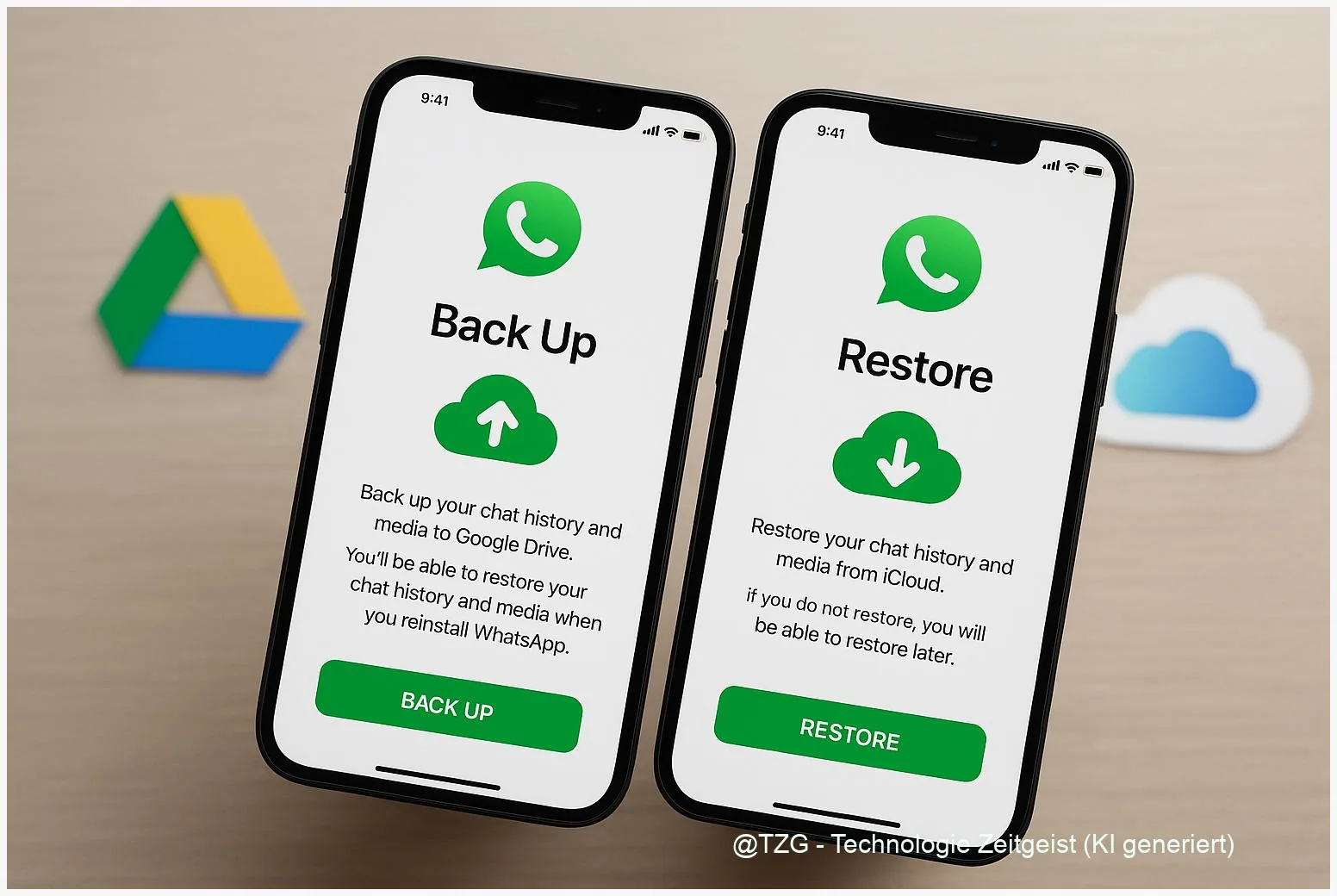
If you want to transfer WhatsApp chats to a new phone, the safest route is to use WhatsApp’s built-in backup or the official device-to-device transfer. This guide shows how to prepare your old and new phone, create the right backup (Google Drive or iCloud), and restore your chat history without losing important messages. You’ll also learn what changes when you move between Android and iPhone.
Introduction
Switching phones sounds simple—until you open WhatsApp and notice your chat list is empty. For many people, WhatsApp is more than a messenger: it’s family photos, school groups, work coordination, receipts, addresses, and voice notes. Losing that history is not just annoying; it can be genuinely stressful.
The good news: on modern Android and iPhone devices, WhatsApp offers reliable ways to move your data. Depending on your situation, you’ll either restore a cloud backup (Google Drive on Android, iCloud on iPhone) or use an official transfer process when switching between Android and iPhone. The key is doing a few checks before you insert your SIM and rush through setup.
The steps below focus on safety, clarity, and everyday reality—so you can get back to messaging without surprises.
Basics and Overview
WhatsApp can store your messages in two main ways: locally on the phone and as a WhatsApp-specific backup in the cloud. Which cloud is used depends on your platform: Android typically uses Google Drive, while iPhone uses iCloud. A restore only works when the new phone can access the same backup system with the correct account.
Two terms matter upfront. A chat backup is a copy of your WhatsApp messages and (optionally) media that WhatsApp can restore during setup. A chat transfer is a direct move from one phone to another, often started from within WhatsApp and confirmed with a QR code or during device setup.
The most common reason transfers fail is not “WhatsApp is broken”, but a mismatch: different phone number, different Apple ID/Google account, or the new phone was set up too early.
If you are staying on the same platform (Android→Android or iPhone→iPhone), a backup-and-restore is usually enough. If you’re switching platforms (Android↔iPhone), you typically need the official migration path during setup (for example, Move to iOS or Android’s switch process).
| Option or Variant | Description | Suitable for |
|---|---|---|
| Android → Android (Google Drive backup) | Create a WhatsApp backup to Google Drive on the old phone and restore it after verifying the same number on the new phone. | Most Android upgrades when you keep the same number and Google account. |
| iPhone → iPhone (iCloud or direct transfer) | Use WhatsApp’s transfer to a new iPhone (often via QR) or restore from an iCloud chat backup. | iPhone upgrades; best when both devices are available. |
Preparation and Prerequisites
Before you start, set yourself up for a clean transfer. Most problems happen because people begin on the new phone first and only later check whether a usable backup exists.
Quick checklist (takes about 5–10 minutes):
- Same phone number: WhatsApp restores chats after you verify the same number. If you also change your number, consider changing it inside WhatsApp on the old phone first (Account settings), then back up.
- Update WhatsApp: Install the latest WhatsApp version on the old phone (and later on the new one). Transfer features often depend on current versions.
- Stable Wi‑Fi and power: Keep both phones on charger. Large histories can take a while.
- Cloud account access: Android: you need access to the Google account that stores the backup. iPhone: you need the Apple ID that provides iCloud access.
- Enough storage: You need free space on the phone to restore media. On iPhone, WhatsApp notes that iCloud space may need to be more than twice the backup size for smooth backup/restore.
- Know what is and isn’t included: A restore brings back chats and media included in the backup. It does not necessarily merge “new chats” created after the backup date.
If you want extra peace of mind, take a few minutes to export one or two critical chats (for example, a shared household group) as a separate archive. That export is not a full WhatsApp restore, but it’s a useful fallback for important information.
Step-by-Step Instruction
The steps below cover the most common scenarios. Follow the one that matches your move. If you are unsure, start by creating a fresh backup on the old phone—then proceed.
- On your old phone, check your WhatsApp backup status.
Open WhatsApp and go to Settings → Chats → Chat Backup. Look for the last backup date and whether it includes videos (often optional). - Create a fresh backup (recommended).
Tap Back Up Now (wording can vary). Stay on Wi‑Fi and keep the app open until it finishes. - Move within the same platform:
Android → Android: On the new phone, sign in to the same Google account used for the backup, install WhatsApp, and verify the same phone number. When prompted, choose Restore from Google Drive.
iPhone → iPhone: Install WhatsApp, verify the same number, and restore from iCloud when asked—or use WhatsApp’s built-in Transfer Chats to iPhone option on the old device and confirm with the QR code on the new iPhone. - Switch platforms (Android ↔ iPhone) using official migration tools.
Android → iPhone: Use Apple’s Move to iOS app during iPhone setup and select WhatsApp for transfer. This typically requires the iPhone to be in the setup phase (not already fully set up).
iPhone → Android: Use Android’s official switching process during Android setup (often with a USB‑C to Lightning cable). Follow the prompts to transfer WhatsApp data. - Finish WhatsApp setup and verify your result.
After restore/transfer, open a few chats, scroll back, and check media in a chat that contains photos or videos. If WhatsApp shows a “downloading media” indicator, keep the phone on Wi‑Fi and power until it completes. - Only then: clean up the old phone.
Wait until you are fully satisfied before removing WhatsApp, signing out of cloud accounts, or factory-resetting the old device.
A good sign you’re on track: WhatsApp explicitly shows a restore or transfer prompt after number verification. If you never see that prompt, stop and check whether you’re logged into the correct Apple ID/Google account and whether a backup exists.
Tips, Troubleshooting, and Variants
Problem: WhatsApp doesn’t find a backup.
First, confirm the basics: same phone number, and the right cloud account on the new device (Google account on Android, Apple ID on iPhone). On Android, also check you granted WhatsApp the permissions it needs. If you installed WhatsApp and skipped restore once, a reinstall can bring the restore prompt back.
Problem: iPhone backup fails due to iCloud storage.
WhatsApp’s own guidance indicates that iCloud may need more than twice the free space compared to the backup size. Practical workaround: free up iCloud storage, reduce WhatsApp media included in chats, then run a new backup over Wi‑Fi.
Problem: Transfer between Android and iPhone won’t start.
Cross-platform moves are strict about timing. For Android→iPhone, the transfer is usually tied to the iPhone’s initial setup via Move to iOS. If the iPhone is already set up, the official fix is often to reset it and try again. For iPhone→Android, using a cable and following the Android setup prompts tends to be the most reliable path.
Tip: Know what “backup date” means in real life.
Your restore brings back WhatsApp exactly up to the backup timestamp. Messages sent after that may not appear. If something is missing, check the backup date on the old phone and consider making a final manual backup before switching.
Variant for Samsung users:
Some Android vendors offer device-migration apps (for example Samsung’s Smart Switch) that can help move app data in general. For WhatsApp, however, it’s still best to rely on WhatsApp’s own backup/restore or the official cross-platform transfer methods.
If you want to improve your overall phone migration routine, TechZeitGeist also has practical guides on storage cleanup before switching phones and account security basics like two-step verification. (If these topics are not available on the site, skip these links.)
Conclusion
Moving WhatsApp to a new phone is mostly about preparation and choosing the correct path. If you stay within Android or within iPhone, a fresh cloud backup and a careful restore after verifying the same number usually does the job. If you switch between Android and iPhone, use the official migration process during device setup and avoid shortcuts from third-party apps.
Take your time: check the backup date, keep both phones on Wi‑Fi and power, and verify a few key chats before you wipe the old device. Once that’s done, you can start on the new phone with confidence—and with your chat history intact.
Have you moved WhatsApp successfully (or hit a snag)? Share what worked for you—and which phone combination you used—so others can avoid the same pitfalls.




Leave a Reply