
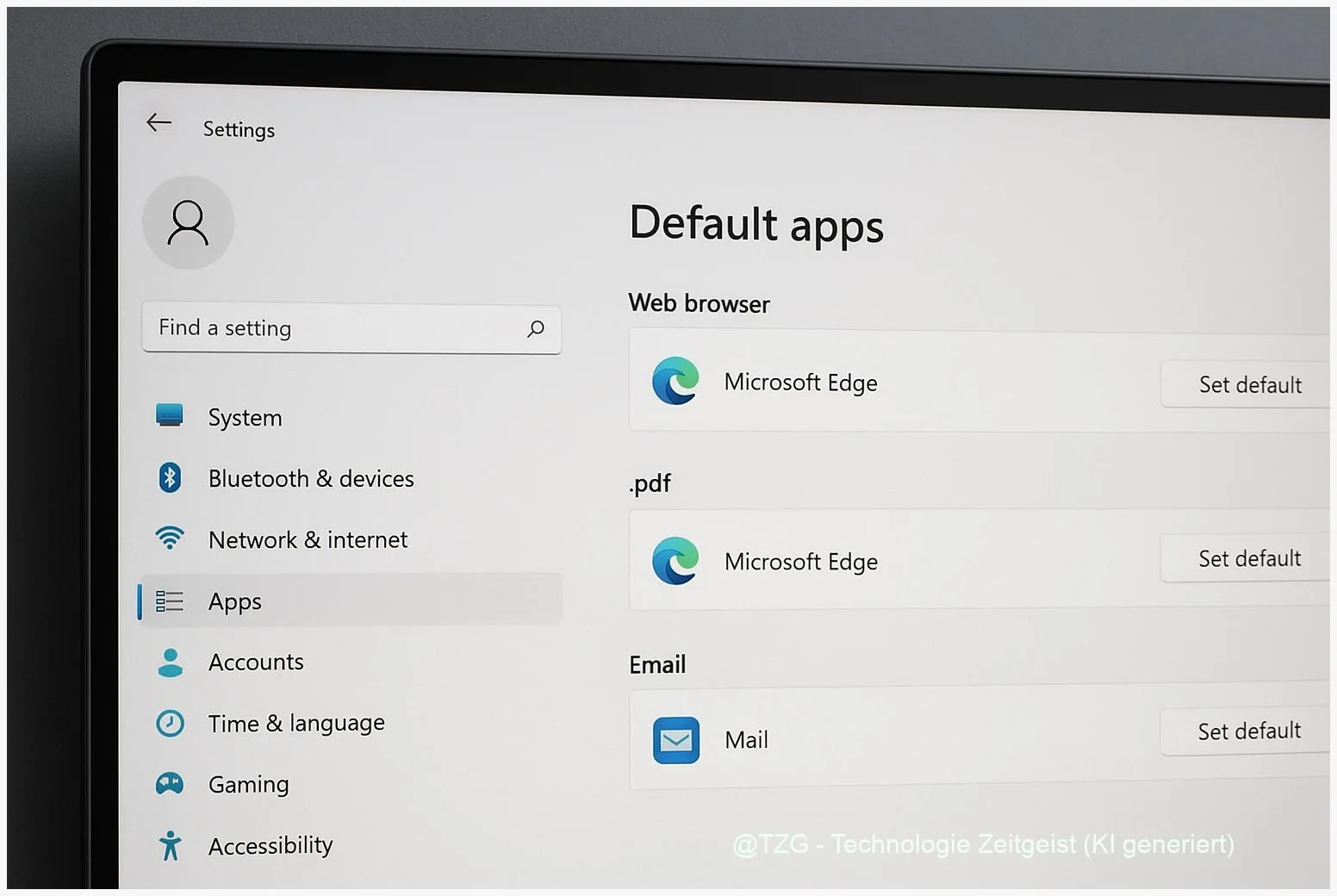
If links keep opening in the “wrong” browser, PDFs always start in Microsoft Edge, or email links launch an app you don’t use, it’s time to adjust your defaults. This guide shows how to Windows 11 change default apps for browser, PDF, and mail in a clean, reliable way—using the built-in Default apps settings. You’ll also learn quick alternatives (like “Open with”) and what to do if Windows doesn’t keep your choice.
Introduction
Default apps are the “automatic choices” Windows uses when you click a web link, open a PDF, or tap an email address on a page. Many people notice the issue when a bank statement opens in a browser instead of a PDF reader, when a school PDF won’t annotate properly, or when clicking a “Contact us” link launches a mail app they never set up.
Windows 11 is more precise than older versions: you often set defaults by file type (like .pdf) and by protocol (like mailto: for email links). That sounds technical, but it’s actually predictable once you know where to look.
Below you’ll get a calm, practical walkthrough that works on current Windows 11 builds, plus quick fixes for the common “it still opens in the old app” moments.
Basics and Overview: What “Default Apps” really change
In Windows 11, “Default apps” means the program that automatically handles a certain kind of content. There are two common ways Windows decides this:
File types are extensions at the end of a filename, such as .pdf (documents), .htm/.html (web pages), or .eml (saved email messages). Protocols are special link types such as http/https (web links) and mailto (email links).
If you set the right app for the right file type or protocol, Windows becomes consistent: every link and file opens the way you expect.
Windows lets you set defaults “by app” (choose a program and assign what it should open) or “by type” (search for .pdf and pick the app). For everyday use, the “by type” approach is often faster for PDF and mailto links.
| Option or Variant | Description | Suitable for |
|---|---|---|
| Set defaults in Settings | Change defaults centrally under Apps > Default apps, by file type or protocol. | Most people who want a clean, lasting setup. |
| “Open with” on a file | Right-click a file, choose an app, and (optionally) make it the default. | Quick fixes when you’re already looking at a PDF file. |
Preparation and Prerequisites for changing defaults safely
Before you start, a few quick checks prevent most frustration—especially when switching browser, PDF viewer, and mail app at the same time.
- Install the apps first. Windows can only set an app as default if it’s installed and properly registered. Open your preferred browser/PDF reader/mail client once after installation so it can complete setup.
- Know what you’re changing. For web browsing, focus on http and https. For PDFs, focus on .pdf. For email links, focus on mailto (and optionally .eml).
- Check Windows edition limits. If your device is in Windows in S mode, Windows may restrict you to apps from the Microsoft Store. If you can’t select your preferred desktop app, S mode is a common reason (Microsoft documents this limitation).
- Have a quick test ready. Keep one PDF file on your desktop and open a website with a mail address link (mailto) so you can confirm changes immediately.
If you manage a shared PC (family computer, school device), consider using one Windows account per person. Defaults are user-specific, so each account can keep its own browser and mail preferences.
Step-by-Step Instruction: Windows 11 change default apps for Browser, PDF, and Mail
The most reliable path is the Default apps page in Windows Settings. The labels may vary slightly between builds, but the structure stays consistent.
- Open Settings. Press Windows key + I, then go to Apps > Default apps.
- Set your default browser (web links). Use the search box on the Default apps page and type your browser name (for example, “Firefox” or “Chrome”). Open it, then choose Set default (if available). If you don’t see a single button, set the key types/protocols manually: assign your browser to http and https, and (if listed) common web file types like .htm and .html.
- Set your default PDF app. Back on the Default apps page, search for .pdf. Click the current default app shown on the right, then select your preferred PDF viewer (or a browser, if you want PDFs to open in your browser). Confirm the choice if Windows asks for confirmation.
- Set your default mail app for email links. In the same search field, type mailto. Select the current default handler and choose your mail app (for example, Outlook or another installed email client). Optionally also search for .eml to decide which app opens saved email message files.
- Test the result immediately. Double-click a PDF file, click a normal web link (http/https), and click a mail address link (mailto). Each should now open in the app you selected.
If everything worked, Windows won’t show any special confirmation screen—you’ll simply see the selected app name next to .pdf, http/https, and mailto in Default apps.
Tips, Troubleshooting, and Variants
If defaults don’t “stick” or a link still opens in the old app, it’s usually one of a few fixable causes.
1) You changed the app, but not the right protocol/type. For browsers, make sure http and https point to the browser you want. For email links, it must be mailto. For PDFs, it must be .pdf (not just a browser setting).
2) Use the quick “Open with” method for a single file (PDF). Right-click a PDF > Open with > Choose another app. Pick your PDF reader and enable the option that says it should always use this app (wording can vary). This is handy if you only care about PDFs and don’t want to touch browser defaults.
3) Your device may be in Windows “S mode”. In S mode, Windows limits the apps you can install and set as default. If your preferred program doesn’t appear, check Settings > System > Activation for S mode information (Microsoft explains the rules and implications).
4) The app is installed, but doesn’t show up as an option. Update the app, open it once, then return to Default apps. Some programs only register file associations after first launch or after an update.
5) Regional differences (EEA vs. non-EEA). In the European Economic Area, Windows updates related to the Digital Markets Act can make the “Set default” browser experience more comprehensive in some builds. If your menus look slightly different, the safest approach remains: set by type/protocol (http/https, .pdf, mailto).
If you want to go deeper on everyday Windows setup, TechZeitGeist also has practical guides like Windows tips and how-tos on TechZeitGeist and a broader overview of privacy-friendly PC settings basics. (If the exact articles aren’t available, use the site search for “Windows 11 defaults” or “privacy settings”.)
Conclusion
Changing default apps in Windows 11 is less about one big switch and more about choosing the right handler for the right job: http/https for your browser, .pdf for documents, and mailto for email links. Once those three are set in Settings > Apps > Default apps, everyday tasks become smoother—web links go where you expect, PDFs open in the tool you prefer, and email links stop interrupting your workflow.
If something feels inconsistent, don’t restart from scratch. Re-check the specific file type or protocol, and test with one link or one PDF right away. That small loop is usually enough to make your setup stable.
Which default app switch made the biggest difference for you—browser, PDF, or mail? Share your setup (and any hiccups) so others can compare notes.




Leave a Reply