
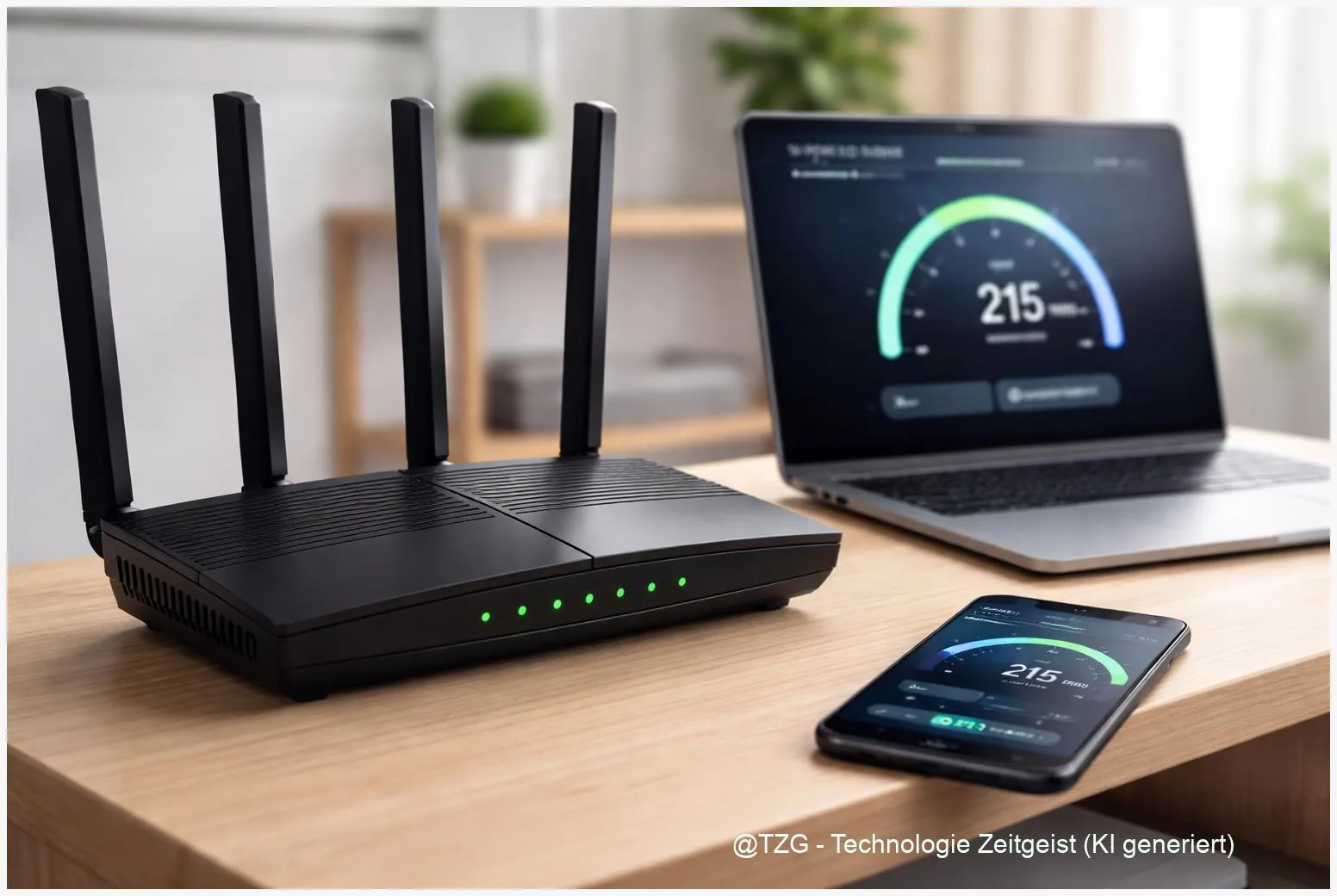
Slow video calls, buffering, and downloads that crawl usually have a few repeatable causes: weak signal, crowded channels, or a router that needs a reset or update. This guide helps you fix slow Wi‑Fi at home with clear checks you can do on any modern router, plus safe settings that improve stability. Afterward, you’ll know whether the bottleneck is your Wi‑Fi, your internet line, or a specific device.
Introduction
Your internet plan can be fast and still feel slow at home. One room gets great speeds, another barely loads a webpage. A laptop is fine, but a phone drops to “one bar”. Or everything slows down every evening when neighbors are online.
That’s because “Wi‑Fi speed” is really a chain: your internet line, the modem/router, the airwaves in your home, and each device’s Wi‑Fi chip and settings. If any link is weak, the whole experience suffers.
The good news: you can troubleshoot this calmly in 20–40 minutes. You’ll test your baseline, reboot in the right order, check placement and interference, and then adjust the most effective router settings (bands and channels). If you still have issues, the troubleshooting section helps you decide what to fix next without guessing.
Basics and Overview: fix slow Wi‑Fi by understanding the bottleneck
Most home networks have a modem (connects to your provider) and a router (creates Wi‑Fi). Sometimes both are in one box. “Slow Wi‑Fi” can mean either your internet line is slow, or your Wi‑Fi link inside the home is inefficient.
Two terms matter for quick wins:
- 2.4 GHz vs 5 GHz: 2.4 GHz reaches farther but is crowded and slower in many homes. 5 GHz is usually faster and cleaner, but walls reduce its range more.
- Channel: Wi‑Fi uses “lanes” in the air. On 2.4 GHz, only channels 1, 6, and 11 don’t overlap in the common channel plan, so they’re the safe choices in many regions. On 5 GHz, there are more lanes; some are DFS channels (Dynamic Frequency Selection). DFS may pause or switch channels if radar is detected, which can look like random dropouts.
A stable Wi‑Fi experience is usually about reducing interference and improving signal quality—not chasing the highest theoretical speed.
One more reality check: a single weak device can slow down your “feeling” of the network. That’s why you’ll test both the router and at least one device.
| Option or Variant | Description | Suitable for |
|---|---|---|
| Use 5 GHz (or 6 GHz if available) | Typically higher speed and less interference, but shorter range through walls. | Apartments, gaming/streaming near the router, home office rooms. |
| Use 2.4 GHz | Better range, but more congestion and lower peak speeds in many neighborhoods. | Smart home devices, longer distances, thick walls, older devices. |
Preparation and Prerequisites
Before changing settings, get a clean baseline. This prevents “fixes” that only hide the real issue.
- Know your router login: usually printed on the device label or set by you. If you use an app (common with mesh systems), install it and sign in.
- Do one quick wired or near-router test: If possible, connect a computer by Ethernet for a minute. If not, stand 1–2 meters from the router and run a speed test on one device. This tells you whether the internet line itself is slow.
- Update devices: Install pending OS updates on the device you test with (Windows/macOS/iOS/Android). Driver fixes can matter.
- Find the “problem spot”: note where Wi‑Fi feels slow (back bedroom, balcony, kitchen). You’ll re-test there later.
- Plan for a short outage: Reboots and Wi‑Fi changes briefly disconnect all devices. If you’re in a call, wait until later.
If you want a deeper router-focused checklist later, TechZeitGeist has a practical guide on improving range and speed that can complement the steps once your basics are stable: Optimize router Wi‑Fi for better range and speed (step by step).
Step-by-Step Instruction
Follow these steps in order. Stop when the problem is clearly solved, and keep notes about what changed.
- Check whether the internet line is the bottleneck.
Run a speed test close to the router (or via Ethernet). If the result is already far below what you pay for, Wi‑Fi tweaks won’t fix it. In that case, continue with the reboot step anyway, then consider contacting your provider.
- Reboot in the correct order: modem first, then router.
Unplug the modem (or the router/modem combo) and wait about 2 minutes. Plug the modem back in and wait until it’s fully online. Then reboot the router (or, with a combo box, just reboot that one device). This sequence is widely recommended by router manufacturers for clearing temporary faults.
- Place the router for signal, not convenience.
Put it as central and as high as practical, not in a cabinet, and not pressed behind a TV. If your “problem spot” is two rooms away through thick walls, try a small relocation first—this is often a bigger win than any setting.
- Connect your main devices to the better band.
If your router offers separate Wi‑Fi names for 2.4 GHz and 5 GHz, connect phones/laptops/TVs near the router to 5 GHz. Keep 2.4 GHz for far-away devices and many smart home gadgets. If your router uses one name for both bands, it will usually steer devices automatically; you can still test by temporarily splitting the names if your router supports it.
- Change the Wi‑Fi channel (only if needed).
Log into the router admin page or app and find Wi‑Fi settings such as “Wireless”, “Radio”, or “Wi‑Fi”. If 2.4 GHz is unstable or slow, try channels 1, 6, or 11. On 5 GHz, prefer non-DFS channels if you notice brief disconnects; DFS behavior can trigger channel changes or startup delays on some networks. If your router has “Auto” channel selection and your network is mostly stable, leaving Auto on is often fine—manual changes are most useful when you have clear interference symptoms.
- Update router firmware.
In the router settings, look for “Firmware”, “System update”, or “Router update”. Apply updates during a quiet time. Firmware updates can improve stability and fix bugs that show up as slowdowns or random drops.
- Re-test in the problem spot.
Go back to the room where Wi‑Fi felt slow and run the same test again. If speeds improved but still fluctuate, move on to the troubleshooting section for targeted tweaks.
When things are working, you should see faster loading, fewer “buffering” pauses, and more stable video calls—especially on 5 GHz close to the router.
Tips, Troubleshooting, and Variants
If the basics didn’t fully solve it, these are the most common stumbling blocks—plus safe fixes that don’t require special equipment.
1) It’s fast near the router but slow in one area
That’s a range/obstacles problem. Consider a mesh system or an additional access point. If you go mesh, placing nodes with a good connection back to the main router matters. For a general overview, TechZeitGeist explains the idea and typical setup decisions: How mesh Wi‑Fi works at home (basics and practical setup).
2) Random short dropouts on 5 GHz
If your router uses DFS channels, it may switch channels when required. Try setting 5 GHz to a non-DFS channel range if your router allows it. If you don’t see DFS options, simply try a different fixed 5 GHz channel or return to Auto and observe for a day.
3) One device is always slow, others are fine
Restart the device and “forget” the Wi‑Fi network, then reconnect. On Windows, Microsoft recommends using the built-in network troubleshooter and, if needed, a network reset as a last resort (it removes and reinstalls network adapters and settings). On iPhone/iPad, Apple also suggests forgetting the network and checking for software updates.
4) Settings that improve security and reduce weird compatibility issues
Prefer modern Wi‑Fi security (WPA3 Personal where available, or WPA2/WPA3 transitional). Avoid “hidden SSID” networks unless you have a specific reason; they can cause more connection overhead on some clients. Also consider turning off WPS (Wi‑Fi Protected Setup) if you don’t actively use it—mainly for security reasons.
5) Still slow after all of this?
If the wired/near-router test is slow too, focus on the modem and the provider line: check cables, try a different Ethernet cable, and ask your provider to test the connection. If the near-router test is good but Wi‑Fi remains weak, the next practical upgrade is coverage (mesh or access point), not more channel tinkering.
Conclusion
To fix slow Wi‑Fi reliably, start by separating “internet line speed” from “Wi‑Fi inside your home”. A near-router test gives you that baseline. Then reboot modem and router in order, improve router placement, and put your main devices on 5 GHz when possible. Only after that, adjust channels—on 2.4 GHz, the safe options are usually 1, 6, or 11, and on 5 GHz it can help to avoid DFS channels if you see brief dropouts. If speed is only bad in certain rooms, better coverage (mesh or an access point) is often the most lasting fix.
Which step made the biggest difference in your home—and which room is still tricky? Share your setup and results, and pass this guide along to someone who’s fighting buffering and dropouts.




Leave a Reply