
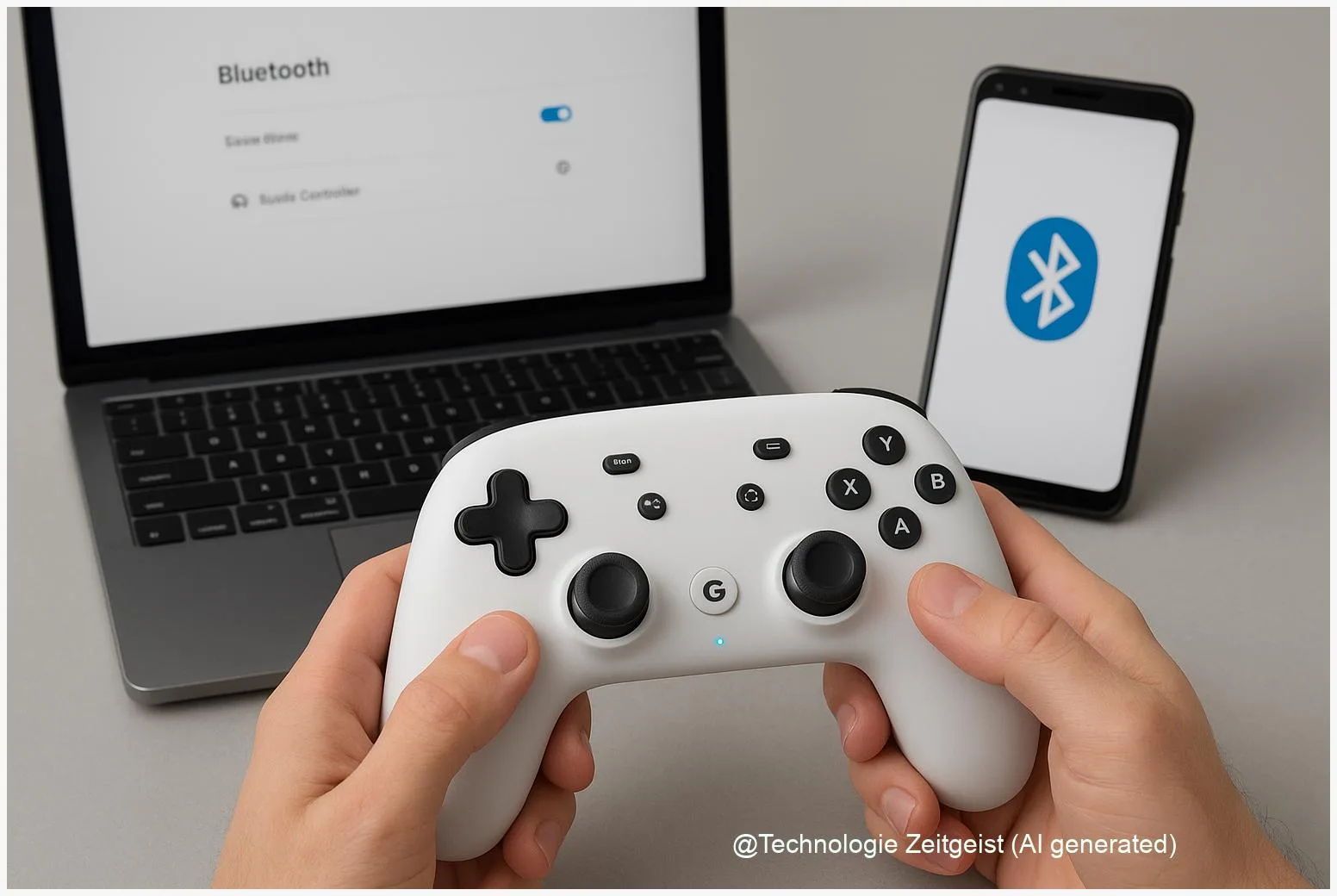
If you own a Stadia controller and want it to work like a normal Bluetooth gamepad, this guide helps you do that today. The Stadia Controller Bluetooth conversion lets the device pair with PCs, Android phones and many consoles using Bluetooth Low Energy; the official browser tool and pairing steps are practical and permanent. This article shows what to prepare, how pairing works, the limits you should expect and where to check current availability.
Introduction
Many people keep a Stadia controller in a drawer after the Stadia service shut down. The official option to convert that device into a standard Bluetooth gamepad gives the hardware new life, but it is neither automatic nor reversible. To make the decision you need a few simple tools — a computer with a modern browser and a USB data cable — and a clear idea which features will remain and which will not.
In everyday terms: after conversion the controller behaves like most Bluetooth controllers for games, so it can connect to a phone for cloud gaming or a PC for local play. Yet some Stadia‑specific functions (Wi‑Fi pairing to Google services, Assistant and audio passthrough) do not survive the switch. The next sections explain how the conversion works, the exact pairing steps for common devices, the performance and feature trade‑offs, and how to decide whether to convert now or keep the controller as a spare USB gamepad.
How the Stadia Controller Bluetooth conversion works
The Stadia controller originally used a proprietary Wi‑Fi connection to Google’s Stadia service. The conversion turns that Wi‑Fi functionality off and activates Bluetooth Low Energy (BLE) so the controller can pair like a standard gamepad. Bluetooth Low Energy is a version of Bluetooth designed for small data bursts and energy efficiency; for gamepads it provides button and joystick input with modest power use but different behaviour compared with the controller’s original radio.
Key practical consequences are immediate: the change is permanent — you cannot restore the original Stadia Wi‑Fi mode after the switch — and the controller still works over a USB cable if you prefer a wired connection. The conversion itself is a firmware/host‑side change performed through an official web page that interacts with the controller over USB and prompts the device to install the Bluetooth mode.
Converting preserves button input and vibration, but removes some Stadia‑specific services.
For clarity, a short table compares the most relevant aspects:
| Feature | Description | After conversion |
|---|---|---|
| Wireless link | Proprietary Stadia Wi‑Fi vs Bluetooth | Bluetooth Low Energy (BLE) |
| Audio passthrough | 3.5 mm jack had passthrough on Stadia | Not available via BLE |
| Reversibility | Can you go back to Stadia mode? | Irreversible switch |
Step‑by‑step: convert and pair
Prepare first: use a computer with Google Chrome or a Chromium‑based browser (Chrome 108 or later is recommended), a USB‑C data cable (not a charge‑only cable) and a controller charged for at least 30 minutes. The official conversion tool is reached through the Stadia controller page; follow its on‑screen prompts to complete the firmware change.
Conversion and pairing in practical steps:
- Open Chrome and go to the official conversion page (see sources). Allow the browser to access the connected USB device when prompted.
- Plug the Stadia controller into the computer with a data‑capable USB‑C cable. The web tool will detect the controller and offer the conversion.
- Run the conversion; the site shows progress. The operation usually takes a few minutes. Do not unplug the controller while the update runs.
- After conversion, put the controller in Bluetooth pairing mode by pressing Y and the Stadia button together for about 2 seconds. The status LED typically blinks orange while searching and becomes steady white when paired.
- Open your device’s Bluetooth settings (Android: Settings → Bluetooth, Windows: Settings → Bluetooth & devices). Choose the Stadia controller from the list and pair it. On desktops without built‑in BLE you need a Bluetooth USB dongle that supports BLE.
Examples and notes: on Android the controller usually pairs like any other Bluetooth gamepad and works with most cloud‑gaming apps and local emulators. On Windows you may want to use Steam’s controller support to map buttons and enable vibration; Steam recognizes many Bluetooth controllers automatically. On macOS the controller appears as a generic gamepad in most apps but button labels can differ slightly.
If pairing fails, try a factory reset (consult official troubleshooting links in the sources) or re‑run the web tool while using a different USB cable. Linux users sometimes need extra udev rules to grant access to the USB device during the conversion; community documentation and developer pages explain the exact commands.
Practical limits and troubleshooting
Converting a Stadia controller to Bluetooth is practical, but there are trade‑offs to keep in mind. The most important constraint is that the conversion is permanent: Stadia‑specific Wi‑Fi features and cloud‑pairing are disabled and cannot be restored. That affects services tied to Google’s ecosystem and any button behaviour that relied on Stadia’s online functions.
Audio passthrough through the controller’s 3.5 mm jack is not available over Bluetooth; if you used the controller as an audio relay to wired headphones, that path disappears. Similarly, the Assistant and Capture buttons lose their original cloud hooks — they remain physical buttons but may require remapping in software to regain useful functions.
On the compatibility side, most modern devices support BLE, but older laptops or desktops may need a BLE‑capable USB dongle. Latency with BLE is usually acceptable for most games but can be higher than proprietary low‑latency radios; competitive players may notice differences compared with a wired USB connection.
Troubleshooting checklist:
- Use a data‑capable USB‑C cable — some cables charge only and do not allow the web tool to detect the controller.
- Keep Chrome up to date; the web tool relies on browser APIs to access USB devices.
- If the controller fails to appear in Bluetooth scans after conversion, reset it (Stadia button long‑press sequences are documented on the support pages) and retry pairing.
- On Windows, install the latest Bluetooth drivers and, if needed, use Steam Input to fix mapping or vibration issues.
Finally, expect some variability: manufacturers and OS updates can change how BLE devices are detected, so a controller that pairs fine with one phone might require a driver or a remapping tool on another platform.
What comes next and sensible choices
Looking ahead, the conversion makes a practical device out of hardware that would otherwise risk becoming e‑waste. If you rely on wired audio or Google‑specific features, keep the controller as a USB device and use it that way. If you want wireless convenience for cloud gaming or casual play, conversion is the logical step — but document the process as you go (screenshots of the conversion page and firmware timestamps) because official availability dates for the web tool have shifted in the past.
Consider these simple rules when you decide:
- If you need audio passthrough or Google service hooks, do not convert.
- If you want one flexible gamepad to use on phone and PC, conversion is usually worth it.
- Keep a working USB cable after conversion; wired mode is still the most reliable for low latency and universal compatibility.
For long‑term maintenance, keep the controller charged periodically and pair it with the devices you use most often. If new OS updates break pairing, community forums and the manufacturer pages named in the sources are the best places to find updated fixes and user reports.
Conclusion
Converting a Stadia controller to a Bluetooth gamepad is a practical and permanent way to extend the life of the hardware. The process requires a modern browser, a data USB cable and a short firmware operation on the official conversion page. Afterward the controller pairs via Bluetooth Low Energy and works with many phones and PCs, though some Stadia‑specific services and audio passthrough no longer work. Balance the convenience of wireless play against those functional losses and keep a cable handy for wired use and low latency when needed.
Share your experience or tips with others who still own a Stadia controller — useful reports help everyone make better choices.




Leave a Reply