
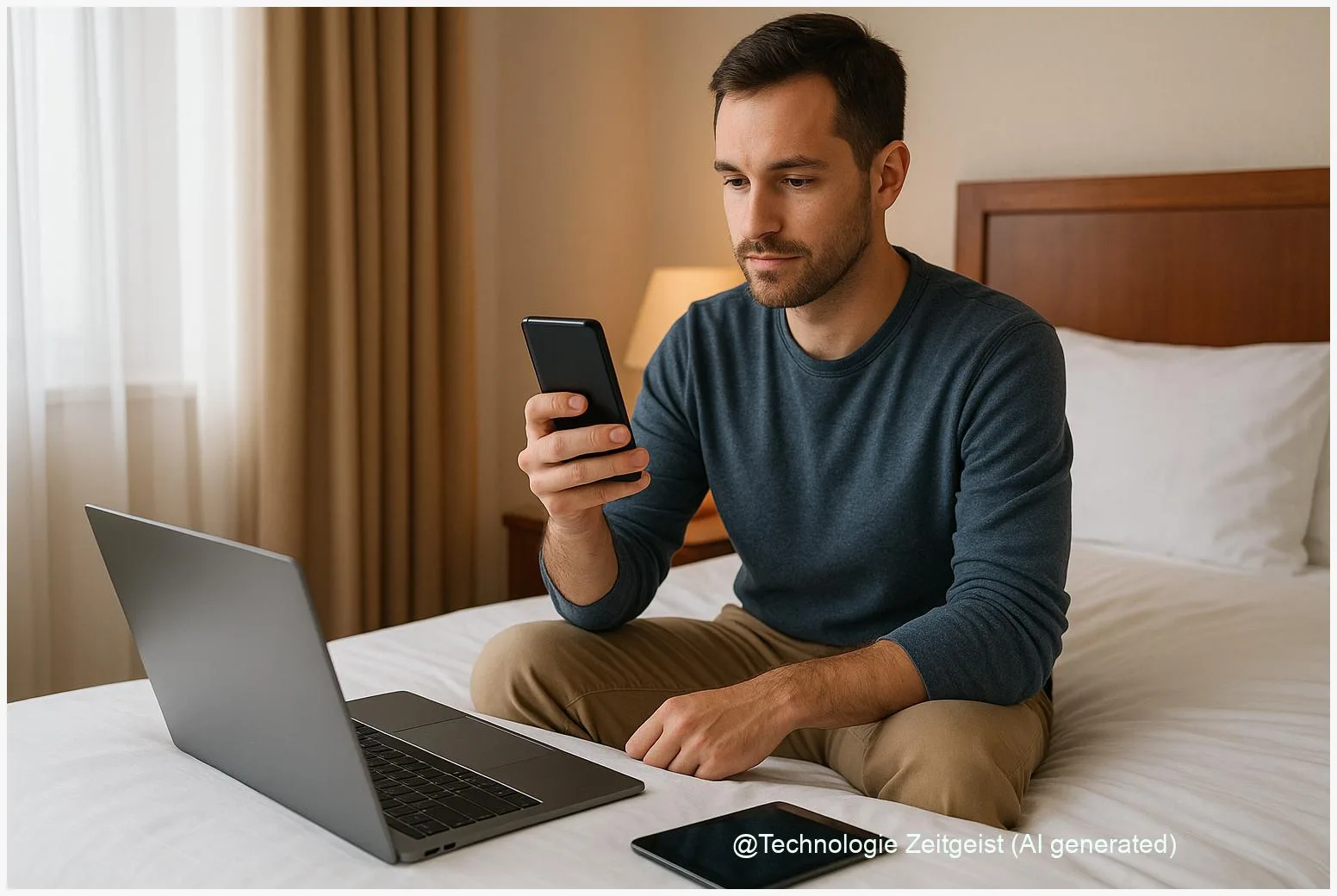
Turning your phone into an Android Reise-Router can save time and money on the road: after you authenticate once on a hotel Wi‑Fi captive portal, a modern Android device can often share that connection as a hotspot so several laptops, tablets, or cameras go online through your phone. This approach avoids buying extra hardware for short trips, but it also has practical limits — device support, bandwidth, and hotel network rules determine whether it will work reliably.
Introduction
Hotel Wi‑Fi often requires a single sign‑in on a web page called a captive portal. If you have several devices — a laptop, a camera, and a tablet — repeating that login for each can be slow or limited by the hotel’s device quota. Using an Android phone as a temporary router means you log in once on the phone and let other devices share its connection.
That sounds convenient, but the success of this trick depends on how the phone and the hotel network behave. Some Android phones include a direct “share Wi‑Fi” or similar option; on others you may need a small app or a travel router. This article explains how the method works, shows a clear example, lists practical limits and security concerns, and offers better long‑term alternatives if you need consistent performance or VPN protection while traveling.
How Android can share hotel Wi‑Fi
There are two common ways to get internet from a phone to other devices: tethering and Wi‑Fi sharing. Tethering usually means the phone uses its mobile data and creates a hotspot. Wi‑Fi sharing (also called Wi‑Fi re‑sharing) lets a phone keep its Wi‑Fi connection and re‑broadcast that same internet via a hotspot.
Technical detail: a phone needs its Wi‑Fi chipset and drivers to support STA+AP concurrency — that is, operating as a client (station, STA) and as an access point (AP) at the same time. Newer mainstream Android models often support this, but some devices or vendor builds disable the feature. If the phone doesn’t support it, enabling a hotspot will usually force the phone to drop the hotel Wi‑Fi and use mobile data instead.
If the phone can act as client and access point at once, you can stay connected to the hotel and share that exact connection with other devices.
How captive portals fit in: many hotels use a web‑based login page — the captive portal. Once you authenticate on the phone, the phone’s network address gets access. If the hotel does not require a separate login per device (for example by binding the allowed devices to individual MAC addresses or using one voucher per device), other devices behind your phone’s Network Address Translation (NAT) will typically get internet access through the phone.
Table: quick comparison
| Feature | Description | Typical result |
|---|---|---|
| Phone hotspot (mobile data) | Uses cellular network and shares via Wi‑Fi | Works with any hotel, subject to mobile plan limits |
| Wi‑Fi sharing (hotel → phone → devices) | Phone stays connected to hotel Wi‑Fi and re‑broadcasts it | Convenient if phone and hotel allow it; performance lower |
Android Reise-Router: step‑by‑step use case
Scenario: you arrive at a hotel, want to use the room TV, a laptop, and your tablet, and the hotel requires a browser login. A modern Android phone can often act as an Android Reise-Router so you need only sign in once.
Step 1 — connect and authenticate on the phone. Open Wi‑Fi on the phone, connect to the hotel’s network, and complete the captive portal login in the phone browser. Wait until the phone shows full internet access.
Step 2 — enable hotspot sharing. On many Android builds there is an option in Settings → Hotspot & tethering or Settings → Connections to “Share Wi‑Fi” or “Share network.” Choose to share via Wi‑Fi hotspot. If that exact option is missing, turn on the portable hotspot and check whether the phone keeps the Wi‑Fi connection or switches to mobile data.
Step 3 — connect other devices to the phone’s hotspot. Use the hotspot SSID and password shown on the phone. The laptop or TV should receive a local IP from the phone and use its internet connection. If the devices load external pages, they will pass through the phone and, in most cases, appear to the hotel as a single authenticated device.
Step 4 — test functionality. Open a few web pages and stream a short video to verify throughput. If a connected device still sees a captive portal page or can’t reach the internet, the hotel likely enforces per‑device rules; in that case you may need the hotel to register each MAC address or use a different solution.
One practical tip: keep an eye on battery and temperature. Acting as a hotspot while maintaining a Wi‑Fi client connection is energy intensive. Stay plugged in whenever possible, and avoid long continuous heavy transfers if you rely on the phone alone.
What can go wrong — limits and security
Performance: sharing a hotel Wi‑Fi through a phone reduces available radio time. The phone divides the Wi‑Fi chip’s attention between staying a client and operating as an access point. Expect lower throughput than a direct connection; streaming on multiple devices may stutter. Vendors note typical soft limits of around ten hotspot clients for mobile hotspots, but practical performance will often drop long before that.
Hotel policies and technical blocks: some hotels enforce per‑device authentication. MAC‑binding means the network maps allowed sessions to specific device hardware addresses; if the hotel blocks additional MAC addresses, devices behind your phone will not get access. Another method is 802.1X or per‑device vouchers — both prevent simple re‑sharing. If the hotel uses such rules, tell the front desk or use a travel router that supports MAC cloning or runs in client‑bridge mode.
Captive portals are themselves varied. RFC 7710 defines a way to advertise a captive portal, but many deployments use custom intercepts; older standards or quirky equipment can break the expected behavior. Note that RFC 7710 is from 2015 and therefore older than two years; it remains relevant because many networks still follow its guidance.
Security: a hotspot creates a small private network behind your phone. Devices share the phone’s public-facing IP and the hotel’s internal network still exists outside your NAT boundary. Use a VPN if you handle sensitive data. Running VPN only on a client device protects that device; running the VPN on the phone before sharing can protect all connected devices, but not all VPN apps correctly forward tethered traffic. Vendor or app behavior can vary.
Privacy and trust: a hotel network can see metadata and may inject content on captive pages. Avoid financial transactions without a trusted connection. If you plan to use public hotel Wi‑Fi regularly, a travel router with built‑in VPN or a personal VPN subscription on an independent device is a safer approach.
Better options and what to prepare
Short trips: using your phone as an Android Reise-Router is often the fastest path. It avoids carrying a separate device and works in many hotels. Confirm the phone’s settings at home: test the share option in a known Wi‑Fi environment so you know whether your model supports Wi‑Fi re‑sharing.
Frequent or business travel: a small travel router (pocket router) is a more reliable tool. These devices are inexpensive, support client‑bridge or repeater modes, handle captive portals more predictably, and often run an always‑on VPN. They also manage multiple devices better and reduce strain on your phone. Popular entry models from specialist vendors provide clear documentation on captive portals and VPN integration.
VPN strategy: if privacy matters, prefer a router‑level VPN, or test that your phone’s VPN app forwards tethered traffic before you rely on it for multiple devices. Some travelers use lightweight solutions such as Tailscale with an exit node; others install OpenVPN or WireGuard on a travel router for stable operation.
Practical checklist before travel:
- Test Wi‑Fi sharing at home with the exact phone model.
- Carry a short Ethernet cable or a compact travel router if you expect many devices.
- Install and test your VPN client; check whether it protects tethered devices.
- Bring charger and a small USB power bank if you plan long sessions with the phone as hotspot.
Conclusion
Using an Android phone as a travel router is a practical, hardware‑free way to bring several devices online after a single hotel login. It works well for short stays and a small number of devices when the phone supports Wi‑Fi sharing and the hotel does not enforce per‑device authentication. Because performance, captive‑portal behavior, and VPN forwarding vary by device and network, test the setup at home and consider a pocket travel router or router‑based VPN for regular travel or sensitive work. These steps balance convenience with predictable security and performance.
Share your travel networking tips or questions in the comments and pass this on to friends who travel with multiple devices.




Leave a Reply