
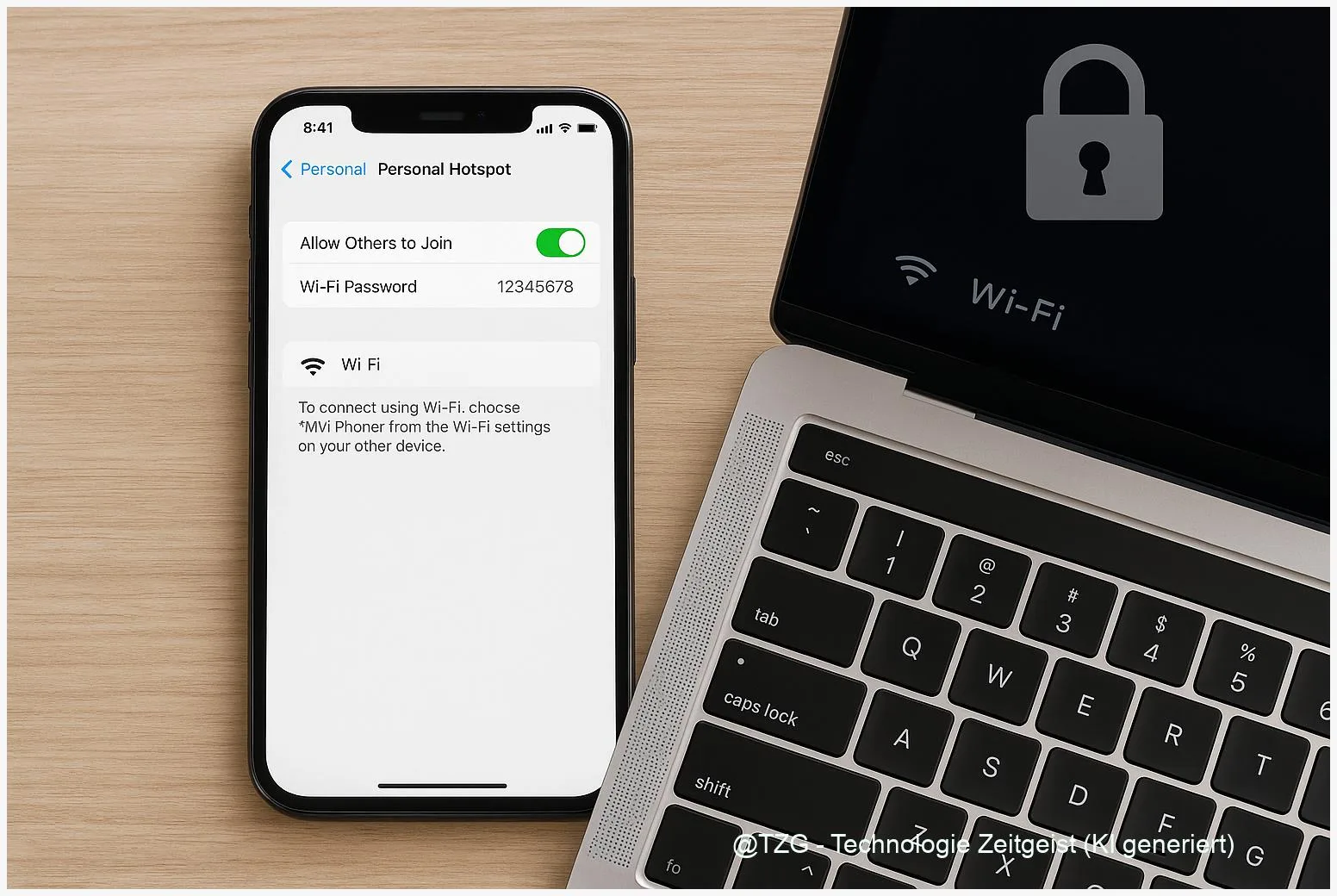
Need internet on your laptop, tablet, or another phone while you are out? This guide shows how to do a mobiler Hotspot einrichten safely on iPhone and Android: set a strong password, pick the right security mode, connect your devices, and avoid typical pitfalls. After these steps, you will have a hotspot you can turn on in seconds—without leaving your data plan or your privacy unprotected.
Introduction
Your home Wi‑Fi is stable—until you need to work on a train, upload a file in a hotel with poor internet, or connect a laptop in a place with no trusted network. A mobile hotspot solves that by sharing your phone’s cellular data connection over Wi‑Fi (or sometimes USB/Bluetooth). It is convenient, but it also creates a small wireless network around you.
That is why setup matters. A weak password, an open hotspot, or the wrong compatibility setting can invite unwanted guests—or simply lead to constant disconnects. And even when everything works, background updates can burn through your data plan faster than expected.
The next sections walk you through a secure, practical setup for iPhone and Android, plus clear checks when the hotspot “just won’t connect.”
Mobile hotspot setup (mobiler Hotspot einrichten): what it is and why security matters
A mobile hotspot (also called tethering) turns your phone into a small router. Your phone uses its cellular connection (4G/5G) and shares it with other devices. Most people use Wi‑Fi tethering because it works with laptops, tablets, and game consoles. Many phones also offer USB tethering (one device via cable) and Bluetooth tethering (usually slower, but power-efficient).
Treat your hotspot like your home Wi‑Fi: if you would not leave that network open, do not leave your hotspot open either.
On iPhone, Apple calls this feature Personal Hotspot. You turn it on in Settings and protect it with a Wi‑Fi password (Apple notes the password must be at least 8 characters and use standard ASCII characters for best compatibility). On Android, the feature is typically called Hotspot or Wi‑Fi hotspot, found under network settings or quick toggles.
| Option or Variant | Description | Suitable for |
|---|---|---|
| Wi‑Fi hotspot | Shares internet as a Wi‑Fi network (SSID + password). | Laptops/tablets; typical everyday use. |
| USB tethering | Shares internet over a cable; often more stable and harder to eavesdrop on nearby. | One laptop/PC; best when Wi‑Fi is crowded. |
Preparation and Prerequisites
Before you switch anything on, do two quick checks: (1) your plan and phone actually allow hotspot use, and (2) you can keep the phone powered. Some carriers restrict tethering or require it to be enabled on your plan, so a missing hotspot menu is not always a phone bug.
Use this short prep list to avoid the most common problems:
- Check cellular data works first: open a website on the phone using mobile data (not Wi‑Fi).
- Update the OS if possible: iOS/iPadOS and Android updates often improve hotspot stability.
- Plan your power: hotspot use drains the battery quickly; use a charger or power bank for longer sessions.
- Pick a strong password: aim for 12+ characters, with letters and numbers. Avoid names or simple patterns.
- Decide who may join: only share the password with people/devices you trust, and change it after sharing with a group.
- Know your connection goal: quick email on a laptop is different from video calls; this affects whether USB tethering is the better choice.
If your laptop is Windows, plan to mark the hotspot Wi‑Fi as a metered connection afterward. Microsoft documents that a metered connection reduces certain background downloads and helps control data usage.
Step-by-Step Instruction
Follow the steps in order. The wording of menus can differ slightly by device model and OS version, but the structure is consistent.
- On iPhone: enable Personal Hotspot. Go to Settings > Cellular (or Mobile Data) > Personal Hotspot. Turn on Allow Others to Join. If the option is missing, your carrier plan may not support hotspot.
- On iPhone: set or change the Wi‑Fi password. In Personal Hotspot, tap Wi‑Fi Password and choose a strong password. Apple recommends at least 8 characters and notes non‑ASCII characters can cause connection issues on some devices.
- On Android: open hotspot settings. Go to Settings > Network & internet (names vary) > Hotspot & tethering > Wi‑Fi hotspot. Many phones also offer a quick toggle in the notification shade.
- On Android: secure the hotspot. Set a clear network name (SSID) and a strong password. If you can choose security, prefer WPA3-Personal when all your devices support it; otherwise use a mixed mode (often shown as WPA2/WPA3) or WPA2-Personal for older laptops.
- Connect your laptop/tablet. On the device you want to connect, open Wi‑Fi, select the hotspot network name, and enter the password. Stay on the hotspot settings screen for a moment; some phones only advertise the hotspot reliably while the screen is active.
- Confirm the connection. You should see a hotspot icon on the phone and a “Connected” status on the other device. Open one website or app that needs internet to confirm it works.
- (Optional) Use USB tethering for stability. If Wi‑Fi is unreliable, connect phone and computer by cable. On iPhone you may need to confirm Trust This Computer. On Android, enable USB tethering in the same “Hotspot & tethering” area.
- (Optional) On Windows: set the hotspot Wi‑Fi as metered. In Windows, go to Settings > Network & Internet > Wi‑Fi > your connected network and enable Metered connection to limit some background data use.
If everything went well, your hotspot should reconnect quickly next time. Most devices remember the network and only need the hotspot switched on.
Tips, Troubleshooting, and Variants
If a hotspot fails, the cause is usually simple: wrong password, incompatible security mode, a carrier restriction, or a device that clings to another Wi‑Fi network. Work through these fixes from top to bottom.
Common problems and quick fixes:
- Hotspot option missing (iPhone or Android): check whether your carrier plan supports tethering. Also verify mobile data works; airplane mode can block it.
- Device sees the hotspot but cannot join: retype the password carefully. On iPhone, avoid special characters outside standard ASCII. On Android, switch security from WPA3 to WPA2/WPA3 or WPA2 if an older laptop cannot connect.
- Connected but “No internet”: turn hotspot off and on, then restart both devices. Also try switching from 5 GHz to 2.4 GHz (if your Android hotspot offers a band option) for better range and compatibility.
- Frequent disconnects: keep the phone plugged in, and disable battery saver modes temporarily. Some phones reduce hotspot performance to save power.
Practical safety and data tips: change the hotspot password after you shared it with a group, and turn the hotspot off when you are done. Avoid using “no password” or “open” mode. If you often tether a Windows laptop, metered connection is a simple habit that can prevent large background downloads. On both iPhone and Android, check your system’s data usage view regularly—especially when you tether for video calls or cloud sync.
Useful variants: For the highest privacy in public places, prefer USB tethering when possible. In Apple ecosystems, Instant Hotspot can make connecting between devices signed in with the same Apple ID easier, but a strong Wi‑Fi password is still a good baseline for mixed-device situations.
If you want more everyday connectivity tips, TechZeitGeist also publishes general tutorials in its TechZeitGeist tutorials section.
Conclusion
A mobile hotspot is one of those features that feels simple—until it is not. With a strong password, the right security setting (WPA3 when possible, WPA2 for compatibility), and a quick check of carrier support, your iPhone or Android phone becomes a reliable backup internet connection. Add small habits like turning the hotspot off after use and marking the connection as metered on Windows, and you can stay online without unpleasant surprises in your data plan.
Try the setup once at home, then test it on your laptop and tablet—what worked (or didn’t) for you? Share your tips so others can avoid the same pitfalls.




Leave a Reply