
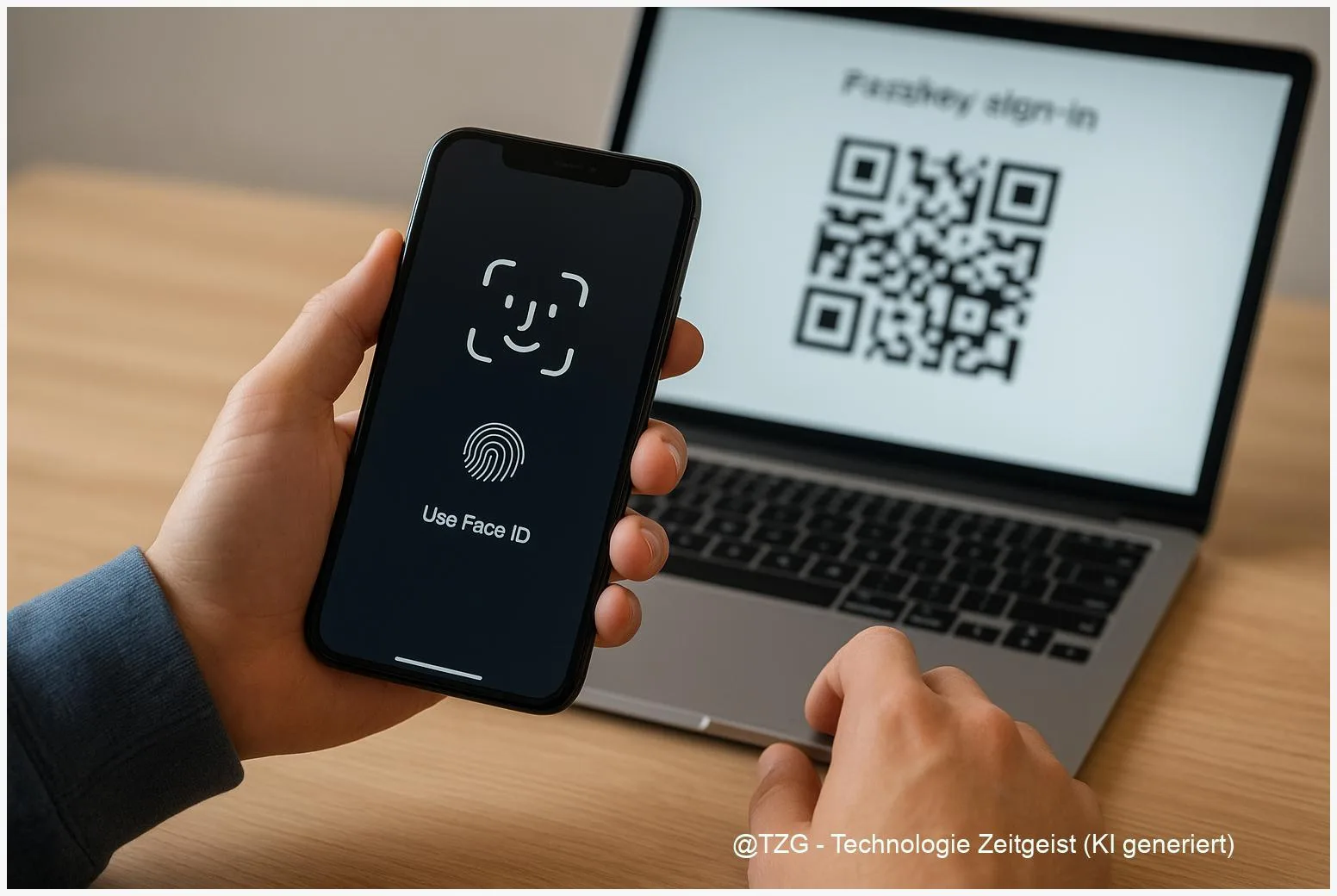
Forgotten passwords, weak reused logins, and phishing emails all lead to the same pain: risky sign-ins and too many resets. This guide shows how to set up passkeys on iPhone and Android so you can sign in with Face ID/Touch ID or your phone’s screen lock instead of typing a password. You’ll learn what passkeys are, what you need to prepare, and the exact steps to create and use them safely.
Introduction
Many people only think about account security when something goes wrong: a password reset email you never requested, an account lockout after too many tries, or a “Your password was found in a data leak” warning. Even strong passwords are hard to use consistently, especially across phone, tablet, and laptop.
Passkeys tackle that everyday problem from a different angle. Instead of remembering a secret string, you confirm a sign-in on a trusted device you already unlock several times a day. On iPhone this usually means Face ID or Touch ID; on Android it’s your fingerprint, face unlock, or device PIN.
The practical goal: get to a point where supported apps and websites let you sign in quickly, with fewer lockouts and better protection against phishing. The steps below work with current iOS and Android systems, even if menu names change slightly over time.
Basics and Overview: what passkeys do (and what they don’t)
A passkey is a modern sign-in method based on FIDO standards (often referred to as FIDO2/WebAuthn). In simple terms, your device creates a pair of cryptographic keys: one part stays on your device, the other part is stored by the service (for example a shop, email provider, or social network). When you sign in, your device proves it has the matching private key after you unlock it.
A passkey can’t be “typed into” a fake website the way a password can, which makes many phishing attacks much less effective.
Passkeys are typically saved in a platform credential manager and can sync across your devices. On iPhone, that is iCloud Keychain; on Android, Google Password Manager (and on newer Android versions, the system Credential Manager builds on that). Many services still keep passwords as a fallback, so passkeys don’t force you into an all-or-nothing switch.
| Option or Variant | Description | Suitable for |
|---|---|---|
| Synced passkeys (iCloud / Google) | Passkeys saved to your phone and synced end-to-end encrypted via your account ecosystem. | Most people who use multiple devices (phone + laptop/tablet). |
| External security key (FIDO) | A separate USB/NFC key you plug in or tap to confirm sign-ins. | High-value accounts, shared devices, or extra backup resilience. |
Preparation and Prerequisites for setting up passkeys
Before you create your first passkey, do a quick setup check. This avoids the most common “I can’t find the option” or “It won’t save” problems.
Make sure these basics are in place:
- A screen lock is enabled on your phone (PIN, password, pattern, or biometrics). Passkeys rely on “user verification” through that lock.
- Your account is signed in and syncing credentials:
- iPhone: iCloud Keychain (Apple calls it “Passwords & Keychain”) should be on.
- Android: Google Password Manager sync should be on for the Google account you use.
- Keep a recovery path: a secondary device signed in, account recovery options updated, and (if available) two-factor methods. Passkeys reduce password use, but account recovery still matters if you lose devices.
- Bluetooth availability can help when you sign in on another device using a QR code flow (common for PC sign-ins). You usually don’t need to pair anything manually, but Bluetooth should be allowed.
If you want a second opinion on the general concept and everyday safety checks, TechZeitGeist keeps a practical overview you can compare with your setup: Passkeys set up and use securely (TechZeitGeist).
Step-by-Step Instruction: create and use passkeys on iPhone & Android
The exact wording differs by app and website, but the flow is consistent: enable the platform keychain/manager, create a passkey in the account’s security settings (or during sign-in), then test a login.
- On iPhone: enable iCloud Keychain (Passwords & Keychain).
Open Settings > your Apple Account name > iCloud > Passwords & Keychain, then turn on syncing for this iPhone. (Menu names can vary slightly by iOS version.) - On Android: confirm Google Password Manager sync.
Go to your Google account settings and ensure password/passkey sync is enabled for the account you use for sign-ins. If you use multiple Google accounts on one phone, pick the one you actually use for the service. - Open the service you want to secure (for example your Google account, a shop, or a supported app) and go to Security or Sign-in options.
Look for terms like Passkey, Passkeys, Sign in with passkey, or Use your device. - Create the passkey.
Choose Create passkey (or similar), then confirm with Face ID/Touch ID on iPhone or fingerprint/face/PIN on Android. This confirmation is what binds the sign-in to you on your device. - Check where it was saved.
On iPhone, passkeys appear in the system passwords area (and on newer iOS versions in the dedicated Passwords app). On Android, they appear in Google Password Manager / Credential Manager. - Test the new sign-in.
Sign out and sign back in. When asked, select Use passkey and unlock your phone. If you’re signing in on a PC, many services show a QR code: scan it with your phone and confirm on the phone screen. - Keep a fallback (at least initially).
Don’t delete your password immediately unless you are sure you have a second device or recovery method. Many platforms still allow password sign-in as a backup, which can be helpful during travel or device repair.
If everything worked, you should see a prompt that asks for biometrics or device unlock instead of a password field during future sign-ins. If you still see password prompts, the service may not fully support passkeys yet, or you might be using a browser/app that doesn’t pass the request to the system credential manager.
Tips, Troubleshooting, and Variants
Most passkey problems are not “broken security”, but missing prerequisites or a confusing sign-in screen. These fixes cover the common cases.
Problem: “I can’t find the passkey option.”
Many services only show it after you sign in once with a password or after you enable two-step verification. Check the account’s Security page and look for “Sign-in options”. If your browser is outdated, try the latest system browser (Safari on iPhone, Chrome on Android) or the official app.
Problem: “It saved on my phone, but not on my other devices.”
On iPhone, confirm iCloud Keychain syncing is on and you are signed into the same Apple Account. On Android, confirm Google Password Manager sync is enabled and you’re using the same Google account across devices.
Problem: “QR code sign-in doesn’t work.”
Ensure Bluetooth is allowed on both devices and that your phone can access the camera for QR scanning. If your workplace PC blocks Bluetooth, use a password fallback or create a passkey directly on the device you use most.
Tip: create a second passkey-capable device early.
If you have both a phone and a tablet (or an old phone kept as backup), signing into the same ecosystem and letting passkeys sync can reduce stress if one device is lost or repaired.
Variant: add a hardware security key for critical accounts.
For email, banking-related services, or admin accounts, a FIDO security key can be a strong additional factor or backup. This is optional, but useful when you want an independent recovery method that does not rely on cloud sync.
Conclusion
Passkeys make sign-ins feel simpler because they fit your normal routine: unlock your phone, confirm, done. At the same time, the underlying technology is designed to resist common phishing tricks, because there is no reusable password to type into the wrong place. If you take a few minutes to check screen lock and syncing first, creating your first passkey on iPhone or Android is usually straightforward. Keep a fallback for the transition, test the login once, and you’ll quickly notice fewer password prompts in daily life.
Have you already switched one of your everyday accounts to passkeys? Share what worked smoothly (and what didn’t) and pass this guide on to someone who’s tired of password resets.




Leave a Reply