
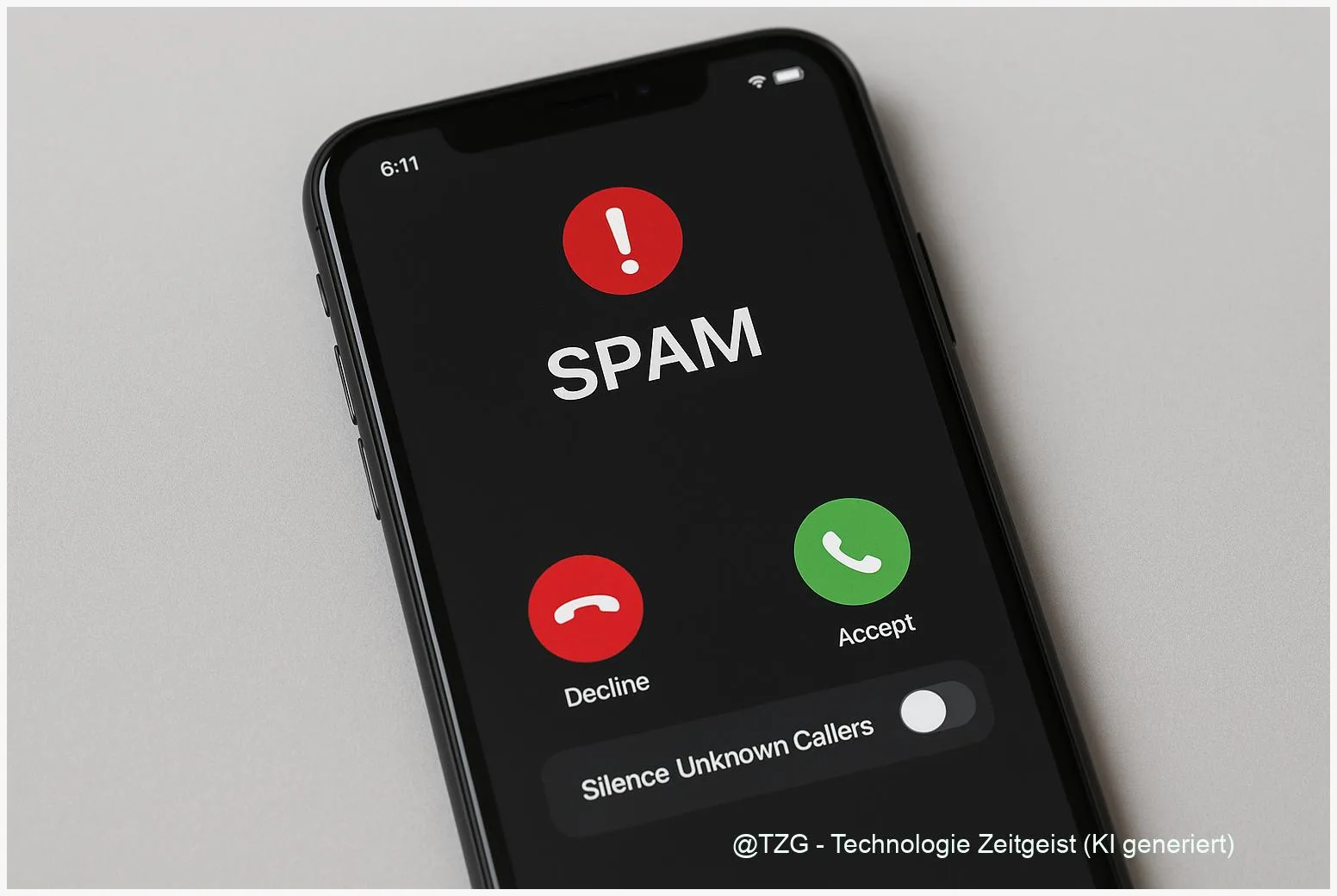
Spam calls can be more than annoying: they interrupt work, can trick you into sharing data, and often come in waves. This guide shows how to block spam calls on iPhone and Android using built-in settings you already have. You’ll set up unknown-caller silencing, spam detection, and quick blocking rules—so your phone rings mainly when it matters.
Introduction
One day it’s a “special offer”, the next day an automated voice claims there’s an issue with your account—often from numbers you’ve never seen before. Many people hesitate to block calls because they worry about missing the courier, the doctor’s office, or a job interview callback. The good news: modern iPhones and Android phones can reduce unwanted calls without turning your phone into a silent brick.
The key is layering: (1) identify likely spam, (2) silence or block unknown callers in a controlled way, and (3) quickly block repeat offenders. Once set up, you’ll spend less time reacting and more time using your phone normally—while still being able to check missed calls and voicemail for anything important.
Basics and Overview: what your phone can block (and what it can’t)
Spam calls usually fall into two groups: telemarketing (sometimes legal but unwanted) and scam calls (attempts to trick you into paying or sharing personal data). Many callers also use spoofing, meaning the displayed number can be faked. That’s why blocking a single number is helpful, but not always enough.
The most effective everyday setup is a “quiet default”: your phone only rings for people you know, while everything else is screened, labeled, or sent to voicemail.
On iPhone, Apple offers features like Silence Unknown Callers and system-wide blocking lists. On Android (especially with the Google Phone app), you get Caller ID & spam protection and options to filter suspected spam. Your carrier may also provide network-level filtering, but the steps below focus on what you can control directly on the device.
| Option or Variant | Description | Suitable for |
|---|---|---|
| Silence unknown callers | Lets known contacts ring; unknown numbers go to voicemail or are screened depending on system options. | People who get frequent spam and rarely need random calls. |
| Spam detection & filtering | Labels suspected spam and can automatically block/filter those calls. | Users who still expect calls from new numbers but want warnings. |
Preparation and Prerequisites
Before you change anything, take two minutes to reduce the chance of accidentally silencing an important call. Most issues with call blocking come from missing a number you actually needed—so preparation matters.
Quick checklist:
- Update your phone (iOS / Android) and the Phone app if updates are available. Newer versions often improve spam detection.
- Save important numbers in Contacts (family, workplace, doctor, school). Unknown-caller features typically allow saved contacts to ring.
- Check voicemail is working. If unknown callers are sent to voicemail, you need reliable access to messages.
- Decide your tolerance: Do you want to block aggressively (fewer interruptions) or more cautiously (fewer missed calls)?
- Know your Phone app on Android: many devices use Google Phone, but some brands use their own dialer with similar settings in a different place.
Step-by-Step Instruction: block spam calls on iPhone & Android
Follow the section that matches your device. After each change, place a quick test call from a second phone if possible, or ask a friend to call you from a number that is not saved in your contacts.
- iPhone: silence unknown callers. Open Settings > Apps > Phone, then look for the option to manage unknown callers (Apple describes options such as silencing unknown callers). Turn it on so calls from numbers not in your contacts are silenced and routed to voicemail, while still showing in your recent calls list.
- iPhone: block a repeat number directly. Open Phone > Recents, tap the info icon next to the number, then choose the option to Block this Caller. Apple notes that blocked callers can still leave voicemail, but you won’t get notifications.
- Android (Google Phone): enable caller ID and spam protection. Open the Phone app > Settings > Caller ID & spam. Turn on spam protection so suspected spam is identified. If your phone offers it, enable filtering so suspected spam calls are blocked or diverted automatically.
- Android: block/report a spam call from your call history. In the Recent calls list, long-press the suspicious number, then select Block and (if offered) Report spam. Reporting improves detection for you and others in supported systems.
- Confirm it works. After setup, check your Recents list and voicemail. The goal is: fewer interruptions, but a clear record of what was silenced or flagged.
If you notice you’re missing legitimate calls, switch from aggressive blocking to “label only” (spam warnings without auto-block), or add the caller to your contacts so it rings normally next time.
Tips, Troubleshooting, and Variants
You’re missing important calls. This is the most common problem. Fixes: add the caller to Contacts, check your Recents list regularly, and consider using spam labeling instead of silencing all unknown callers. Also make sure voicemail is configured—otherwise silenced calls can feel like they “disappear”.
Spam keeps coming from new numbers. That can happen with spoofing. In that case, rely more on spam detection/filtering than on manual number blocking. If your carrier offers a free spam protection service, it can add a second layer at the network level.
Android menu paths look different. Some manufacturers rename settings. Look for keywords like Spam protection, Caller ID, Blocked numbers, or Call blocking inside the Phone app settings.
Privacy tip. Spam detection can use shared databases or reports. Read the explanations in your settings screen so you understand what data (for example, phone numbers) may be checked to identify spam.
If you want to go further, you can also improve your overall phone security habits—strong account protection reduces the risk that a scam call can cause real damage. For related everyday steps, see TechZeitGeist guides like practical smartphone security basics and how to recognize common phishing patterns.
Conclusion
Stopping telephone advertising and scam calls works best when you use the tools built into your phone instead of chasing every single number. On iPhone, silencing unknown callers and blocking repeat offenders reduces interruptions while keeping a trace in Recents and voicemail. On Android, turning on caller ID and spam protection—and reporting spam—helps your device recognize patterns over time. Once you set this up, you can keep your phone open for the calls you want, and quiet for the ones you never asked for.
Which setting helped you most—silencing unknown callers or spam filtering? Share your experience (and any false positives) so others can fine-tune their setup.




Leave a Reply