
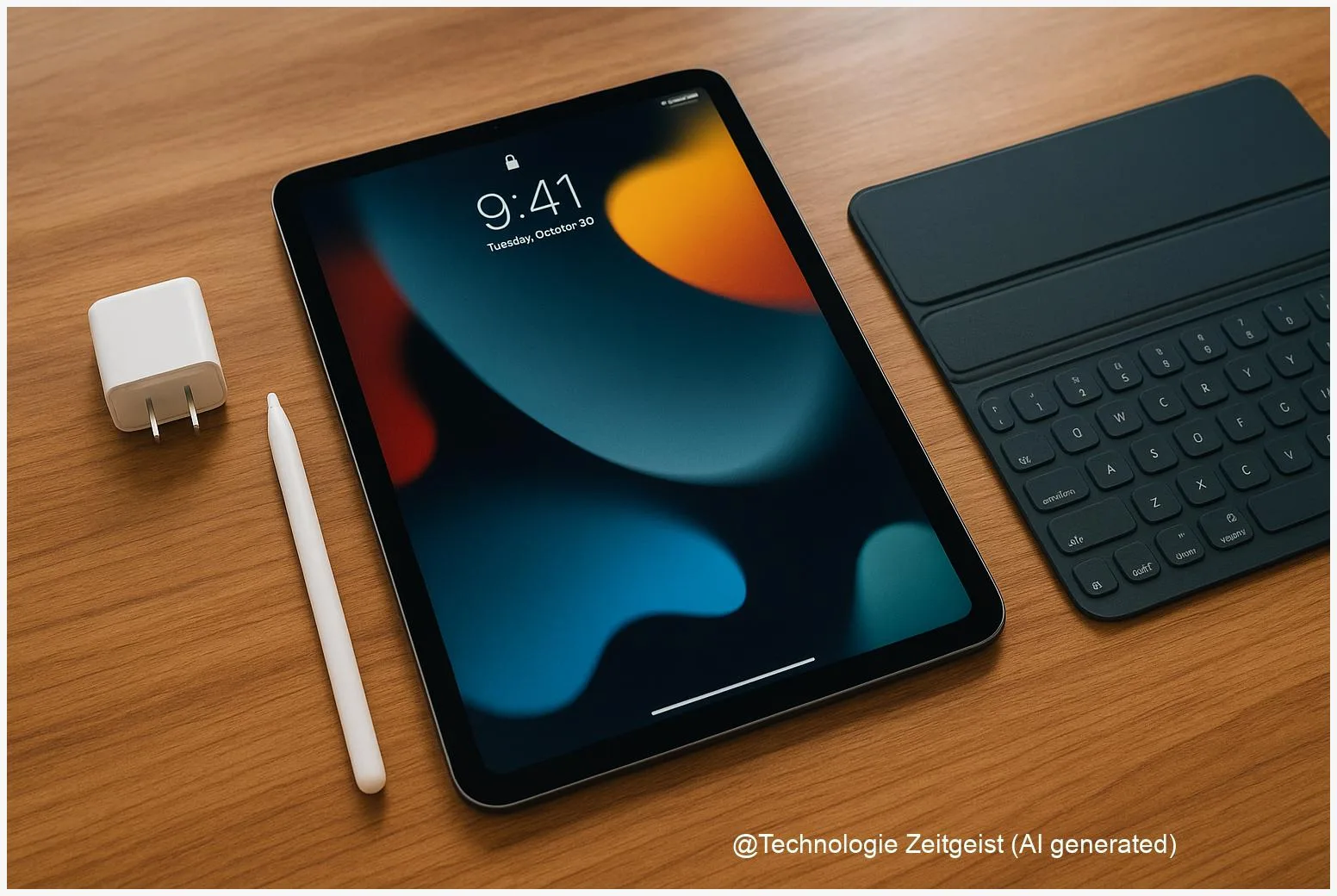
Choosing the best iPad accessories 2026 means matching tools to how you actually use the tablet. This guide highlights which stylus, keyboard, case and chargers make the iPad more useful for drawing, studying, or travelling, and it explains why compatibility, weight and software features matter. The goal is a clear shortlist that helps you pick accessories that stay relevant across several iPad generations.
Introduction
Modern iPads cover a wide range of tasks: reading lecture slides, sketching ideas, editing photos, or replacing a small laptop on the go. That variety is what makes accessory choices both useful and confusing. Some people need a precise stylus; others want a light keyboard for long notes. Prices vary a lot, and not every accessory supports every iPad feature such as tilt drawing or high refresh rate.
This article shows how to match needs, budget and the iPad model so purchases work across updates in hardware and iPadOS. It focuses on practical benefits: what changes your daily work, what adds unnecessary weight, and what to check before you buy. The main keyword is used at the start to keep recommendations tightly focused on 2026 buying decisions.
Best iPad accessories 2026: what to prioritize
Start by defining how you will use the iPad most often. That single choice directs the rest: creativity, note taking, media consumption, or typing-heavy tasks each ask for different trade-offs. A lightweight folio may be perfect for reading and travel; a keyboard with a stable hinge helps serious typing. Consider four practical filters before any purchase.
First, confirm compatibility. Manufacturers publish lists showing which iPad models support specific features. Some stylus capabilities—like low latency or tilt—can depend on both hardware and iPadOS. Always check the accessory page for your exact iPad model rather than relying on a product name alone.
Second, think about weight and bulk. A full keyboard case improves typing but often doubles weight compared with a thin folio. If your commuting distance is long or you hold the device in one hand for reading, saving a few hundred grams matters. Product pages and reviews usually list weights; treat those numbers as decisive when mobility is a priority.
Third, connection and power: Smart Connector keyboards draw power and pair instantly in many setups, while Bluetooth keyboards must be charged but offer more flexibility between devices. For students and professionals, accessories that avoid additional charging (i.e., use Smart Connector or attach magnetically) reduce friction in daily use.
Choose an accessory because it solves a repeated task, not because it looks neat for a single use.
Finally, factor in software features. iPadOS adds capabilities over time: better pointer support, handwriting conversion, or gesture shortcuts. An accessory that supports these features—trackpad gestures or Pencil hover, for example—stays useful longer. Budget choices are sensible, but plan for at least one accessory that tightly integrates with the iPad experience.
If you want a quick checklist: 1) match model & iPadOS; 2) prioritise weight or typing feel; 3) choose power method (Smart Connector vs. battery); 4) prefer trackpad support if you multitask.
If numbers clarify decisions, typical student-ready prices in Europe for keyboard cases observed in 2025 ranged roughly from €90–€250 depending on feature set and brand; premium Apple options were above that range. Prices shift with promotions and new launches, so treat them as a planning guide rather than fixed truth.
Stylus and drawing: Apple Pencil and alternatives
For those who draw or write by hand, the stylus is the primary accessory decision. The Apple Pencil line remains the benchmark because it integrates tightly with iPad hardware and iPadOS handwriting tools. That integration yields low perceived lag and reliable pressure and tilt detection—features that matter for illustrators and note takers.
Apple offers versions that pair and charge differently; some connect magnetically and charge on the side of recent iPad models, while others use different pairing methods on older devices. When Apple changes connectors or chassis dimensions, specific Pencil models may become incompatible with new iPads, so check the compatibility table on Apple’s accessory pages before buying.
Third-party styluses have improved. Brands such as Logitech and Adonit produce pens with good latency and pressure sensitivity and often at a lower price. They sometimes add different nib choices, physical buttons, or replaceable tips. The trade-off is often in software features—handwriting-to-text and system-level shortcuts are typically smoother with the Apple Pencil.
Practical example: if most of your work is annotating PDFs during lectures, a mid-range third-party stylus can be sufficient and saves money. If you produce line art or detailed illustrations, investment in the native Apple Pencil model that your iPad fully supports will avoid subtle frustrations with tilt response and palm rejection.
Battery life and charging are simple daily concerns. Most active styluses last many hours on a single charge; how they recharge (via the iPad or a separate cable) affects convenience. Replaceable tips and warranty terms are worth noting for frequent users, because a worn tip changes drawing feel.
Recommendation in short: choose the Apple Pencil when you rely on system-level gestures and the lowest latency. Consider high-quality third-party pens when budget or cross-device use is critical, and always verify model compatibility with your iPad and iPadOS version.
Keyboards and typing: Magic Keyboard vs. third parties
Typing comfortably on an iPad changes how much you can use it as a primary computer. Two main approaches dominate: the premium, tightly integrated route (Apple’s Magic Keyboard) and third-party keyboard cases (Logitech, Brydge, ZAGG and others). Each path has a clear set of strengths.
Apple’s Magic Keyboard typically offers a refined hinge, excellent trackpad integration with iPadOS gestures, and a typing feel close to a laptop. That smoothness comes at the cost of higher price and added weight. Many users accept that trade-off when the iPad replaces a laptop for multi-hour typing sessions.
Third-party options like Logitech’s Combo Touch or similar keyboard cases often aim for balance: a removable keyboard, protective shell, and a flexible stand. These cases are generally lighter or less expensive than the Magic Keyboard and sometimes include a function row or different tilt angles. For students who carry the iPad daily, these models offer strong price-performance.
Technical detail explained simply: Smart Connector keyboards connect electrically to the iPad and avoid Bluetooth pairing and separate charging. Bluetooth keyboards work across devices but need their own battery. If you dislike charging another gadget, a Smart Connector keyboard reduces that friction.
When choosing, test the typing feel if possible. Key travel, spacing, and the stability of the hinge determine whether short messages or long papers feel comfortable. Consider also repairability and long-term support: some premium third-party brands provide replaceable keys or keyboard modules, which can lower total cost of ownership.
For many users the rule is straightforward: if you type extensively and keep your iPad mostly stationary, a premium keyboard is worth the cost. If you need protection, flexibility and lower weight for daily campus use, a well-reviewed third-party keyboard case is often the better pick.
Cases, chargers and audio: everyday essentials
Beyond styluses and keyboards, three categories shape the everyday iPad experience: protection, power and sound. They are less glamorous but crucial for reliable use across years.
Cases: choose protection level by use case. A slim folio is ideal for short trips and desk work; rugged cases with reinforced corners suit fieldwork or rough handling. Consider whether the case supports a pencil holder, has an integrated kickstand and whether it adds a lot of thickness. Materials also matter: silicone grips, textile covers and hard polycarbonate each age differently.
Chargers and cables: fast charging reduces downtime. Newer iPads support higher-watt USB‑C chargers; pairing a 20–30 W charger gives noticeably faster top-ups than older 12 W units. If you travel, use a compact GaN charger that combines high power with small size. Carry one reliable USB‑C cable and, if you use accessories that require power delivery, a short cable for desk use and a longer one for mobile work.
Audio and microphones: built‑in speakers on modern iPads are good for casual listening, but a compact Bluetooth headphone or earbud improves focus on calls and media. For creators or podcasting, an external USB‑C microphone will produce a clearer voice track than the internal mic. Think about multi-device use—Bluetooth headphones can switch between phone and iPad, which is convenient.
Other small but practical accessories include a screen protector (matte finishes reduce glare when you draw), a stand for desk work, and a cleaning kit. For students, a modest investment in a shock‑resistant sleeve can save replacement costs after drops—repairability studies show that accidental damage is a frequent reason for transport‑related failures.
Overall, prioritize one high-quality charger, a protective case that matches your mobility needs, and audio that fits your communication habits rather than focusing solely on headline gadgets.
Conclusion
Good accessory choices make the iPad noticeably more useful without adding daily friction. Begin by deciding which task you do most: drawing, typing, or lightweight consumption. Then check compatibility with your iPad model and iPadOS, weigh the mobility trade-offs, and prefer accessories that integrate power or system features to reduce extra charging. For stylus work, the Apple Pencil models offer the smoothest system integration; for typing, premium keyboards give the best feel while third‑party cases balance cost and protection. Finally, solid chargers and a case aligned to your travel routine complete a practical kit that will serve across several iPad generations.
If you have a favourite accessory or a question about compatibility, share it below or pass this guide to a friend who is shopping for an iPad in 2026.




Leave a Reply