
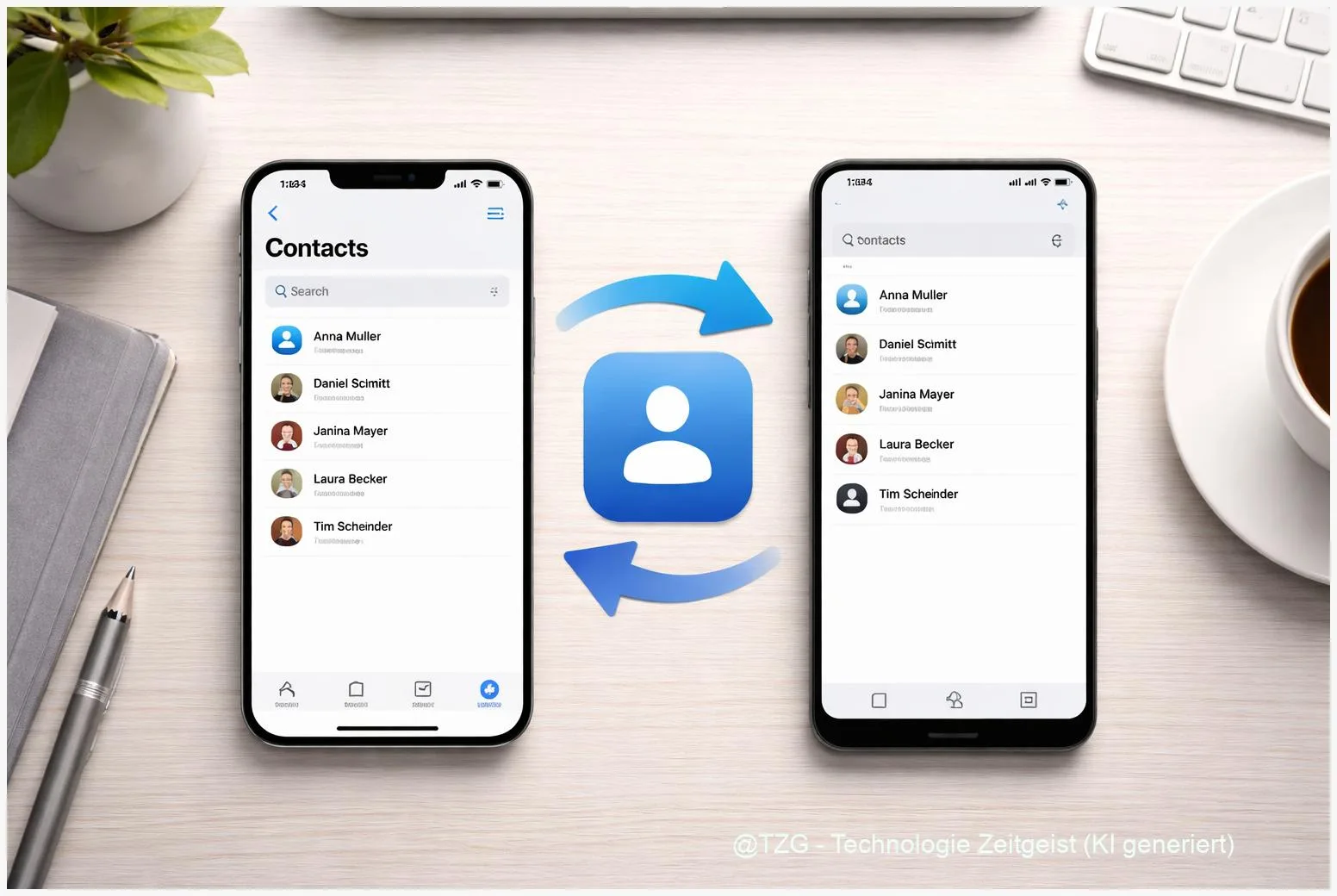
Switching phones is stressful when your address book is spread across iCloud, a SIM card, and different apps. This guide shows a reliable way to sync contacts iPhone and Android without losing numbers: export your contacts from iCloud as a vCard file, import them into Google Contacts, and turn on proper syncing on Android. You will also learn quick checks to prevent duplicates and fix common “contacts not syncing” issues.
Introduction
Your contacts are more than phone numbers. They are the people you need when something goes wrong, when you travel, when you start a new job, or when you simply change your device. The tricky part is that contacts often live in different places: some in iCloud, some in Google, some “On My iPhone”, and sometimes a few still on the SIM card from years ago.
That mix is why transfers can feel random: a few names appear on Android, others are missing, and suddenly you have duplicates with outdated numbers. The safest approach is to choose one “source of truth” and move everything there in a controlled way.
The steps below use a method that works across current iPhones, modern Android phones, Windows PCs, and Macs: export from iCloud as a vCard (.vcf) and import into Google Contacts, then enable Google Contacts syncing on Android.
Basics and Overview
For most people, the goal is simple: your full address book should show up in the Contacts app on both devices, and future edits should keep syncing. Technically, that only works well if your contacts are stored in an online account that both platforms support.
iCloud Contacts are stored in your Apple ID account and can sync to iPhone, iPad, Mac, and the iCloud website. Google Contacts are stored in your Google account and can sync to Android phones and to the Google Contacts website. A vCard (file ending in .vcf) is a standard contact export format that both ecosystems can read.
The cleanest transfers happen when you move contacts account-to-account (iCloud to Google), not app-to-app or SIM-to-phone.
Once your contacts are in Google Contacts and sync is enabled on Android, you can switch phones again later with far less effort. You also gain a practical backup you can re-import if something breaks.
| Option or Variant | Description | Suitable for |
|---|---|---|
| iCloud export (.vcf) → Google Contacts import | Export contacts on iCloud.com as a vCard file, import on contacts.google.com, then sync to Android. | Most users; works across brands and computers. |
| Manufacturer transfer app (e.g., Smart Switch) | Transfer contacts directly during setup via cable or iCloud sign-in inside the transfer tool. | People setting up a new device and wanting a guided migration. |
Preparation and Prerequisites
A few minutes of prep prevents most “missing contacts” surprises. The key is verifying where your contacts currently live, and making sure they are actually synced to the cloud before you export.
Check these points before you start:
- You know your Apple ID and can sign in to iCloud.com on a computer (Windows, macOS, or a tablet with a desktop-class browser view).
- iCloud Contacts sync is enabled on the iPhone: open Settings, tap your name (Apple ID), go to iCloud, then make sure Contacts is turned on. If you are asked to merge, choose the option that keeps and merges contacts so they are included in iCloud.
- You have a Google account you will use on Android (the same account you plan to sign in with on the phone).
- Android contact sync is allowed: on Android, open Settings, find Google account sync options, and ensure contacts syncing is enabled for your Google account.
- Quick safety backup: after export, keep the .vcf file somewhere you control (for example in a folder on your PC). Treat it like sensitive data, because it contains personal information.
If your contact list is very large, note that Google documents import limits per file and per account. For most personal address books this is irrelevant, but it matters for large business lists.
Step-by-Step Instruction
The process below is a controlled “export then import” workflow. It is easy to repeat and easy to troubleshoot, which is why it is often more dependable than one-time cable transfers.
- On the iPhone, sync contacts to iCloud. Go to Settings > your Apple ID > iCloud, then turn on Contacts. Stay on Wi‑Fi for a moment so syncing can finish.
- On a computer, export contacts from iCloud.com. Sign in to iCloud.com, open Contacts, select the contacts you want (often “All Contacts”), then use the export option to download a vCard (.vcf) file.
- Store the vCard file safely. Save it to a folder you can find again. Avoid sending it through unknown apps or public computers, because it contains private contact data.
- Import the vCard into Google Contacts. On the same computer, sign in to contacts.google.com with the Google account you will use on Android, choose Import, and upload the .vcf file. Wait until the import finishes.
- Check for duplicates in Google Contacts. In Google Contacts, review any prompts for merging duplicates. If you see the same person twice (for example one with an old number), merge carefully so you do not lose details.
- Enable Google Contacts sync on the Android phone. On Android, add or confirm the same Google account. In Settings, make sure Contacts sync is enabled for that account. Open the Contacts app and check whether your full list appears.
- Set the right default for new contacts. In the Android Contacts app, set your Google account as the default save location, so new numbers don’t end up “On device only”. This keeps future syncing consistent.
If everything worked, you should see the same contacts on contacts.google.com and in the Android Contacts app. A good final check is to create one test contact on Android, then confirm it appears in Google Contacts on the web.
Tips, Troubleshooting, and Variants
If contacts do not show up after the import, the cause is usually simple: the wrong account is selected, sync is off, or the contacts were never in iCloud to begin with.
Common issues and fixes:
- “Some contacts are missing on iCloud.com.” Those contacts may be stored “On My iPhone” or in another account. On the iPhone, check Settings > Contacts > Accounts and confirm where contacts are stored. Then enable syncing for that account or move them into iCloud before exporting.
- “Imported contacts don’t appear on Android.” Confirm you imported into the same Google account that is signed in on the phone. Then open Android Settings and make sure contact sync is enabled for that Google account. A restart can also trigger a fresh sync.
- Duplicates after transfer. This often happens if you already had some contacts in Google. Use Google Contacts’ merge/cleanup suggestions and merge slowly, especially for people with multiple numbers or emails.
- Too many contacts for a single import file. Google documents limits for vCard imports. If you hit an error, split the export into smaller files (for example by exporting smaller groups) and import them one after another.
Useful variants:
- New Samsung phone setup: If you are moving to a Galaxy device, Samsung Smart Switch can transfer contacts from an iPhone using iCloud sign-in or a cable-based transfer. It can be convenient during first-time setup, but the iCloud-to-Google method above stays brand-neutral and is easy to repeat later.
- Ongoing sync across both worlds: Once your contacts are in Google, keep them there and ensure both phones use account-based contacts. On iPhone, you can add the Google account and enable Contacts sync for it, so both platforms read from the same cloud source (personal preference varies).
Privacy reminder: the exported .vcf file is effectively your address book in one package. Keep it encrypted or at least stored in a trusted location, and delete copies you no longer need.
Conclusion
The most dependable way to transfer contacts between iPhone and Android is to stop relying on device-only storage and move everything into a cloud account that syncs cleanly. Exporting your iCloud contacts as a vCard and importing them into Google Contacts gives you a clear checkpoint: you can verify the list on the web before you even touch Android syncing. Once the Android phone is signed in to the same Google account and contact sync is enabled, your address book becomes portable, backed up, and easy to maintain.
Did your contacts transfer cleanly, or did you run into duplicates or missing names? Share what helped in your setup, and pass this guide to anyone switching phones soon.




Leave a Reply