
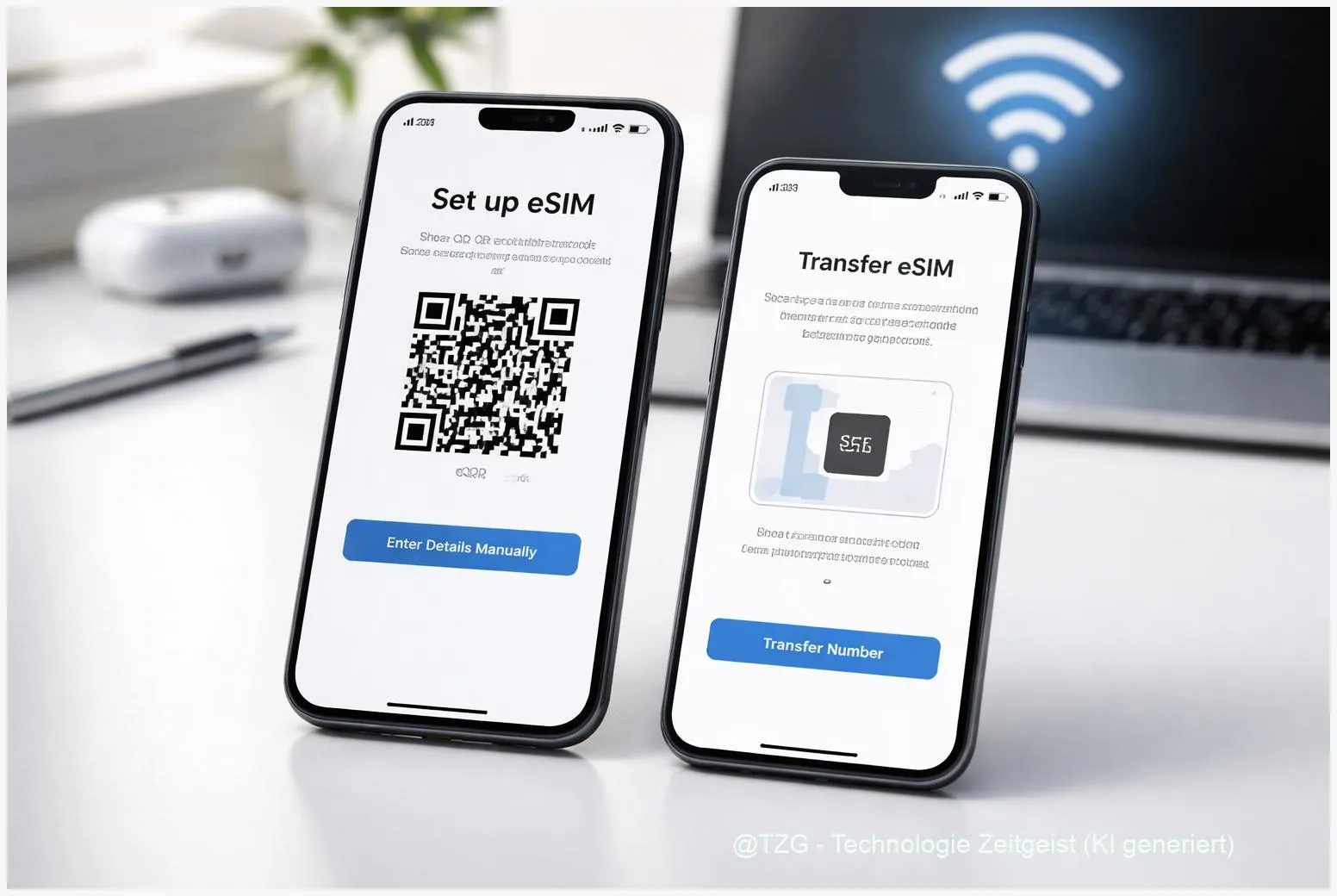
eSIM setup can feel confusing when you switch phones, travel, or want two numbers on one device. This guide shows how to activate an eSIM on iPhone and Android using the common methods (QR code, carrier app, or built-in transfer), and how to move an existing plan to a new phone without losing service. You will also learn what to check first and what to do if activation gets stuck.
Introduction
Your phone number is tied to a “cellular plan”. With a classic SIM card, moving that plan often meant taking out a tiny piece of plastic and putting it into the new phone. With an eSIM (an embedded SIM that is downloaded digitally), the steps depend on your device and your mobile provider. That is why upgrades can turn into a stressful moment: you have the new phone in your hand, but calls and mobile data still happen on the old one.
The good news: modern iPhones and many Android phones can activate an eSIM in minutes, and some even support transferring an active plan from a nearby phone. This tutorial keeps it practical: first the basics you need to understand the menus, then the exact taps to set up or transfer your eSIM, plus fixes for the typical “can’t add eSIM” situations.
Basics and Overview: eSIM setup on iPhone and Android
An eSIM is a digital SIM profile stored inside your phone. Instead of inserting a card, you download the profile from your carrier (mobile network provider). The download is usually triggered by scanning an “eSIM QR code” or by using a carrier app. Some systems also offer a direct phone-to-phone transfer.
On iPhone, eSIM options are typically in Settings > Cellular (or Mobile Service, depending on region). Apple supports several activation methods, including scanning a QR code and transferring from another nearby iPhone when your carrier supports it.
On Android, wording varies by brand, but you usually go to Settings > Network & internet > SIMs (Pixel) or Connections > SIM manager (many Samsung devices). Google’s Pixel phones support both QR code setup and (with compatible devices and carriers) an eSIM transfer flow.
The single biggest reason eSIM activation fails is not your phone model, but whether your carrier supports the specific activation or transfer method you are trying to use.
Also useful: “Dual SIM” means you can have two lines on one phone (for example, a private number and a work number, or a home plan plus a travel eSIM). Many phones let you store multiple eSIM profiles, but only certain combinations can be active at the same time.
| Option or Variant | Description | Suitable for |
|---|---|---|
| QR code activation | Scan a carrier-provided QR code to download the eSIM profile over the internet. | Most carriers; travel eSIMs; quick setup on a single phone. |
| Phone-to-phone transfer | Move an active plan from an old phone to a new phone (carrier support required). | Upgrading devices; reducing downtime; keeping the same number. |
Preparation and Prerequisites
Before you start, take two minutes to prepare. It prevents the most common activation loops (stuck on “Activating…” or “No service”).
Checklist for both iPhone and Android:
- Stable internet: Use Wi‑Fi if possible. eSIM downloads require an internet connection.
- Carrier info ready: QR code, activation code, or carrier app login. If you are transferring, confirm your carrier supports device-to-device transfer.
- Battery: Charge both phones to at least 30 % (or keep them plugged in during setup).
- Keep the old phone active: Don’t wipe it yet. For transfers, you often need it unlocked and nearby.
- Update the OS: Install pending iOS/Android updates. Transfers are most reliable on current software.
Extra iPhone prep (Apple’s transfer flow relies on proximity features): turn on Bluetooth and keep both iPhones close together. Extra Android prep (especially Pixels): ensure both devices have a screen lock (PIN/pattern) set up and that Google Play services are up to date, because some transfer steps depend on system components that update through Google.
Privacy note: eSIM QR codes and activation codes can be as sensitive as a SIM card. Store them like you would store a credit card letter: don’t post photos, don’t forward them casually, and delete screenshots once activation is done.
Step-by-Step Instruction
Pick the path that matches your situation. If you are moving from an old phone to a new one, try the built-in transfer first. If that is not available, use QR code activation (the most universal option).
- iPhone to iPhone transfer (Apple eSIM Quick Transfer, if supported): On the new iPhone open Settings > Cellular > Add eSIM. Choose Transfer From Nearby iPhone. Keep both iPhones close, unlocked, and follow the on-screen confirmation steps. If a code appears, enter it on the new iPhone. Wait until the plan shows as active; the old eSIM is typically deactivated after a successful transfer.
- Activate eSIM on iPhone using a QR code: Go to Settings > Cellular > Add eSIM > Use QR Code. Point the camera at the QR code from your carrier. Confirm with Add Cellular Plan when prompted. Afterward, you may be asked to label lines (for example “Primary” and “Travel”) and choose which line is used for mobile data.
- Transfer eSIM on Android (Pixel example): On the new phone open Settings > Network & internet > SIMs > Add SIM and look for Transfer SIM from another device. Keep both phones nearby, connected to Wi‑Fi, and follow the prompts. If your carrier does not support this flow, Android will usually suggest downloading a new eSIM instead.
- Activate eSIM on Android using a QR code (works on many brands): Open Settings > Network & internet (or Connections) > SIMs/SIM manager > Add eSIM. Choose the option that mentions scanning a QR code, then scan your carrier’s code. Accept the download and wait for activation to complete.
- Confirm it worked: Turn off Wi‑Fi for a moment and open a webpage using mobile data. Place a quick call or send a message. In your SIM settings, check that the new plan is set as the default for calls and/or mobile data (especially important for Dual SIM setups).
If you see signal bars but no data, check whether the correct line is selected for mobile data. On many phones, this is a separate toggle from “default for calls”.
Tips, Troubleshooting, and Variants
If eSIM activation fails, it is usually a simple connectivity or carrier-authorization issue. Work through these fixes in order.
Common problems and fixes:
- “Unable to activate eSIM” / “Can’t add eSIM”: Confirm the QR code is meant for your exact line and has not been reused. Many QR codes are single-use. Then restart the phone and try again on Wi‑Fi.
- Stuck on “Activating…”: Toggle Airplane Mode on for 10 seconds, then off. If it still hangs, restart the phone. Apple’s support guidance also points to contacting the carrier when activation cannot be completed on the network side.
- No service after transfer: On iPhone, check Settings > Cellular and confirm the plan shows as “On”. On Android, check SIM settings and ensure the eSIM is enabled. If the old phone still shows service, the transfer may not have finalized; repeat the transfer flow or ask your carrier to re-issue the eSIM.
- Dual SIM confusion: Label your lines. On iPhone you can set a default line for calls and mobile data. On Android, make sure the eSIM is selected for data if that is what you want; otherwise the phone may keep using the other SIM.
Useful variants: Some carriers offer activation directly in their app (handy if you do not have a printed QR code). If you are setting up a travel eSIM, consider installing it before you leave while you still have reliable Wi‑Fi, then keep it turned off until you arrive.
If you want more everyday phone organization after the switch, TechZeitGeist has related guides like TechZeitGeist smartphone tips and troubleshooting. (If you don’t find the exact topic, search the site for “iPhone storage” or “Android notifications”.)
Conclusion
Setting up an eSIM is mostly about choosing the right method: QR code activation works almost everywhere, while direct transfers can be faster when your carrier supports them. With Wi‑Fi, updated software, and your old phone kept nearby, you can usually move your number to a new iPhone or Android device in a few minutes. If activation gets stuck, the fixes are often simple (restart, Airplane Mode toggle, re-check the line settings), and the final step may require your carrier to refresh the plan on their side.
Tried an eSIM transfer recently? Share what worked (and what didn’t) on your device model so others can avoid the same pitfalls.




Leave a Reply