
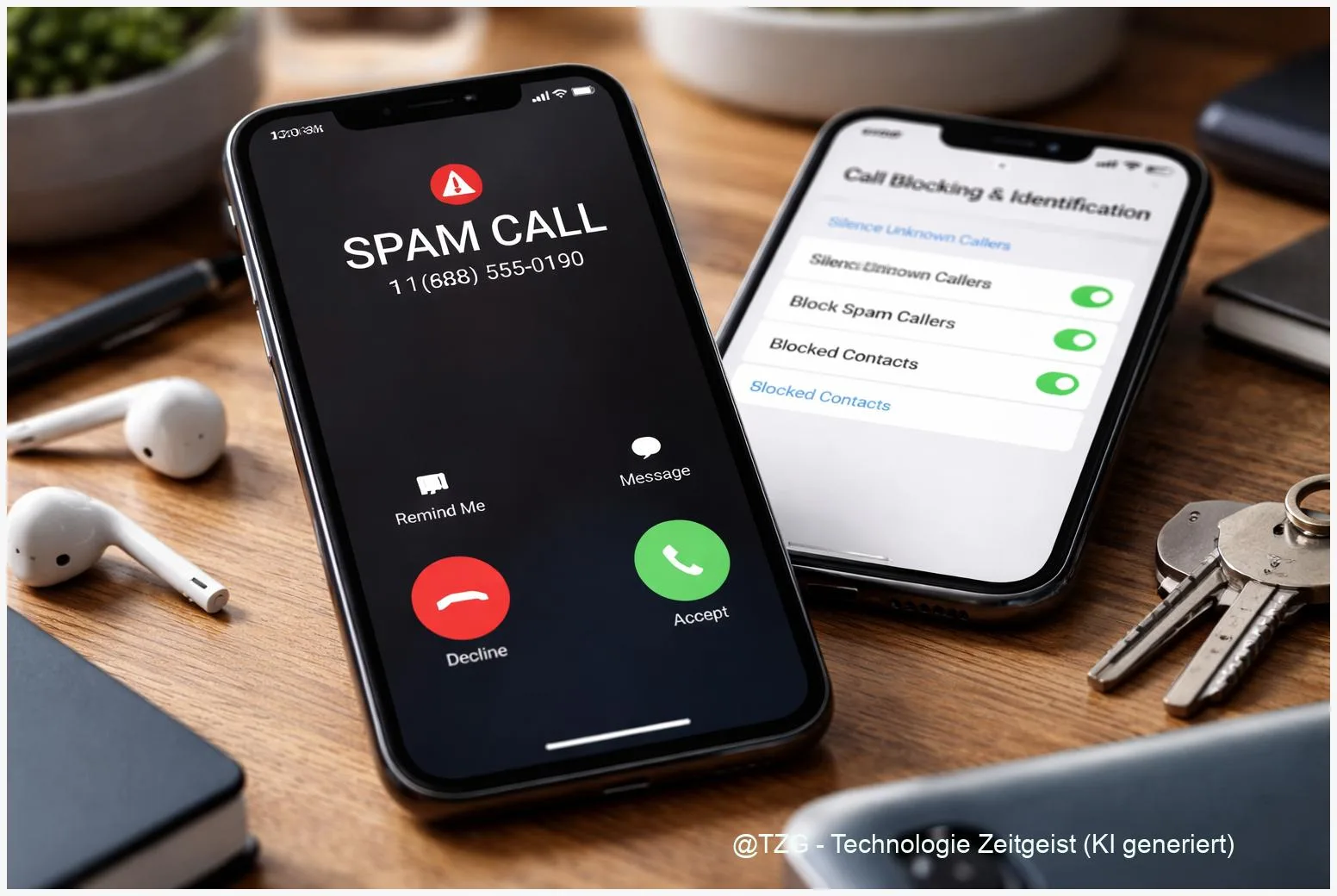
Spam calls are more than annoying: they interrupt work, wake you up, and can pressure you into sharing personal data. This guide shows how to stop spam calls on iPhone and Android using built-in tools: block specific numbers, silence unknown callers, and report spam so filters improve over time. You’ll also learn what to check first so you don’t miss important calls from doctors, deliveries, or schools.
Introduction
One missed call can be expensive. One answered spam call can be worse. Many people keep their phone on loud because they’re waiting for a courier, a job call, or a family update—then a wave of “unknown” numbers starts ringing several times a day.
Modern iPhones and Android phones already include good protection, but it’s easy to miss the right switch or to enable it in a way that blocks legitimate callers too. The goal is not “never receive unknown calls again”. The goal is practical control: silence the risky calls, still see them in a list, and only block hard offenders.
The steps below work on current iOS versions and on Android phones that use the Google Phone app (common on many devices). Menu names can vary slightly, but the logic stays the same.
Basics and Overview: stop spam calls without missing the important ones
There are three layers of protection, and they work best together. Blocking is the strongest: a specific number can no longer ring you. Silencing/Screening is the safer daily option: unknown callers won’t disturb you, but you can still review missed calls and voicemail. Reporting helps your phone or carrier learn which calls are spam, so warnings and automatic filters get better.
On iPhone, Apple offers features like Silence Unknown Callers (unknown numbers are silenced and sent to voicemail, while still appearing in Recents). Apple also documents call screening and filtering options depending on iOS version and region.
On Android, many phones rely on Google’s Phone app features such as Caller ID & spam protection, which can label suspicious calls and allow you to mark numbers as spam.
The most effective setup is “silence by default, block when proven, report whenever it’s clearly spam”.
If you want a quick mental model: silencing is like letting unknown callers leave a message at the door; blocking is changing the lock; reporting is telling the building’s security desk what happened.
| Option or Variant | Description | Suitable for |
|---|---|---|
| Silence/Screen unknown callers | Your phone doesn’t ring for unknown numbers; calls go to voicemail and remain visible in call history. | Most people who want peace, but still need to see missed calls. |
| Block + report a number | Stops a specific caller from reaching you and improves spam detection signals. | Repeated spam from the same number or obvious scam attempts. |
Preparation and Prerequisites
Before you change settings, take two minutes to prevent “friendly fire”. Most problems with spam protection come from missing an important call because the caller isn’t saved properly, or because the phone app being used isn’t the one with the spam features.
Do this first:
- Save critical contacts (doctor, school, childcare, building entry system, frequent delivery services). Silencing usually allows known contacts through.
- Check voicemail is working. Silenced calls often go to voicemail; if voicemail is not set up, you lose context.
- Update your OS and phone app when possible. Spam filters and call-screening options evolve with iOS/Android updates.
- Android only: confirm you use the Google Phone app (often called “Phone” with a blue icon). Some manufacturer dialers have different menus.
- Know your risk moments: If you’re expecting an important first-time callback (a new clinic, a repair technician), you may want to temporarily loosen silencing for a few hours.
Optional but helpful: keep a simple note in your contacts like “Delivery drivers” and add numbers when you notice repeated legitimate calls from the same service.
Step-by-Step Instruction
The steps are grouped so you can apply them in minutes. If you use both an iPhone and an Android phone in your household, you can set up each device similarly: silence unknowns, then block/report repeat offenders.
- iPhone: turn on Silence Unknown Callers. Open Settings > Apps (or scroll to Phone, depending on iOS) > Phone > Silence Unknown Callers (or Screen Unknown Callers if shown) and enable the option you prefer. Your iPhone will send calls from unknown numbers to voicemail and show them in Recents (Apple documents this behavior).
- iPhone: block a spam number from your call log. Open the Phone app > Recents, tap the info (i) symbol next to the number, then choose Block Caller. This is best for numbers that repeatedly bother you.
- Android (Google Phone): enable Caller ID & spam protection. Open the Phone app, tap the three-dot menu (top right) > Settings > Caller ID & spam, then enable See caller ID & spam (wording can vary). Google’s help pages describe this as the core switch for identifying and helping flag spam.
- Android: block and report a spam caller. In the Phone app, go to Recents, tap the call, then choose Block and (if offered) Report as spam. Reporting is valuable because it feeds spam detection signals.
- Report beyond your phone (optional, but strong). If spam calls are persistent, also use your carrier’s spam-reporting tools or a consumer authority guide for your region (for example, the FCC provides practical reporting guidance in the US). This can help broader network-level blocking.
- Verify it worked. Over the next day, check your call history and voicemail. You should see fewer interruptions, while unknown callers are either labeled as spam, silenced, or easier to block after the fact.
If the phone still rings for unknown numbers after enabling silencing/spam protection, don’t assume it failed. Some calls are not classified as unknown/spam yet, and some features vary by region, carrier, and phone model.
Tips, Troubleshooting, and Variants
You’re missing legitimate calls: This is the most common downside of aggressive silencing. Fix it by saving the number (if it’s repeatable), or temporarily turning silencing off while you expect a one-time callback. Also check whether the caller left voicemail—silenced calls typically can.
Android menus don’t match: Many steps assume the Google Phone app. If your device uses a different dialer, look for similar terms such as “Spam protection”, “Caller ID”, “Blocked numbers”, or “Call screening”. Installing Google Phone (if available for your device) can provide the documented menus from Google’s help pages.
Spam calls come from many changing numbers: Blocking one-by-one helps, but it won’t scale. Prioritize (1) silencing/screening and (2) reporting as spam. Carrier-level filters can also help, depending on your plan and country.
Private/withheld numbers: Some callers intentionally hide their caller ID. Your phone may still treat them as “unknown”. If you cannot accept withheld calls, consider a stricter setup, but be aware that some clinics or companies may call from withheld IDs.
Privacy note: Spam protection and caller ID features may involve sharing call-related data with your OS provider or carrier to classify numbers. Review the description in your settings and enable only what you’re comfortable with, especially on shared devices.
If you want to go further, TechZeitGeist also covers practical phone hygiene, such as guides for securing everyday accounts and devices. If you have a smart home setup, it can also help to review which numbers are stored in intercom or gate systems.
Conclusion
You don’t need extra apps to regain control over your phone. On iPhone, silencing unknown callers reduces interruptions while keeping calls visible in Recents and voicemail. On Android, enabling Caller ID & spam protection and reporting spam calls improves detection over time. Blocking remains useful, but it’s best reserved for repeat offenders. If you combine these steps with a quick “save important contacts” habit, you can stop spam calls without living in fear of missing the one call that actually matters.
What worked best for you—silencing unknown callers, blocking repeat numbers, or reporting spam? Share your setup and any pitfalls you ran into, and pass this guide on to someone who’s getting hammered by spam calls.




Leave a Reply