
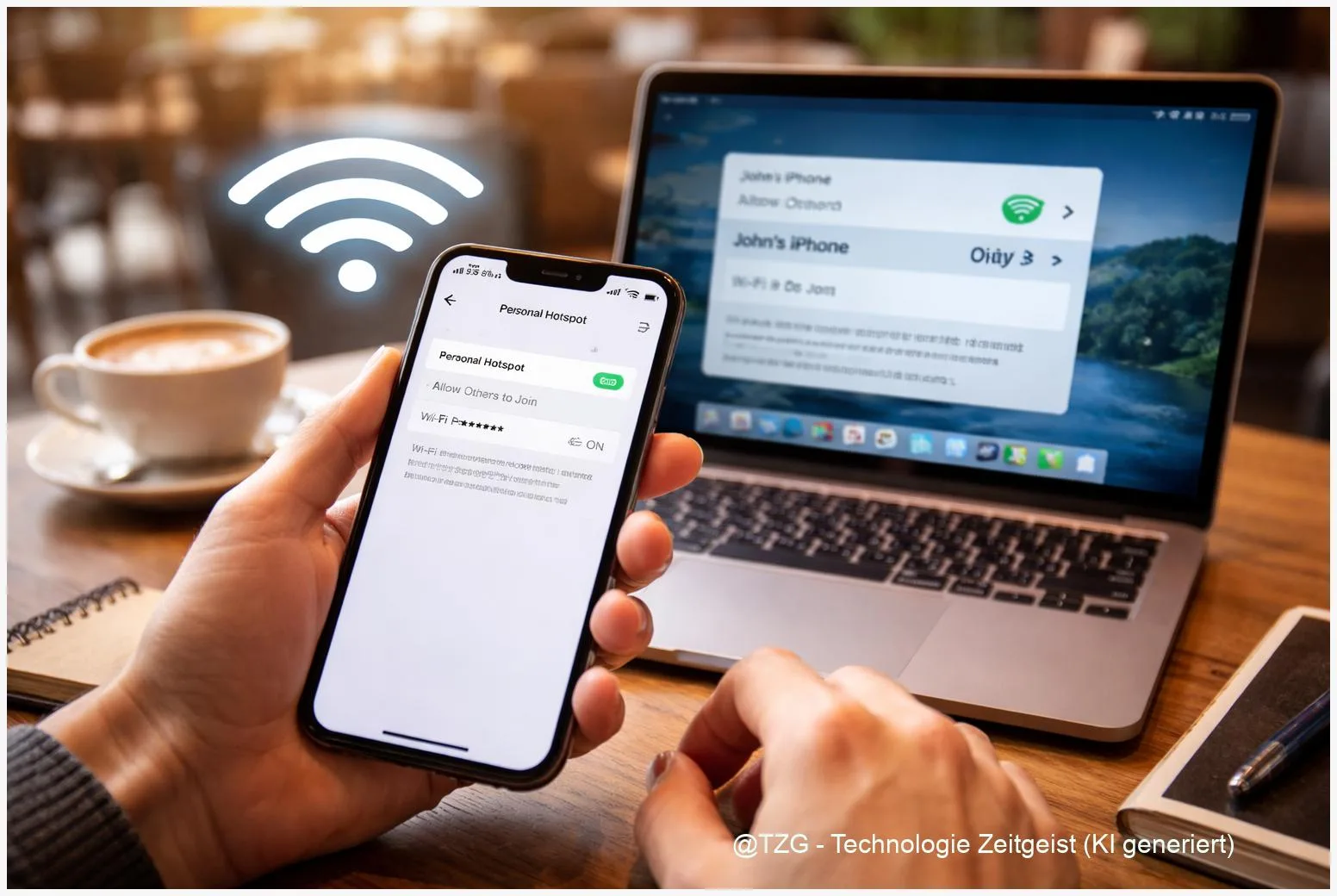
A mobile hotspot setup turns your phone into a small Wi‑Fi router, so a laptop or tablet can get online when there’s no trusted network nearby. This guide shows the simplest ways to enable a hotspot on iPhone and Android, connect another device, and secure the connection with a strong password. You’ll also learn practical fixes for the most common “hotspot not working” situations.
Introduction
Your home Wi‑Fi goes down, the hotel network asks for a login your laptop can’t open, or you need to send a file from a work notebook while commuting. In moments like these, your phone can bridge the gap: it shares its mobile data connection with other devices.
The feature is built into modern iPhones and Android phones, but it can feel unreliable when you need it most: the hotspot name doesn’t appear, a laptop connects but shows “No internet,” or the connection drops after a few minutes.
The good news is that most problems are caused by a few predictable settings: carrier plan limitations, an outdated connection on the laptop, or a compatibility mismatch between 2.4 GHz and 5 GHz Wi‑Fi. The steps below walk you through setup first, then the fastest fixes.
Basics and Overview
A “mobile hotspot” (often called “Personal Hotspot” on iPhone) means your phone creates a Wi‑Fi network. Other devices join that network and use your phone’s cellular connection for internet access. Android often groups this under “Hotspot & tethering.” “Tethering” is the umbrella term: it can be Wi‑Fi, USB cable, or Bluetooth.
A hotspot is basically “Wi‑Fi from your phone,” but the real internet still comes from your mobile plan and signal strength.
That distinction matters: if your phone has weak mobile reception, every connected device will feel slow. Also, some carriers limit hotspot usage or require it to be enabled on your plan—so a perfect setup can still fail until the plan supports tethering.
| Option or Variant | Description | Suitable for |
|---|---|---|
| Wi‑Fi hotspot | Phone creates a Wi‑Fi network (SSID + password) that multiple devices can join. | Laptops/tablets, quick sharing, more than one device. |
| USB tethering | Internet shared via cable; often more stable and can charge the phone at the same time. | Long sessions, flaky Wi‑Fi environments, conserving phone battery. |
Preparation and Prerequisites
Before you toggle anything on, take one minute to prevent the classic “it connects but doesn’t work” scenario. Most of these checks are quick and save time later.
- Check mobile data and signal: confirm your phone has working mobile internet (open a website with Wi‑Fi turned off).
- Confirm your plan supports hotspot: some plans block tethering or slow it down after a limit. If the hotspot switch is missing or connections fail instantly, this is a common reason.
- Update devices when possible: install pending iOS/Android and laptop updates; compatibility fixes often arrive through updates.
- Charge your phone: hotspots drain battery fast. If you can, plug the phone in or plan for USB tethering.
- Decide on the method: Wi‑Fi is the simplest; USB is usually the most stable; Bluetooth is typically slower but can be energy‑efficient for basic tasks.
- Pick a strong password: Apple notes the Wi‑Fi password should be at least 8 ASCII characters. Use a longer one if you can.
If you’re using a work laptop, check whether a VPN, security suite, or strict company policy blocks new Wi‑Fi networks. That can look like a hotspot problem even when the phone is fine.
Step-by-Step Instruction
The menu names vary slightly by phone brand and Android version, but the path is consistent. Use the steps for your device, then connect from your laptop/tablet like you would with any other Wi‑Fi network.
- On iPhone: open Settings > Personal Hotspot (sometimes under Cellular).
- Turn on Allow Others to Join. Stay on that screen for a moment—some iPhones make the hotspot easier to find while the page is open (Apple support guidance).
- Set or verify the Wi‑Fi password. Use a strong password (Apple requires at least 8 ASCII characters).
- On Android: open Settings > Network & internet (or Connections) > Hotspot & tethering > Wi‑Fi hotspot.
- Turn on the Wi‑Fi hotspot, and check Hotspot name (SSID) and Password. Google’s Android help also describes enabling it via the Quick Settings tile (press and hold the Hotspot icon).
- On the device you want to connect (laptop/tablet): open Wi‑Fi, select your phone’s hotspot name, enter the password, and connect.
- Confirm it works: load a simple webpage. If the device says it’s connected but has no internet, move to the troubleshooting section below.
What “correct” looks like: the phone usually shows a hotspot indicator (for iPhone, a blue status indicator; Android varies), and your laptop lists the hotspot as a connected Wi‑Fi network.
Tips, Troubleshooting, and Variants
If your hotspot fails, avoid random toggling. Try these fixes in order—they cover the most common causes mentioned in Apple and Google support guidance, plus typical Windows Wi‑Fi troubleshooting steps.
1) Hotspot name doesn’t show up
Turn the hotspot off and on. Move the devices closer (a few meters). On iPhone, keep the Personal Hotspot screen open for a minute. On Android, open the hotspot settings and confirm the hotspot is actually enabled. If you recently changed your phone name, the hotspot name may have changed too.
2) Connects, but shows “No internet” on the laptop
First, confirm the phone itself has internet on mobile data. Then “forget” the hotspot network on the laptop and reconnect with the password again. On Windows, Microsoft’s guidance for Wi‑Fi issues typically starts with the built‑in network troubleshooter and a reboot of both devices.
3) Keeps disconnecting
Battery-saving features can pause hotspot sharing. Plug the phone in if possible. Also check hotspot band settings on Android (2.4 GHz vs 5 GHz): 2.4 GHz is usually more compatible and reaches farther; 5 GHz can be faster at short range. If you see a “maximize compatibility” option on iPhone models that offer it, try enabling it when older devices struggle (Apple documents a compatibility setting on newer iPhones).
4) Use a more stable variant
If Wi‑Fi is unreliable, switch to USB tethering (Android supports it; iPhone can share via USB as well, per Apple support). USB can reduce interference and keep your phone charged during longer sessions.
5) Secure hotspot tips
Keep the password private, avoid leaving hotspots enabled in public places, and disable it when you’re done. If your phone offers WPA3 security, use it when your connecting devices support it; otherwise a strong WPA2 password is still far better than an open network.
More practical reading from TechZeitGeist: Smartphone hotspot setup: share internet with iPhone & Android and Android hotspot: make it faster and set it up securely.
Conclusion
A mobile hotspot is one of the most useful “backup internet” tools you already carry. Once you know where the setting lives on iPhone (Personal Hotspot) and Android (Hotspot & tethering), setup takes less than a minute: enable sharing, set a solid password, and connect your laptop like any other Wi‑Fi network. When things fail, the fastest wins are usually simple—confirm mobile data works, reconnect fresh, and switch bands or use USB tethering for stability.
Did one of the fixes solve your issue—or did you run into a different hotspot problem? Share what happened (device + OS version) so others can benefit.




Leave a Reply