
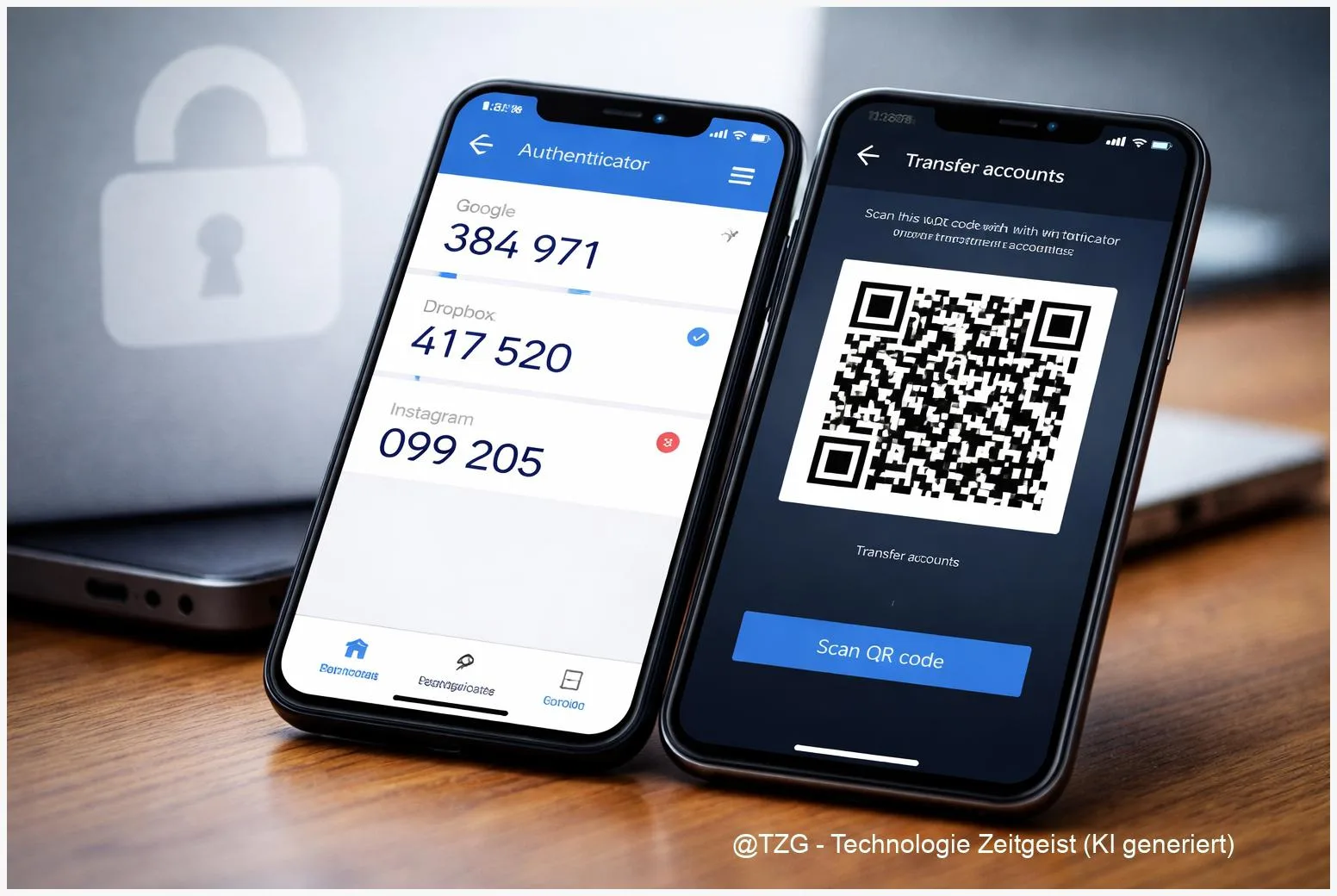
Switching phones can lock you out of accounts if your two-factor authentication lives in an app. This guide shows how to transfer Google Authenticator to new phone safely, and how to move Microsoft Authenticator with backup and recovery. You will learn what to prepare, what to tap in each app, and how to verify everything works before you wipe the old device.
Introduction
A new phone usually means a smoother camera and a faster battery. But if you use an authenticator app for logins, the “upgrade” can suddenly feel risky: you try to sign in, the website asks for a 6-digit code, and the code is still on the old device. This happens with email accounts, social media, password managers, banking portals, and many work sign-ins.
The good news: with current versions of Google Authenticator and Microsoft Authenticator, you can move most codes in a controlled way. The key is to do it before you reset or sell the old phone, and to keep a fallback (backup codes or an alternative sign-in method) for accounts that require extra verification.
The steps below focus on practical, repeatable methods that still work even if menus shift slightly in future app updates.
Basics and Overview
Authenticator apps generate time-based one-time passwords (often called TOTP). These are short codes that change about every 30 seconds and act as a second factor after your password. The important part is the “secret” stored inside the authenticator app; the changing numbers are just a display of that secret over time.
When you move to a new phone, you’re really trying to move those secrets (or re-register them) so the new phone can generate the same valid codes. Google Authenticator supports two common ways: account sync via your Google Account, and a manual “transfer/export” using a QR code. Microsoft Authenticator typically relies on cloud backup and restore, but some account types may still need re-approval after restoring.
Treat your authenticator like a house key: copying it is possible, but you should confirm the new key works before you throw away the old one.
Also note a frequent confusion: moving codes between apps (for example, from Google Authenticator to Microsoft Authenticator) is not the same as moving to a new phone. This guide covers “new phone” moves for each app, which is the most reliable path.
| Option or Variant | Description | Suitable for |
|---|---|---|
| Google Authenticator sync | Codes sync via your Google Account after sign-in. | Most users who stay in Google Authenticator and have internet access. |
| Google Authenticator QR export | Export accounts on old phone, scan on new phone. | Users who prefer a one-time local transfer or don’t want sync. |
| Microsoft Authenticator cloud backup | Backup on old phone, restore on the new phone with recovery. | Users staying on the same platform (iOS-to-iOS or Android-to-Android). |
Preparation and Prerequisites
Spend five minutes on preparation; it can save hours of account recovery later. The goal is simple: keep access to the old phone until the new one is proven to work.
Checklist before you start:
- Don’t wipe the old phone yet. Keep it charged and connected to Wi‑Fi or mobile data.
- Update both apps (Google Authenticator / Microsoft Authenticator) on the old phone to the latest available version.
- Install the same app on the new phone from the official app store (Google Play or Apple App Store).
- Know your account logins: Google Account password, Microsoft account password, and any device PIN/biometrics.
- Collect backup codes for critical services (email, password manager, banking). Many services provide printable one-time backup codes in their security settings.
- For work/school accounts, expect extra checks. Your organization may require re-approval or an admin reset after device changes.
If you want a broader safety net, TechZeitGeist has general guides around account safety and logins in its cybersecurity section: TechZeitGeist cybersecurity articles.
Step-by-Step Instruction
The steps below are split into two mini-procedures: Google Authenticator and Microsoft Authenticator. After each transfer, test at least one real login (or a security check page) before you proceed.
-
Google Authenticator: choose sync or QR export.
If you already see your Google profile in the app, sync may already be active. If you prefer a one-time move, use the transfer/export option instead.
-
Google Authenticator (sync method).
On the new phone, install Google Authenticator and sign in with the same Google Account used on the old phone. Wait a moment for codes to appear. If the app offers a “sync” or account selection, confirm the correct Google Account. Once the codes show up, compare one entry on both phones to ensure it matches and updates over time.
-
Google Authenticator (QR export method).
On the old phone, open Google Authenticator and find the transfer/export feature (often under a menu like “Transfer accounts”). Choose Export and select the accounts you want to move. A QR code will appear on the old phone.
On the new phone, open Google Authenticator and choose the option to Import or Scan a QR code. Scan the QR code shown on the old phone. When finished, you should see the same accounts listed on the new phone.
-
Microsoft Authenticator: turn on backup on the old phone.
On the old phone, open Microsoft Authenticator and go to its settings to enable backup. On Android, this uses Microsoft’s cloud backup with a personal Microsoft account. On iOS, backup relies on iCloud being enabled (and Microsoft describes iCloud-based backup behavior in its support documentation). Make sure the backup completes before you move on.
-
Microsoft Authenticator: restore on the new phone.
Install Microsoft Authenticator on the new phone. During setup, choose the recovery option (often labeled “Restore from backup” or “Begin recovery”). Sign in with the same recovery account used for the backup. After restore, you may see your entries, but some accounts can show “Action required” until you re-verify.
-
Verify, then clean up.
Pick two to three important services (for example: your main email, your password manager, and one social account) and do a real sign-in test using the new phone’s codes or approvals. Only after successful tests should you remove accounts from the old phone or reset it.
If everything worked, the new phone will generate the same time-based codes, and Microsoft Authenticator approvals will arrive on the new device. Keep the old phone as a fallback for a day or two if possible.
Tips, Troubleshooting, and Variants
Problem: The new phone shows different Google Authenticator codes.
First, confirm you imported the correct accounts or signed into the correct Google Account. If you used QR export, repeat the export/import and scan again in good lighting. Also check the new phone’s time settings: automatic time and timezone should be enabled, because TOTP depends on accurate time.
Problem: Microsoft Authenticator restored entries, but many say “Action required”.
That often means the service wants a fresh verification after a device change. For work/school accounts, this may require signing in again or re-registering your security info. If you’re using an organizational account, your IT helpdesk can typically reset your MFA registration if you’re stuck.
Problem: No backup existed and the old phone is gone.
For Microsoft Authenticator, Microsoft’s own guidance is that you may need to use each service’s account recovery process and then set up authenticator codes again. For Google Authenticator, if sync was not enabled and the old phone is not available, you usually must sign in using backup codes or another factor and reconfigure 2-step verification per service.
Tip: Reduce risk before the next phone switch.
Where services offer them, store backup codes offline (printed or in a secure vault). Consider adding a second factor that is not tied to the same phone, such as a hardware security key or passkeys, if the service supports it. And keep your authenticator protected with device lock and, if available, an in-app privacy screen.
Variant: Moving codes between authenticator apps.
If you are not only changing phones but also changing apps, be extra careful. Some apps don’t support direct import from others, and the safest path is often to re-enable 2FA per service. Plan extra time and test after every change.
Conclusion
Authenticator transfers are easiest when you treat them like a controlled migration: prepare first, move the codes, and only then retire the old device. Google Authenticator gives you two solid routes—sync with your Google Account or a QR-based export—while Microsoft Authenticator works best when cloud backup and recovery are enabled in advance. After the move, a short login test on a few key services is the fastest way to confirm you won’t get locked out later. Once you know the new phone works, you can reset the old one with confidence.
Did you run into a specific stumbling block during the move? Share what happened and which phone/app versions you used—your experience can help others avoid lockouts.




Leave a Reply