
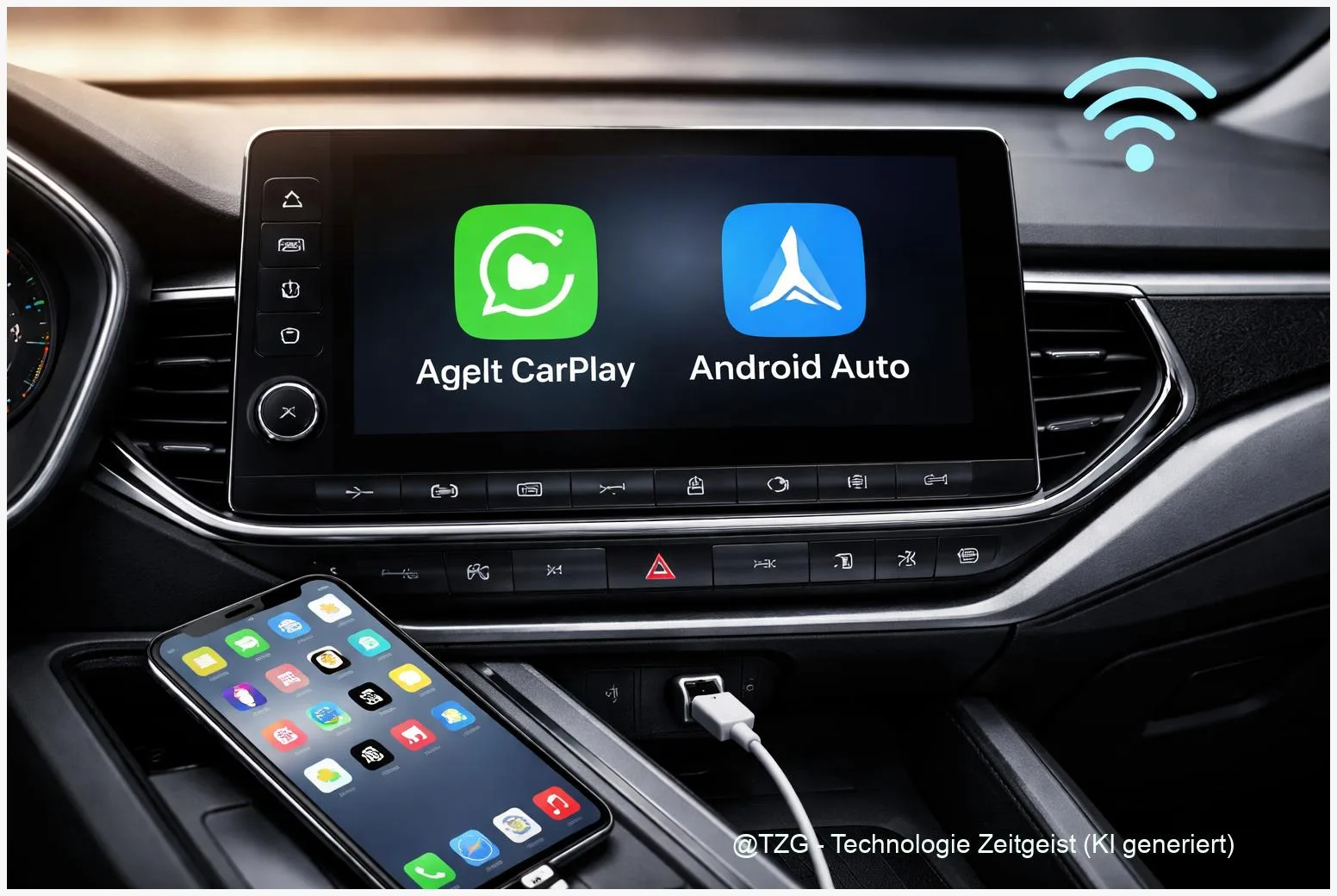
If your phone won’t connect to your car, navigation and music quickly become a hassle. This guide shows an Apple CarPlay setup and Android Auto setup that works reliably—both wired and wireless—plus the most common fixes when the connection fails. After following the steps, you’ll know what your car and phone need, how to pair them safely, and what to try first when CarPlay or Android Auto suddenly stop working.
Introduction
Many people only notice how often they use their phone in the car when it stops working: the route doesn’t show up, calls come through the phone speaker, or your playlist suddenly goes silent. Apple CarPlay and Android Auto are meant to reduce that friction by moving key apps—maps, messages, music—onto the car display with larger buttons and voice control.
In practice, setup can feel inconsistent because it depends on three things at once: your phone, your car’s infotainment system, and the connection method (USB, Bluetooth, Wi‑Fi). A single weak link—like a charge-only cable or a half-finished Bluetooth pairing—can block the whole experience.
The instructions below focus on a clean, repeatable setup path for both systems, plus realistic troubleshooting steps you can try in a few minutes before you dig through car menus or call support.
Basics and Overview: Apple CarPlay setup and Android Auto setup
Apple CarPlay and Android Auto are “phone projection” systems. That means your apps still run on the phone, but the car screen shows a simplified interface built for driving. The car is mainly an external display and controller (touchscreen, steering wheel buttons, and microphone), while your phone provides the apps and data connection.
There are two connection types:
- Wired (USB): usually the most stable and charges your phone at the same time.
- Wireless (Bluetooth + Wi‑Fi): more convenient, but it relies on clean pairing and stable radio conditions.
If wireless feels “random”, it’s often because Bluetooth starts the handshake, but Wi‑Fi carries the heavy data. Both must work together.
For CarPlay, Apple highlights that you typically connect via a USB port marked with a CarPlay or smartphone icon, and that Siri should be enabled for the best experience. For Android Auto, Google emphasizes a compatible phone/car combination and a data-capable USB cable for wired use, while wireless needs a phone and car that support it.
| Option or Variant | Description | Suitable for |
|---|---|---|
| Wired (USB) | Plug in a data-capable USB cable; approve prompts on phone and car. | First-time setup, older cars, maximum stability. |
| Wireless (BT + Wi‑Fi) | Pair Bluetooth first; then the system uses Wi‑Fi for the projection link. | Short commutes, frequent stops, cleaner cockpit. |
Preparation and Prerequisites
A calm setup starts before you plug anything in. Plan to do the first pairing while parked, with the engine running if your car cuts power quickly.
- Check car support: Your infotainment system must explicitly support CarPlay and/or Android Auto (wired, wireless, or both). If you’re unsure, check the car’s settings menu or the manual.
- Update your phone: Install the latest iOS or Android updates available for your device.
- Use a proper cable for wired mode: Prefer an original or certified data cable. A “charging-only” cable is a top reason the car never detects the phone.
- Enable the right radios: For wireless, turn on Bluetooth and Wi‑Fi on the phone. Wireless projection typically needs both.
- Permissions matter: Be ready to allow access prompts (contacts, notifications, microphone). Without microphone permission, voice control may fail even when the connection works.
Quick phone-side checks:
- Restart the phone once before first setup (simple, but it removes many “stuck” states).
- Disable VPN apps temporarily if you suspect network issues (some setups behave oddly behind a VPN).
- On iPhone: confirm Siri is enabled in Settings.
Step-by-Step Instruction
Follow this order to avoid half-pairings. If you want wireless later, it still helps to complete a clean wired first run when your car supports it.
- Park safely and open your car’s phone/projection menu. Look for entries like “Phone”, “Connectivity”, “CarPlay”, or “Android Auto”. If there is a “Delete/Forget device” option and you previously tried setup, consider clearing the old entry first.
- Wired setup (recommended first): Plug the phone into the car’s USB port that supports projection (often marked with a smartphone icon). Use a short, high-quality cable. Wait for a prompt on the car screen and on the phone.
- Confirm prompts on the phone.
- On iPhone, approve CarPlay access and allow prompts if asked.
- On Android, accept Android Auto permissions (contacts, location, microphone) as needed.
- Finish the first launch on the car display. You should see a CarPlay or Android Auto home screen with common apps like Maps and Music. If your car shows an icon grid, the connection is active.
- Switch to wireless (only if your car supports it): In the car’s Bluetooth menu, start pairing. On your phone, pair with the car name. Keep Wi‑Fi turned on—wireless projection typically uses Wi‑Fi after Bluetooth handshaking.
- Approve “use wireless” prompts. Some cars ask whether to allow wireless CarPlay/Android Auto or whether to use the phone while locked. Accept if you want automatic reconnection when you start the car.
- Test the basics. Make one short call, start music, and open navigation. This confirms audio routing, microphone access, and GPS permissions in one go.
If everything worked, the system will usually reconnect automatically the next time you start the car. If it doesn’t, the troubleshooting section below focuses on the fastest checks first.
Tips, Troubleshooting, and Variants
When CarPlay or Android Auto fail, start with the “cheap” fixes: cable, restarts, and forgetting old pairings. They solve a large share of real-world connection problems.
1) Nothing happens when you plug in (wired)
- Try a different USB port in the car (some ports charge only).
- Swap the cable. Use a data-capable cable; avoid hubs and extension cables.
- Unlock the phone once after plugging in—some cars won’t fully start the session if the phone is locked.
2) Wireless connects sometimes, then drops
- Turn Bluetooth and Wi‑Fi off and on again on the phone, then reconnect.
- In your car’s Bluetooth list, “forget” the phone, and on the phone, “forget” the car—then pair again from scratch.
- If your car supports both, test wired for a day. If wired is stable, the issue is likely wireless radio conditions or pairing state, not the apps themselves.
3) Connection is fine, but voice control or calls don’t work
- Check microphone permissions for Android Auto or Siri settings on iPhone.
- Look for a “Mute” icon on the car screen during calls. Some systems remember the last call volume separately.
- Make sure your car is using the correct input source (some infotainment systems can route audio differently than expected).
4) Practical usage tips (everyday-friendly)
- Keep one “known-good” cable in the car. It reduces debugging time when something breaks.
- Prefer wireless + charging pad carefully. Wireless projection plus wireless charging can warm up phones on long drives. If you notice heat warnings, switch to wired.
- Privacy note: Car systems may store paired devices and recent call lists depending on settings. If you use a shared car, remove the phone from the car’s device list when needed.
If you want deeper background on typical pairing pitfalls, TechZeitGeist also maintains a practical overview at CarPlay & Android Auto: connection and settings guide. (This can be helpful if your car’s menu names differ from the generic wording above.)
Conclusion
CarPlay and Android Auto feel effortless once the initial setup is clean: a reliable cable for the first run, the right permissions, and a complete Bluetooth/Wi‑Fi pairing for wireless use. When something breaks, resist the urge to change ten settings at once. Start with the basics—swap the cable, restart phone and infotainment, and remove old pairings—because those steps fix the most common causes without guesswork. After that, you can decide what fits your routine best: wired for stability, wireless for convenience.
Did your setup fail in a specific step (wired detection, pairing, or audio)? Share what you see on the car screen and on the phone—others can often spot the missing piece quickly.




Leave a Reply