
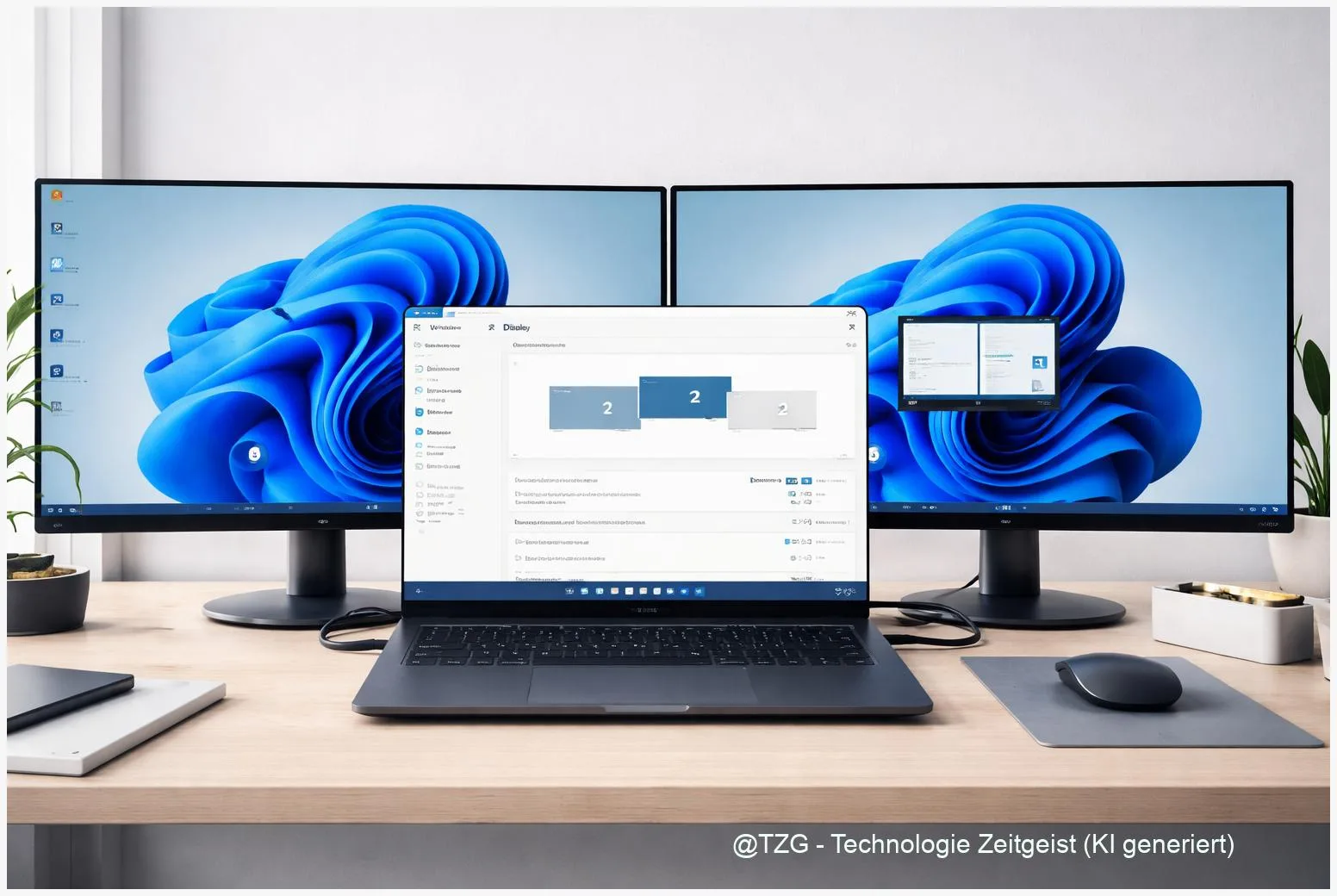
A dual monitor setup Windows 11 can make work and school tasks feel calmer: one screen for the main app, the other for chat, references, or a video call. This guide shows how to extend your desktop, arrange monitors so the mouse moves naturally, and fix common scaling issues (text too small, too big, or blurry). You’ll also learn quick shortcuts and practical checks if the second monitor is not detected.
Introduction
Two monitors sound like a luxury until you try them. Suddenly you can keep your email or messages open while writing a document, compare two spreadsheets side by side, or watch a tutorial without covering the app you’re working in. On Windows 11, the setup is usually quick, but a few details decide whether it feels smooth or annoying.
Typical pain points are very practical: the cursor “jumps” in the wrong direction because the screens are arranged incorrectly, one display looks sharp while the other looks fuzzy, or windows come up on the “wrong” monitor. Sometimes the biggest frustration is simple: the second monitor is plugged in, but Windows says it can’t see it.
The steps below walk you from cables and basic checks to Windows 11 display settings, then to scaling fixes and troubleshooting that doesn’t require specialist tools.
Basics and Overview
Windows 11 can use multiple displays in a few different modes. The most common is Extend, which turns two screens into one larger desktop. Your mouse can move between them, and you can place different windows on each monitor. Duplicate mirrors the same picture on both screens, which is useful for presentations.
The “right” dual-monitor setup is the one where the desktop matches your physical desk: the monitor positions, the primary screen, and readable text size all working together.
Three terms matter for everyday success. Primary display means the screen that gets the taskbar and where many apps open by default. Resolution is the number of pixels (detail) your monitor shows; “Recommended” usually means the monitor’s native resolution. Scaling controls how big text and apps appear. Scaling is essential when one monitor is 4K and the other is 1080p, or when you sit closer to one screen than the other.
| Option or Variant | Description | Suitable for |
|---|---|---|
| Extend | One large desktop across both monitors; windows can be moved between screens. | Work, school, multitasking, gaming with a second screen for chat/maps. |
| Duplicate | Same content on both screens (mirroring). | Presentations, teaching, screen sharing when everyone should see the same view. |
Preparation and Prerequisites
Before changing settings, make sure the hardware side is solid. Most “Windows can’t detect my monitor” problems come down to power, the wrong input source, or an adapter/dock that doesn’t behave as expected.
Quick preparation checklist:
- Check the monitor input: If your screen has multiple ports (HDMI, DisplayPort), select the correct input in the monitor’s on-screen menu.
- Use a direct cable when possible: A simple HDMI or DisplayPort cable is easier to troubleshoot than chaining adapters. If you must use USB-C, confirm your laptop supports video output (not every USB-C port does).
- Confirm power and wake state: Turn the monitor off and on once, and unplug/replug the video cable firmly.
- Update Windows 11: Go to Settings > Windows Update and install pending updates, then restart.
- Know your ports: Desktops often have video ports on the motherboard and on the graphics card. If you have a dedicated GPU, connect monitors to the GPU ports.
If you’re using a dock, keep in mind that some docks rely on specific drivers (for example, DisplayLink), and firmware updates can matter. For initial setup, a direct connection removes many variables.
Step-by-Step Instruction
The main work happens in Windows 11 display settings. The goal is: Windows recognizes both screens, the desktop is extended, the monitors are arranged like your desk, and text size feels consistent.
- Connect both monitors and let Windows react. Wait a few seconds. If the screen stays black, check the monitor’s input source.
- Open Display settings: Right-click an empty spot on the desktop and choose Display settings (or go to Settings > System > Display).
- Identify which screen is which: In the top area, click Identify. Big numbers appear on each monitor so you know which one Windows calls “1” and “2”.
- Arrange the monitors to match your desk: Drag the numbered rectangles left/right (and up/down if one monitor is physically higher). This step decides whether your mouse “travels” naturally between screens.
- Set Extend mode: Scroll to Multiple displays and select Extend these displays. (Fast alternative: press Win + P and choose Extend.)
- Choose the primary display: Click the monitor you want as main, then enable Make this my main display. This typically controls where the taskbar and many app windows appear.
- Fix sizing (scaling) per monitor: Click monitor 1, then under Scale & layout choose a Scale value that feels readable (Windows often suggests one). Repeat for monitor 2. Keep Display resolution on Recommended unless you have a specific reason to change it.
- Optional: check refresh rate for smoothness. For each monitor, open Advanced display and select the desired refresh rate (only values supported by the monitor and cable appear).
If everything worked, you should be able to drag a window across screens, and the pointer should cross at the same “height” where your monitors align. Text should be readable on both screens without leaning in.
Tips, Troubleshooting, and Variants
If something feels off, it’s usually one of a few common issues. These fixes are safe and reversible.
Problem: Second monitor not detected. Try this order:
- In Settings > System > Display, open Multiple displays and select Detect (if available).
- Press Win + P and switch to Extend (sometimes Windows is simply set to “PC screen only”).
- Swap cable/port, and test the monitor with another device if possible.
- Update your graphics driver via your PC/laptop manufacturer, or via Intel/NVIDIA/AMD tools. Intel’s support also recommends checking cables and doing driver troubleshooting for blank or unrecognized displays.
Problem: Text looks blurry on one monitor. First, confirm the basics: each monitor should use its Recommended resolution, and scaling should be reasonable (avoid extreme custom values if you can). Then check Windows’ built-in option to reduce blurry apps: in advanced scaling settings, enable the option that lets Windows try to fix apps so they aren’t blurry (wording can vary slightly by build).
Problem: Moving a window between monitors changes its size. That’s normal when monitors have different pixel density (DPI). If it’s distracting, try choosing scale values that are closer together (for example 125 % and 150 %) or align monitors with similar size/resolution for the “main” work area.
Tip: Faster window management. Windows 11 Snap layouts help a lot on dual monitors. Hover over the maximize button to see layout choices, or use Win + Arrow keys to snap windows quickly.
Variant: Duplicate for presentations. When you need mirroring, use Win + P > Duplicate. If the projector/TV cuts off edges, look for a “Just Scan/Screen Fit” option on the TV, or adjust resolution to a common standard like 1920×1080 if needed.
If you want more Windows 11 practical guides, TechZeitGeist has related reading on everyday Windows tips and troubleshooting. (No specific dual-monitor article could be confirmed at the time of research, so this link is kept general.)
Conclusion
A clean dual-monitor setup on Windows 11 is mostly about three decisions: use Extend for a larger desktop, arrange the screens to match your physical placement, and set scaling per monitor so text is comfortable to read. Once those basics are right, everyday tasks become simpler because you stop constantly switching windows and tabs.
If problems show up, stay methodical: confirm cables and input source, use Win + P to verify the mode, then work through Display settings and driver updates. In most cases, that’s enough to fix detection and scaling without extra software.
Did you run into a specific issue (blurry apps, wrong arrangement, or a dock that won’t detect the second screen)? Share what hardware you use and what you tried so far—others can often benefit from the same fix.




Leave a Reply