
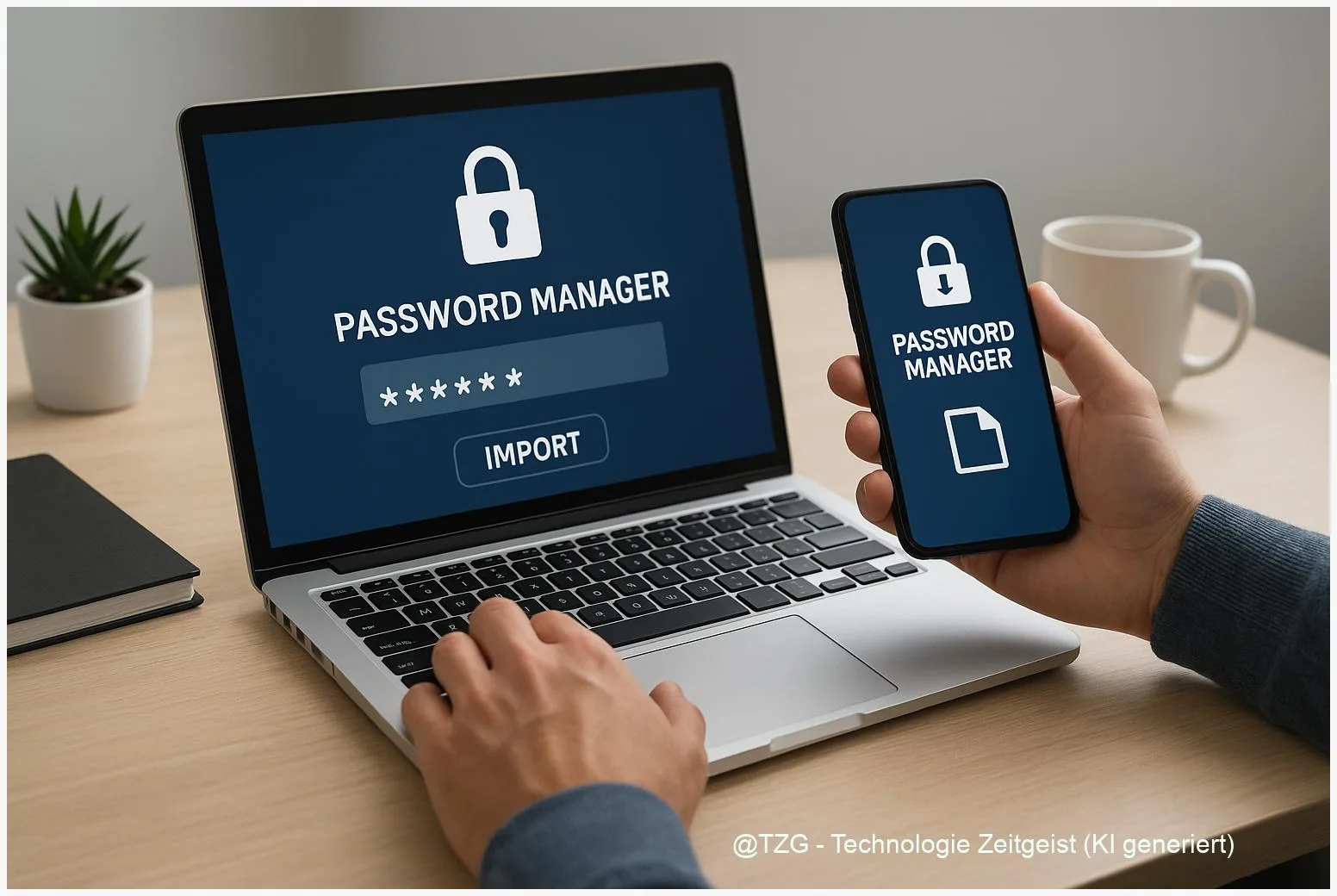
Switching from browser-saved passwords to a dedicated vault can feel risky: one wrong click and you worry you’ll lose logins or expose them. This password manager setup guide shows how to set up a password manager, export your passwords from common browsers (especially Chrome), and import them safely. You’ll also lock the vault down with two-factor authentication and clean up the leftover copies so your passwords don’t live in two places.
Introduction
Many people start with the browser’s built-in password feature because it’s convenient: you log into a shop once, and next time your browser fills the form. The downside usually shows up later. You switch devices, use multiple browsers, or want stronger security and clearer control over what is saved. Suddenly, you have passwords scattered across Chrome, Safari, Edge, and maybe your phone.
A password manager solves that by storing logins in one encrypted “vault” and filling them across devices. The tricky part is the move: exporting passwords often creates an unencrypted CSV file, and that file is sensitive. The goal is a clean migration: import everything, verify it, then remove the risky leftovers and protect the vault with strong sign-in settings.
Basics and Overview: how to set up a password manager
A password manager is an app (plus a browser extension) that stores your logins in an encrypted database. You unlock it with one strong master password, and it can generate unique passwords, autofill sign-ins, and sync across Windows, macOS, iOS, and Android.
Two terms matter before you begin. Master password is the one password you must remember; it unlocks everything. Two-factor authentication (2FA) adds a second proof (for example, a time-based code in an authenticator app) so a stolen master password alone is not enough.
The safest migration is the one where the unencrypted export file exists for minutes, not days.
Most moves happen through a CSV export from your browser. CSV is a simple spreadsheet-like text format and typically not encrypted. That’s why the workflow matters: export, import, verify, then securely remove the file and (optionally) delete saved passwords from the browser.
| Option or Variant | Description | Suitable for |
|---|---|---|
| CSV export + import | Export passwords as a CSV file from your browser and import that file into the password manager. | Most users; works across many browsers and managers. |
| Direct browser import (when offered) | The password manager reads saved passwords directly from a supported browser profile, avoiding a manual CSV step. | Desktop users who want fewer sensitive files on disk. |
Preparation and Prerequisites
Before you export anything, set yourself up so you can recover quickly if something looks wrong. A calm 10-minute prep prevents hours of confusion later.
Checklist for a safe move:
- Choose your password manager and create an account (if required). Popular options include Bitwarden or 1Password; the exact buttons differ, but the migration idea is the same.
- Update your browser and OS (Windows, macOS, iOS, Android) so the export/import menus match current layouts.
- Pick a private location for the export: your local drive is usually safer than a shared folder. Avoid sending the CSV to yourself via email or chat.
- Pause cloud backup/sync for the export folder if you use automatic backups. An unencrypted CSV should not be copied to extra places.
- Prepare 2FA: install an authenticator app you trust, or set up security keys if you have them.
- Plan for a short “verification window”: you’ll test a few logins after import before deleting browser-stored passwords.
If you also use Apple’s Passwords/iCloud Keychain, note that modern iOS and macOS versions can export passwords for migration, and some systems support more direct transfer methods. Either way, treat any export as sensitive until it is deleted.
Step-by-Step Instruction
The steps below focus on Chrome because it’s a common starting point, but the same flow applies to other browsers: export to a file, import into your manager, then harden and clean up.
-
Create and secure your password manager account.
Choose a long master password you can type reliably. Aim for a memorable passphrase (multiple words) rather than something short. Then enable 2FA in the manager’s security settings (often called “Two-Factor Authentication” or “MFA”). -
Export passwords from Chrome as CSV.
In Chrome on a computer, open the password settings via the Google Password Manager (you can reach it from Chrome’s Passwords/Autofill area). In the settings section, choose the option to export passwords and download the file. Chrome may ask for your device password as confirmation. -
Store the CSV safely for the shortest possible time.
Save it to a local folder you can find again easily. Don’t rename it to something like “passwords.csv” on a shared desktop; choose a private folder instead. -
Import into your password manager.
Open your password manager and look for Import or Import data. Select the source format that matches your export (for example “Chrome (CSV)” in many managers). Upload the CSV and start the import. -
Verify the import with a small, deliberate test.
Search for 3–5 important accounts (email, banking, shopping, social). Check that the website address (URL), username, and password fields are filled correctly. If something looks off, stop and fix the import format before you delete anything. -
Enable autofill on each device.
Install the browser extension on your computer, then turn on autofill in the manager’s settings. On phones, you typically enable the manager as the autofill provider in system settings so it can fill passwords in apps and browsers. -
Delete the export file.
When you’re confident the import worked, delete the CSV (and empty the recycle bin/trash). If you stored it in a synced folder, remove it there too. -
Clean up duplicates: decide whether to keep browser-saved passwords.
For the best security, many people remove saved passwords from the browser after confirming the password manager works. If you prefer a transition period, keep them briefly—but remember that this leaves two copies in two systems.
If everything went well, your password manager should now offer to fill logins on sites where Chrome used to do it, often with a small icon in the username/password field or an extension popup in the browser toolbar.
Tips, Troubleshooting, and Variants
Problem: The import creates messy entries or misses fields.
This often happens when the import format doesn’t match the CSV structure. In the import screen, double-check you selected the right source (for example Chrome CSV vs. generic CSV). Some managers provide a “sample CSV” format; aligning the columns can fix strange results.
Problem: Duplicate logins appear.
This can happen if you import from more than one browser, or import twice while testing. Most managers let you search by website and merge or delete duplicates. Do it calmly: start with your most-used sites first, then clean the rest over time.
Problem: Autofill works in the browser but not in apps.
On mobile devices you usually need to enable the password manager as the system autofill provider. Also check whether the app’s website address matches what’s saved in the vault (for example, example.com vs. accounts.example.com).
Variant: Direct import from a browser (desktop).
Some password managers offer a direct import that reads from a supported browser profile, which can reduce CSV handling. If your manager supports it, prefer that option on a trusted computer.
Security habits that pay off long-term.
Use generated unique passwords for new accounts, and change weak or reused passwords over time. Keep 2FA enabled for your password manager and for key accounts like email. If your manager supports passkeys, consider them where available, but keep a recovery method (like a backup code) stored securely in the vault.
If you want a broader security routine around this, TechZeitGeist also covers practical basics like digital security checklists for everyday accounts and safe browser settings for privacy and autofill. (These links point to the site’s home page because specific relevant URLs weren’t verified during research.)
Conclusion
A good password manager doesn’t just store passwords—it reduces everyday friction while raising your security baseline. The key is a careful migration: create the vault, enable 2FA, export from your browser, import, and verify a few important logins before you delete the unencrypted CSV. After that, turn on autofill across your devices and gradually replace weak or reused passwords with unique ones. Once your logins live in one protected place, device changes and browser swaps become much less stressful.
Did you run into a specific import hiccup (duplicates, wrong URLs, missing notes)? Share what you used (browser + password manager), and compare fixes with others—your workaround can save someone else time.




Leave a Reply