
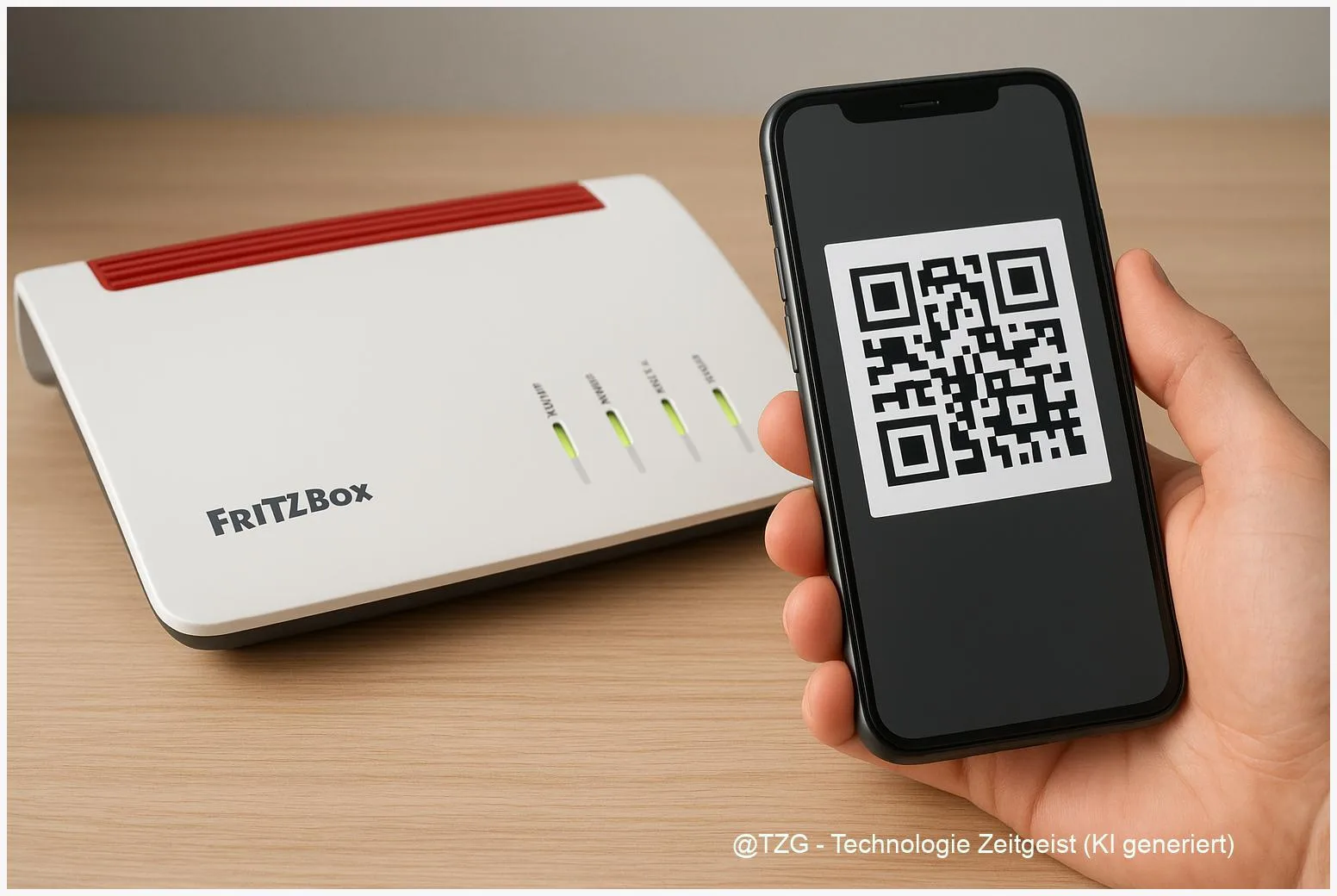
Public Wi‑Fi, mobile hotspots, or a quick check on your NAS at home: without protection, remote access can get risky fast. This guide shows how to do a FRITZ!Box VPN einrichten using WireGuard, so you can securely reach devices in your home network from your phone or laptop. You’ll learn the prerequisites, the exact FRITZ!OS menu path, and how to import the QR code or configuration file on iOS, Android, and Windows.
Introduction
You’re away from home and still want to print a document, reach a smart home dashboard, or grab a file from your home NAS. Many people try to solve that with open router ports or quick remote-access apps. That can work, but it also increases exposure if something is misconfigured.
A VPN is the calmer, more structured approach: it creates an encrypted “private tunnel” from your device back into your home network. With a FRITZ!Box, you can set this up without extra hardware, and WireGuard makes it relatively simple because you can add devices using a QR code or a small config file.
The goal: after these steps, your phone or laptop can connect securely to your home network on demand—especially useful on public Wi‑Fi—while keeping control in your own hands.
Basics and Overview: What a FRITZ!Box WireGuard VPN does
WireGuard is a modern VPN protocol. In everyday terms, it’s a compact set of rules that helps two devices (your phone and your FRITZ!Box) recognize each other and exchange encrypted traffic. The FRITZ!Box acts like the “door” to your home network; your phone or PC becomes an authorized key.
A home VPN is not mainly about hiding on the internet—it’s about getting safe, private access to your own devices when you’re not at home.
Once connected, your device can reach local resources as if it were on your home Wi‑Fi: router interface, NAS shares, printers, or smart home hubs—depending on what your network allows. AVM provides WireGuard integration in FRITZ!OS, and the setup lives directly in the router interface under the VPN section.
| Option or Variant | Description | Suitable for |
|---|---|---|
| “Road warrior” (single device) | One phone, tablet, or laptop connects to your FRITZ!Box. | Remote access when traveling, school, work, or on public Wi‑Fi. |
| Site-to-site (network to network) | Two routers connect two home networks over VPN. | Two locations (e.g., home + holiday home) that should share resources. |
Preparation and Prerequisites
Before you start clicking through menus, take two minutes to check the basics. Most WireGuard issues come from missing updates, missing internet reachability, or importing the config incorrectly.
Checklist (recommended):
- Updated FRITZ!OS: Install the latest stable FRITZ!OS for your model (WireGuard support depends on FRITZ!OS version and device). Use the router UI or AVM’s FRITZ!OS information pages.
- Admin access to the FRITZ!Box: You need the FRITZ!Box password and access to the web interface (usually fritz.box in your home Wi‑Fi).
- A reachable router address from the internet: Typically via MyFRITZ! (AVM’s service that provides a stable hostname even if your public IP changes) or another dynamic DNS option.
- WireGuard app on your device: Install the official WireGuard client for your platform (iOS/Android/Windows/macOS/Linux).
- Plan per-device access: Create a separate VPN profile for each device. If a phone is lost, you can disable just that one connection in the FRITZ!Box.
Good to know: you don’t need to open random ports manually in typical FRITZ!Box WireGuard setups; the router generates the right configuration and keeps management centralized.
Step-by-Step Instruction (FRITZ!OS + Phone/PC)
The core workflow is always the same: create a WireGuard connection in FRITZ!OS, then import it on your device (QR code for phones, config file for computers). Menu names can vary slightly by model and language, but the navigation stays close to the VPN/Permit Access area.
- Open the FRITZ!Box interface: At home, connect to your FRITZ!Box Wi‑Fi and open the router UI in a browser (commonly via fritz.box). Log in as administrator.
- Go to the WireGuard VPN section: In FRITZ!OS, open Internet > Permit Access / Sharing (Freigaben) > VPN and look for the WireGuard area (wording can differ slightly by firmware).
- Add a new connection: Choose Add connection. Select the option to connect a single device (phone/tablet/computer) to your FRITZ!Box. Give it a clear name like “Anna-iPhone” or “Work-Laptop”.
- Confirm and generate configuration: FRITZ!OS creates a WireGuard profile. You typically get a QR code (ideal for iOS/Android) and/or a downloadable .conf file (ideal for Windows/macOS/Linux). Store this safely; it grants access to your home network.
- Import on iPhone/Android: Open the WireGuard app, choose Add tunnel and select Scan from QR code. Scan the QR code shown by the FRITZ!Box. Save the tunnel and switch it on when you’re away from home.
- Import on Windows 11: Install the WireGuard client from the official WireGuard site. Open it and choose Import tunnel(s) from file, then select the downloaded configuration file from the FRITZ!Box. Activate the tunnel.
- Test the connection safely: Turn off Wi‑Fi on your phone (use mobile data) or connect your laptop to another network. Activate the tunnel. Then try to reach a home-only target, such as the FRITZ!Box interface or a device in your home LAN.
If everything is set up correctly, you’ll see an “active/connected” status in the WireGuard app, and home resources should respond as if you were on your home Wi‑Fi.
Tips, Troubleshooting, and Variants
Problem: Tunnel activates, but nothing at home is reachable. First check whether you are trying from outside your home network (mobile data or another Wi‑Fi). Then verify that your FRITZ!Box is reachable from the internet via MyFRITZ! (or your chosen DNS name). If the router isn’t reachable, the VPN can’t “find” home.
Problem: You scanned the QR code, but it fails later. Treat QR/config data like a key. If it was shared, stored in an insecure place, or you switched phones, delete that VPN connection in the FRITZ!Box and create a new one. Use one profile per device.
Tip: Decide what should go through the VPN. Many users only need access to the home network, not a full internet reroute. A split setup can feel faster because normal web traffic stays local while home access goes through the tunnel. If your client offers routing options, use them carefully and only if you understand the impact.
Variant: Connect two networks. If you want to link two locations (for example home and a second apartment), AVM also documents WireGuard “network-to-network” scenarios between two FRITZ!Box networks or between a FRITZ!Box and another router. This is powerful, but it’s worth planning IP ranges to avoid conflicts.
Security basics: Keep FRITZ!OS updated, use a strong router password, and disable unused VPN profiles. For more everyday hardening, see TechZeitGeist guides like security and privacy topics at TechZeitGeist (general background; no model-specific steps found).
Conclusion
With WireGuard, a FRITZ!Box can become a practical “safe entry point” into your own home network. The key is a clean setup: update FRITZ!OS, make sure your router is reachable from the internet (often via MyFRITZ!), then generate one VPN profile per device and import it using a QR code or config file. Once that’s done, you can use public Wi‑Fi more calmly and still access your files, devices, and services at home—without relying on risky port forwarding.
Try the setup with one device first, and share in the comments which step was tricky on your model—your notes can help others avoid the same pitfalls.




Leave a Reply