
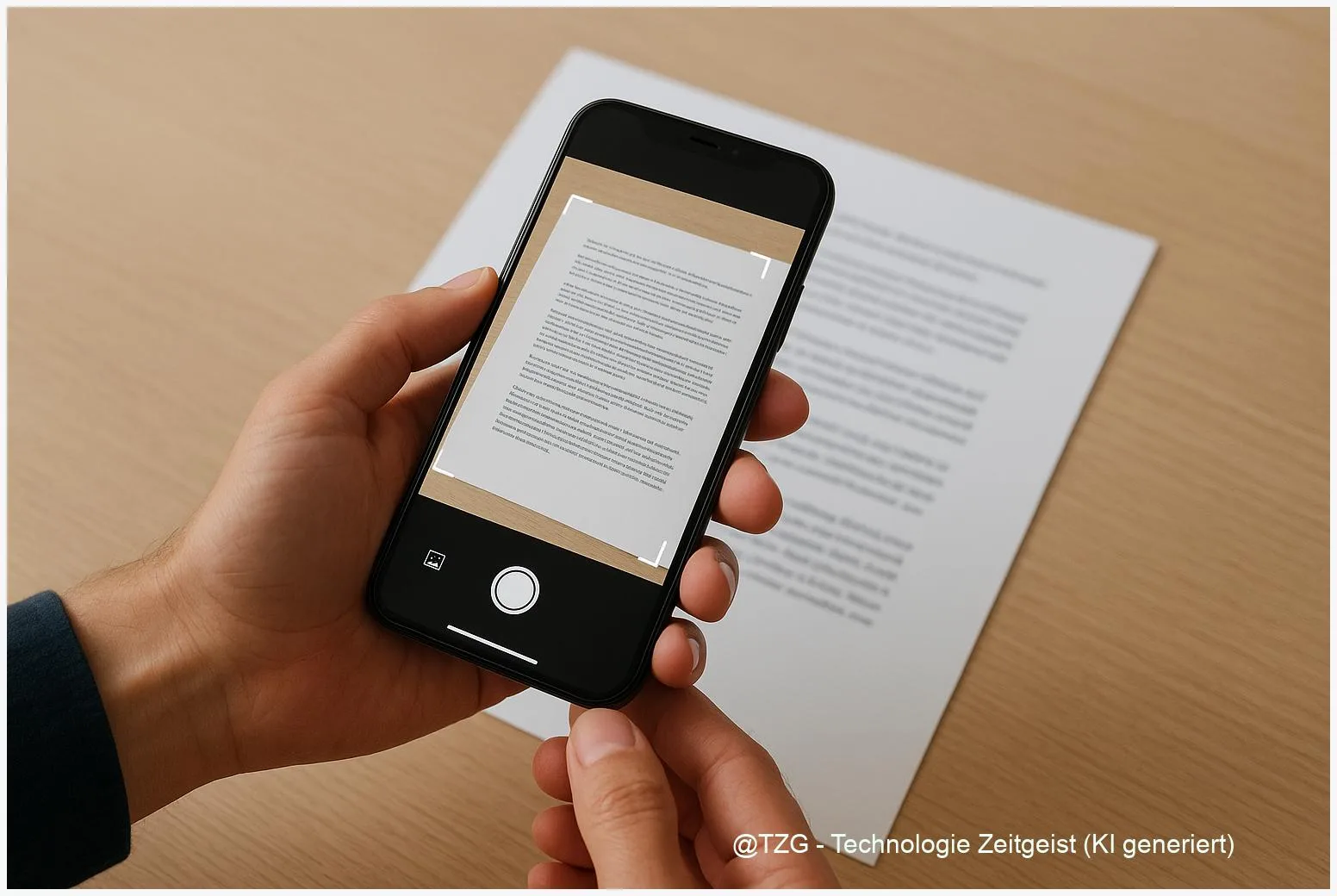
Need to scan documents on iPhone or Android and still be able to search the text later? This guide shows how to capture clean scans with your phone, save them as PDF, and turn them into a searchable PDF using OCR (optical character recognition). You’ll learn the simplest built-in methods (Apple Notes, Google Drive) plus what to check when “search” doesn’t find anything.
Introduction
It’s a familiar moment: you receive a paper contract, a medical form, a rental document, or a warranty receipt and need to send it quickly. Taking a photo works in a pinch, but photos are hard to read, hard to print, and almost impossible to search later. A proper scan fixes that: straight edges, multiple pages in one file, and consistent contrast.
The next step is even more useful: making the PDF searchable. That’s where OCR comes in. OCR (optical character recognition) is a feature that recognizes printed letters in an image and adds a hidden text layer, so you can search for words like a name, invoice number, or date.
Below you’ll get a practical workflow for both iPhone and Android, including what to do when your scan looks fine but still won’t search.
Basics: scan documents iPhone vs. Android (and what “searchable PDF” means)
A phone “scan” is essentially a photo that the app cleans up: it detects page edges, straightens perspective, and exports the result as a PDF. The key difference is what happens to the text. A normal PDF created from photos is often just images inside a PDF container. It looks right, but search and copy/paste won’t work.
A searchable PDF includes an OCR text layer. The letters are recognized and stored so your PDF viewer can search for words. You usually don’t see that layer—until you try searching or selecting text.
A scan is about readability; OCR is about finding and reusing information.
On iPhone, Apple’s built-in scanning lives in the Notes app (and also exists in the Files app). Notes can recognize text inside scanned documents for searching within Notes and via system search, but exported PDFs may not always keep that searchability, depending on the workflow. On Android, Google Drive’s scan feature is designed to save “searchable PDFs” directly in Drive.
| Option or Variant | Description | Suitable for |
|---|---|---|
| iPhone: Apple Notes scanner | Scans documents into a note; text can be searchable inside Notes on many setups. | Quick everyday scans you want to keep in Notes. |
| Android: Google Drive scan | Scans directly to Drive and saves as a searchable PDF (OCR-backed). | Sharing and archiving PDFs across devices. |
Preparation and Prerequisites
A little prep makes OCR noticeably more accurate. You don’t need special hardware—just a steady hand and the right app.
- Good light: Bright, even light reduces shadows. Avoid harsh backlight from a window behind the paper.
- Flat document: Smooth out folds. For book pages, press gently so the center crease doesn’t curve the text.
- Clean lens: Wipe your camera lens once. A tiny smudge can blur small letters.
- Apps installed/updated: On iPhone, use Apple Notes (built-in). On Android, install or update Google Drive.
- Account and storage: Google Drive scans go to your Google account storage. Make sure you can upload.
- Permissions: Allow camera access. If you want files saved to cloud storage, allow Drive access while using the app.
If the scan contains personal data (addresses, signatures, IDs), pick a storage location you trust. Cloud storage is convenient, but you should know who has access to the shared folder and which device is signed in.
Step-by-Step Instruction
The steps below cover the two most common, reliable workflows: Apple Notes on iPhone and Google Drive on Android. Both create clean PDFs; Google Drive is the more straightforward path for a searchable PDF file you can share widely.
- iPhone: open Notes and start the scan. Open Notes, create a new note (or open an existing one), tap the camera icon, then choose Scan Documents (Apple Support documents this flow).
- Capture pages and fix the edges. Hold the phone above the page. When the frame snaps to the paper edges, let it capture automatically or press the shutter. Adjust the corner points if needed, then tap Keep Scan. Add more pages if your document has multiple sheets.
- Save the scan as a PDF inside Notes. Tap Save. The scan is stored in the note as a document (PDF). You can rename the note so it’s easier to find later.
- Check whether it’s searchable on iPhone. In Notes, try searching for a distinctive printed word that appears on the page (for example an invoice number). Notes can index text in scanned documents for search in many cases. If you export and search stops working, see the troubleshooting section.
- Android: open Google Drive and scan to PDF. Open Google Drive, tap the + button, then tap Scan. Point the camera at the document. Drive will crop and enhance, then let you save.
- Save as a searchable PDF. Choose a folder in Drive and tap Save. Google’s Drive support describes these scans as “searchable PDFs”, meaning you should be able to search within the PDF in Drive and often in compatible PDF viewers after download.
- Verify OCR worked. Open the PDF and use the search function (often a magnifying glass icon). Try a unique word. If it doesn’t find anything, rescan with better lighting and sharper focus, or use the tips in the next section.
When everything worked, you’ll have a single PDF per document (or multi-page PDF), and searching for a word from the paper will jump to the right spot instead of showing “0 results”.
Tips, Troubleshooting, and Variants
If OCR fails, it’s usually not “broken”—it’s working with unclear input. These fixes solve most cases.
Problem: The scan looks fine, but search finds nothing. First, confirm you’re searching in the right place. On iPhone, searching inside Notes may work even if an exported PDF doesn’t keep that text layer. Apple’s own documentation explains scanning, while community reports note that OCR searchability may not carry over when exporting a scan as a PDF in every scenario. On Android with Drive, give it a moment after upload; OCR can take a short time to process.
Problem: OCR is inaccurate (wrong letters/numbers). Rescan with better lighting, higher contrast, and less motion blur. Dark backgrounds and shadows near the edges are common accuracy killers. For small print, move slightly closer and wait for the camera to focus before capturing.
Variant: Need a consistently searchable PDF you can send to anyone. On Android, Google Drive is often the simplest built-in choice because it saves “searchable PDFs”. On iPhone, if your exported PDFs aren’t searchable, consider keeping the scan in Notes for search and sharing the note content when possible, or using a dedicated scanning app that explicitly exports searchable PDFs (check the app’s settings for “OCR” and “searchable PDF”).
Privacy tip: OCR turns paper into searchable data. Before you upload scans of IDs, banking documents, or health information, check the destination folder permissions and whether your device is backed up to a shared account.
Conclusion
With modern smartphones, scanning paperwork is no longer a “scanner-only” job. Apple Notes on iPhone and Google Drive on Android can capture clean multi-page PDFs in minutes. The real productivity boost comes from OCR: a searchable PDF lets you find names, dates, and numbers later without re-opening every file and zooming in.
If search doesn’t work, the fix is usually practical: better light, sharper focus, and the right workflow for exporting. Once you’ve set up a consistent routine, your phone becomes a reliable tool for everyday paperwork—at home, in school, or at work.
Have you found a scanning workflow that stays searchable across all your devices? Share your setup, and consider passing this guide to someone who still screenshots documents.




Leave a Reply