
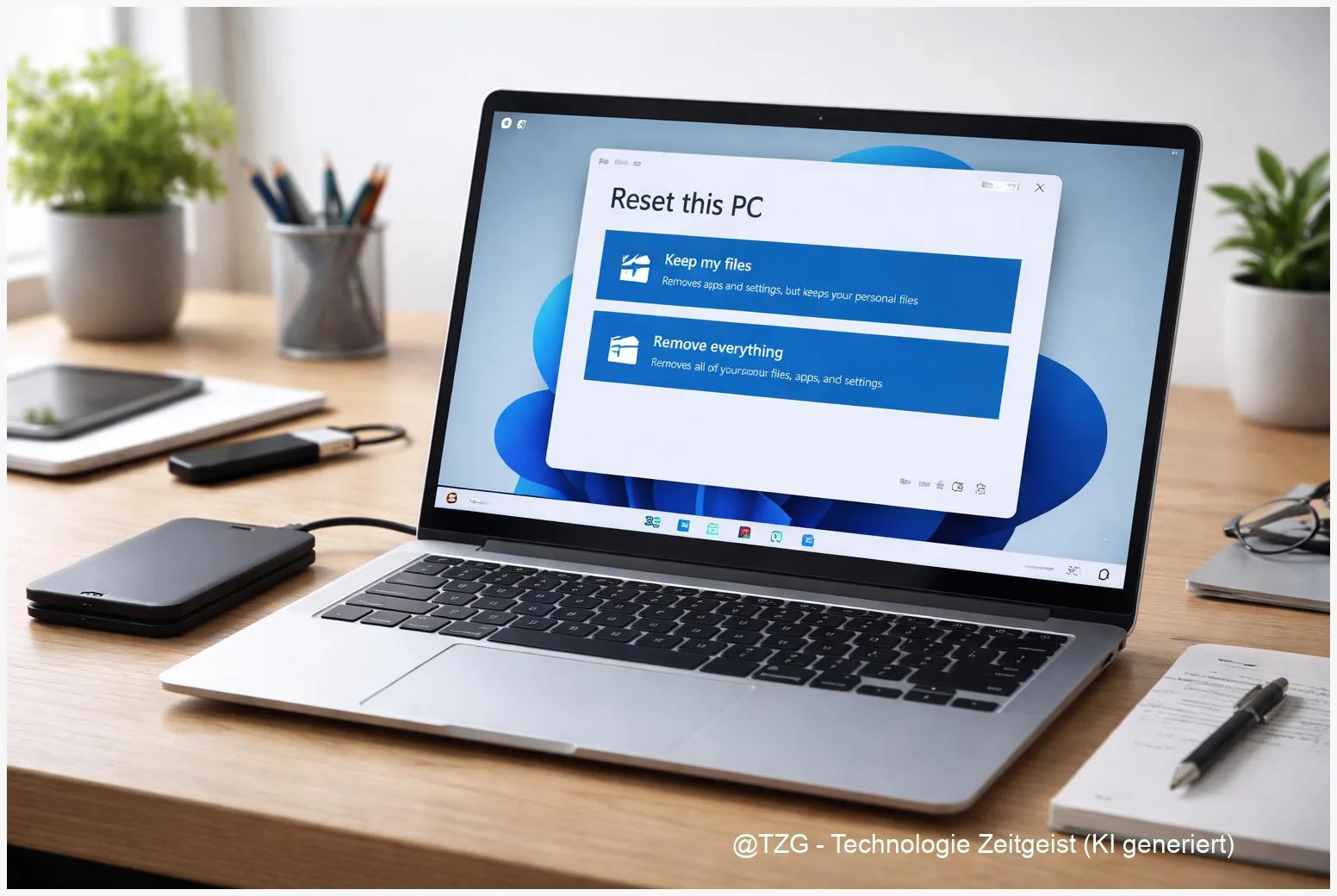
Selling a PC is also selling a lot of personal history—unless you reset it properly. This guide shows how to reset Windows 11 before selling: first back up what matters, then choose the right wipe options to remove personal data, and finally leave the buyer with a clean first-start setup. You’ll also learn what to check for BitLocker/device encryption and what to do if the reset fails.
Introduction
Before a PC changes hands, it’s worth pausing for one simple reason: your Windows login is only the surface. Browsers remember passwords, apps stay signed in, OneDrive or Google Drive can keep syncing, and personal files often exist in more places than you expect (Downloads, Desktop, Photos, even offline mail). A quick “delete my files” is not the same as preparing a computer for a new owner.
The good news: Windows 11 has built-in tools to do this safely. With the right reset option, you can remove accounts, apps, and personal data, then reinstall a fresh copy of Windows so the buyer sees the clean welcome screen on first boot. The steps below keep it practical: what to back up, what to sign out of, which reset settings to pick, and how to avoid common pitfalls like BitLocker recovery prompts or a failed cloud download.
Basics and Overview: what a Windows 11 reset really does
In Windows 11, the main tool for handing over a PC is Reset this PC. For selling, you want the option that removes your account and all your files. Windows then reinstalls itself and brings the computer back to the out-of-box setup (the screen where you choose region and keyboard).
A good handover reset has two goals: the buyer gets a stable, fresh Windows install—and you leave behind as little recoverable personal data as reasonably possible.
Two choices matter most during the reset: Remove everything (this is the one for selling) and how Windows reinstalls: Cloud download (downloads a fresh Windows image from Microsoft) or Local reinstall (uses files already on the PC). Microsoft also offers a cleaning option (often shown as “Clean data”) meant to make recovery harder by wiping the drive more thoroughly.
| Option or Variant | Description | Suitable for |
|---|---|---|
| Cloud download | Downloads Windows from Microsoft and reinstalls it. Needs a solid internet connection. | Most sales cases; systems with weird errors; you want the cleanest reinstall. |
| Local reinstall | Reinstalls Windows using local recovery files. Works offline, but relies on what’s already on the PC. | Slow/limited internet; when cloud download fails. |
Preparation and Prerequisites: backup, sign-outs, and encryption checks
Do the preparation first. A reset with “Remove everything” is designed to be irreversible for normal users, so treat this like moving out of an apartment: pack your essentials, return the keys, then hand over the space empty.
Work through this short checklist:
- Back up your files: copy Documents, Desktop, Downloads, Photos/Videos, and any project folders to an external drive or a trusted cloud. If you use Windows Backup/OneDrive, confirm the files are actually synced (open the OneDrive folder and check recent items).
- Export what you’ll miss: browser bookmarks, password manager vaults, and 2FA backup codes (two-factor authentication recovery codes). If you’re unsure, at least sync your browser to your account and confirm it works on another device.
- Sign out of key apps: Microsoft Store, OneDrive, mail clients, messaging apps, and any “remember this device” sessions.
- Check encryption: on many modern PCs, Windows may use Device encryption or BitLocker. Both protect your data while you own the PC. Before selling, the reset matters more than turning encryption off—but you should know where your recovery key is stored. Microsoft explains how to view and back up the BitLocker recovery key and how Device Encryption works in Windows settings.
- Plug in power and plan time: keep laptops on AC power. A thorough cleaning option can take noticeably longer than a basic reset.
If you need more background on keeping personal files tidy before major changes, TechZeitGeist also has practical guides on Windows storage cleanup and backup basics and account security settings on Windows. (If those pages aren’t available in your region, use the same keywords in your preferred search engine.)
Step-by-Step Instruction: Windows 11 factory reset step by step (for selling)
The safest default for most people is: Remove everything + enable the cleaning option + use Cloud download if your connection is stable. This matches Microsoft’s recommended reset path for a full handover and reduces the chance that old system issues come along.
- Open the reset menu: go to Settings (gear icon) > System > Recovery.
- Start Reset this PC: next to Reset this PC, select Reset PC.
- Choose the selling option: select Remove everything. This removes your user account, apps, and personal files.
- Choose how to reinstall Windows: pick Cloud download (fresh download from Microsoft) or Local reinstall (uses local files). Cloud download typically needs several GB of data and a reliable connection.
- Open “Change settings” (important): look for a link like Change settings. Enable the option that cleans the drive (often phrased as Clean data / Clean the drive). This is the secure wipe-style step meant for giving the PC away.
- Confirm what will happen: Windows shows a summary (what will be removed and which drives are affected). Read it carefully—especially if you have multiple drives installed.
- Start the reset: click Next / Reset. The PC will restart several times. Don’t interrupt it.
- Stop at the first-run setup screen: when Windows reaches the initial setup (region/keyboard screen), do not sign in. Shut down the PC. Now it’s ready for the buyer to set up with their own account.
If everything worked, you’ll end up at the Windows welcome/setup flow (often called OOBE). That is the clean handover point: the buyer gets a “new PC” experience, without seeing your profile or desktop.
Tips, Troubleshooting, and Variants: cloud vs local, BitLocker, and stubborn resets
Cloud download fails or gets stuck: Switch to Local reinstall and try again. If the PC won’t boot normally, you can start recovery by holding Shift while selecting Restart, then choose Troubleshoot > Reset this PC (Microsoft documents the recovery options).
BitLocker/device encryption questions: If you see prompts about a recovery key, don’t guess. Microsoft accounts can store BitLocker recovery keys, and workplaces/schools may manage them differently. For selling, the key point is that a full reset with “Remove everything” is the handover method; but you should back up the recovery key before changing anything, especially on a device you might still need to access during the process.
Multiple drives installed: Some reset screens let you choose whether to wipe just the Windows drive or all drives. If you’re selling the whole PC with all drives inside, wiping all included drives is often the safer choice. If you’re keeping a secondary drive, disconnect it physically before you start to avoid mistakes.
How “secure” is the built-in wipe? For everyday resale, using “Clean data/clean the drive” is the reasonable baseline. If you handled highly sensitive information, stronger media sanitization methods exist. NIST’s media sanitization guidelines explain why wiping SSDs can be different from wiping classic hard drives, and why built-in secure erase commands (or encryption-based erase) are commonly preferred for modern storage. In that scenario, consider professional help or manufacturer tools designed for secure erase.
Conclusion
A clean sale starts with two disciplined steps: back up what you need, then reset in a way that removes your data and leaves a fresh Windows installation behind. In practice, that means using Reset this PC with Remove everything, enabling the drive cleaning option, and choosing cloud download when your internet is reliable. Finish by stopping at the first setup screen so the new owner can start with their own account. Done this way, your old PC becomes genuinely ready for a new home—without taking your digital life with it.
Have you run into a reset problem (BitLocker prompt, cloud download failure, multi-drive setup)? Share what happened—and what PC model you’re working with—so others can compare notes.




Leave a Reply