
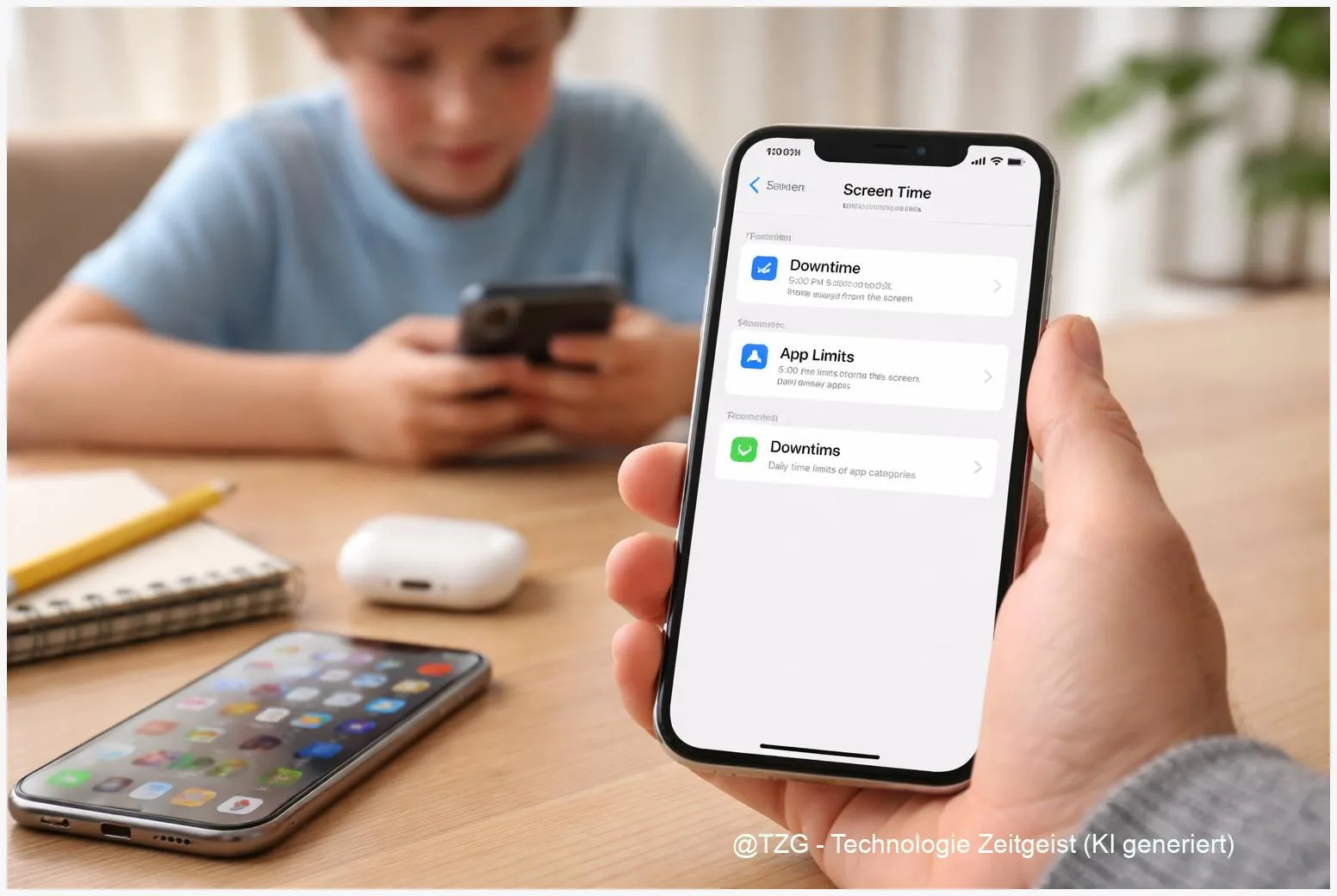
Worried that a child’s iPhone slowly turns into a “always on” device? This iPhone Screen Time setup guide shows how to create clear daily app limits, schedule Downtime for sleep or school, and apply content filters in Content & Privacy Restrictions. After these steps, you can control purchases, block adult websites, allow only essential apps at night, and approve extra time requests—without constantly taking the phone away.
Introduction
A first iPhone can be practical—messaging family, navigating to sports practice, taking photos for school. But it also makes it easy for screen time to drift into late evenings, homework breaks that never end, or accidental app purchases. Many families don’t want a strict “phone ban”; they want predictable rules that work even when you’re busy.
Apple’s Screen Time is built into iOS and is designed for exactly that: setting boundaries for apps, scheduling phone-free hours, and filtering content by age. The goal isn’t surveillance. It’s a reliable default that reduces daily negotiation—while still leaving room for exceptions when you approve them.
The steps below work on modern iPhones and are easiest when you manage a child’s device through Family Sharing. You’ll end up with a setup that’s hard to change without your permission and simple to adjust as your child gets older.
Basics and Overview: what Screen Time controls (and what it doesn’t)
Screen Time is Apple’s built-in set of parental controls in iOS. It has three core parts that work together:
- App Limits: daily time budgets for specific apps or categories (for example, games or social apps).
- Downtime: a schedule when most apps are blocked—useful for bedtime, school hours, or quiet time.
- Content & Privacy Restrictions: filters for websites and media ratings, plus controls for purchases, account changes, and more.
The best Screen Time rules are the ones that still work on a stressful day—because the phone enforces them automatically.
Two more terms matter. Always Allowed lets you pick apps that stay available during Downtime (for example Phone, Messages, or a school app). And a Screen Time passcode is a separate code that prevents a child from changing limits in Settings.
What Screen Time doesn’t do: it can’t guarantee perfect web filtering, and it can’t control every third-party app feature. Think of it as a strong baseline. For broader household controls (like blocking devices on home Wi‑Fi), a router-based approach can complement Screen Time; TechZeitGeist has a practical guide on setting up FRITZ!Box parental controls.
Preparation and Prerequisites
Before you set limits, take five minutes to make sure Screen Time can’t be “accidentally” undone. Most frustrations come from skipped preparation, not from the limits themselves.
- Update iOS on the parent device and the child’s iPhone (Settings > General > Software Update). Screen Time features and syncing improve with current versions.
- Set up Family Sharing if you want to manage Screen Time from your own iPhone. The child should be part of your family group with their Apple Account.
- Decide on a baseline schedule: typical bedtime and wake time, school hours, and “free time” blocks on weekends.
- List essential apps that must always work: Phone, Messages, Maps, and maybe a school app. These will go into Always Allowed.
- Plan purchase rules: whether the child can install apps freely, needs approval, or can’t buy at all.
- Pick a Screen Time passcode that your child does not know and can’t guess from other codes.
If the iPhone is brand new, Apple also supports setting up a device specifically for a child as part of Family Sharing, which can reduce setup mistakes later.
Step-by-Step Instruction: iPhone Screen Time setup for kids
The path names can vary slightly by iOS version, but the wording is usually very close. You can do this on the child’s iPhone, or from your own iPhone if the child is in your Family Sharing group.
- Open Screen Time: go to Settings > Screen Time. If you manage a child remotely, look for the child’s name under a Family section.
- Turn on Screen Time and confirm it’s for a child. Enable app and website activity tracking so reports and limits work.
- Lock the settings: tap the option to lock Screen Time settings (often labeled “Lock Screen Time Settings”) and set a Screen Time passcode. This is what makes limits stick.
- Set Downtime: open Downtime and choose start and end times (for example, evening to morning). If you want the phone to enforce it strictly, enable the option that blocks at Downtime. Keep in mind: “block” still allows the Always Allowed apps you choose.
- Choose Always Allowed apps: open Always Allowed and select what should work during Downtime. Many families keep Phone and Messages enabled for safety, while blocking entertainment apps at night.
- Create App Limits: open App Limits > Add Limit. Pick categories (like Games or Social) or individual apps. Set a daily limit and decide whether some apps get more time than others. The child can tap “Ask For More Time”, but you’ll approve it with your passcode.
- Apply content filters: go to Content & Privacy Restrictions and turn them on. Typical starting points are:
- iTunes & App Store Purchases: restrict installing apps, deleting apps, and in-app purchases.
- Content Restrictions: set age-appropriate limits for music, movies, TV, apps, and books based on your region’s ratings.
- Web Content: choose to limit adult websites or allow only approved sites, depending on how strict you want it.
- (Optional) Set communication rules: in Screen Time, look for Communication Limits to limit who the child can contact during allowed time and during Downtime. This can be helpful if night-time messaging is a problem.
- Check the result: lock the iPhone and try opening a limited app. During Downtime you should see a simple “time limit” style screen, and Settings changes should ask for your Screen Time passcode.
After a day or two, open Screen Time again and review the report. The “most used” apps make it obvious where limits help—and where you may have set them too tight.
Tips, Troubleshooting, and Variants
If Screen Time feels unreliable, it’s usually one of a few common issues. These fixes keep the setup stable and reduce arguments.
- Limits don’t apply on all devices: Screen Time rules work best when the child uses one Apple Account across devices and everything is up to date. If you manage a child via Family Sharing, give syncing some time after changes.
- Child can still change settings: check that “Lock Screen Time Settings” is enabled. Without the passcode, a motivated teen can undo most restrictions in minutes.
- Downtime blocks something important: add the needed app in Always Allowed. For safety, many families also keep Maps available during Downtime.
- Web filtering feels too strict or too loose: start with “Limit Adult Websites” and adjust over time. “Allowed Websites Only” is powerful but requires maintenance.
- Requests for more time become constant: treat requests like a signal. Often the fix is a better schedule (more time on weekends, less on school nights) rather than a bigger daily cap.
Practical variant for older kids: keep strict Downtime for sleep, but replace hard App Limits with fewer category limits (for example, one combined limit for social + video). That supports self-control while still preventing a full evening from disappearing into a single app.
Privacy note: Screen Time creates usage reports (like time in apps and pickups). It’s wise to talk about what you check and why. Clear expectations tend to work better than “silent monitoring”. If you want more ideas on digital household rules, TechZeitGeist’s technology how-to archive can help you find related guides.
Conclusion
With Screen Time, you can turn a child’s iPhone from an open-ended distraction into a device with clear, predictable boundaries. The most effective setup combines three levers: Downtime for protected hours (especially sleep), App Limits for the biggest time-sink apps, and Content & Privacy Restrictions for purchases and age-appropriate content. The Screen Time passcode is the key that keeps the rules consistent.
Once the basics are in place, small adjustments matter more than constant rule changes. Review the weekly report, refine one setting at a time, and keep essential communication options available so the phone stays useful—not just restricted.
Have you found a Screen Time rule that works well in your household (or a setting that caused trouble)? Share your experience, and consider sending this guide to another parent who’s setting up a first iPhone.




Leave a Reply