
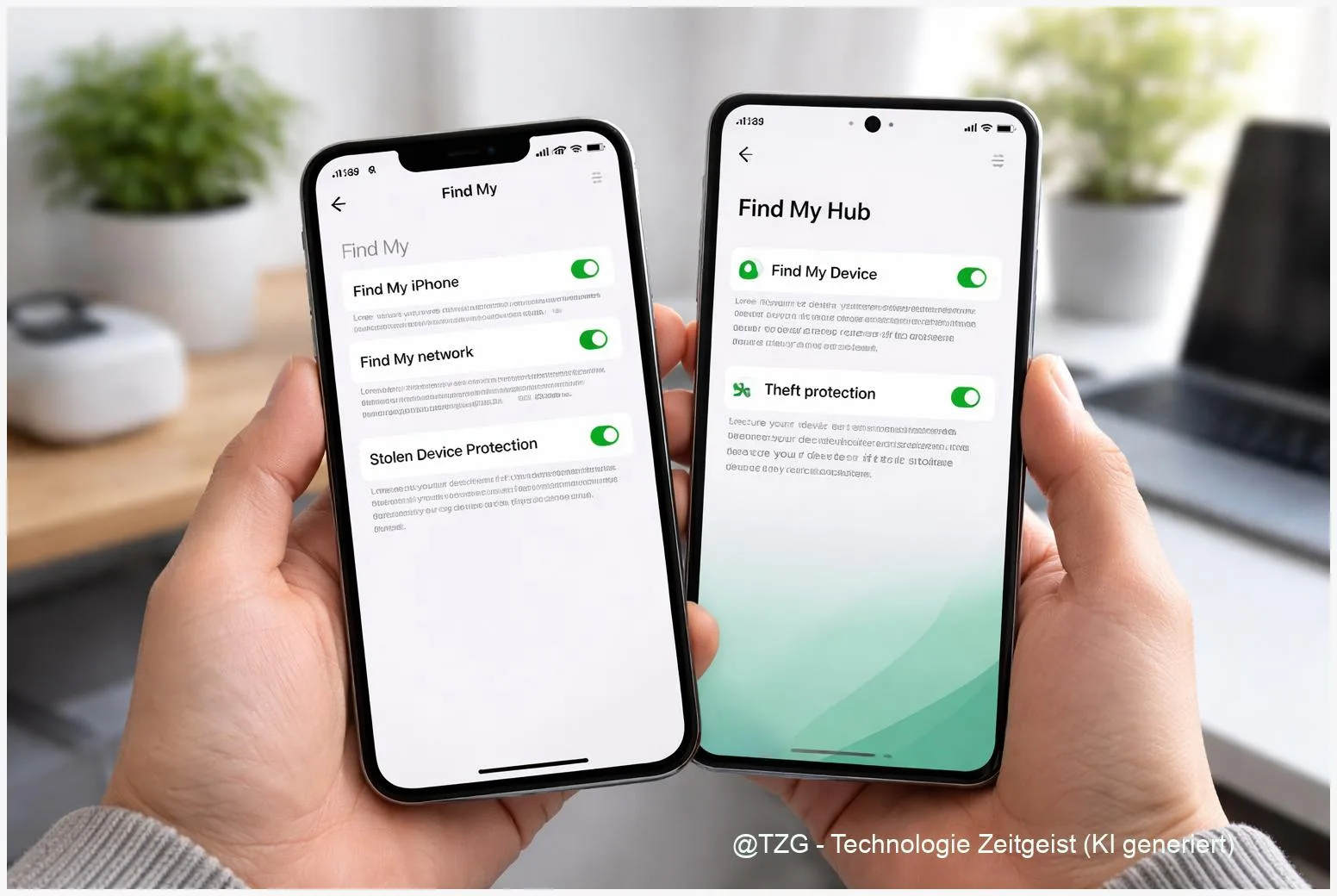
If your phone gets stolen, minutes matter: thieves often try to change passwords, turn off tracking, or use your SIM. This guide shows how to enable anti-theft protection iPhone and Android devices use today—Apple’s Stolen Device Protection, Android Theft Protection, and reliable tracking with Find My / Find Hub. You will end up with a phone that is harder to take over, easier to locate, and faster to lock remotely.
Introduction
Your smartphone is more than a device. It is your photos, banking, messages, tickets, and often your second factor for logins. In everyday life, phones get lost in taxis, left on café tables, or snatched in crowded places. The stressful part is not just replacing hardware—it is the risk that someone gets into your accounts before you can react.
Modern iPhones and Android phones offer anti-theft features that are designed exactly for that “first hour” after a theft: they make sensitive changes harder, keep tracking available even when the phone goes offline, and let you lock or erase the device remotely. The steps below focus on settings that are built into current iOS and Android versions and still make sense even if menus move slightly over time.
Basics and Overview: enable anti-theft protection iPhone and Android
Anti-theft protection is not one single switch. Think of it as three layers that work together: (1) a strong screen lock, (2) device tracking and remote actions, and (3) extra protection for “account takeover” actions like changing your Apple ID/Google account security.
On iPhone, the key feature is Stolen Device Protection (available on iOS 17.3 and later). It can require Face ID/Touch ID for sensitive actions and adds a Security Delay (Apple describes a one-hour delay) for critical changes when you are away from familiar places.
On Android, Google groups comparable features under Theft Protection (available depending on device and rollout, generally for Android 10+ via Google Play services). It includes options like Theft Detection Lock, Offline Device Lock, and Remote Lock. In addition, Android uses Find Hub (previously “Find My Device”) to locate, lock, or erase a phone.
The most effective anti-theft setup is the one that still works when you are stressed, your phone is offline, and you cannot remember every password.
One more term you will see: SIM PIN. This is a code that protects the SIM card itself. If it is enabled, a thief cannot simply put your SIM into another phone to receive calls and SMS—useful when services still rely on SMS verification.
| Option or Variant | Description | Suitable for |
|---|---|---|
| iPhone: Stolen Device Protection | Adds biometrics-only checks and a one-hour Security Delay for key account/security changes away from familiar locations. | iPhone users who want stronger protection against passcode shoulder-surfing and fast account takeover. |
| Android: Theft Protection + Find Hub | Auto-lock features (including offline-related locking) and remote lock/locate/erase through Google’s tracking service. | Android users who want strong remote control and automatic reactions to suspicious scenarios. |
Preparation and Prerequisites
Do these checks once, calmly, before you need them. Most anti-theft features depend on accounts, biometrics, and location services being set up correctly.
On both iPhone and Android, prepare the basics:
- Use a strong screen lock. Prefer a 6-digit (or longer) PIN or an alphanumeric passcode over a 4-digit code. Avoid birthdays and repeating patterns.
- Make sure you can sign in to your Apple ID / Google Account from another device. If you use a password manager, confirm you can access it without your phone.
- Turn on device backups (iCloud Backup or Google Backup), so a wipe is less scary if you must do it.
iPhone prerequisites for Stolen Device Protection (Apple):
- iOS 17.3 or later.
- Face ID or Touch ID set up.
- Find My enabled (including the Find My network for offline finding, if available on your model).
Android prerequisites for Theft Protection (Google):
- Android version and features supported by your device (many Theft Protection options target Android 10+ and are delivered via Google Play services).
- A Google account signed in, with Location turned on for tracking.
Optional but recommended: enable a SIM PIN. Keep the PUK (the carrier’s unlock code) somewhere safe—not on the phone.
Step-by-Step Instruction
Follow the steps for your platform. If menu names differ slightly on your device, use the Settings search field and look for the exact feature name (for example “Stolen Device Protection”, “Theft protection”, “Find My”, or “SIM PIN”).
-
iPhone: Turn on Find My (including offline network, if available).
Go to Settings > [your name] > Find My > Find My iPhone. Turn on Find My iPhone. If you see Find My network, turn it on as well. If available, also enable Send Last Location so the phone can report its last position when the battery is critically low. -
iPhone: Enable Stolen Device Protection.
Go to Settings > Face ID & Passcode (or Touch ID & Passcode). Enter your passcode. Find Stolen Device Protection and switch it on. Apple offers modes such as enabling the strongest restrictions when you are away from familiar locations (and, depending on version, an option like “Always”). Choose the option that fits your daily routine. -
Android: Turn on Find Hub (Find My Device) and remote actions.
Open Settings and search for Find My Device or Find Hub. Turn it on. Also confirm that Location is enabled. This is what allows you to locate, lock, or erase the phone from android.com/find using your Google account. -
Android: Enable Theft Protection features.
Go to Settings > Google > (often) All services > Theft protection. Enable the available options, especially features that lock the phone during suspicious situations (for example theft detection and offline-related locking). If you see Remote Lock, set it up so you can lock your phone using verified information even if you are panicking and not ready to type long credentials. -
Optional on both platforms: Set up a SIM PIN.
iPhone: Settings > Cellular (or Mobile Data) > SIM PIN > enable it, then change it from the default to a personal PIN.
Android: in Settings, search for SIM card lock or SIM lock, enable it, and change the PIN. (Paths vary by manufacturer.)
Quick self-check: after you finish, your phone should show Find My/Find Hub as enabled, and you should be able to see your device listed in the tracking app or web page. If you enabled SIM PIN, you will be asked for it after a reboot or when moving the SIM to another phone.
Tips, Troubleshooting, and Variants
If you cannot find the setting: Android menus differ a lot. Use Settings search for “Theft protection”, “Find My Device/Find Hub”, or “SIM lock”. On iPhone, “Stolen Device Protection” lives under Face ID/Touch ID and passcode settings (and needs iOS 17.3+).
If tracking says “offline”: That can still be normal. iPhone models that support the Find My network can sometimes be located via nearby Apple devices. On Android, offline finding depends on your Find Hub network settings and nearby devices. Either way, keep the device marked as lost/locked and check again later; locations can update when the phone reconnects.
Security Delay surprises you on iPhone: Stolen Device Protection is designed to slow down critical changes when you are away from familiar places. Plan ahead: if you are traveling, avoid making last-minute Apple ID or passcode changes on the go.
SIM PIN warnings: After several wrong SIM PIN attempts, the SIM will request the PUK from your carrier. Do not guess. Get the PUK from your carrier account portal or support. If the PUK is entered incorrectly too many times, the SIM can become permanently blocked and you may need a replacement.
Two small habits that help a lot: (1) Keep your lock screen clean—hide sensitive notification previews if you often use your phone in public. (2) Save your device serial number/IMEI in a safe place. It can help with support cases and reports.
If you want to go a step further, TechZeitGeist also has practical guides on strengthening everyday phone security and reducing lock screen leaks: TechZeitGeist security guides (overview).
Conclusion
Anti-theft protection is most effective when it is set up before anything happens. On iPhone, combining Find My (including the Find My network, if supported) with Stolen Device Protection makes account takeovers much harder, especially if someone saw your passcode. On Android, enabling Find Hub plus Theft Protection gives you fast remote control and automatic locking options when a situation looks suspicious. Add a SIM PIN and a stronger device PIN, and you close several common gaps without installing extra apps.
Try the steps on your phone today, then share which setting was hardest to find—your tip could save someone else real stress.




Leave a Reply