
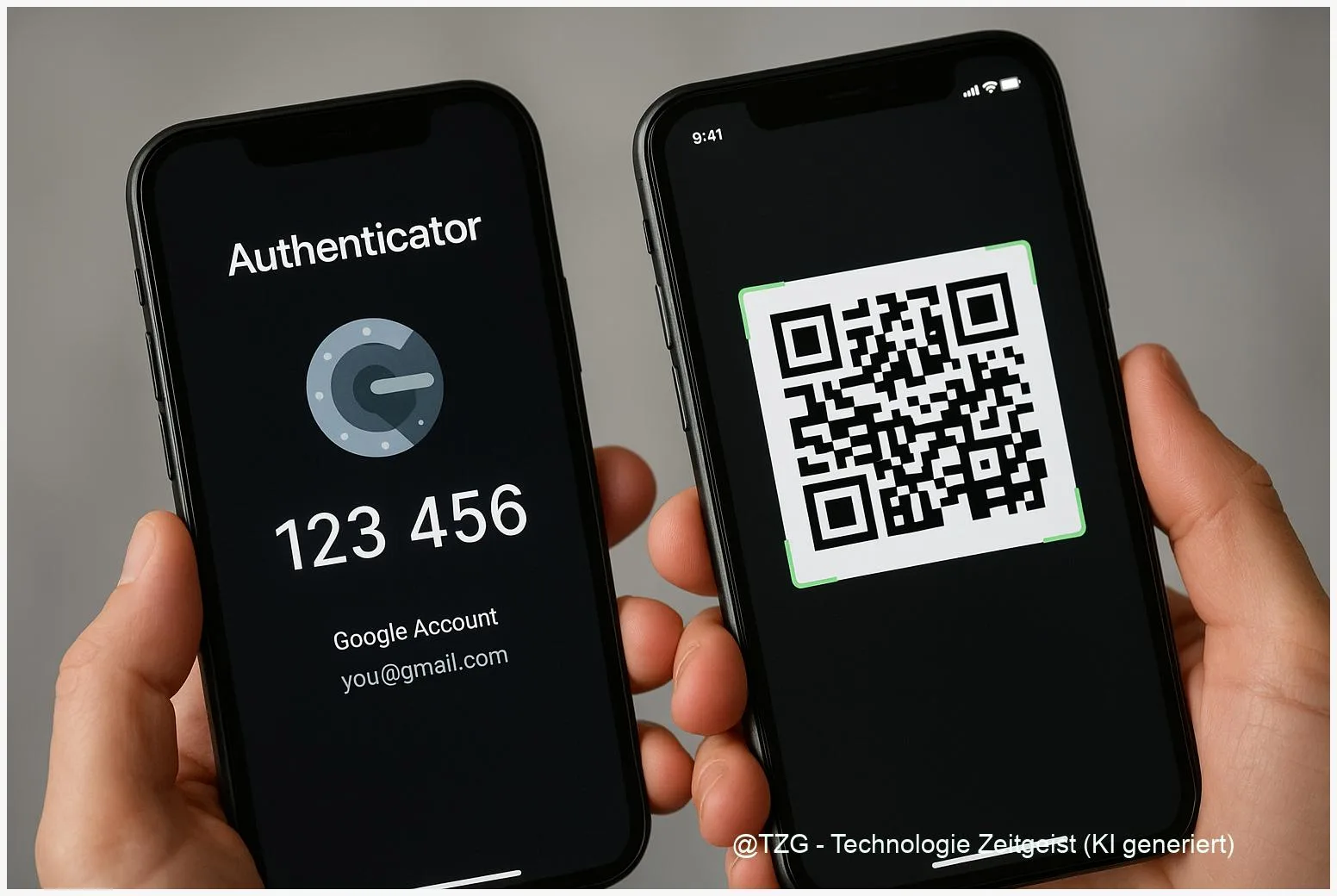
Switching phones can turn into a lockout fast: your logins still ask for time-based 2FA codes that live in Google Authenticator. This guide shows how to do a Google Authenticator transfer safely—either with the built-in Google Account sync or with the QR-code export/import method. You will learn what to prepare, what to tap on Android and iPhone, and how to recover if the old phone is gone.
Introduction
Getting a new smartphone is easy—until the first app asks for a 6-digit code you can only generate on the old one. That moment often happens at the worst time: while setting up your bank app, your email, a game account, or your work login. The good news is that modern Google Authenticator versions offer two practical ways to move your tokens (the small entries that generate codes).
If you used Google Account sync, your accounts can reappear on the new device after you sign in. If you prefer to keep everything local (or never enabled sync), you can transfer accounts by exporting a QR code on the old phone and scanning it on the new phone.
The steps below keep the process calm and controlled: you prepare a fallback first, then migrate, then verify, and only at the end clean up the old device.
Google Authenticator transfer: basics you should know
Google Authenticator is an authenticator app that generates time-based one-time passwords (often called TOTP codes). These codes change every ~30 seconds and are used as a second factor in two-factor authentication (2FA). The key point: the codes are derived from a secret stored in the app. If you move phones without moving those secrets, you can lose access until each service is reconnected.
Treat your Authenticator entries like house keys: copying them safely is fine, but leaving duplicates lying around is a risk.
On current Android and iOS versions, you typically have three practical situations: (1) you use Google Account sync inside Authenticator and can restore on the new phone by signing in, (2) you still have the old phone and can use the built-in QR export/import transfer, or (3) the old phone is lost and you must recover per service (backup codes, alternative 2FA methods, or support flows).
| Option or Variant | Description | Suitable for |
|---|---|---|
| Google Account sync | Sign into Google Authenticator with your Google account so tokens can sync and appear on other devices. | Most users, especially if you change phones often or worry about device loss. |
| QR export/import | Export accounts on the old phone, scan the QR code(s) on the new phone to copy tokens. | Users who want a one-time move without ongoing sync, and anyone migrating offline. |
Preparation and Prerequisites
Before you transfer anything, aim for one goal: make sure you still have a way back in if something goes wrong. Most lockouts happen because people migrate first and think about recovery later.
Do these checks in this order:
- Update the app on both phones (old and new) via the Play Store or App Store. The sync and transfer options depend on current versions.
- Confirm you can unlock the old phone (PIN/Face ID/fingerprint). The QR export is done on the old device.
- Prepare at least one fallback sign-in method per important account: backup codes, a security key, a second phone number, or passkeys (where available). For Google accounts, backup codes are available in the 2-Step Verification settings.
- Check the time on the new phone: set Date & Time to automatic. TOTP codes depend on correct time.
- Choose your migration style: if you want the simplest long-term setup, use sync. If you prefer a one-time move, use QR transfer.
Privacy note: avoid taking screenshots of QR transfer codes. A QR code for Authenticator transfer can allow someone else to import your tokens if it leaks.
Step-by-Step Instruction
The steps below cover both common paths. If you already know you used sync, start with steps 1–4. If you did not, jump to step 5 for the QR transfer.
- On the new phone, install Google Authenticator from the official store and open it.
- Decide: use with an account or without. If you want cloud sync, sign in with your Google account inside the app. If you prefer local-only, choose the option to use the app without an account.
- If you enabled sync: wait a moment for tokens to appear. Keep the app open once, and ensure the phone has an internet connection for the initial sync.
- Verify a test login (for example your email account): trigger a 2FA prompt and check that the code from the new phone is accepted.
- If you need QR transfer: on the old phone open Google Authenticator, tap the menu (often a three-dots icon), then select the transfer option (commonly labeled Transfer accounts).
- Choose Export on the old phone. You may have to confirm with your screen lock. Select the accounts you want to move. If you have many entries, the app can generate multiple QR codes.
- On the new phone, choose Import / Scan QR code in Google Authenticator. The camera view opens; point it at the QR code shown on the old phone.
- Repeat for additional QR codes until all selected accounts are imported. Then compare the list on both phones—names and icons should match.
- Test at least two important services (for example email and a password manager). A successful login is the cleanest confirmation.
- Only when you are sure everything works: remove tokens from the old phone or securely wipe the old device if you are selling it.
What you should see when it worked: the same account entries on the new phone, with codes changing regularly. During a login, the service accepts the code generated on the new device.
Tips, Troubleshooting, and Variants
Problem: codes are rejected even though the account imported. First, check the new phone’s time settings (automatic time and correct time zone). If the service still rejects codes, re-add 2FA for that single service from its security settings and scan a fresh setup QR code.
Problem: you no longer have the old phone. In that case QR export is not possible. Use the account’s recovery options: backup codes, alternative 2FA methods (for example security keys), or the provider’s recovery flow. For Google accounts, the official 2-Step Verification help pages explain common recovery paths and how backup codes work.
Tip: keep duplicates to a minimum. After a successful move, remove the old tokens or wipe the old phone. Having the same token on two devices increases the impact if one device is compromised.
Variant: moving between Android and iPhone. The QR export/import method is designed for cross-device migration. Sync also works when you sign in to the app with the same Google account, but QR transfer is the most “visible” method because you can confirm each scan.
Security basics that pay off: use a strong screen lock, enable the app’s privacy screen feature if available, and store backup codes offline (printed or in a secure vault). If you manage many logins, you may also want to read our general guide on building a safer 2FA setup at TechZeitGeist’s cybersecurity archive (overview page).
Conclusion
A phone upgrade does not have to break your logins. The safest flow is: prepare recovery first, then move your Google Authenticator entries using either Google Account sync or the QR export/import method, then test a couple of critical accounts, and only then clean up the old device. If the old phone is unavailable, recovery is still possible—but you must do it per service using backup codes or other sign-in methods. Once set up, your 2FA becomes reliable again, even across future device changes.
Did one of your accounts behave differently during the move? Share what happened (and which device type you used) so others can troubleshoot faster.




Leave a Reply