
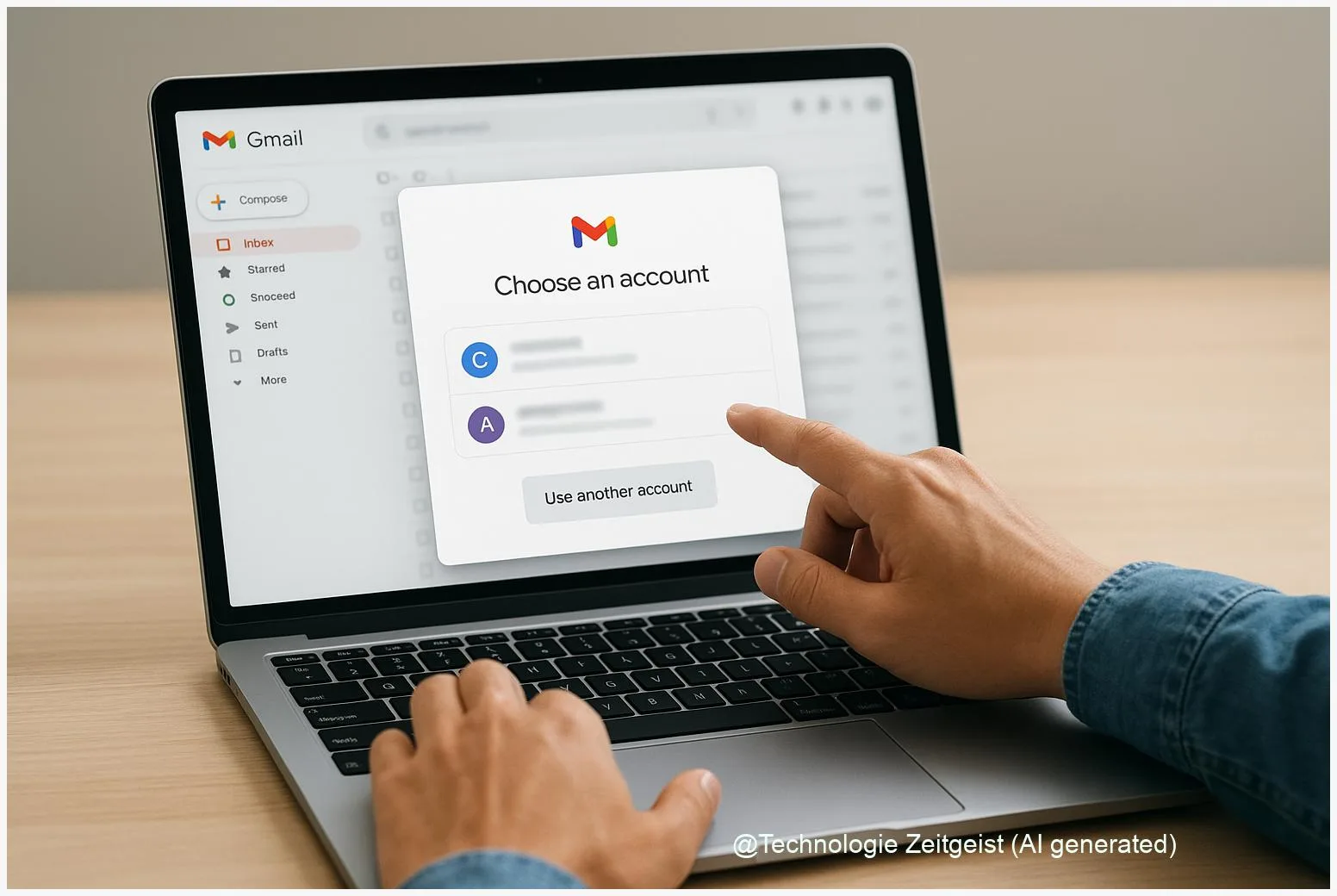
If you want to change your email but keep years of messages, there are realistic options and clear limits. This article shows how to change Gmail address without losing emails by explaining what Google lets you do for personal accounts and for Workspace (business or school) accounts. You will learn which tools keep mail history, when a new account is needed, and which steps prevent broken logins and lost recovery settings.
Introduction
Many people reach a point where their email address no longer fits: a name change, a long-unused nickname, or a desire to separate private and professional life. The natural question is whether you must start from scratch. The short answer: it depends. Google treats a personal Gmail address and a managed Google Workspace account differently, which affects whether your messages, contacts and logins stay intact.
Personal Gmail accounts generally cannot swap the primary *@gmail.com* address. That does not mean all is lost: Gmail supports aliases and mail import, and there are export tools to preserve archives. For organisations using Google Workspace, administrators can rename users in many cases and keep inbox contents attached to the same account identity. Understanding which route fits your situation reduces surprises such as lost logins or broken third-party app access.
How Gmail handles primary addresses
Google treats the primary email address as an account identifier. For consumer (personal) Gmail accounts the primary *@gmail.com* address is generally permanent: Google does not provide a one-click rename that replaces the primary address while preserving the account identity. Instead, features that look similar include aliases, “send as” addresses and forwarding. These can route mail to a new address, but they do not change the account you sign into.
By contrast, Google Workspace (the service many schools and companies use) gives administrators more control. Workspace admins can rename a user account or change its primary email; because the user object in the directory remains the same, inbox contents, Drive files and calendar items normally stay associated with the user. That administrative rename can also leave the old address as an alias, depending on domain settings.
The practical difference: a Workspace “rename” changes the login name for the same user object; for a personal Gmail account, creating a new address creates a separate account entirely.
The distinction matters because an account is more than messages. Login credentials, two‑factor authentication, recovery addresses, and OAuth tokens for third‑party apps are tied to the account identity. Changing the visible address without addressing these links is what typically causes problems.
Table: quick comparison
| Scenario | What changes | Typical result |
|---|---|---|
| Personal Gmail | No primary-address rename | Need new account or aliases; migrate mail |
| Google Workspace (admin) | Admin can rename user | Inbox and files usually remain with account |
Practical ways to change Gmail address without losing emails
There are three practical migration methods that let you keep messages visible under a new address: continuous forwarding, Gmail’s import (POP3/Fetch), and full export/import using Google Takeout. Each fits a different situation.
1) Forward and keep the old account active. In a simple setup you create the new address and set the old account to forward incoming mail. This is quick and keeps delivering messages to the new inbox, but existing messages remain in the old account unless you import them. Forwarding is a good short‑term solution while you update logins for services.
2) Use Gmail’s “Import mail and contacts” (POP3/Fetch). From the new account you can fetch older messages from the old account. This brings messages into the new mailbox but may not preserve Gmail labels or all threading metadata in the same way. For many users it is an effective way to consolidate years of mail into the new inbox with relatively little technical work.
3) Google Takeout → MBOX → Import. For a full archive, Google Takeout exports your mail as MBOX files you can store offline or import via a mail client. Takeout produces a portable archive; reimporting to Gmail often requires a mail client or a specialist tool, and some Gmail‑specific metadata such as labels or certain settings may not transfer perfectly.
Which approach to choose? Rough guidance: if your archive is modest (under around 50 GB) and you want a quick merge, try POP3/Fetch plus forwarding. If you need a reliable offline backup or must satisfy compliance requirements, start with Takeout and plan an import path. For organisations, Workspace’s Data Migration tools or the admin rename are usually the cleaner route.
Risks and common pitfalls
Migrating addresses looks simple until a login breaks. The major risks come from services and settings external to Gmail: accounts you signed into with the old email, two‑factor authentication tied to that address, and OAuth permissions granted to apps.
If you create a new Gmail address and do not update logins, password resets and notifications will still go to the old address. That can lock you out if you later lose access. Two‑factor authentication often uses the account identity for push approvals; you may need to reauthorize devices and apps to the new address. For services that use email as the primary user ID, updating the registered email is a manual step for each service.
Label and thread fidelity can also be imperfect. POP3 import commonly brings messages into the inbox without reproducing folder/label structure exactly. Takeout MBOX exports capture messages but some Gmail‑specific labels appear as additional headers and may need mapping when reimported. Large archives bring their own limits: very large MBOX files slow processing and may require splitting or use of specialised migration services.
Finally, privacy and security: exporting an entire mailbox creates a sensitive file. Keep Takeout archives encrypted at rest and in transit, and avoid sending them to third‑party services unless you have a clear data‑processing agreement. For organisations under data‑protection rules, admin‑led Workspace migrations are usually preferable because they keep data inside managed systems.
Options for private users and organisations
For private users: the pragmatic route is often to create a new Gmail account, move historical mail using POP3 import or a Takeout‑based workflow, and then set up forwarding from the old account for a transition period. Update key services (banking, utilities, social media) to the new email first. Keep the old account active at least until you have confirmed logins and password resets work from the new address. If you need to preserve legal or compliance records, export with Takeout and keep an encrypted copy.
For organisations using Google Workspace: consult your administrator. Admins can rename users and in many setups keep the old address as an alias. Because the underlying user object remains, Drive files and calendar items generally continue to belong to the same account. Still, perform a pilot with a small group, check single sign‑on (SSO) and OAuth integrations, and prepare a rollback plan. Communicate changes clearly to staff and external contacts.
For IT teams and administrators: best practice includes a checklist of third‑party services that use the email address as an identifier, a test plan for OAuth reauthorisation, and creating a temporary alias or forwarding period to catch stray mail. Use Workspace Data Migration Service when large mail volumes or multiple users are involved; consider professional migration partners for complex scenarios.
Across all options, the single most useful step is a full export before any change. A verified backup shrinks the risk of data loss and speeds recovery if something goes wrong.
Conclusion
Changing a Gmail address without losing emails is straightforward only when you understand the limits. For personal Gmail accounts there is no built‑in one‑step rename; the reliable approaches are aliases, forwarding, and migration using POP3/Fetch or Google Takeout. Organisations using Google Workspace have a different, admin‑driven path that often preserves mail and files because the user object remains the same. Back up first, test on a small scale, update external logins, and give yourself a transition window to reduce surprises.
Feel free to share your experience or ask questions below — other readers may find your situation helpful.




Leave a Reply