
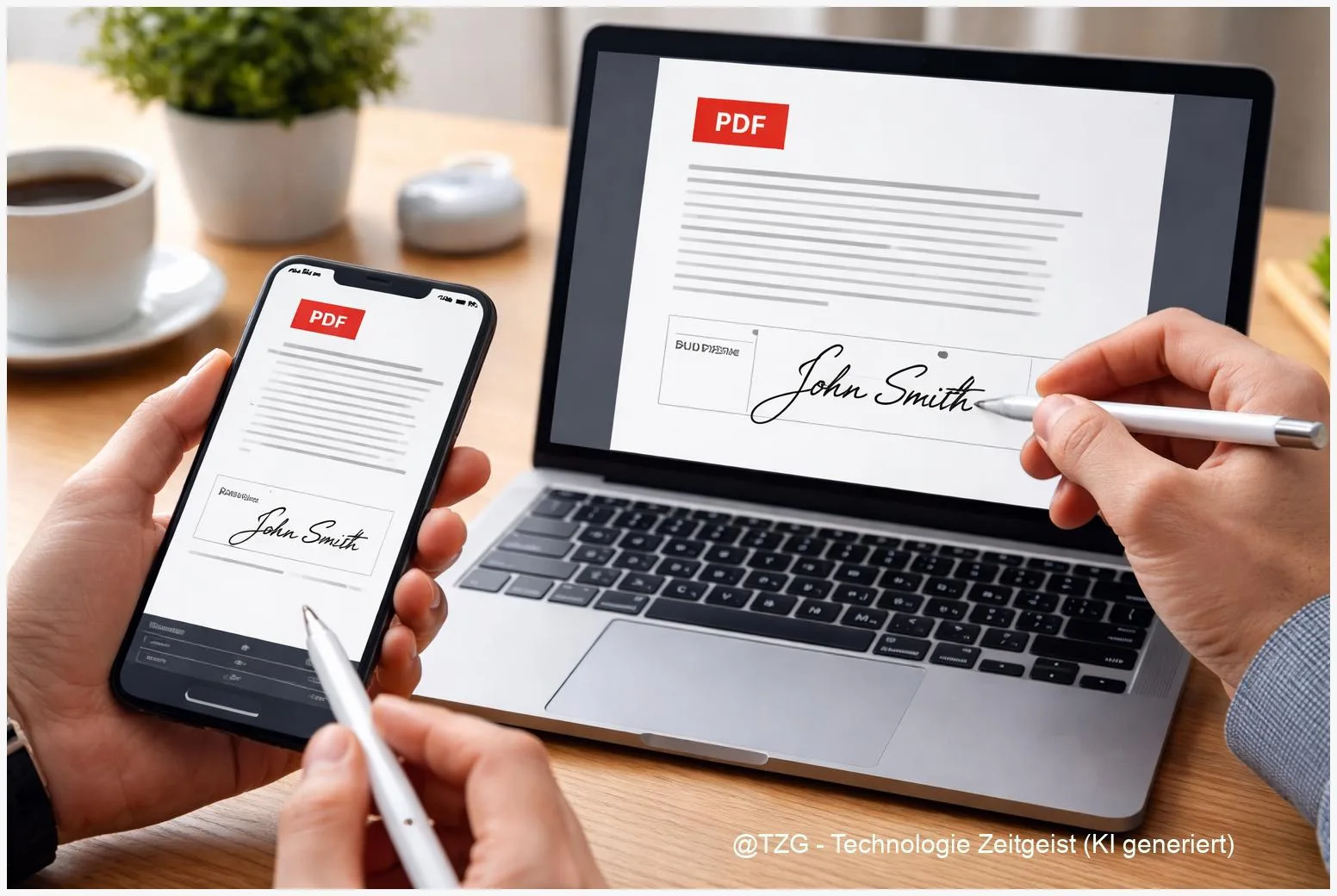
Need to approve a contract, school form, or delivery note without printing it? This guide shows how to sign a PDF on iPhone, Android, Windows, and Mac using tools that are already built in (or widely available for free). You’ll learn what counts as an electronic signature, what to check before you start, and the exact taps and clicks to place your signature and send the file back confidently.
Introduction
You get a PDF by email: “Please sign and send back today.” Many people still think that means printing, signing with a pen, scanning, and hoping the file size is not too big to attach. In everyday life that’s slow, and it’s exactly when you’re away from a printer: on your phone, on a train, or in a shared apartment.
The good news: modern operating systems include simple signing tools. On iPhone and Mac, Apple’s Markup and Preview can place a handwritten signature right onto the PDF. On Windows 11, Microsoft Edge can draw a signature into a PDF. On Android, Google Drive can help with filling and annotating PDFs, and you can use a reliable free “fill & sign” app if the built-in viewer is limited.
Below you’ll find a calm, practical workflow that works across devices, with common pitfalls and easy fixes.
Basics and Overview: how to sign a PDF without printing
When people say “sign a PDF,” they often mean one of two things. The first is a simple electronic signature: a visible handwritten signature placed on the document (usually as ink you draw with your finger, mouse, or stylus). The second is a digital signature: a cryptographic signature based on certificates that can prove integrity and sometimes identity.
This tutorial focuses on the first type, because it’s the fastest and is built into many devices. For most everyday documents, a visible signature is what the sender expects. Still, if a form explicitly asks for a “digital signature” or mentions certificates, you may need a specialized service or software.
A good rule: if the PDF just needs your handwritten name on a signature line, built-in tools are usually enough.
Platform overview: iPhone uses Markup inside apps like Files and Mail. Mac uses Preview’s Markup tools. Windows 11 commonly uses Microsoft Edge as the PDF viewer and can draw into PDFs. Android varies by manufacturer, but Google Drive’s PDF viewer supports filling and annotating on many devices, and Google Workspace offers eSignature features for certain accounts.
| Option or Variant | Description | Suitable for |
|---|---|---|
| Built-in “drawn” signature | You write your signature onto the PDF with a pen tool (finger, mouse, stylus). | Fast approvals, everyday documents, no extra accounts. |
| Certificate-based digital signature | Uses certificates and cryptography; may show validation details in PDF readers. | Workflows that explicitly require “digital signatures” or compliance features. |
Preparation and Prerequisites
Before you sign, take one minute to avoid the most common problems: signing the wrong version, placing the signature on top of form fields, or saving a copy that doesn’t include your changes.
Quick checklist (works for all devices):
- Confirm what the recipient expects. If the email says “eSign” or mentions a portal, they may want a specific workflow instead of a drawn signature.
- Save a clean copy. Keep the original PDF unchanged and sign a duplicate, especially for important documents.
- Check if it’s a fillable form. If you can tap into fields and type, fill those first, then sign last.
- Use the right input tool. Finger works, but a stylus (Apple Pencil or an Android pen) is often easier to control.
- Plan for storage and sharing. Decide whether you will return the signed PDF by email attachment, upload link, or a shared folder.
If the document is a paper form you only have physically, scan it into a PDF first. On iPhone, the Notes app can scan documents into a PDF; many Android phones also include a document scan feature in their camera apps. Then continue with the signing steps below.
Step-by-Step Instruction
Use the instructions for your device. The menu names can differ slightly by app version, but the icons are usually consistent: look for a pen/markup symbol, “Draw,” or a signature icon.
- iPhone (Files app / Markup): Open the PDF in the Files app. Tap the Markup (pen) icon. Tap the + button and choose Signature. Create a signature (finger or Apple Pencil), then tap Done. Drag the signature onto the signature line and pinch to resize. Tap Done to save your changes.
- iPhone (Mail attachment / Markup): Open the email attachment, then use Markup for the PDF. Add your Signature the same way (via +). When finished, send a reply with the signed file attached.
- Android (Google Drive PDF viewer): Upload or open the PDF in Google Drive. If the PDF is a form, use Drive’s form filling feature to type into fields. For a handwritten signature, use the Annotate / pen tool (wording varies) and draw your signature on the line. Save the updated copy (often as a new file).
- Windows 11 (Microsoft Edge): Open the PDF in Microsoft Edge (often the default PDF viewer). In the PDF toolbar, choose Draw (pen icon). Pick a pen thickness and color (black or dark blue is typical), then draw your signature on the signature line. Use Erase or Undo if needed. Press Ctrl + S or click the save icon to store the signed PDF.
- Mac (Preview): Open the PDF in Preview. Click the Markup Toolbar (pen tip icon). Click the Signature icon and create a signature via Trackpad, Camera, or iPhone/iPad (Preview guides you). Select the signature, click in the PDF to place it, then resize and position it neatly. Save the file.
- Send back safely: Reopen the saved PDF once to confirm the signature is visible and properly placed. Then attach it to your email or upload it to the requested location.
If everything worked, you should see your signature as part of the PDF page content, not as a separate overlay that disappears after closing. If you don’t see it after reopening, check the troubleshooting tips below.
Tips, Troubleshooting, and Variants
Problem: “I can’t edit or sign the PDF.” Some PDFs are locked or are scanned images with restrictions. Try saving a copy first (for example “Save to Files” on iPhone, or “Save as” in Drive/Preview). If the sender protected the document, you may need an unlocked version.
Problem: The signature looks messy or too thick. Zoom into the signature line before you sign. On Windows and Mac, adjust pen thickness. On phones, a stylus helps a lot, and signing slowly usually looks better than trying to “scribble quickly.”
Problem: The recipient says the signature is “not valid.” Clarify what they mean. Many business workflows require a certificate-based digital signature or a dedicated e-sign platform with an audit trail. A drawn signature is visible, but it does not automatically provide cryptographic proof. If the instructions mention certificates, verification, or a signing portal, use the requested method.
Tip: Keep a consistent signature. On Apple devices, Markup/Preview can store signatures so you can reuse them. If you often sign on Windows, consider keeping a clean signature image (created once, then inserted) if your workflow allows it, but only if your organization accepts it.
Privacy note: A signature is personal data. Avoid signing sensitive PDFs in random third-party apps you don’t trust, and be careful with “free online PDF signing” sites, especially for IDs, bank forms, or medical documents. Built-in tools reduce the need to upload documents to unknown servers.
For related everyday fixes, TechZeitGeist readers often also look for guides on managing files and cloud storage across devices and making PDFs smaller before sending them. If you have a preferred TechZeitGeist URL for those topics, you can swap these placeholder links for the exact matching articles.
Conclusion
Signing a PDF no longer needs a printer. On iPhone and Mac, Markup and Preview let you create a reusable handwritten signature and place it precisely on the page. On Windows 11, Microsoft Edge can draw your signature directly into the PDF, and on Android you can often sign through Google Drive’s PDF tools (or use a trusted fill-and-sign app when needed). The most important habit is simple: save a copy, sign last, then reopen the file once to confirm the signature is really there.
Have you run into a PDF that wouldn’t accept your signature, or do you have a tip for cleaner-looking signatures on small screens? Share your experience and help other readers.




Leave a Reply