
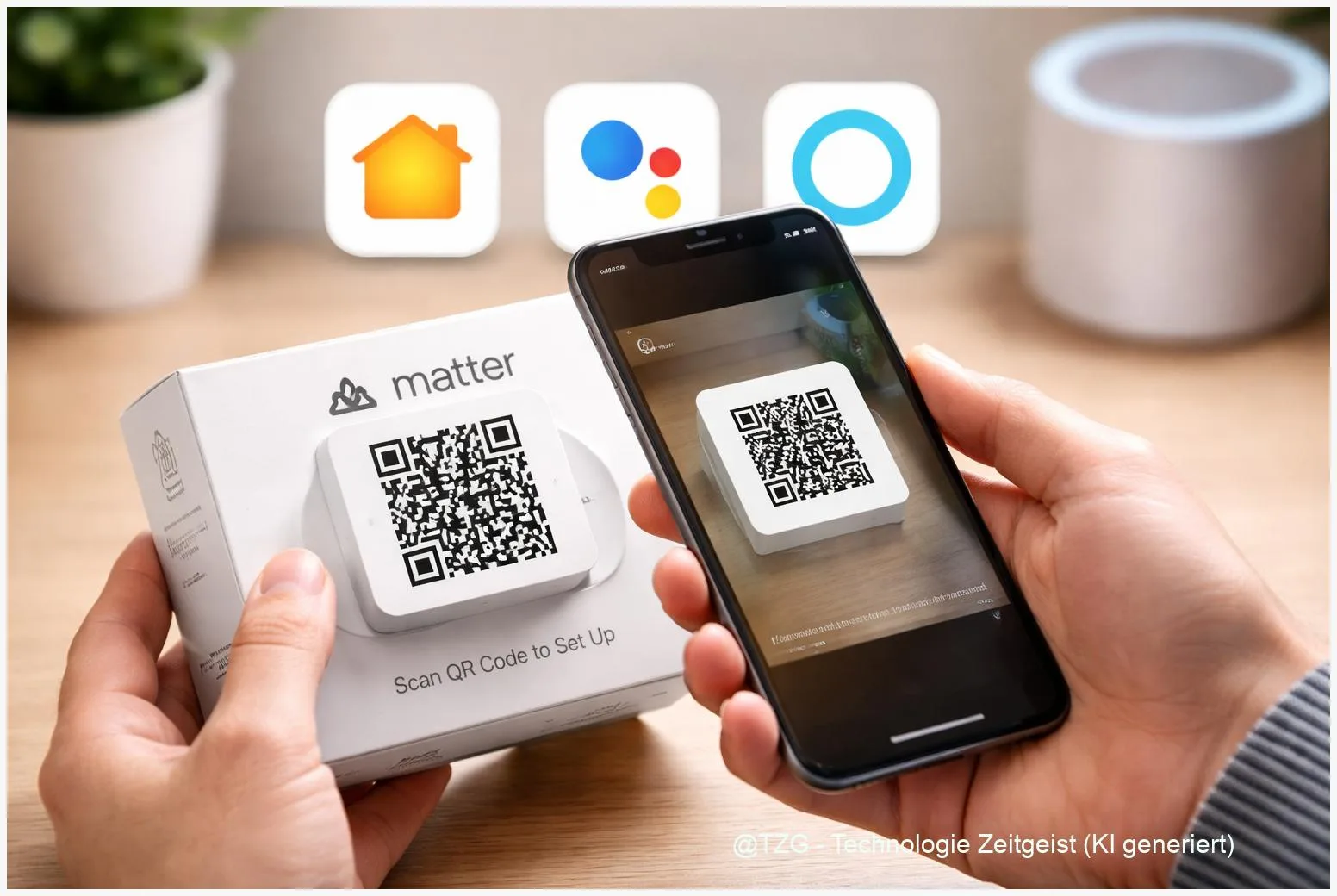
A Matter smart home setup solves a common headache: adding one smart plug, light, or sensor and controlling it across Apple Home, Google Home, and Alexa. This guide shows how pairing works (QR code or numeric code), what you need for Wi‑Fi vs. Thread devices, and how to share a device to a second platform using Multi‑Admin. After these steps, you can control the same Matter device from multiple apps without re-buying hardware.
Introduction
You buy a new smart bulb, scan a code, and it works—until you want to control it from a different app or voice assistant. In many homes, phones and speakers are mixed: an iPhone in the kitchen, an Android phone in the living room, and an Alexa speaker in a bedroom. Traditionally, that meant picking one ecosystem and accepting compromises.
Matter changes this by standardizing how devices join your home network and how controllers talk to them. But setup still trips people up: Which app should you start with? Why does a Thread device ask for a “border router”? And what happens when the QR code is missing?
The next sections walk you through a clean, repeatable process: prepare your network, add the device in Apple Home, Google Home, or Alexa, and then (optionally) share it to another platform using Matter Multi‑Admin.
Basics and Overview: How Matter pairing works
Matter is a smart home standard from the Connectivity Standards Alliance (CSA). In everyday terms, it’s a shared “language” that lets certified devices work with multiple ecosystems. The key part for setup is commissioning (the secure onboarding process). Most people do it by scanning a Matter QR code or typing a numeric setup code that comes with the device.
During commissioning, your phone briefly talks to the device—often over Bluetooth Low Energy (Bluetooth LE)—and then the device joins your home network. After that, control happens over IP (your regular home networking), either via Wi‑Fi or Thread.
A good mental model: the QR code is your device’s secure entry ticket; the controller app is the doorman that lets it into your home network.
Thread is a low-power mesh network used by many sensors and lights. To connect Thread devices to your normal network, you need a Thread border router (for example, certain smart speakers or home hubs). If your device is “Matter over Wi‑Fi”, you usually only need a stable Wi‑Fi network.
| Option or Variant | Description | Suitable for |
|---|---|---|
| Start with Apple Home | Add the device in the Home app using the Matter code, then share it to other platforms via Multi‑Admin. | Homes centered around iPhone/iPad and a Home hub. |
| Start with Google Home or Alexa | Commission in Google Home/Alexa first (often easiest if your hub/speaker is already set up), then share to another platform. | Mixed households or homes with existing Nest/Echo devices. |
Preparation and Prerequisites
Before you scan anything, set yourself up for a smooth first try. Most setup failures come from missing prerequisites: the wrong hub, disabled Bluetooth, or a router setting that blocks local discovery.
Check these basics first:
- Keep the setup code ready: Find the Matter QR code or numeric code on the device, packaging, or quick-start card. If you lose it, you may need a factory reset to generate a fresh commissioning window.
- Phone basics: Turn on Bluetooth and connect to your home Wi‑Fi. Stay close to the device during setup (a few meters is ideal).
- Power and reset state: The device should be powered and in pairing mode. Many devices enter pairing mode on first power-up; otherwise, use the manufacturer’s reset/pairing button sequence.
- Thread vs. Wi‑Fi: If the device is Matter over Thread, make sure you have a Thread border router in the same home (for example, a compatible home hub/smart speaker). Without it, the device may pair but later show “No response”.
- Accounts and permissions: Be signed in to Apple Home / Google Home / Alexa. Allow the app camera permission for QR scanning and local network permissions if your OS asks.
If you want multi-platform control, decide your primary controller now. The first ecosystem you commission with becomes the place where you typically manage rooms, names, and automations first. You can still share later using Multi‑Admin, but starting clean avoids duplicates.
Step-by-Step Instruction
The steps below work for most Matter devices (lights, plugs, sensors, thermostats). Menu labels can vary slightly, but the flow stays consistent: add device → scan code → assign room → (optional) share to another platform.
- Put the device into pairing mode. If it’s brand new, power it on and wait for a pairing indicator (often a blinking LED). If it was used before, do a factory reset per the manual so it can be commissioned again.
- Pick your first ecosystem app:
- Apple Home: Open the Home app → tap + → Add Accessory → scan the Matter code (or choose the option to enter a code manually) → assign a room and a name.
- Google Home: Open Google Home → tap + (Add) → choose the option to add a Matter-enabled device → scan the QR code or enter the code → select home/room.
- Amazon Alexa: Open the Alexa app → Devices → + → Add Device → Matter → scan the QR code or enter the numeric code.
- Wait for network handover. During setup, your phone may briefly connect via Bluetooth LE; then the device joins your Wi‑Fi or Thread network. Stay in the app until it confirms success.
- Confirm the device is responsive. Toggle the device (turn a plug on/off, change a light, read a sensor value). If the app shows “No response”, jump to the troubleshooting section before sharing to other platforms.
- Optional: Share to a second platform with Matter Multi‑Admin. In your primary app, look for a sharing option that mentions Matter or “Add to another service”. The app will open a temporary commissioning window and display a QR code or numeric code. On the second platform, choose “Add Matter device” and use that new code.
If everything went right, you should now see the same device in two ecosystems. You may notice that some advanced features still live in the manufacturer’s app—Matter focuses on standard controls first.
Tips, Troubleshooting, and Variants
Most pairing problems are fixable with a few targeted checks. Work from basic connectivity to deeper resets—this saves time and avoids creating duplicate device entries.
If the QR code won’t scan: Clean the camera lens, increase lighting, and hold the code steady. If scanning still fails, use the app’s manual code entry option (many ecosystems support this).
If the device pairs but later shows “No response”: Verify your phone is on the same Wi‑Fi as your hubs and that the device type matches your network. A Thread device usually needs a Thread border router. Also check your router: overly strict client isolation or blocked local discovery can break smart home control.
If you want Apple + Google + Alexa: Add the device to one ecosystem first, confirm it works, then share to the second, confirm again, and only then share to the third. Sharing before the first setup is stable often leads to confusion.
Privacy and safety tip: Sharing a device to another ecosystem means another account can control it. Use strong account passwords and enable two-factor authentication where available. If you move out or sell the device, do a factory reset to remove it from all controllers.
If you’re building your setup from scratch, you may also want a consistent naming scheme (for example, “Kitchen Plug Coffee”) so voice commands behave predictably across assistants. For broader planning, TechZeitGeist has helpful reading on smart home basics and everyday automation ideas—useful when you start creating routines after pairing.
Conclusion
Matter makes cross-platform smart homes realistic, but a smooth setup still depends on a few fundamentals: the correct pairing code, a stable home network, and (for Thread devices) a border router. Commission the device in one primary ecosystem first, test that it responds reliably, and then use Multi‑Admin sharing to add it to Apple Home, Google Home, or Alexa without starting over. Once the device is in place, consistent naming and room assignment pay off every day—especially for voice control and automations.
Which Matter device are you setting up—and which step caused the most confusion? Share your experience and help others avoid the same setup traps.




Leave a Reply