
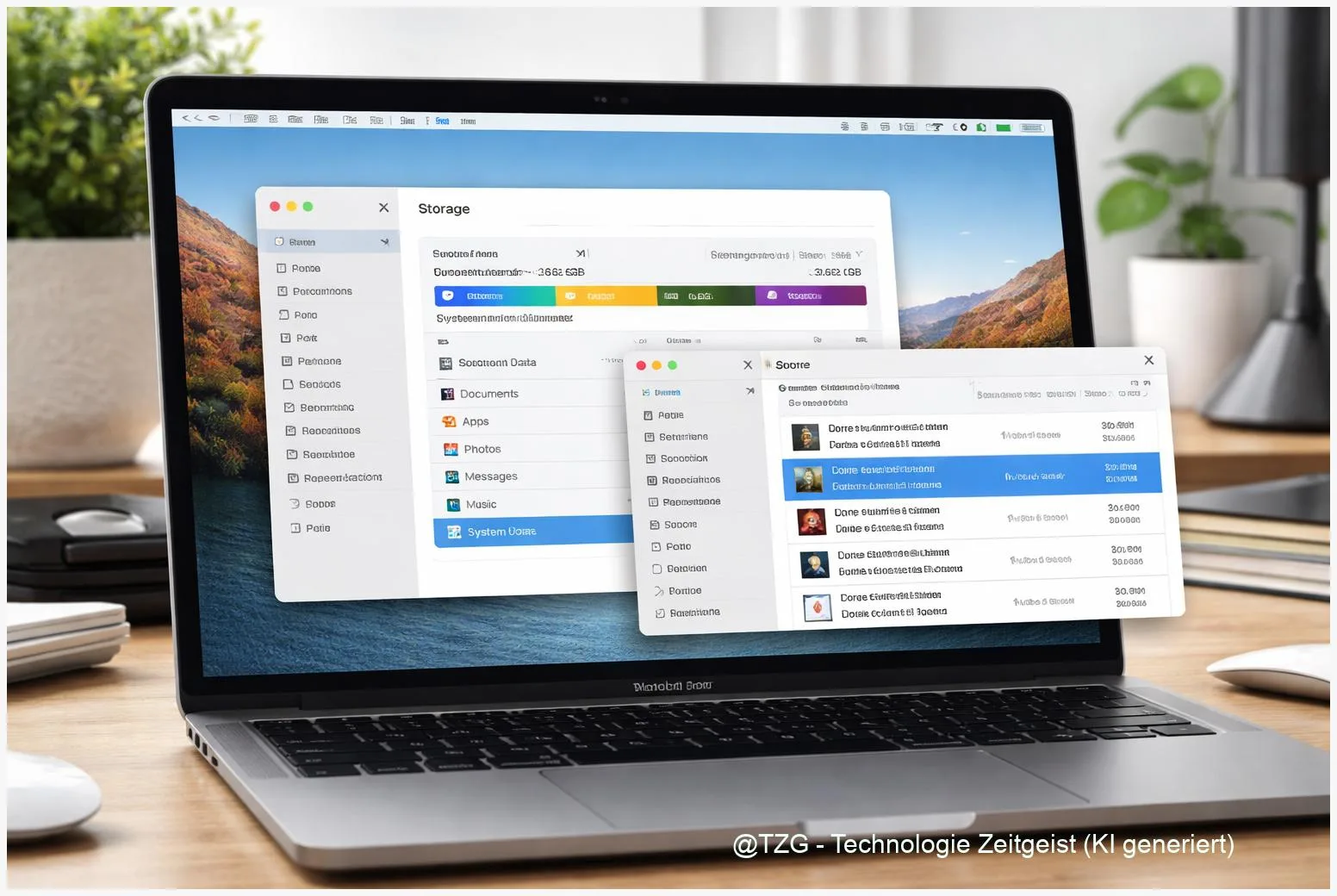
Running out of space is one of the fastest ways to make a Mac feel slow: updates fail, photos won’t import, and apps can’t cache properly. This guide shows how to free up Mac storage by finding truly large files, clearing clutter you can safely remove, and shrinking “System Data” without breaking macOS. You’ll use built-in Storage settings first, then optional, careful steps for snapshots and caches.
Introduction
Your Mac’s storage can fill up quietly: a few iPhone backups, several big video files, a growing Photos library, plus caches from browsers and creative apps. Then one day you see warnings like “Your disk is almost full,” Safari starts reloading tabs, and macOS updates refuse to install.
The confusing part is often the storage bar: “Apps” and “Documents” look reasonable, but “System Data” is huge. Many people assume it’s untouchable, or they delete random folders and hope for the best. That’s risky and usually doesn’t last.
The safer approach is to start where macOS expects you to look: Storage settings and Finder’s built-in search. Once you’ve removed obvious large files, you can reduce System Data in controlled ways—especially Time Machine local snapshots—without damaging your system.
Basics and Overview: What “System Data” really means (and what it doesn’t)
On current macOS versions (Ventura, Sonoma, Sequoia and similar), storage is grouped into categories in System Settings > General > Storage. “System Data” is a catch-all category for files that don’t fit neatly elsewhere. It can include caches, logs, temporary files, app support data, fonts, plugins, and local snapshots created by Time Machine on APFS (Apple File System).
“System Data” isn’t one single folder you can safely delete—it’s a label for several different types of files, some removable and some essential.
That’s why it sometimes jumps up and down: macOS recalculates categories, apps rebuild caches, and snapshots appear and disappear. The goal isn’t “delete System Data completely.” The goal is to identify what’s actually consuming space and remove the parts that are safe to remove (like old backups, large installers, or snapshots you no longer need).
| Option or Variant | Description | Suitable for |
|---|---|---|
| Storage recommendations | macOS suggests actions like optimizing storage and reducing clutter. | Most users; safest starting point. |
| Time Machine local snapshots | Local backups on the internal drive that can grow large; manageable via Disk Utility or Terminal. | When System Data is unexpectedly big. |
Preparation and Prerequisites (do these first to avoid regret)
Before you delete anything, take two minutes to make the cleanup predictable. Storage work is safest when you can undo mistakes and when you know what you’re removing.
Checklist:
- Restart once (Apple menu > Restart). Some storage numbers update after a reboot.
- Check free space and categories: System Settings > General > Storage. Note which category is largest.
- Empty the Trash later, not immediately. Put deletions in the Trash first; empty it only when you’re sure.
- If you use Time Machine: connect your backup drive and run a backup if possible. Backups reduce stress when you remove old files.
- If you rely on iCloud Drive: make sure you know what is “cloud-only” vs. stored locally. (In Finder, iCloud items may show a cloud icon.)
- Close heavy apps (video editors, DAWs). They often hold temporary files open, which can prevent cleanup from working immediately.
Rule of thumb: stay inside macOS tools unless you understand exactly what a folder does. Avoid deleting anything inside /System or macOS-protected areas.
Step-by-Step Instruction: Free up Mac storage safely
Work through these steps in order. Most Macs regain a meaningful amount of space just from steps 1–4, without touching anything risky.
-
Open macOS Storage and review recommendations.
Go to System Settings > General > Storage. Look for “Recommendations” such as optimizing storage, emptying Trash automatically, or reviewing large files. Use them as guidance, not as a blind “delete everything” button. -
Find large files using the built-in “Documents” review.
In the Storage window, open categories like Documents (often includes “Large Files” or similar lists). Sort by size and remove what you recognize: old DMG installers, exported videos, duplicate downloads. -
Use Finder search to locate big files anywhere.
Open Finder and use Search. Choose “This Mac,” then add a filter like File Size is greater than (for example, 1 GB). This is great for forgotten movie files, virtual machine images, and archives. -
Remove old iPhone/iPad backups (often hidden space).
If you back up iPhones to your Mac, those backups can be large. In Finder, select your iPhone in the sidebar (when connected), then look for Manage Backups… and delete old ones you no longer need. -
Reduce “System Data” by managing Time Machine local snapshots (safe, targeted).
Time Machine can keep local APFS snapshots when your backup drive isn’t connected. Apple notes these are intended as temporary protection, but they can still occupy a lot of space. Two common ways:- Disk Utility (visual method): Open Disk Utility, enable viewing APFS snapshots, and delete older snapshots if you’re confident about your backups.
- Terminal (precise method): List snapshots with tmutil listlocalsnapshots /, then delete a specific one with sudo tmutil deletelocalsnapshots plus the snapshot date string.
-
Clear obvious app caches carefully (optional).
Many apps store caches in your user Library. In Finder, use Go > Go to Folder… and open ~/Library/Caches. Delete only cache folders for apps you recognize (for example, a browser you can reopen). Don’t remove folders you’re unsure about. -
Empty the Trash and re-check storage.
Empty Trash, then restart your Mac once more. Return to Storage to see updated category sizes. Some values need a little time to refresh.
If everything worked, you should see more free space in Finder (Apple menu > About This Mac > Storage) and fewer “disk full” warnings. System Data may not drop instantly, but it should trend downward after snapshots and large files are removed.
Tips, Troubleshooting, and Variants
System Data doesn’t shrink right away. That can be normal. macOS storage categories update with a delay, and some caches are rebuilt after you reopen apps. Restarting helps, and so does waiting a bit after major deletions.
You deleted files, but free space barely changed. Check whether the files are still in the Trash. Also remember that cloud-sync tools may keep local copies; “Remove Download” (when available) can free local space without deleting the file from the cloud.
Time Machine snapshots feel intimidating. If you’re unsure, use Disk Utility’s snapshot view rather than Terminal. And keep in mind: Apple describes local snapshots as “temporary” and macOS may delete them automatically when space is needed, but it doesn’t always happen as quickly as you’d like.
Low-storage prevention tips that actually stick: keep the Downloads folder under control, uninstall apps you don’t use, and review Storage once a month. If you regularly handle large video projects, an external SSD for libraries and exports is often the simplest long-term fix.
Want more practical Apple maintenance routines? You can also keep your system tidy by combining storage cleanup with general macOS housekeeping—just avoid “aggressive cleaner” tools from unknown sources.
Conclusion
When your Mac is running out of space, the fastest win is usually not “mysterious System Data” but a handful of large files: installers, videos, and old backups. Start with macOS Storage recommendations and Finder’s size filters to remove the obvious candidates. If System Data is still unusually large, Time Machine local snapshots are one of the few targeted, documented places where you can safely reclaim space—especially if you keep regular backups. With a monthly check-in, the problem stays manageable instead of turning into an emergency.
Did one of these steps free up a surprising amount of space on your Mac? Share what worked for you—and which category was the biggest on your storage bar.




Leave a Reply