
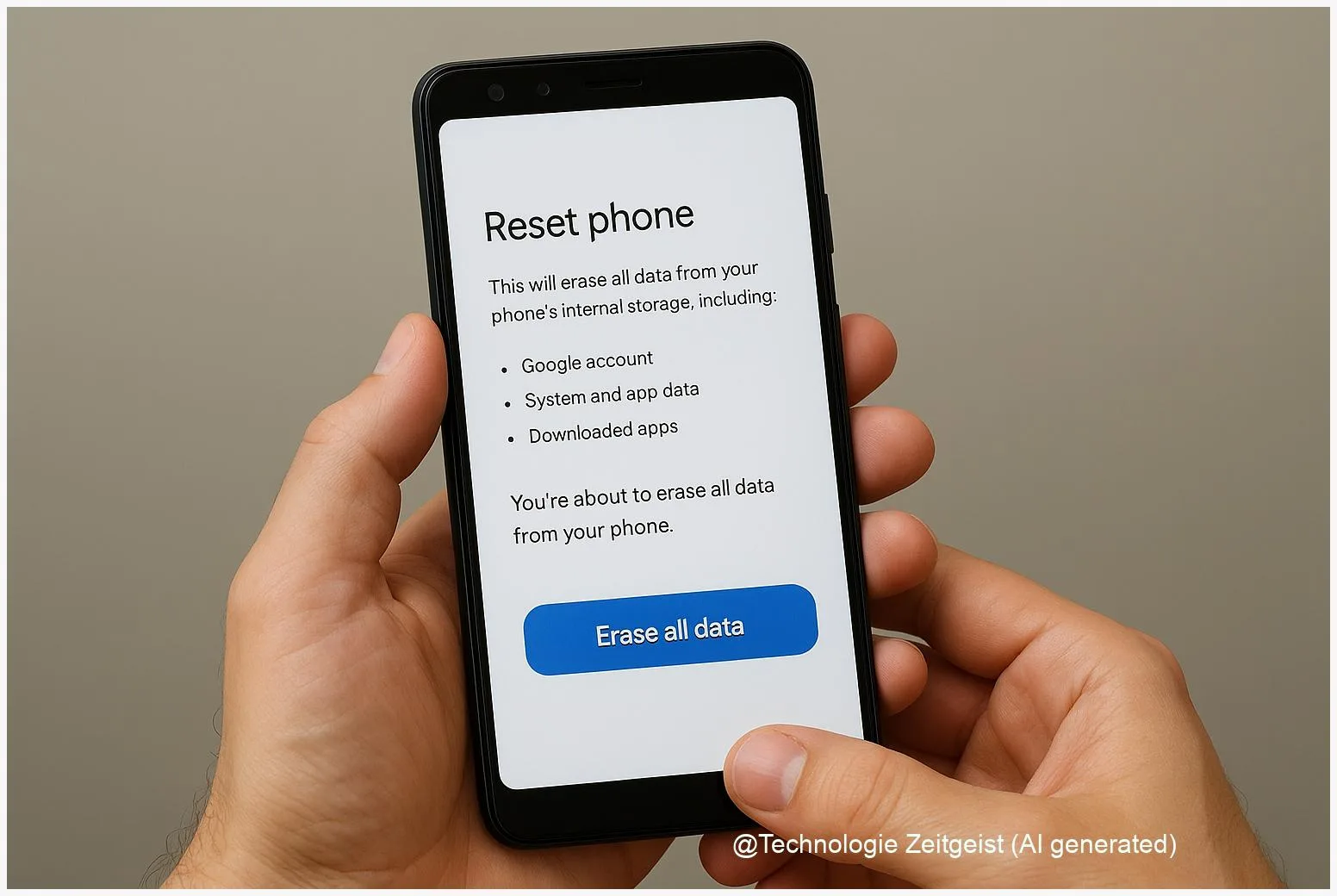
A clear, practical guide to performing an Android factory reset while keeping your data safe. The article shows what an Android factory reset does, how to prepare with backups and account removal, and which pitfalls to avoid — for example Factory Reset Protection (FRP) and lost two‑factor access. Follow these steps to reset your device with the least risk to your data and to avoid lockouts when selling or recycling a phone.
Introduction
When a phone slows down, displays repeated errors, or you want to hand it on, a factory reset can feel like the simplest fix. A factory reset restores the device software to its original state, but that simplicity hides important consequences: personal files, app settings and account links can be erased or cause reactivation locks. This article focuses on the practical steps that matter: a reliable backup routine, removing accounts to avoid lockouts, and what to check if the device is managed by a company or protected by additional manufacturer systems. Read this before you tap “Erase all data” so the reset helps, not harms.
What an Android factory reset actually does
A factory reset (also called “erase all data” or “master reset”) deletes the user data stored on a phone’s internal storage and restores system settings to their defaults. That normally includes your Google Account, downloaded apps and app data, system settings, contacts stored only on the device, messages saved locally, and photos that weren’t backed up to the cloud. It does not change your SIM card contents, and most phones leave data on a removable SD card untouched unless you choose to erase it as well.
A factory reset removes personal data from the device’s internal storage; back up anything you want to keep before you proceed.
Modern Android devices also include a safety feature called Factory Reset Protection (FRP). FRP is designed to prevent a thief from wiping and reusing a phone: after a reset the device will ask for the Google Account credentials that were previously on the device. If you sell or give away a phone without removing the account first, the new user may be unable to set it up. Manufacturers can add extra layers too — some require a manufacturer account or proof of purchase to lift a lock.
Encryption and cloud backups influence what you can recover after a reset. Most recent Android versions encrypt internal storage by default. That protects data if your device is stolen, but it also means any local data that hasn’t been backed up will be unrecoverable once erased. Cloud backups (for example Google Backup and Google Photos) will typically restore contacts, app settings, and photos when you sign into the same account again.
If a table helps, here is a simple overview:
| Item | Effect of a factory reset | What to check |
|---|---|---|
| Google Account | Removed from device; re‑login required (FRP may apply) | Remove the account beforehand or have credentials ready |
| Photos & backups | Deleted if only on device; cloud copies remain | Confirm cloud backup or copy files to a PC/SD card |
How to prepare and run a safe reset
Preparation takes five focused actions: back up, remove accounts, secure two‑factor access, protect removable media, and check power. Backups can be done with the built‑in Google Backup (Settings > System > Backup on most phones), which saves app data, contacts, device settings and call history to your Google Account. Photos and videos are best covered by Google Photos or another cloud service; verify that recent shots appear in the cloud before erasing the phone.
Next, remove or sign out of accounts to avoid FRP problems later. Open Settings > Accounts (or Users & accounts), select your Google Account and remove it. If you use other services with device links—such as a manufacturer account, Samsung account or a company directory—sign out of these too. For lost‑device scenarios, use Find My Device to secure or erase the phone remotely; note that a remote erase still triggers FRP on reactivation.
Two‑factor authentication (2FA) needs attention. If you use an authenticator app that stores keys only on the device, either move or export those keys first, or record the provider’s recovery codes. Otherwise you may lose access to important accounts after the reset. Also remove any microSD card or make a separate copy of its contents if you plan to keep them.
Finally, ensure the battery is sufficiently charged—Google’s guidance recommends having a charged device (for practical safety aim for at least 50–70 % charge) so the phone does not run out of power during the process. To do the reset: open Settings > System > Reset options > Erase all data (factory reset) on many Android devices. Some manufacturers place the option in slightly different menus; consult the device support page if unsure.
Risks and common mistakes to avoid
A reset can solve software issues, but done without preparation it creates new problems. The most common mistake is failing to remove the Google Account: that leads to FRP and can render the phone difficult or impossible to reuse. Another frequent issue is forgetting to secure two‑factor tokens or app‑specific licences, which can lock you out of email, banking, or subscription services after the reset.
People sometimes assume a reset removes all tracking or locks; in fact, remote management tools on corporate or school devices may persist or reapply policies after a reset. If the phone is managed by your employer or school, ask your IT team for an approved process. For personal devices, be cautious with third‑party “bypass” instructions you find online: many of these are unreliable, can compromise privacy, and may violate laws or service terms.
Another risk involves data you thought was backed up but isn’t. Cloud services sometimes fail silently—verify backups by checking the cloud app on a different device or via the web. If you use messaging apps with local databases (some secure messengers store chat history only on the device), export conversations you need. Finally, when selling a phone, a factory reset without removing accounts and unlocking OEM protections may reduce resale value and lead to returns.
Where resets are heading and practical implications
Security and device lifecycle management are moving in parallel. On one side, stronger anti‑theft measures and account protections reduce fraud and theft. On the other, they make legitimate device transfers more complicated. Enterprises use management APIs that can tie a device to company accounts and restrict reactivation after a reset; consumers face manufacturer services that add another account layer. The result: a safer device ecosystem with a greater need for simple, documented handover routines.
For users, the practical implication is to treat device transfer like a mini‑project: back up data, remove accounts, export 2FA, factory reset, and then remove the device from your online account list (for example from your Google Account device list or the manufacturer’s device page). For organizations, use documented provisioning and deprovisioning steps and make proof of purchase or an ownership record easy to retrieve for recovery cases.
Manufacturers and platform developers continue to refine recovery flows. Expect clearer guidance in setup wizards and more visible pre‑reset checks in future updates, but until then the safest option remains a careful, manual checklist and verification of backups before erasing. That approach reduces surprises and keeps the device usable for the next owner.
Conclusion
A factory reset is a helpful tool when a phone misbehaves or changes ownership, but it is not a simple click with no consequences. Back up important files to the cloud or a computer, remove your Google and manufacturer accounts to avoid FRP lock, secure two‑factor credentials, and keep proof of purchase in case support is needed. When devices are managed by an employer or use additional manufacturer protection, coordinate with the responsible party before erasing. These steps ensure the reset clears problems instead of creating new ones.
If you have tips or a recent experience with backing up or resetting an Android phone, share them and help others prepare.




Leave a Reply