
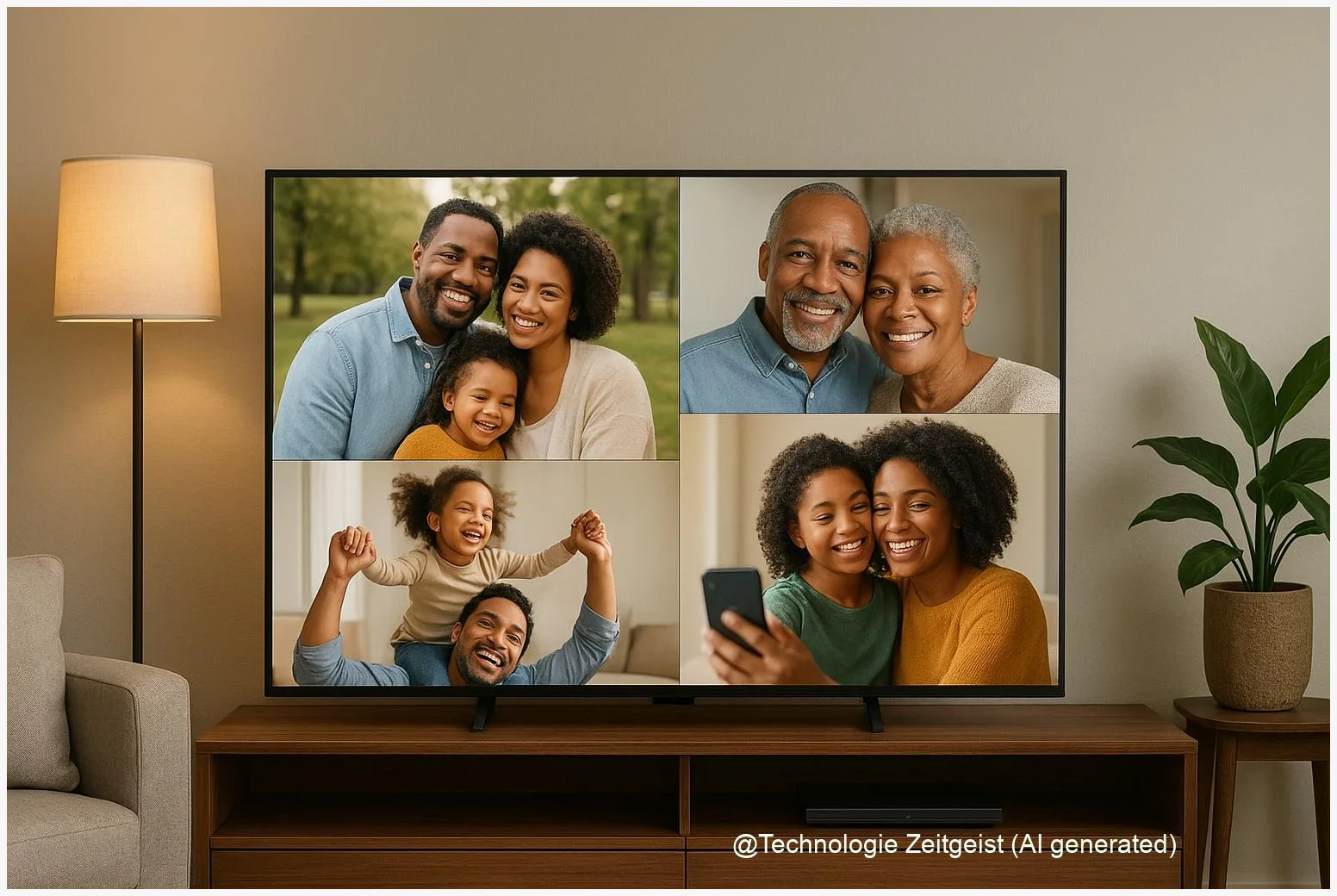
Many households want to view family albums on a big screen without complex wiring. Google Photos on smart TVs can stream your cloud albums to a television, but the experience depends on the TV platform and network setup, and there are privacy trade-offs to consider. This article explains how casting and app integration usually work, practical setup paths for desktop and mobile, and clear steps to reduce data exposure while keeping the convenience.
Introduction
Taking family photos on a phone is easy; showing them to guests on the TV sometimes is not. Many people expect that the same photos they see in the Google Photos app should appear on a smart TV with one or two taps. In practice, that depends on whether the TV supports casting, whether a dedicated app is available, and how your account and network are configured.
Common setups use a Chromecast device (or a TV with built‑in Google Cast) to receive a stream from the Google Photos web interface or app, while some TV manufacturers offer their own gallery apps that can connect to cloud accounts. These technical choices affect convenience, image quality, and — crucially for families — what metadata or device signals may be shared with the TV maker or third parties.
How Google Photos on smart TVs actually works
Three technical models are typical when showing cloud photos on a television: casting, a native TV app that connects to your account, and local media playback.
Casting means a phone or computer sends a request to a Chromecast‑compatible device and then either mirrors a browser tab or instructs the TV to fetch images directly from the cloud. The common pattern with Google Photos is that photos.google.com in Google Chrome can cast a browser tab or the entire desktop to a Chromecast device; similarly, mobile apps may offer a Cast button that starts playback on a Cast receiver. Casting uses the Google Cast protocol and usually requires both devices to be on the same Wi‑Fi network.
Casting asks the TV to display content; mirroring copies the sender’s screen. Casting is generally more efficient for image slideshows.
A native TV app, if provided, signs in to your cloud account and downloads thumbnails or streams images for display. That approach can feel smoother because the TV handles transitions and indexing, but it also means the TV vendor has direct access to some account activity. Local playback — from a USB stick or a network share — keeps files on a device you control and avoids cloud interactions entirely.
If a table helps, here is a short comparison:
| Method | Description | Typical value |
|---|---|---|
| Casting (Chromecast/Google TV) | Sender tells the TV to fetch or mirror images from Google Photos | Easy setup; needs same Wi‑Fi |
| Native TV app | TV app signs in to cloud account and streams thumbnails | Smooth playback; vendor sees some activity |
| Local playback | Files on USB/NAS shown directly by TV | Best for privacy; manual management |
Official Google support documents confirm that photos can be shown on a TV using Chromecast or a Google TV receiver and that the desktop route via photos.google.com in Chrome is a reliable option when mobile casting fails (see Sources). Practical limits such as maximum resolution or exact caching behaviour vary by TV and app version; support pages emphasise up‑to‑date software and a shared network as prerequisites.
Setting up and showing your photos: practical steps
Start with the simplest and most reliable route: a laptop or desktop running Google Chrome. Open photos.google.com, sign in to your Google account, then use the browser menu to “Cast” a tab or the entire desktop to a Chromecast or Google TV device. This method reduces variables because the browser handles authentication and the Cast protocol.
If you prefer to use a phone, look for the Cast icon inside the Google Photos app. On Android, Cast tends to be well supported; on iPhones the platform is more fragmented and behaviour can depend on the Google Photos and Google TV apps installed. If casting fails from the phone, the Google TV remote app (or the TV’s built‑in Cast receiver) can sometimes be used to initiate playback instead.
When there is no Cast option, check whether the TV has a Google Photos or Gallery app that can link to cloud services. Some manufacturers offer photo‑sync features that surface cloud albums; such integrations are convenient but require you to sign in on the TV and accept its privacy settings.
Quick troubleshooting checklist:
- Confirm both the sending device and the TV/Chromecast are on the same Wi‑Fi network.
- Update the Google Photos app, Google TV firmware, and the Chrome browser to the latest versions.
- Restart the TV, the sending device, and the home router if devices are not discovered.
- Try the desktop Chrome route if mobile casting fails; it is often more consistent.
For families sharing a TV, consider creating a shared album inside Google Photos and avoid keeping multiple personal accounts signed in on the TV. Shared albums can be managed from your phone and give a simple way to curate what appears on the big screen without switching accounts.
Privacy trade-offs and risks when photos appear on a TV
Exposing personal images on a television introduces two kinds of privacy questions: who receives metadata or viewing signals, and what sensors on the TV may collect additional information. Recent research into smart‑TV telemetry shows that automatic content recognition (ACR) systems can create and send fingerprints of what is shown on screen, and that vendor software sometimes sends viewing‑related data unless opt‑out settings are used (see Sources).
The key points to keep in mind are straightforward. First, if you use a native TV app that signs into your cloud account, the TV maker or app provider may receive logs about which albums or thumbnails were requested. Second, smart TVs often include microphones or cameras; if enabled, these sensors can collect voice commands or images — physical covers or explicit hardware switches are the simplest protection. Third, even casting is not entirely invisible: logs of cast sessions and device names can be visible to router logs or vendor services.
Laboratory studies have observed periodic ACR traffic in some TV models; the intervals measured varied by vendor, with some samples on the order of tens of seconds. Those studies mainly indicate that signatures or telemetry were sent, not complete image files, but they underline that a TV can be a data collector in the home environment. Consumer guides recommend disabling ACR or viewing‑data features and reviewing privacy settings during setup.
Finally, consider account hygiene. Leaving a personal Google account constantly signed in on a shared TV makes it easier for other household members or visitors to access photos by mistake. Use guest modes, separate family accounts, or sign‑out routines when the TV is used for public viewing.
Choices to reduce exposure and what to expect next
If privacy is a priority, several practical options reduce the exposure of family images while keeping convenience:
1) Prefer local playback when possible. Using a USB drive or a local network share (NAS) avoids cloud interactions entirely. Many TVs can read JPEGs and play slideshows directly from a USB stick.
2) Use casting from a device rather than signing in on the TV. Casting typically limits the TV vendor’s immediate access to your cloud account, because the sender or browser manages authentication and temporary session control.
3) Disable telemetry features such as ACR and opt out of personalised advertising in the TV settings. Research shows that opt‑out settings can significantly reduce observed tracking traffic on many devices.
4) Create a curated shared album for visitors. That keeps most personal material private while making selected photos easy to share.
5) Network‑level controls: a guest Wi‑Fi for TVs, simple firewall rules, or placing the TV in a separate VLAN reduces the chance that other home devices or services can access its traffic. These measures are helpful for tech‑savvy households but not required for basic privacy improvements.
Looking ahead, expect incremental changes rather than a sudden fix. Regulators in several markets are asking for more transparency about device telemetry, and some manufacturers are responding with clearer opt‑out flows and privacy dashboards. For households, the useful rule is to prefer the least‑privileged setup that still delivers the experience you want: local files or casting often strike that balance.
Conclusion
Google Photos on smart TVs gives an easy way to see albums on the big screen, but the exact experience depends on whether you cast from a phone or browser, sign in to a native TV app, or use local media. Casting from Chrome is a robust fallback and keeps cloud authentication on the sender device, while native TV apps can be convenient but may expose usage signals to the vendor. Privacy risks are real but manageable: disable unsolicited telemetry, avoid leaving personal accounts signed in on shared TVs, and use local playback for sensitive images. With a few settings and simple habits, families can enjoy slideshows without giving up control over who sees or records their photos.
Share tips and experiences about showing photos on your TV — it helps others pick the best balance between convenience and privacy.




Leave a Reply