
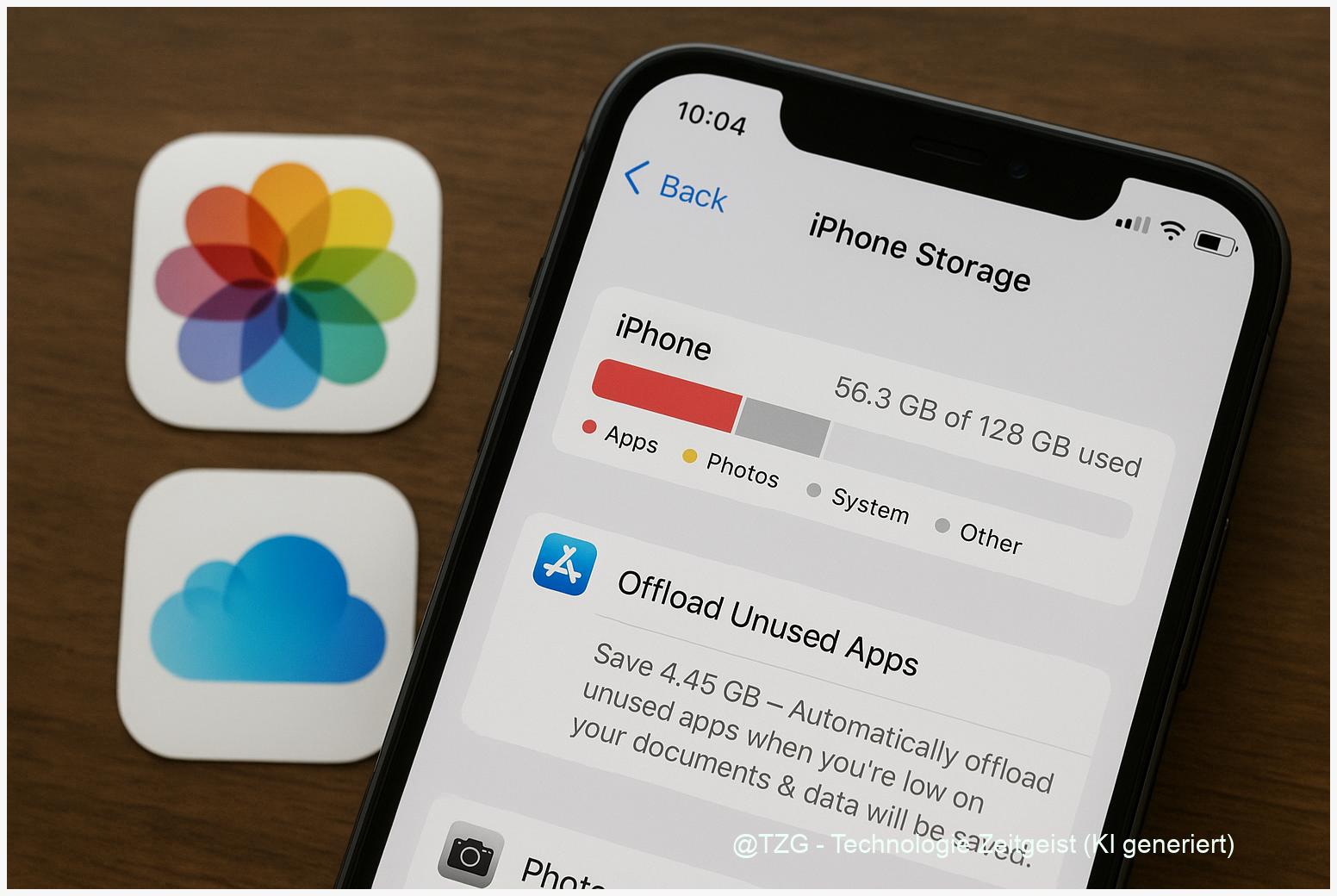
If your iPhone keeps saying storage is full, photos and rarely used apps are usually the biggest reason. This guide shows how to free up iPhone storage by offloading photos to iCloud Photos (without losing them) and cleaning up apps safely. You’ll learn which settings matter, what to prepare, and a clear step-by-step path through iOS storage options—plus fixes for common issues like slow downloads or growing “System Data”.
Introduction
Your iPhone storage fills up quietly: a few vacation videos, a couple of chat groups with lots of pictures, and apps that keep growing in the background. At some point, updates fail, the camera won’t save new photos, and even basic tasks feel slower because iOS needs free space for temporary files.
The good news is that you rarely need to delete everything. On modern iPhones (current iOS versions), Apple built in two everyday-friendly tools: iCloud Photos with “Optimize iPhone Storage” to keep full-quality originals online, and “Offload Unused Apps” to remove apps you don’t use while keeping their data. Combined with a focused app clean-up, you can regain several gigabytes without losing memories or settings.
The steps below are designed to be safe, reversible where possible, and easy to follow even if menus look slightly different on your device.
Basics: what actually frees up iPhone storage
On iPhone, storage is split into categories such as Photos, Apps, Messages, and “System Data”. The biggest wins usually come from two places: your photo library (especially videos) and large apps (social, streaming, games). iOS shows this under Settings > General > iPhone Storage.
iCloud Photos is Apple’s photo syncing system. When you turn it on, your library is stored in iCloud and synced across devices using the same Apple Account. The key setting for saving space is Optimize iPhone Storage: your iPhone keeps smaller device-friendly versions, while full-resolution originals stay in iCloud and download when you open or edit them.
The safest way to free space is not “delete more”, but “store originals where they belong”: in a backup or cloud library that you control.
Offload Unused Apps is different from deleting. Offloading removes the app itself but keeps your documents and data on the iPhone. The icon stays on the Home Screen, and reinstalling is usually a single tap—handy for apps you need only a few times per year.
| Option or Variant | Description | Suitable for |
|---|---|---|
| iCloud Photos + “Optimize iPhone Storage” | Full-quality originals in iCloud; smaller versions on the iPhone; originals download when needed. | People with lots of photos/videos and stable Wi‑Fi or mobile data. |
| Offload Unused Apps | Removes the app but keeps its data; reinstall by tapping the icon. | Phones with many rarely used apps (travel, fitness, seasonal tools). |
Preparation and prerequisites (5 minutes that prevent mistakes)
Before you change storage settings, take a short moment to avoid accidental data loss and reduce frustration. Most steps are safe, but photos and app data deserve a quick check.
Go through these prerequisites:
- Check your current storage: Settings > General > iPhone Storage. Note the biggest category (often Photos or Apps).
- Confirm your Apple Account: Settings > your name at the top. iCloud Photos needs the same Apple Account on all devices you want to sync.
- Make sure you have enough iCloud storage: Settings > your name > iCloud. If iCloud is full, photo offloading can stall.
- Use a good connection: For the first sync, connect to Wi‑Fi and keep the iPhone on power. Uploading a large library can take hours or days, depending on size and speed.
- Optional safety net: Create a backup (iCloud backup or a computer backup) before major cleanups, especially if you plan to delete videos or remove apps manually.
If you want extra guidance for decluttering habits (beyond today’s iPhone steps), TechZeitGeist has a practical overview on organizing digital storage and backups (general background and workflow ideas).
Step-by-step: offload photos to iCloud and clean up apps
The order matters: start with Apple’s built-in recommendations, then move to photos, then apps. This keeps the process controlled and avoids deleting things you could have offloaded.
- Open the storage overview: Go to Settings > General > iPhone Storage. Wait a few seconds until the list of apps and recommendations appears.
- Use iOS recommendations first: If you see suggestions like enabling iCloud Photos or offloading unused apps, read the short description and activate only what you understand. These are Apple’s “safe defaults” for most people.
- Enable iCloud Photos: Go to Settings > your name > iCloud > Photos and turn on Sync this iPhone (wording can vary by iOS version).
- Turn on “Optimize iPhone Storage”: In the same Photos settings screen, select Optimize iPhone Storage. This is the core step to free up local space while keeping originals in iCloud.
- Keep the iPhone connected: Plug in power and stay on Wi‑Fi for a while. In the Photos app, you may see a status like “Uploading…” at the bottom of Library views while the first sync runs.
- Enable “Offload Unused Apps”: Go back to Settings > General > iPhone Storage and enable Offload Unused Apps. This removes rarely used apps but keeps their data on the device.
- Manually offload a large app (optional): In the app list (same screen), tap an app with a large size. Choose Offload App if you want to keep its documents and data. Choose Delete App only if you are sure you don’t need its local data.
- Review photo-heavy chats: If Messages is large, open Settings > General > iPhone Storage > Messages (if shown) and remove large attachments you don’t need locally anymore.
When everything worked, you should see free space increase in iPhone Storage, and the Photos category should shrink over time as optimization completes.
Tips, troubleshooting, and variants (common “why didn’t it free space?” cases)
“I enabled Optimize Storage, but Photos still uses the same space.” This often just needs time. iOS typically frees space gradually after uploads finish. Keep the iPhone on Wi‑Fi and power. Also confirm iCloud storage isn’t full; otherwise uploads pause and optimization can’t complete.
“I’m afraid iCloud Photos will delete my pictures.” iCloud Photos is a sync service, not a one-way backup. Deleting a photo on one synced device deletes it across all synced devices. If you want a true extra safety copy, keep a separate backup (computer, external drive, or another cloud) before doing major deletions.
Offload vs. delete: pick the right button. Offloading is the low-risk option for most apps. Deleting can be fine for apps where everything lives in an online account, but some apps keep important offline files locally. When in doubt, offload first.
What about cache and “System Data”? Apple doesn’t offer a single “clear all cache” switch in iOS. Some caches shrink after a restart, after iOS finishes background tasks, or after you remove large attachments and offline downloads (music, podcasts, video downloads). If System Data stays unusually large, installing the latest iOS update and restarting can help because temporary files get rebuilt.
Variant for slow connections: If you travel a lot or have limited mobile data, keep optimization on but set expectations: opening older photos may trigger downloads. Use Wi‑Fi before trips to browse albums and allow iOS to cache what you recently viewed.
If you also manage a Windows PC alongside your iPhone, TechZeitGeist’s guide on keeping cloud folders and local storage in sync can help you avoid duplicate photo copies across devices.
Conclusion
To free up iPhone storage without stressful mass deletion, focus on the two biggest levers: offloading photos to iCloud Photos with “Optimize iPhone Storage”, and offloading unused apps instead of deleting everything. Start in iPhone Storage, follow Apple’s recommendations, then activate photo optimization and app offloading in that order. After the initial sync, your iPhone typically keeps day-to-day access fast while quietly reducing local storage use in the background.
Try the steps, then check your storage again after a few hours on Wi‑Fi—what changed most on your iPhone: Photos, Apps, or Messages?




Leave a Reply