
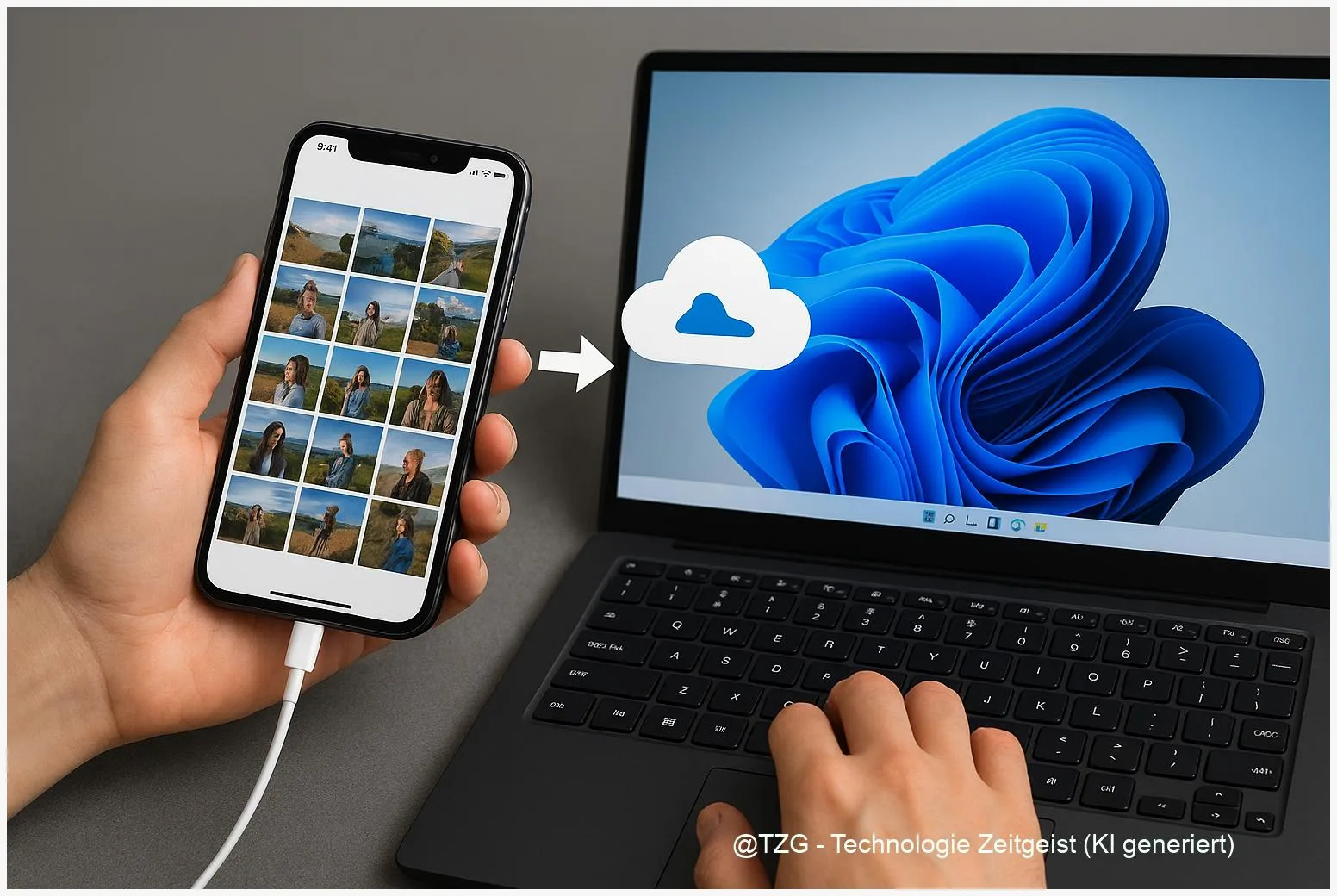
Want to transfer photos from iPhone to Windows 11 without losing quality or missing half your camera roll? This guide shows three reliable paths: a direct USB import with the Windows Photos app, a hands-off iCloud sync, and a simple Wi‑Fi workaround when you can’t (or don’t want to) plug in. You’ll also learn what the common “iPhone not showing on PC” errors usually mean—and how to fix them.
Introduction
If you take lots of photos on your iPhone, you’ll eventually want them on a Windows 11 PC: for a bigger screen, a proper backup, editing, or simply to free up phone storage. The annoying part is that it can fail for small reasons: the iPhone is locked, Windows doesn’t get permission, iCloud is set to “optimize storage” so the originals aren’t actually on the phone, or the cable only charges but can’t transfer data.
The good news is that you don’t need special software for most cases. Windows 11 can import directly with the Photos app, iCloud can keep a continuously updated copy on your PC, and Wi‑Fi options work as a backup plan when USB is unreliable. The steps below focus on safe, repeatable transfers—so you can trust the result, not just “hope it worked”.
Basics and Overview: transfer photos from iPhone to Windows 11
There are three common ways to move iPhone pictures to a Windows 11 computer, and they solve slightly different problems. USB import is usually the fastest for many files and does not require internet. iCloud Photos is best if you want ongoing sync across devices. Wi‑Fi transfer is useful when a cable or USB port is missing—or when you only need a handful of images quickly.
Two terms matter in practice. First, the iPhone permission prompt “Trust This Computer”: until you tap Trust and enter your passcode, Windows can’t read your photos. Second, iCloud Photos: if enabled, your iPhone may store smaller previews while the full originals live in iCloud. That can make a USB import look “incomplete” if the originals haven’t been downloaded to the phone.
Most transfer problems are not “broken photos” problems—they’re permission, cable, or cloud-sync problems.
For background reading on keeping your devices tidy, TechZeitGeist also covers practical storage habits (for example, strategies similar to cleaning up smartphone storage without deleting memories). If your goal is long-term safety, think of the PC copy as a second location, not a replacement for your only photo library.
| Option or Variant | Description | Suitable for |
|---|---|---|
| USB + Windows Photos import | Connect iPhone via USB, unlock, tap Trust, then import in Photos. | Large batches, fastest local transfer, no internet. |
| iCloud Photos on Windows | Install iCloud for Windows, enable iCloud Photos, download/sync to PC. | Automatic sync, multiple devices, ongoing library. |
Preparation and Prerequisites
Before you start, take two minutes to set things up. It prevents most “nothing happens” moments during import.
Check these essentials:
- Unlock your iPhone and keep it awake during the first connection.
- Use a data-capable cable (some cheap cables only charge). If in doubt, try the original cable or another known-good one.
- Choose your target folder on Windows (for example, Pictures > iPhone Imports). A consistent place makes backups easier.
- Decide between USB vs. iCloud: USB is a one-time copy; iCloud is a sync system that may download gradually.
If you plan to use iCloud Photos on Windows, you’ll need:
- An Apple Account (Apple ID) with access to your iCloud Photos.
- The official iCloud for Windows app from the Microsoft Store.
- Enough free disk space for the photos you want to keep offline.
One safety step that pays off: if the photos are important, consider copying them to a second location after import (an external drive or another cloud backup). A single computer folder is better than only the phone—but it’s still just one place.
Step-by-Step Instruction
The steps below start with the most dependable method: USB import with the built-in Windows Photos app. After that you’ll see the iCloud route and a Wi‑Fi fallback.
- Connect the iPhone to the PC with a USB cable. Prefer a direct port on the laptop/PC (not a hub) for the first attempt.
- Unlock the iPhone. If a message appears, tap Trust on the iPhone and enter your passcode. This grants Windows access to the photo storage.
- Open the Windows Photos app. Use the Start menu search for “Photos”.
- Start the import. In Photos, choose Import and select From a connected device (wording can vary slightly by Photos version).
- Select what you want to copy. If you only need recent pictures, select a smaller set. For a first backup, select all.
- Confirm the destination and import. Photos will copy items into your Pictures library (or your chosen folder). Wait until it finishes; keep the iPhone unlocked during the copy.
- Verify the result. Open the destination folder in File Explorer and check a few photos and videos. Look for correct dates and playable clips.
- Alternative: set up iCloud Photos on Windows. Install iCloud for Windows from the Microsoft Store, sign in, enable iCloud Photos, then use File Explorer (Pictures > iCloud Photos) to download items locally when needed.
- Wi‑Fi fallback: use iCloud.com for manual downloads. If you can’t install apps, open iCloud Photos in a browser on your PC, select photos, and download them. Apple notes there can be a per-download selection limit, so plan in batches for large libraries.
If everything worked, your imported photos should be visible in the Windows Photos app under your local Pictures folder, and in File Explorer as regular files you can copy, edit, or back up.
Tips, Troubleshooting, and Variants
Most issues have simple causes. Try these fixes in order before you assume anything is “broken”.
Problem: iPhone photos not showing on PC. Common fixes:
- No Trust prompt appeared: unplug and reconnect, unlock the iPhone, and watch for the prompt. Apple explains the Trust alert is the gatekeeper for data access.
- Wrong cable or port: try a different USB port and a different cable (charging-only cables are a frequent culprit).
- iPhone is locked: keep it unlocked during import. If the screen sleeps, the connection can stall.
Problem: you only see some photos, not all. If iCloud Photos is enabled, older originals may not be stored locally on the iPhone. In that case, use iCloud for Windows (sync) or iCloud.com (download) to retrieve the cloud originals.
Variant: copy via File Explorer (DCIM folder). Windows sometimes shows the iPhone under This PC. You can open the DCIM folders and copy files manually. This is a useful backup method, but it can be less comfortable than Photos import (for example, you may need to sort across multiple folders).
Tip: keep your library organized from day one. After importing, create a simple folder structure such as Year/Month or Events. If you also edit on Windows, keep originals and edited exports separate. For ongoing device hygiene, a practical next step is learning how to keep cloud sync predictable (TechZeitGeist often discusses approaches similar to setting up reliable backups for everyday devices).
Privacy note: iCloud sync and iCloud.com downloads require signing in with your Apple Account. Use a private PC account, log out on shared computers, and consider Windows device encryption if you store a full photo library offline.
Conclusion
If you need a fast, one-time copy, USB import with the Windows Photos app is usually the most straightforward: connect, unlock, tap Trust, and import. If you want your full library to stay available on the PC over time, iCloud for Windows is the more consistent solution—especially when your iPhone keeps originals in the cloud to save space. And when neither option fits, iCloud.com offers a practical Wi‑Fi fallback for smaller batches. Once the photos are on your PC, you can finally back them up properly and organize them in a way that suits your everyday life.
Have you run into a specific error message during import, or do you prefer USB or iCloud for your routine? Share what worked for you—and pass this guide along to anyone who keeps asking where their iPhone photos went.




Leave a Reply