
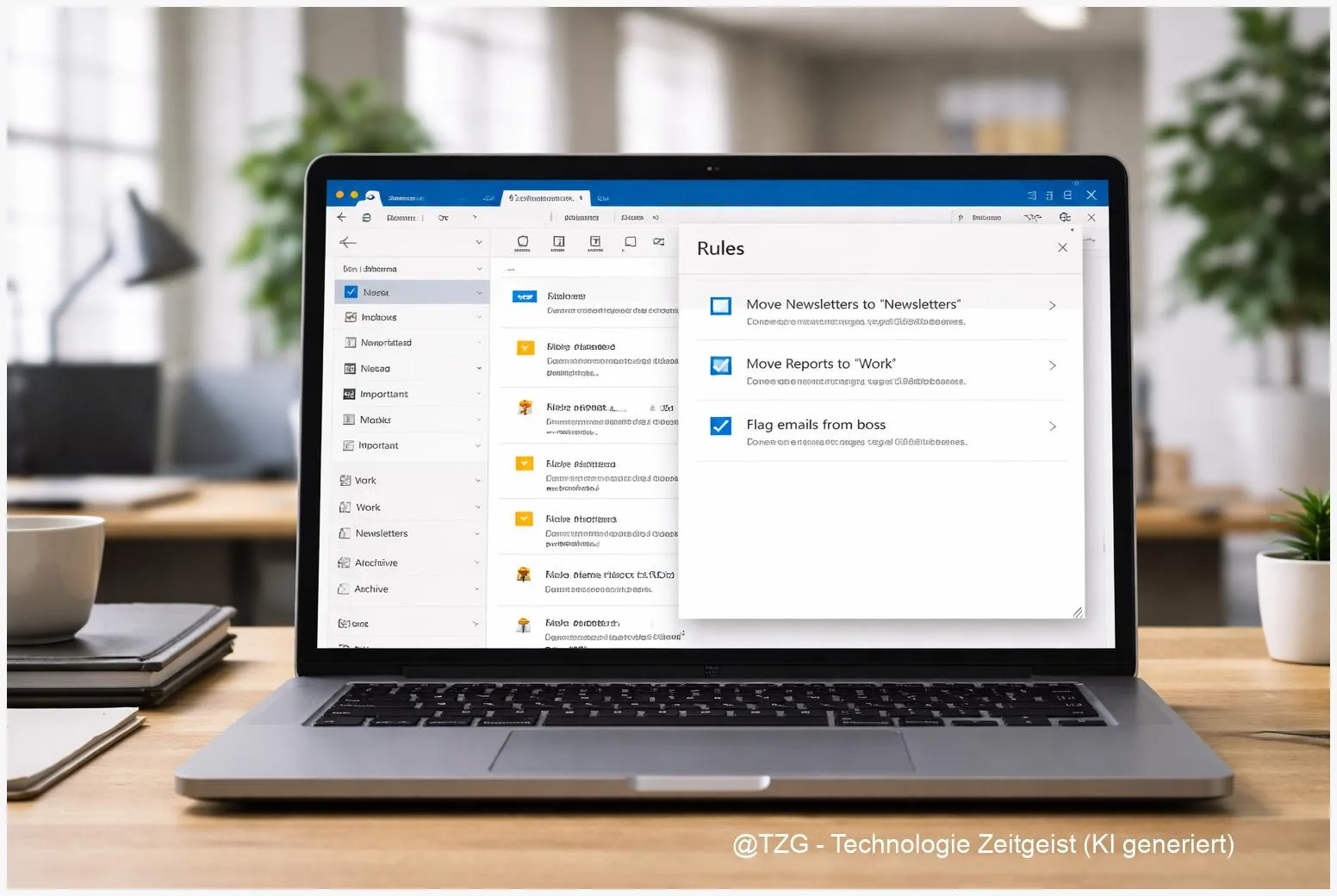
An overflowing inbox is usually not a “more email” problem—it’s a sorting problem. This guide shows how to create Outlook rules so messages are automatically moved into the right folders in Outlook desktop (Windows and Mac) and Outlook on the web. You’ll learn a reliable setup, how to test rules on existing mail, and what to do when a rule doesn’t trigger. The goal: less scanning, faster replies, and a calmer inbox.
Introduction
Email rarely arrives in a tidy order. A teacher sends course updates, your bank sends alerts, newsletters pile up, and work threads mix with deliveries and receipts. Even if you check mail often, you still lose time doing the same micro-task: reading sender names, deciding where a message belongs, and dragging it into a folder.
Outlook rules automate exactly that decision. A rule watches for conditions you define (for example: “from this sender” or “subject contains”), then performs an action (for example: “move to folder” or “mark as read”). Once set up, the same logic works consistently—so your inbox becomes a place for items that truly need attention, not a storage room for everything.
The steps below work for modern Outlook desktop and Outlook on the web. Menus may be named slightly differently depending on updates, but the concepts and the safe setup pattern stay the same.
Basics and Overview
An Outlook rule is an automatic “if this, then that” instruction for email. Typical conditions are the sender address, keywords in the subject line, or whether the message was sent to a specific alias. Typical actions include moving mail to a folder, flagging it, or categorizing it.
In practice, you’ll usually build rules for repeatable streams: newsletters, automated notifications, receipts, project updates, or messages from a specific team. The biggest win comes from moving low-urgency mail out of the inbox while keeping important items visible.
A good rule is specific enough to avoid surprises, but simple enough that you still understand it months later.
Platform note: Outlook on the web runs rules on the mailbox server, so they work even when your computer is off. On desktop, the exact capabilities depend on the Outlook version and account type. In recent Outlook versions, Microsoft emphasizes server-side rules; older “classic” Outlook can also use client-only actions that run only while the app is open.
| Option or Variant | Description | Suitable for |
|---|---|---|
| Outlook on the web rule | Create and manage rules in browser settings; runs on the mailbox server. | People who use multiple devices or want rules to work 24/7. |
| Outlook desktop rule (Windows/Mac) | Create rules inside the app; quick rules from a message, plus deeper options in rule settings. | People who mainly work in the desktop app and want fast setup from real emails. |
Preparation and Prerequisites
Before you build rules, take two minutes to set the stage. It prevents most “why did this email disappear?” moments later.
Check these prerequisites first:
- Know which Outlook you use: Outlook on the web in a browser, Outlook for Windows (new or classic), or Outlook for Mac. The rule location differs, the logic is similar.
- Confirm the account type: Microsoft Exchange / Microsoft 365 work accounts tend to support server-side rules best. Other providers can be more limited.
- Create target folders up front: For example “Newsletters”, “Receipts”, “Project A”, “System alerts”. Keep it modest—too many folders make rules harder to maintain.
- Pick stable identifiers: Prefer sender address or a unique subject keyword. Avoid vague terms like “update” that may hit unrelated mail.
- Decide what stays in the inbox: A simple rule of thumb: items requiring action stay; items for reading later go to a folder.
If you want a folder strategy first, TechZeitGeist has a practical companion piece on mailbox cleanup and folder habits: Outlook cleanup with rules, Focused Inbox, and archive.
How to create Outlook rules step by step
The safest pattern is always the same: start from a real email, create a simple move rule, test it, then refine with exceptions. The steps below cover Outlook on the web and desktop so you can choose what matches your setup.
- Choose a representative email. Pick a message that you regularly receive (for example a newsletter, an automated alert, or a weekly report). Open it or select it in the list.
- Create a rule from the message (fast start).
- Outlook on the web: Right-click the message and look for an option like “Create rule” (wording can vary). You can also open Settings (gear icon) and navigate to Mail settings where rules are listed.
- Outlook desktop (Windows/Mac): Right-click the message and look for “Rules” or a similar entry, then choose “Create rule” or “Rule” options.
- Name the rule clearly. Good example: “Move Newsletters – Example.com”. Clear names help later when you troubleshoot.
- Set the condition. Start with one strong condition such as “From” (the sender address). If you need more precision, add a second condition like “Subject includes”.
- Choose the action: move to a folder. Select “Move to” and pick your target folder. If the folder doesn’t exist, cancel and create it first—rules are easier to maintain when folders are planned.
- (Optional) Add an exception for important cases. Example: move all newsletters except those containing “invoice” in the subject. Exceptions are often the difference between “helpful automation” and “missed message”.
- Save the rule and check that it’s enabled. Most rule lists have a switch/checkbox to turn a rule on or off. Make sure it’s active.
- Test on existing mail (recommended).
- Outlook on the web: In the rules list, use an option like “Run rule now” to apply it to messages already in a folder (often Inbox).
- Outlook desktop: Depending on version, you can run rules from the rules management area and apply them to existing messages.
- Send yourself a quick test. If the sender is one of your own addresses (or you control it), send a message that matches the rule and confirm it lands in the target folder within a minute.
If everything worked, you should see new matching messages skip the inbox and appear in the chosen folder. If not, don’t delete the rule yet—most issues are a simple setting, order, or condition mismatch.
For additional everyday examples (sorting, forwarding, and combining rules), see: Create Outlook rules to automatically sort and forward emails.
Tips, Troubleshooting, and Variants
If a rule behaves oddly, the cause is usually predictable. These checks solve most cases without advanced tools.
1) The rule doesn’t run at all
- Check if it’s enabled: Many rule lists have a toggle/checkbox per rule.
- Confirm you’re editing the right place: A rule made in Outlook on the web is managed in web settings; a desktop-only rule may not appear everywhere.
- Verify the condition: “From” can differ from “Sender” when mailing lists or automated systems are involved. If the message shows a display name, open details to confirm the real address.
2) The rule runs, but matches the wrong emails
- Make the condition more specific: Use the full sender address, or add a subject keyword that’s unique to that stream.
- Add an exception: For example, don’t move messages marked as “High importance”, or don’t move items containing “urgent”.
3) Rules conflict with each other
- Order matters: Outlook processes rules in order. Put more specific rules above broader ones.
- Use “stop processing more rules” if available: This prevents a later rule from undoing the first match.
4) You can’t edit a rule after switching Outlook versions
- Some “classic” Outlook rules use client-only actions and may not be compatible with newer Outlook experiences. If a rule shows as not editable, recreate it as a simpler server-side rule (move, categorize, flag) so it works across devices.
Practical variants that work well
- Newsletter control without unsubscribing immediately: Move newsletters to a “Read Later” folder and mark them as read. Review once per week.
- Receipts and invoices: Condition “from” plus subject keywords like “receipt” or “invoice”, but add exceptions for personal domains you don’t want auto-moved.
- Keep privacy in mind: Be cautious with automatic forwarding rules, especially on work accounts—organizations often restrict it for security reasons. If forwarding is blocked, use move/categorize instead.
Conclusion
Outlook rules are one of the quickest ways to reduce inbox noise without changing how other people email you. If you start with one folder and one reliable condition—then test and refine with exceptions—you’ll get predictable results and avoid “missing mail” anxiety. Once the first rules work, adding a few more for recurring senders can save minutes every day, across desktop and web. The best setup is the one you still understand later: simple names, clear conditions, and an order that prioritizes what matters most.
If you try this setup, share which rule saved you the most time—and which emails you decided should always stay in the inbox.




Leave a Reply