
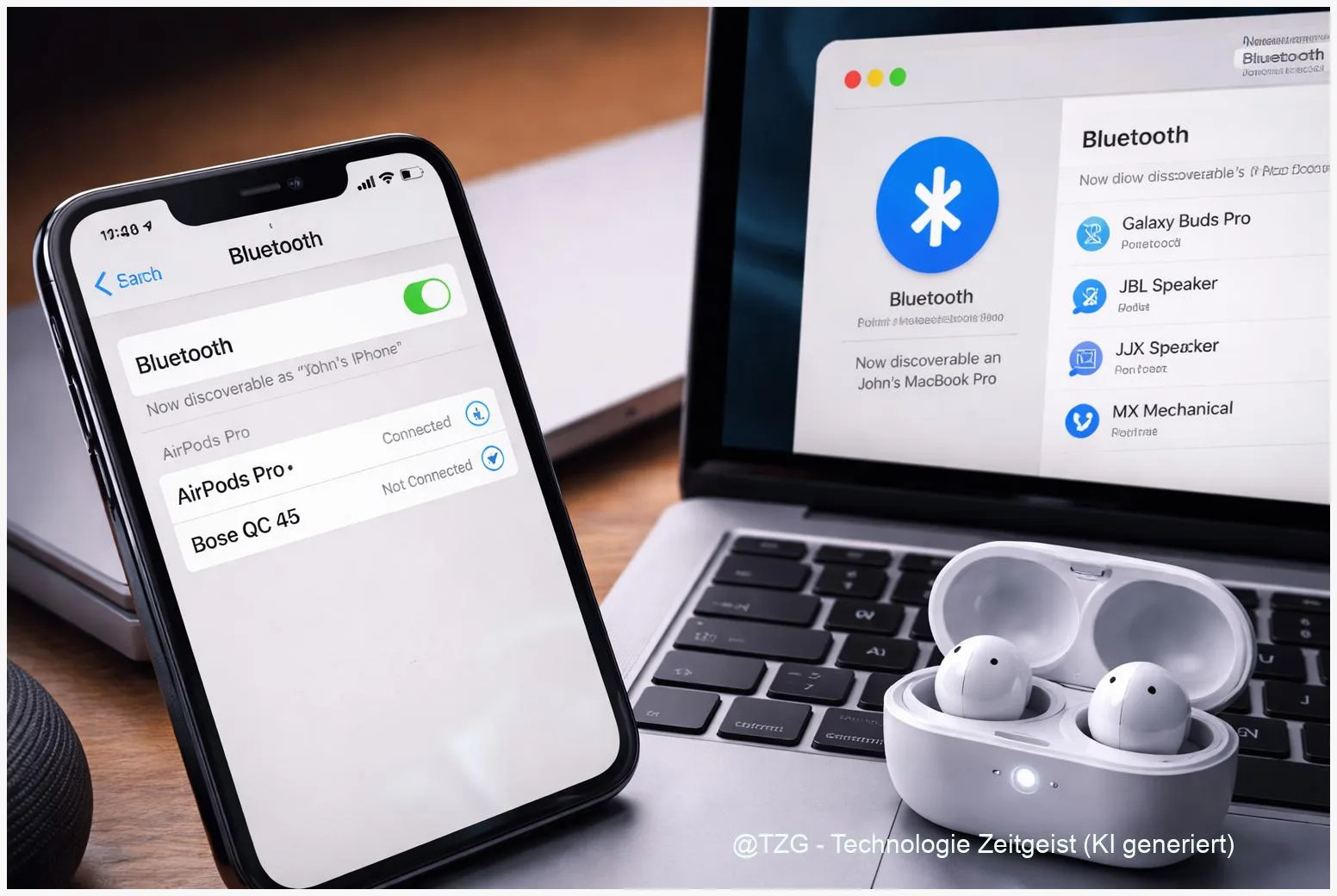
Bluetooth can be great—until it refuses to connect. This guide shows how to fix Bluetooth not connecting across iPhone, Android, Windows 11, and Mac with a practical, repeatable process: cleanly remove old pairings, restart the right components, and pair again in the correct order. After the steps, you should be able to reconnect headphones, speakers, keyboards, cars, and wearables without random failures.
Introduction
Typical Bluetooth frustration looks like this: your earbuds connect to your laptop but not your phone, your car sees the device but won’t pair, or the connection drops every few minutes. The tricky part is that Bluetooth is not one single switch—it’s a mix of saved “pairing” data, radio settings, audio profiles, and sometimes drivers (on computers).
The good news: most pairing issues are fixed with a small set of reliable actions. You don’t need special apps, and you rarely need to reset your whole device. You mainly need to remove the broken pairing, restart the parts that hold on to it, and then pair again with the accessory in the correct mode.
The steps below work for modern systems (current iOS, Android, Windows 11, and macOS) and for everyday devices like Bluetooth headphones, speakers, keyboards, mice, smartwatches, and in-car hands-free systems.
Basics and Overview: what “pairing” really means
Bluetooth pairing is like exchanging a digital “handshake” and saving it on both sides. Your phone or PC stores a trusted record of the accessory, and the accessory stores a record of your device. If either side’s record becomes outdated—after an update, a factory reset, a device rename, or switching between many devices—connections can fail even though Bluetooth is turned on.
It also helps to know the difference between pairing and connecting. Pairing creates trust (usually once). Connecting is the daily action of actually using the device (audio, keyboard input, calls). You can be paired but not connected, or connected but with the wrong function (for example: connected, but no sound).
Most Bluetooth problems are not “broken hardware” problems—they are “saved connection data” problems.
Finally, Bluetooth has “profiles” (small rules for what the connection is used for). Headphones typically use A2DP for music and HFP/HSP for calls. If the wrong profile takes priority, your audio may sound thin or not play at all.
If you also want to reduce future chaos from too many remembered accessories, keeping a tidy device list helps. On TechZeitGeist, a good companion read is practical guides to digital maintenance and cleanup (useful mindset for Bluetooth device lists too).
Preparation and Prerequisites (2 minutes that save 20)
Before you start removing devices and resetting settings, do a quick reality check. Many “pairing bugs” are simply low battery, the wrong mode, or the accessory still being connected to another device in the room.
Work through this short checklist:
- Charge both sides: phone/laptop and the accessory. Low battery can reduce radio stability.
- Get close: stay within about 1–2 m during pairing. (You can move farther away after it connects.)
- Put the accessory into pairing mode: many devices need a long press until an LED blinks. If unsure, check the manual.
- Turn off “Airplane mode” (on phone and laptop).
- Temporarily disconnect on other devices: if your headphones are already connected to a tablet, they may refuse a new connection.
- Update if available: install pending iOS/Android/macOS/Windows updates, and vendor updates for the accessory when offered.
On iPhone/iPad, also check whether a companion app is allowed to use Bluetooth: iOS can block it per app in Privacy settings (Apple’s support documentation highlights this as a common cause). On Windows, remember that Bluetooth reliability depends on drivers—updates can help, but outdated drivers can also break pairing.
Step-by-Step Instruction: remove the device and pair again (cleanly)
This is the core routine that fixes most cases of how to fix Bluetooth not connecting. Do it in order, and don’t skip the restart steps—they clear stuck background processes.
- Forget / remove the accessory on your main device.
iPhone/iPad: Settings > Bluetooth > tap the “i” next to the device > Forget This Device (Apple Support).
Android: Settings > Connected devices (wording varies) > Bluetooth > tap the gear/info icon > Forget (Google support).
Windows 11: Settings > Bluetooth & devices > Devices > select the device > Remove device (Microsoft Support).
macOS: System Settings > Bluetooth > click the info button next to the device > Forget This Device (wording can vary). - Restart the accessory.
Power it off and on. If it has a reset procedure (often a long press), use it if the manual recommends it for pairing issues. - Restart your phone or computer.
This clears Bluetooth services that can get stuck after failed attempts. - Turn Bluetooth off, wait 10 seconds, then turn it on.
On phones, use Settings (not only quick toggles) if you want to be sure it fully reconnects. - Put the accessory into pairing mode again.
Look for a flashing LED or an on-screen message. Pairing mode often times out after about 30–60 seconds. - Pair from the correct screen and accept prompts.
Confirm pairing requests, PIN codes, and permission prompts (like contacts access for a car kit, or microphone access for calls). If a PIN is required, many older accessories use 0000 or 1234 (Google support mentions these as common). - Test the function, not just the connection.
For headphones: play a song and check the output device selection. For keyboards: type in Notes or a search field. For cars: place a test call (where safe and legal).
If everything worked, you should now see the accessory as “Connected” and it should behave normally. If it connects but doesn’t work (for example: connected but silent), the next section covers the typical causes.
Tips, Troubleshooting, and Variants
When the basic routine doesn’t solve it, the issue is often one of these patterns. Try the matching fix and then re-test.
Problem: The device doesn’t show up in the list.
Make sure it is truly in pairing mode (many devices have a separate “power on” and “pairing” action). Move away from crowded USB 3.0 hubs and Wi‑Fi routers if possible. On Windows 11, Microsoft recommends checking discovery settings and using the automated Bluetooth troubleshooter (in the Get Help app / Windows troubleshoot flow, depending on your setup).
Problem: It pairs, but keeps disconnecting.
This often points to interference or power saving. Keep the devices close for the first few minutes after pairing. On laptops, try a full restart and then connect again. If you use a USB Bluetooth dongle, test another USB port.
Problem: Connected, but no sound (Windows or Android).
On Windows, check the sound output selector (speaker icon) and pick the Bluetooth headset. Microsoft also provides a dedicated guide for “Bluetooth connected but no sound”. On Android, check whether “Media audio” is enabled for the device in Bluetooth settings.
Problem: iPhone/iPad connects unreliably after many attempts.
Apple’s recommended approach is still the basics: keep devices close, restart, and forget/re-pair the accessory. Also check whether an app’s Bluetooth permission is turned off in Settings.
Variant (Android): Reset network-related radios.
If your device has a “Reset Wi‑Fi, mobile & Bluetooth” option, it can clear deeper radio settings. This is more disruptive because it removes saved Bluetooth pairings (and may affect Wi‑Fi/mobile settings), so use it when “Forget device” was not enough.
Variant (Mac): Reset Bluetooth background service (advanced).
Some guides describe resetting the Bluetooth service in macOS (for example via restarting the Bluetooth daemon). Because Apple’s official consumer support pages focus on safer steps (toggle, restart, forget device), treat service-level resets as an advanced option and consider backing up important work first.
If you want to build a calmer “device hygiene” routine, it helps to remove old accessories you no longer use. That alone can reduce mis-connections—especially with earbuds that constantly try to reconnect. TechZeitGeist often covers these small habits that prevent recurring tech annoyances: more practical everyday tech guides.
Conclusion
Bluetooth pairing problems feel random, but the fixes are surprisingly systematic. In most cases, you solve them by removing the broken pairing on both sides, restarting the accessory and your phone or computer, and then pairing again with the accessory clearly in pairing mode and nearby. If it still fails, focus on the usual blockers: discovery mode, driver updates on Windows, permissions on iPhone/iPad, and audio output selection when it’s connected but silent.
Once you’ve done this routine a few times, it becomes a fast checklist rather than a long debugging session—and your headphones, car system, or keyboard usually behaves again.
Did one of the steps fix your setup—or did you hit a specific error message? Share what happened (device + system), and consider saving this guide for the next time Bluetooth acts up.




Leave a Reply