
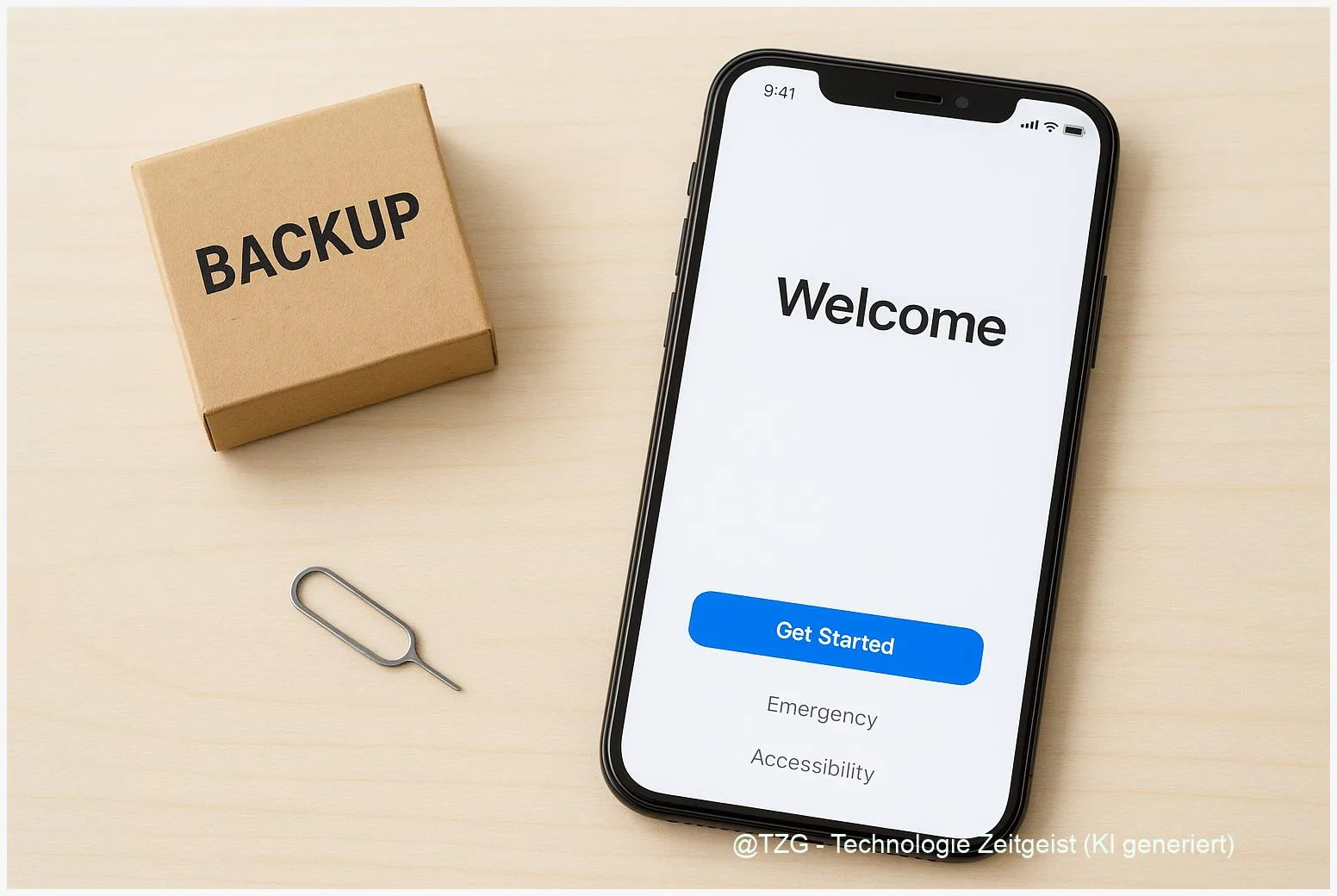
Selling or trading in a phone is convenient, but it can also hand your private data to someone else if you skip the last steps. This guide shows how to wipe a phone before selling step by step: how to back up, remove your Apple ID or Google account, and run a factory reset so the next owner can set it up cleanly. You will also learn simple checks to confirm your device is really ready to hand over.
Introduction
Your phone is more than a gadget. It holds photos, chats, saved passwords, banking apps, and often the keys to other accounts through two-factor codes. When you sell, gift, or trade in a device, a simple “delete a few apps” is not enough. The goal is twofold: your data must be removed, and the next person must be able to activate the phone without getting blocked by your account security.
This matters in everyday situations: you upgrade to a new model, your old device goes to a family member, or a reseller checks it in front of you. A proper reset prevents awkward messages (“It still asks for your login”) and protects you if the phone changes hands more than once. The steps below focus on current iPhone and Android versions, but they are written to stay useful even if menus move slightly.
Basics and Overview: what “wiping” really means
A factory reset puts a phone back into its out-of-the-box state: your apps, settings, accounts, and personal files are removed from the device. On iPhone, Apple calls this Erase All Content and Settings. On Android, it is usually Factory data reset or Reset options.
Two account locks are the main reason sales go wrong. On iPhone, Activation Lock is tied to Find My and your Apple Account (Apple ID). On Android, Factory Reset Protection (FRP) is tied to your Google account. Both are designed to stop thieves from using a stolen phone. For legitimate sellers, the rule is simple: remove your account properly before handing the device over.
A good wipe is not just about deleting data; it is also about removing the account link that can lock the next owner out.
For most private sales, a factory reset after account removal is the practical standard. Security standards like NIST describe different “sanitization” levels; for typical personal devices, a reset on modern encrypted phones is generally considered an appropriate approach, while extremely sensitive scenarios may require stronger measures.
| Option or Variant | Description | Suitable for |
|---|---|---|
| In-phone factory reset | Reset from Settings; simplest and most common method. | Most private sellers and trade-ins. |
| Account removal + reset | Sign out/remove accounts first to avoid Activation Lock/FRP issues. | Anyone selling, gifting, or returning a phone. |
Preparation and Prerequisites (do these before you reset)
Spend five to ten minutes on preparation. It prevents data loss for you and setup problems for the next owner.
Recommended checklist:
- Back up first. iPhone: iCloud or a computer backup. Android: Google backup (and any vendor backup if you use it). If you need a refresher, TechZeitGeist has a practical guide on setting up smartphone backups.
- Charge and connect. Aim for at least 50 % battery and stable Wi‑Fi. Resets and sign-outs may require online verification.
- Know your credentials. Have your Apple Account/Google password ready. If you cannot sign out, you risk leaving the device locked.
- Move authenticator apps and 2FA. If you use an authenticator app for login codes, transfer it to your new phone before wiping.
- Handle SIM/eSIM. Remove the physical SIM. For eSIM, check your carrier instructions; many carriers let you re-download eSIM later, but don’t assume it transfers automatically.
- Unpair accessories. If you use an Apple Watch or Bluetooth wearables, unpairing is a good idea to avoid odd connection issues later.
If you plan to sell online, also note the device model and serial/IMEI for your listing. Keep that information private once the phone is gone.
Step-by-Step Instruction: how to wipe a phone before selling step by step
The order below is designed to prevent the two classic problems: leftover data and account locks. Read it once, then follow it calmly on your device.
- Confirm your backup is complete. On iPhone, check iCloud Backup time stamp in Settings. On Android, check Backup in Settings (often under System). Make sure photos and chats you care about are included.
- Remove screen locks you no longer need (optional but helpful). On Android, removing a PIN/pattern before the reset can reduce FRP-related friction. On iPhone, you will still need your passcode during the erase process.
- iPhone: sign out of your Apple Account and disable Find My. Go to Settings > your name (Apple Account) > scroll down and choose Sign Out. You may be asked for your Apple Account password. This step is crucial for removing Activation Lock, as Apple explains in its selling/trade‑in guidance.
- Android: remove your Google account(s). Go to Settings > Passwords & accounts (or Accounts) > select your Google account > Remove account. This is the most reliable way to prevent Factory Reset Protection from locking the setup for the next owner, as described in Google’s reset and security help pages.
- Run the factory reset from Settings.
- iPhone: Settings > General > Transfer or Reset iPhone > Erase All Content and Settings. Follow the prompts. You will typically see a progress screen and then the setup “Hello” screen.
- Android: Settings > System > Reset options > Erase all data (factory reset) (wording varies). Confirm the warnings and proceed.
- Check the result before you hand it over. After reboot, the phone should start in the initial setup. Do not sign in again. For a sale, it is enough that it reaches the welcome/setup screen without asking for your old credentials.
- Remove the phone from your account device list (final polish). iPhone: verify in Find My or your Apple Account device list that the device is removed if you no longer own it. Android: review your Google account device list and sign out of old sessions if needed.
If everything went right, the buyer can choose language, connect to Wi‑Fi, and continue setup without being prompted for your Apple Account/Google login. That is the clean handover you want.
Tips, Troubleshooting, and Variants
The phone still asks for my Apple ID (Activation Lock). This usually means Find My was still enabled or the device is still linked to your Apple Account. If you still have the phone, sign in and sign out properly, then erase again. If you no longer have it, Apple describes options to remove a device via Find My/iCloud, but you typically need account access and may need proof of ownership for support cases.
The phone asks for the previous Google account (FRP). That typically happens when the device was reset without removing the Google account first. The practical fix is to sign in with the previously used Google account (the seller must do this) and then remove the account from Settings before resetting again. Avoid “bypass” instructions you may find online; they are often unsafe, unreliable, or legally problematic.
Does a factory reset delete data permanently? On modern phones, storage is usually encrypted by default, and a reset removes access keys and personal content. Standards like NIST still recommend matching the method to the sensitivity of the data. If your phone contained extremely sensitive business or medical data, consider using a professional trade-in program with documented sanitization, or keep the device and physically destroy storage media if required by policy.
Quick confidence checks before shipping. Open the setup screen and confirm your photos are not visible. Also check that no accounts are shown in Settings (if you go past setup by mistake, reset again). If you want more general prep for switching devices, TechZeitGeist’s overview on moving to a new smartphone can help you double-check what you might forget.
Conclusion
A safe sale starts with a simple mindset: back up what you need, remove the account link that can lock the phone, then factory reset from Settings. On iPhone, that means signing out of your Apple Account so Activation Lock is gone before you run Erase All Content and Settings. On Android, removing the Google account before the reset prevents Factory Reset Protection problems. Finally, verify the phone boots to the welcome screen without asking for your credentials.
Did any step look different on your model, or did you hit an Activation Lock/FRP prompt? Share what device you used and which menu labels you saw—it helps others follow the same path safely.




Leave a Reply