
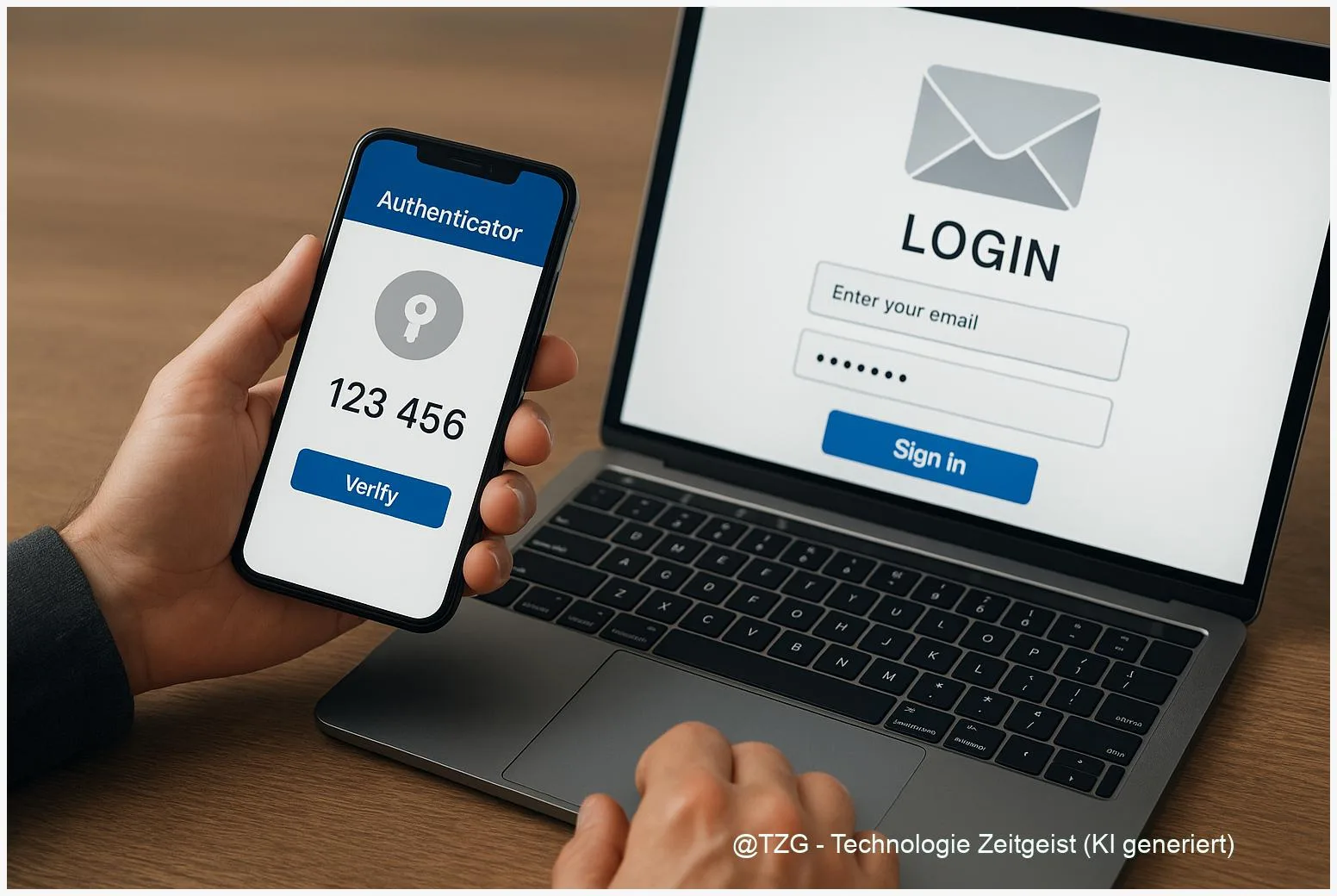
If someone guesses or steals your email password, they can reset other accounts, read private messages, and lock you out. A proper two-factor authentication setup for Gmail and Outlook.com adds a second proof of identity—usually your phone or an authenticator app—so a password alone is not enough. This guide walks you through enabling 2FA on both services, saving backup options, and avoiding the most common lockout mistakes.
Introduction
Email is still the “master key” for many online services. If an attacker gets into your inbox, they can often click “Forgot password” on shopping accounts, social media, or even banking portals and take over those accounts too. That is why protecting Gmail and Outlook.com matters even if you think your messages are boring.
Two-factor authentication (2FA) lowers the risk in everyday situations: reusing a password on multiple sites, logging in on a shared PC, losing a phone, or falling for a realistic phishing email. The goal is simple: when a login happens, the service asks for a second proof—something you have—before it grants access.
Below you will set up 2FA for both Gmail and Outlook.com, choose a strong everyday method (authenticator app or sign-in prompts), and store recovery options so you do not get locked out later.
Basics and Overview: two-factor authentication setup options
Two-factor authentication means you sign in with two different “factors.” In practice, it is usually: (1) your password, plus (2) a code or approval from a device you control. Many services also call this “two-step verification” or “MFA” (multi-factor authentication).
For Gmail (Google Account), common 2FA methods include sign-in prompts on your phone, an authenticator app code, and backup codes for emergencies. Google’s official documentation also describes backup codes as a printable/downloadable set you can use when your phone is unavailable.
The best 2FA method is the one you can use reliably every day—and still recover from if you lose your phone.
For Outlook.com (a personal Microsoft account), 2FA is managed in your Microsoft account security settings. Microsoft commonly recommends the Microsoft Authenticator app, which can approve sign-ins or generate codes.
One quick security reality check: SMS codes are convenient, but they can be intercepted or redirected in certain attacks. If you can, prefer an authenticator app or app-based approvals, and keep SMS as a backup rather than your only method.
| Option or Variant | Description | Suitable for |
|---|---|---|
| Authenticator app (TOTP codes) | Rotating codes generated on your phone, often works even without mobile reception. | Most people who want a solid balance of security and reliability. |
| App approval (push prompt) | You tap “Approve” in an app when you sign in; no typing if it’s your login. | Frequent sign-ins on multiple devices; users who want speed. |
Preparation and Prerequisites
Before you turn 2FA on, take five minutes to prevent the most frustrating outcome: getting locked out because the “second factor” is missing.
Checklist (recommended for both Gmail and Outlook.com):
- Be signed in on at least two devices if possible (for example: phone + laptop). If something goes wrong, you still have a way back in.
- Update your phone and install an authenticator app you trust (Google Authenticator, Microsoft Authenticator, or another well-known app). The exact brand matters less than using it correctly and backing it up where supported.
- Confirm recovery info: add (or update) a recovery phone number and recovery email address in each account’s security settings.
- Plan a safe storage place for recovery options. Backup codes belong in a password manager, a locked note, or printed and stored securely—not in your email inbox.
- Know which account type you have: Outlook.com usually means a personal Microsoft account. Work or school accounts may use a different portal and rules set by an organization.
If you use older email apps, be aware that enabling 2FA can require updated sign-in methods. In some Microsoft setups, older apps may need an “app password” instead of your normal password.
Step-by-Step Instruction
The steps below are written for current web interfaces. Names can vary slightly by device, but the key landmarks stay the same: look for Security, then 2-Step Verification (Google) or Two-step verification (Microsoft).
-
Turn on 2FA for Gmail (Google Account).
On a computer or your phone browser, open your Google Account security settings and select 2-Step Verification. Choose Get started and follow the sign-in confirmation steps. -
Add an authenticator app to Gmail.
In the 2-Step Verification area, choose the option to set up an Authenticator. You will typically see a QR code. Open your authenticator app, pick “Add account,” scan the QR code, then enter the 6-digit code shown in the app to confirm. -
Generate and save Gmail backup codes.
Still in Google’s 2-Step Verification settings, create backup codes. Google’s help pages describe a set of 10 codes you can download or print. Store them somewhere safe and offline-friendly. -
Turn on 2FA for Outlook.com (personal Microsoft account).
Go to your Microsoft account security page (account.microsoft.com/security). Find Two-step verification and choose Turn on. You may be asked to confirm your current security info. -
Add Microsoft Authenticator (recommended for Outlook.com).
In Microsoft’s security settings, add a new sign-in method and choose an app (often shown as “Use an app”). Install Microsoft Authenticator on iOS or Android, then scan the QR code shown on the screen to link your account. -
Confirm you have at least one backup sign-in option for Microsoft.
Microsoft recommends having multiple security methods. Add a backup phone number or recovery email if you have not already. This makes account recovery far less stressful. -
Test the setup safely.
Sign out on one device (not all at once) and sign back in. You should see a request for an approval or a code. If everything works, you can be confident the two-factor authentication setup is actually protecting your email.
What “success” looks like: after entering your password, you are asked to approve the sign-in on your phone or to type a one-time code. If you are never asked, double-check whether 2FA is fully enabled for that account.
Tips, Troubleshooting, and Variants
You changed phones and lost access to codes. If you prepared well, you can sign in with backup codes (Google) or an alternative security method (Microsoft) and then add your new phone. If you have no backup method left, recovery becomes slow and uncertain—this is exactly why recovery info matters.
You receive prompts you did not trigger. Treat this as a warning sign. Tap “Deny” (or equivalent), then change your password and review security activity. Also check whether your password appears in a breach list inside your password manager (if available).
Authenticator codes do not work. The most common cause is an incorrect time on the phone. Enable automatic date and time in your device settings, then try again. Also make sure you scanned the QR code for the correct account (Gmail vs. Microsoft).
SMS vs. app: what should you pick? For many users, an authenticator app is a practical step up from SMS. Security guidance from institutions like NIST and CISA generally treats SMS one-time codes as a weaker option and recommends stronger, phishing-resistant methods where possible. If your account offers passkeys (a modern sign-in method based on cryptographic keys), that can be an excellent next upgrade.
Older mail apps stop signing in. Update the app first. If it still cannot handle 2FA, you may need a different sign-in flow or, in some Microsoft cases, an app password. Prefer modern apps that support current security standards.
Conclusion
Turning on 2FA for Gmail and Outlook.com is one of the fastest ways to protect your digital life, because email is often the recovery channel for everything else. The most practical default is an authenticator app or app approvals, combined with recovery options you store safely. If you take one extra step, also test a sign-in once, so you know it works before you actually need it. That small check can save hours later.
Have you already enabled 2FA on your main email account, and which method feels most reliable in everyday use? Share your experience and pass this guide to someone who still uses password-only logins.




Leave a Reply