
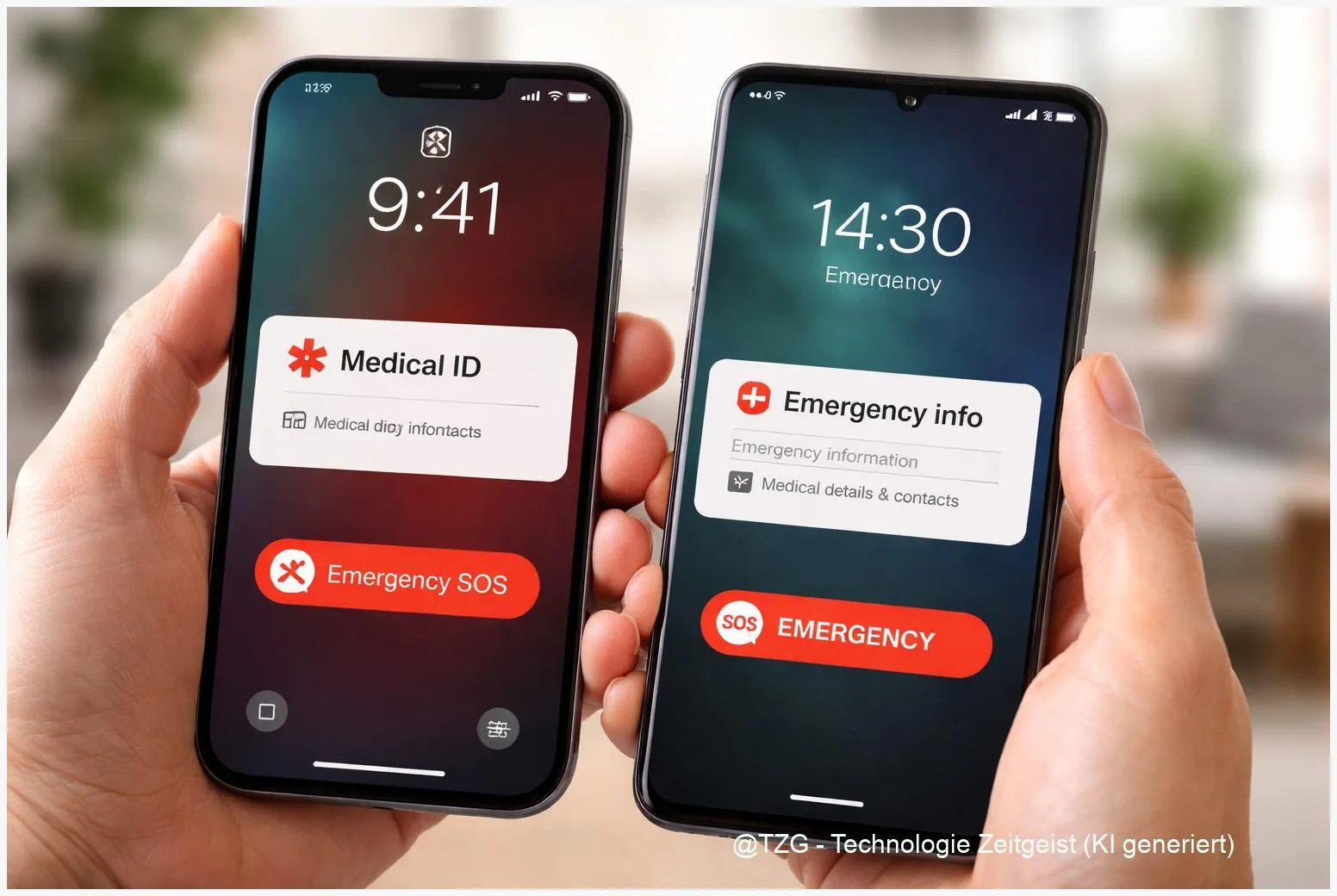
If your phone is locked, helpers may not know who to call or what matters medically. This emergency SOS setup guide shows how to set up Emergency SOS and a Medical ID on iPhone, and how to add Android emergency information for the lock screen. You’ll end up with emergency contacts that can be reached fast, plus essential details (allergies, meds, conditions) visible without unlocking.
Introduction
Most people set a passcode or Face ID and feel “safe”. In an emergency, that same lock screen can become a barrier: a first responder can’t quickly find your allergies, and a passer-by can’t call your partner without guessing the right number.
The good news is that modern iPhones and Android phones have built-in safety features for exactly this moment. On iPhone, Emergency SOS can quickly place an emergency call, while Medical ID (stored in the Health app) can show key medical details and emergency contacts on the lock screen. On Android, the Safety / Personal Safety features can store emergency info and (on many devices) trigger Emergency SOS with the power button.
The steps below are designed to be done calmly in a few minutes, so your phone helps you when time and clarity are limited.
Basics and Overview
Two things matter most in a stressful situation: calling for help fast, and sharing the right information without unlocking your phone. That’s why it helps to set up both an “SOS trigger” and an “emergency info card”.
On iPhone, Emergency SOS is the feature that can start an emergency call via a button combination (and, depending on settings, notify your emergency contacts). Medical ID is your emergency information card inside the Health app. If you enable “Show When Locked”, it’s accessible from the lock screen via the Emergency screen.
On Android, many phones group these settings under Safety & emergency. Depending on the model and Android version, you may see a built-in Safety (also called Personal Safety) experience. It can store medical information and emergency contacts that are viewable from the lock screen, and it can offer Emergency SOS (often triggered by pressing the power button 5 times).
The goal is simple: your lock screen should help a helper, not slow them down.
If you want to go one step further later, it’s worth also reviewing your location sharing and privacy basics. TechZeitGeist has related guides such as privacy-friendly smartphone settings and how to keep your phone secure without locking yourself out. For now, stay focused on emergency features only.
| Option or Variant | Description | Suitable for |
|---|---|---|
| iPhone: Medical ID + Emergency SOS | Medical info and emergency contacts on lock screen, plus quick emergency calling via button shortcut. | iPhone users who want reliable, system-level safety features. |
| Android: Safety & emergency | Emergency info on lock screen and (on many devices) Emergency SOS via power button. | Android users, especially on current Google Pixel and many Android 12+ devices. |
Preparation and Prerequisites
Before you start tapping through menus, take two minutes to gather accurate information. The most common setup mistakes are simple: old phone numbers, vague medication names, or medical info that’s too private to show on a lock screen.
Quick prep checklist:
- Pick 2–3 emergency contacts who are reachable and likely to answer. (A single contact can be busy.)
- Write down essentials: allergies, key conditions, and medications that matter in emergencies. Keep it short and clear.
- Decide what you want visible while locked. Lock-screen emergency info is meant for helpers; don’t include anything you wouldn’t want a stranger to read.
- Update your phone if you can. Menus change slightly between iOS versions and Android builds, but the features are stable across modern systems.
- Check location services. Emergency features often rely on location to share where you are (especially when notifying contacts).
Also helpful: tell your emergency contacts that you’re adding them. Otherwise, a sudden SOS message can be confusing or ignored.
Step-by-Step Instruction
The steps below cover both iPhone and Android. Do them in order, then do a quick “lock screen test” at the end to confirm everything is visible and working.
- iPhone: Set up Medical ID in the Health app. Open Health > tap your profile picture (top right) > Medical ID > Edit. Fill in the fields that matter (for example allergies, medications, conditions, blood type if you know it), then add Emergency Contacts.
- iPhone: Allow access from the lock screen. In the same Medical ID editor, enable Show When Locked. If you see an option like Share During Emergency Call, read the description and enable it only if you’re comfortable with what it shares in your region.
- iPhone: Configure Emergency SOS triggers. Go to Settings > Emergency SOS. Apple typically offers options such as calling by holding side button + volume button, and calling by pressing the side button multiple times (commonly 5 times). Choose the trigger you’re least likely to activate by accident, but that you can remember under stress.
- Android: Find the right menu. Open Settings and search for Safety & emergency (or just search for “emergency”). On many phones you’ll see entries for Emergency SOS and Emergency information (sometimes managed via the Safety / Personal Safety app).
- Android: Add medical info and emergency contacts. In Safety & emergency, open Emergency information (or Your info in the Safety app). Add medical details and emergency contacts. Turn on the option that allows emergency info to be shown when the phone is locked (wording varies by device).
- Android: Set up Emergency SOS (if available). In Safety & emergency, open Emergency SOS and follow the setup. On many current Android phones, SOS can be triggered by pressing the power button 5 times. Enable contact notifications/location sharing if you want that behavior.
- Lock screen test (both systems). Lock the phone. Try to access the emergency screen without unlocking:
- On iPhone: wake the screen > Emergency > Medical ID.
- On Android: on the lock screen, look for Emergency and then Emergency information / View emergency info (the exact words differ).
You should see the info you entered and at least one way to reach your emergency contacts.
If the lock screen shows nothing useful, go back and look specifically for toggles like “Show when locked”. That switch is the difference between “saved” and “actually accessible”.
Tips, Troubleshooting, and Variants
Small settings differences can make Emergency SOS and emergency info feel inconsistent. These fixes cover the most common problems.
Problem: Your emergency info doesn’t appear on the lock screen. On iPhone, re-check Medical ID > Show When Locked. On Android, look for a similar toggle in Emergency information or the Safety app. Some Android skins hide it behind an “Emergency info access” section.
Problem: Emergency SOS triggers accidentally. Choose the trigger that best fits your daily use. If you often squeeze the side button when taking your phone out of a tight pocket, the “hold” shortcut may be risky. The “press 5 times” option is often safer in everyday handling.
Problem: Contacts don’t get notified or don’t receive location. Check three things: (1) mobile data/Wi‑Fi is available, (2) location services are enabled, and (3) the Safety/Health features have permission to access location. Emergency calls can still work without data, but messages and location sharing usually need connectivity.
Variant: iPhone emergency calling without cellular coverage. Apple documents Emergency SOS via satellite on supported iPhone models in supported regions. This is separate from Medical ID, but it’s worth knowing that your emergency workflow can differ depending on coverage and device.
Tip: Keep it short and actionable. “Peanut allergy” helps more than a long medical history. “Blood thinner: warfarin” is clearer than a vague “heart meds”. Update after changes—new medication, new address, new relationship status.
Conclusion
Emergency features are most valuable when you never have to think about them. With Medical ID and Emergency SOS on iPhone, plus Android emergency information on the lock screen (and Emergency SOS where available), your phone can provide two essentials: a fast way to call for help and a clear summary of what helpers should know. Take five minutes to set it up now, then do a lock screen test once a year—or whenever your meds or contacts change.
If you set this up, consider doing the same for a family member’s phone—and share what menu path you found on your Android model, so others can find it faster too.




Leave a Reply