
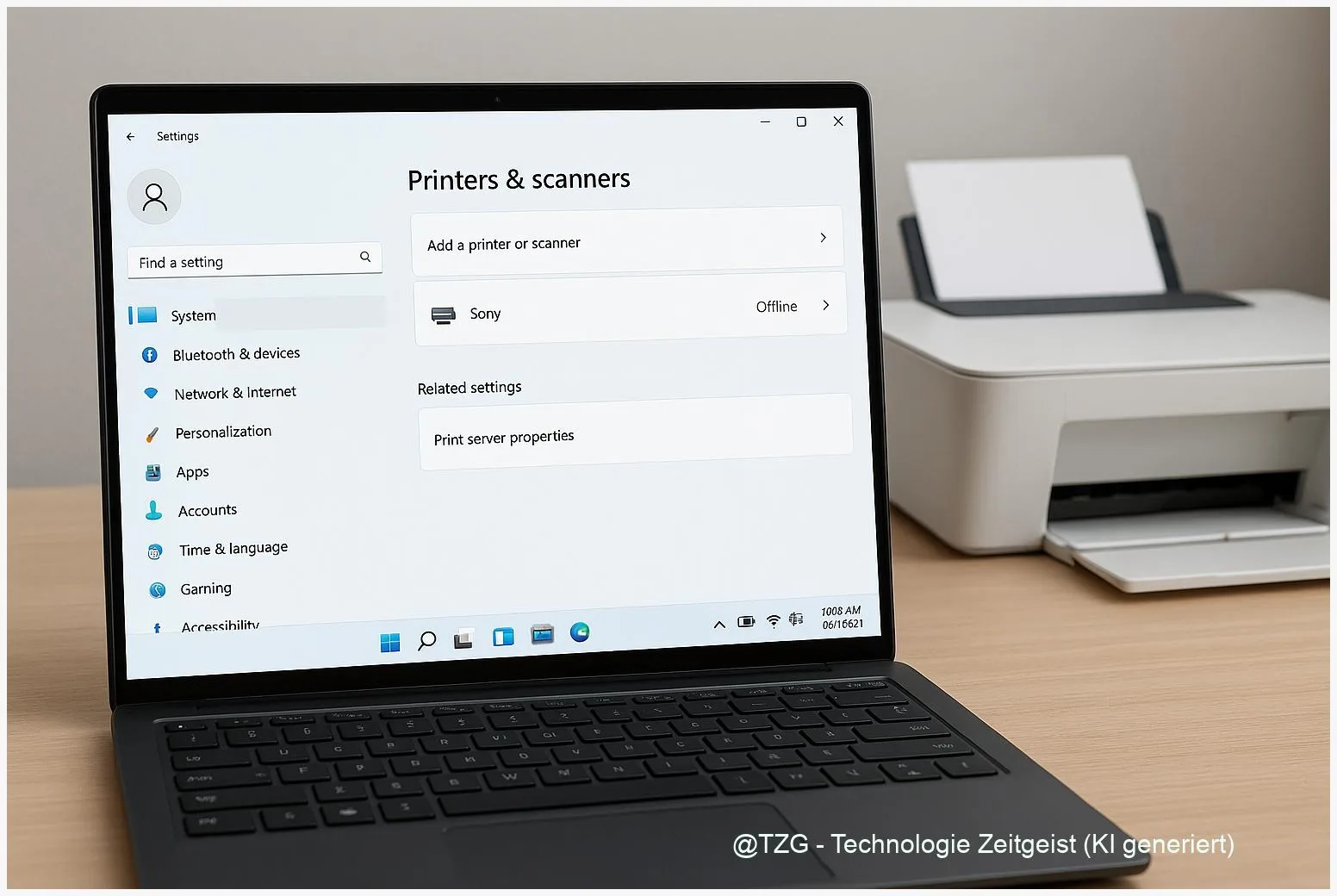
Your printer is powered on, but Windows shows nothing or keeps saying “Offline”? This guide helps you with Windows 11 Drucker einrichten: adding a USB or Wi‑Fi printer the clean way, and fixing the classic “printer offline” error without guesswork. You’ll learn what Windows needs to detect a device, how to add it in Settings, and which quick checks (spooler, queue, network) usually bring printing back.
Introduction
Printing is one of those tasks that should be boring: you click “Print”, paper comes out. But in everyday life, it often breaks at the worst moment—right before school, a job application, travel documents, or a return label. Windows 11 might not find your printer at all, or it adds it once and then marks it “Offline” forever.
The good news: most printer issues on Windows 11 are not “mystical”. They come down to three areas—connection (USB/Wi‑Fi), the driver (the software that lets Windows speak the printer’s language), and the print queue (the list of print jobs handled by the Windows “Print Spooler” service).
The steps below keep things simple: first set up the printer reliably, then check the few settings that commonly cause the offline status. You can work through it calmly, and after each section you’ll know what should happen next.
Basics and Overview: Windows 11 Drucker einrichten and what “Offline” means
Windows 11 can add printers in several ways: as a USB (local) printer, a Wi‑Fi/network printer, or sometimes as a shared printer from another PC. In many homes, Wi‑Fi printers are the tricky ones because they depend on your router, your network name (SSID), and sometimes a changing IP address.
A few terms help you troubleshoot faster:
- Driver: a small software component so Windows can print correctly. Windows often fetches it automatically via Windows Update.
- Print queue: the list of documents waiting to print. If a job gets stuck, it can block everything behind it.
- Print Spooler: a Windows service that manages the queue. Restarting it can clear common glitches.
“Offline” usually does not mean the printer is broken—it means Windows can’t reliably reach it (connection, queue, or driver).
If you want extra background on Wi‑Fi printer setup across devices, TechZeitGeist also has a broader guide you can bookmark: Setting up a Wi‑Fi printer on Windows, Mac, iPhone and Android.
| Option or Variant | Description | Suitable for |
|---|---|---|
| USB (local) setup | Plug in via USB, let Windows detect and install the driver automatically. | Home users who want the most stable connection. |
| Wi‑Fi/network setup | Add the printer over the network; works best when printer and PC are on the same Wi‑Fi (not guest Wi‑Fi). | Households with multiple devices printing to one printer. |
Preparation and Prerequisites
Before you add the printer, take two minutes for preparation. It prevents most “not found” and “offline” loops.
- Know your connection type: USB cable, Wi‑Fi, or Ethernet (network cable). If possible, start with USB to confirm the printer works.
- Power and ready state: turn the printer on and wait until it shows “Ready” (or no warning lights). If it has a sleep mode, wake it up.
- Same network for Wi‑Fi printers: PC and printer must be on the same Wi‑Fi name. Avoid guest networks; they often block device discovery.
- Admin rights help: adding drivers or restarting services can require administrator permission.
- Update path: have Windows Update available. Windows 11 commonly pulls printer drivers automatically after detection.
If you recently changed your Wi‑Fi password, the printer may still be connected to the old network and will look “offline” to Windows. In that case, reconnect the printer to your current Wi‑Fi first. A related checklist can be useful: Change Wi‑Fi password and reconnect devices step by step.
Step-by-Step Instruction
These steps follow Microsoft’s recommended Windows 11 path through Settings. The wording can differ slightly depending on your Windows language, but the structure is the same.
- Open Settings: press Win + I.
- Go to printers: choose Bluetooth & devices → Printers & scanners.
- Try automatic discovery: click Add device. Wait a moment—network discovery can take a bit.
- Select your printer if it appears, then follow the on-screen prompts. Windows may download a driver in the background.
- If it doesn’t show up: select the option similar to The printer that I want isn’t listed (manual add). Then pick the matching method:
- USB/local printer: choose a local printer option and the suggested port (often USB001).
- Network printer: add by TCP/IP address or hostname if you know it (many printers show the IP in their network settings).
- Set it as default (optional): in Printers & scanners, select the printer and choose the option to set it as default. This reduces “wrong printer” surprises.
- Print a test page: open the printer’s settings page and use Print test page (or a similar button). If the test works, you’re done.
What you should see when it worked: the printer appears under Printers & scanners, its status is Ready (or similar), and a test page prints without getting stuck in the queue.
Tips, Troubleshooting, and Variants
If Windows 11 shows “Offline”, work through these fixes in order. After each step, try a test page again so you know what actually solved it.
1) Clear “Use Printer Offline”
Open Settings → Bluetooth & devices → Printers & scanners, select your printer, then Open print queue. In the queue window, open the Printer menu and make sure Use Printer Offline is not checked.
2) Restart the Print Spooler (safe and quick)
If jobs are stuck, restart the Windows print service: press Win, type services.msc, open it, find Print Spooler, then choose Restart. If it’s stopped, start it and set the startup type to Automatic.
3) Clear a stuck queue
Microsoft’s standard approach is: stop the Print Spooler, delete pending files in C:\Windows\System32\spool\PRINTERS, then start the service again. This removes broken print jobs that can keep a printer “offline” inside Windows even when the device is fine.
4) Check the boring network details (they matter)
For Wi‑Fi printers: confirm printer and PC are on the same Wi‑Fi name, and temporarily disable VPN if you use one. If your router has both 2.4 GHz and 5 GHz networks, some older printers only work reliably on 2.4 GHz.
5) Driver update and reinstall as a reset
If printing still fails, update the driver through Windows Update or the printer manufacturer’s support page. As a last clean reset, remove the printer in Printers & scanners and add it again.
Variant: Shared printer on another PC
If the printer is connected to a different Windows PC and shared, the host PC must be online and allowed to share printers. If the host sleeps, your printer may look “offline” from other devices.
Conclusion
On Windows 11, printer setup and “offline” errors are usually solvable with a small, reliable routine: add the device through Settings, confirm the connection type, then fix the two common Windows-side blockers—“Use Printer Offline” and a stuck Print Spooler/queue. If your printer is on Wi‑Fi, the biggest win is making sure both devices are truly on the same network, without guest isolation or VPN in the way. Once the test page works, daily printing is typically stable again.
Did one of the steps fix your printer instantly—or did you run into a different message? Share what worked for you, and pass this guide on to anyone stuck with “Offline” right before an important print.




Leave a Reply