
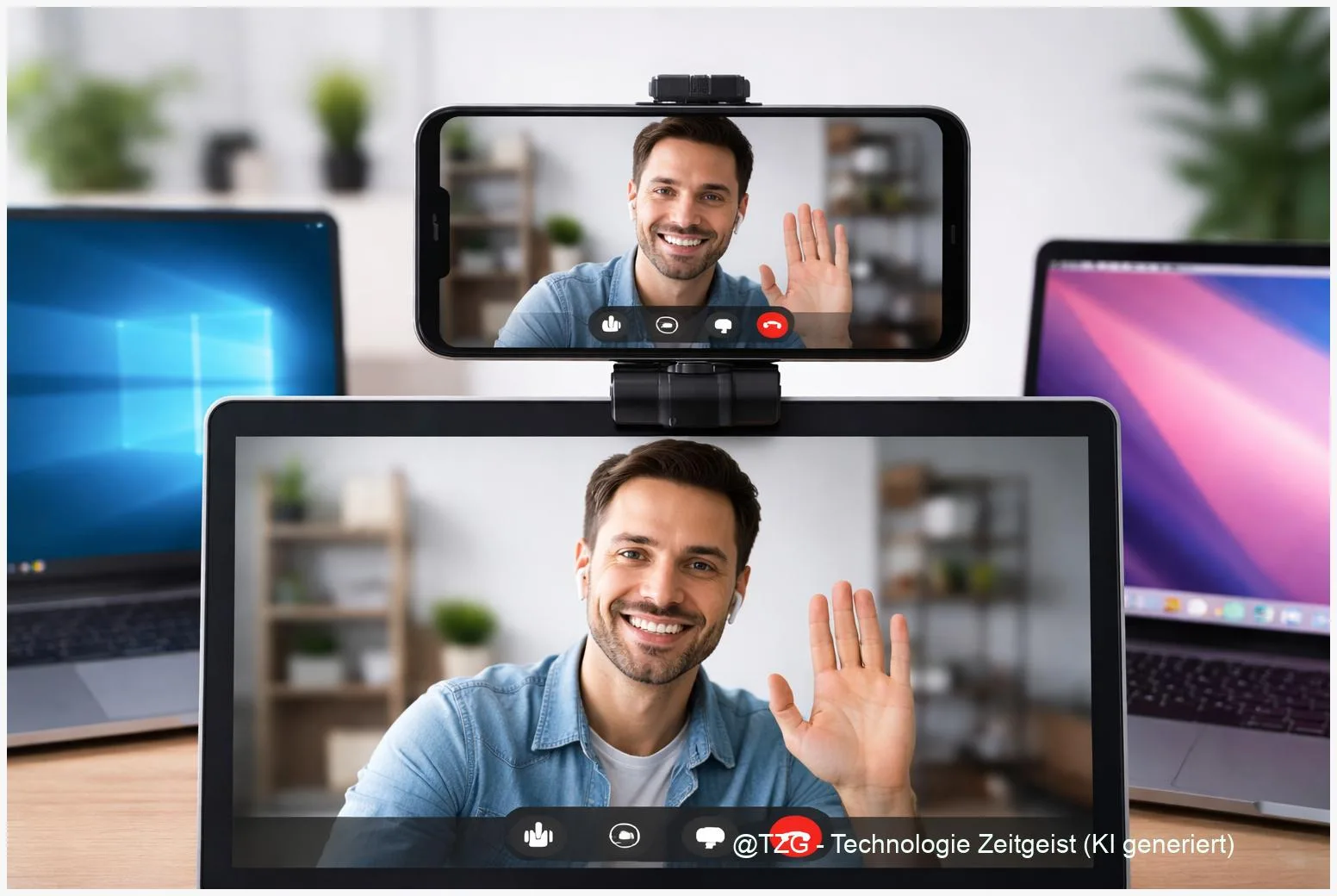
Laptop webcams often look soft, noisy, or poorly lit. If you want sharper video for calls or streaming, you can use phone as webcam instead—often with better low-light performance and autofocus. This guide shows reliable, evergreen ways to turn an iPhone or Android phone into a webcam for Windows and macOS: Apple’s Continuity Camera on Mac, Windows 11’s built-in “mobile device camera” feature for many Android phones, and Android’s USB webcam mode.
Introduction
Your phone’s camera is probably the best camera you own—and it’s often wasted during video calls because you default to a laptop’s tiny webcam. The result is familiar: grainy image, strange color, and a camera angle that points up from the desk.
Using a phone as a webcam solves two problems at once: you get a noticeably clearer picture, and you can place the camera at eye level (on a monitor mount or small tripod), which looks more natural. The setup is also practical when you travel, when your built-in webcam is broken, or when you want a quick upgrade without buying new hardware.
Below you’ll find the most dependable routes for current systems: iPhone with a Mac via Continuity Camera, Android with Windows 11 via Phone Link, and Android via USB webcam mode (UVC). You’ll also get simple checks, privacy notes, and fixes for the typical “why can’t my PC see my phone?” moments.
Basics and Overview: use phone as webcam on today’s systems
There are three mainstream ways to use a phone as a webcam, and each has a different strength. On macOS, Apple’s Continuity Camera can turn a compatible iPhone into a webcam without extra apps. On Windows 11, Microsoft offers a built-in option to use a mobile device’s camera—currently aimed at compatible Android phones via Phone Link. And on many modern Android phones, you can enable USB webcam mode so the phone behaves like a standard webcam using UVC (USB Video Class), a common “plug-and-play” camera standard.
The best setup is the one that stays stable for an hour-long call: solid mounting, steady power, and a connection method your network can handle.
Wireless setups are convenient, but they rely on Wi‑Fi quality. USB is often more stable and keeps your phone charged. Whichever method you choose, most video apps (Teams, Zoom, Meet, FaceTime, Discord) simply see a new camera source in their video settings. You select it once, then keep it as your default.
| Option or Variant | Description | Suitable for |
|---|---|---|
| iPhone → Mac (Continuity Camera) | Native macOS feature; iPhone becomes a webcam over Wi‑Fi/Bluetooth or USB. | Mac users who want the simplest, most integrated setup. |
| Android → Windows 11 (Phone Link camera) | Windows feature that exposes the phone camera to PC apps; wireless in normal use. | Windows 11 users with a compatible Android phone on the same Wi‑Fi. |
| Android → Windows/Mac (USB webcam/UVC) | Phone acts like a USB webcam when connected with a data-capable cable. | People who want maximum stability and minimal latency. |
Preparation and Prerequisites
Before you change settings, do two quick things that prevent most issues: update your phone and computer to current versions, and make sure you have a stable place to mount the phone (monitor mount, tripod, or a stack of books). A steady camera improves perceived quality more than most “filters”.
Check these prerequisites depending on your route:
- iPhone as webcam on Mac (Continuity Camera): compatible iPhone and Mac, both signed in with the same Apple Account; Wi‑Fi and Bluetooth enabled. Apple lists the feature as supported with iPhone XR or newer on iOS 16+ and Macs on macOS Ventura 13+ (newer features may require newer devices/versions).
- Android phone webcam for PC (Windows 11 built-in): Windows 11 PC, a compatible Android phone, and the Phone Link / Link to Windows setup. Microsoft lists Android 9.0+ and a recent Link to Windows app version as requirements; both devices typically need to be on the same Wi‑Fi network.
- Android USB webcam mode (UVC): Android 14 QPR1 or later support exists at the platform level, but availability depends on the phone maker. You also need a USB‑C data cable (charge-only cables are a common failure point).
Privacy check: in all methods, your phone should clearly show when the camera is in use (system indicator). If you’re on a shared computer, also review the app’s camera permissions and pick the correct camera source intentionally.
Step-by-Step Instruction
Follow the set that matches your devices. After setup, your webcam will usually appear as a selectable camera inside your video app’s settings.
- iPhone → Mac with Continuity Camera (native):
- On the iPhone, open Settings and ensure Wi‑Fi and Bluetooth are on. Keep the phone nearby.
- On the Mac, sign in to the same Apple Account. Open a video app that allows camera selection (for example FaceTime, Teams, or Zoom).
- In the app’s camera menu, select your iPhone as the camera source. Place the iPhone in a stable mount, ideally at eye level. Keep it locked; macOS can still use the camera while the phone is locked (as described by Apple Support).
- If you prefer maximum stability, connect the iPhone to the Mac with a USB cable; many setups keep working while charging.
- Android → Windows 11 with Phone Link camera:
- On Windows 11, open Settings > Bluetooth & devices > Mobile devices (wording can vary slightly by build).
- Pair and set up your Android phone with Phone Link on the PC and Link to Windows on the phone (follow the on-screen QR or pairing steps).
- Enable the option to use your mobile device’s camera (Microsoft documents it as a connected camera feature). Grant camera permission on the phone when prompted.
- Open your video app on Windows and select the phone camera as the input device. Many apps show it as a “mobile” or “connected” camera.
- Android → Windows or Mac via USB webcam (UVC):
- Connect your Android phone to the computer with a USB data cable.
- On the phone, tap the USB notification (often labeled Charging this device via USB or similar). Look for a mode called Webcam (on supported devices).
- Confirm any permission prompts. Your computer should detect a new webcam automatically, like any USB camera.
- In your video app, choose that new camera source. If the app has a preview, verify framing and focus before joining a call.
If everything worked, you should see a live preview in your video app, and your phone should show a clear “camera in use” indicator. If you only see a black screen or the camera option is missing, the next section helps you narrow it down quickly.
Tips, Troubleshooting, and Variants
Problem: The phone camera doesn’t show up on the computer. First, confirm the basics: both devices updated, correct cable (data-capable), and the phone is unlocked at least once after connecting. For Windows 11 + Android, re-open Phone Link and confirm the camera feature is enabled in Windows settings (Microsoft lists the toggle under connected devices). For Android USB webcam mode, remember: not every Android phone maker enables the feature even if Android supports it in general.
Problem: Video is laggy or freezes (wireless). Switch to USB if possible. Otherwise, move closer to the router, use the 5 GHz band, and close other heavy network activity (cloud sync, game downloads). Also reduce video resolution inside your meeting app if it offers that control.
Problem: The image looks great, but audio is bad. In many setups, it’s better to keep audio separate: use the laptop’s microphone, a headset, or a dedicated mic. In your meeting app, pick the phone as the camera but keep your preferred microphone selected.
Quick quality wins: put the main lens at eye level, clean the lens with a soft cloth, add a small light facing you (a desk lamp works), and use the rear camera if your setup allows it. Rear cameras are often better than selfie cameras.
Privacy and comfort: treat your phone like a real webcam. When you’re done, close the video app and disconnect. If you mount the phone above a screen, make sure it’s secure and can’t fall during a call.
For more everyday setup ideas, TechZeitGeist also has practical guides on optimizing video-call basics and device hygiene, such as TechZeitGeist technology guides. (If your feed doesn’t open category pages reliably, use the site search for “video call” or “Windows 11 settings”.)
Conclusion
Using your phone as a webcam is one of the simplest upgrades you can make for clearer video. For Mac users, Continuity Camera is the most seamless path: it’s built into the system and works with many everyday apps. On Windows 11, the Phone Link camera feature can expose a compatible Android phone as a camera source without extra hardware. And if your Android device supports USB webcam (UVC) mode, a single cable often delivers the most stable connection. Once set up, your phone becomes a practical “better webcam” you already own.
Have you tried a wireless setup or do you prefer USB for stability? Share what worked on your devices—and pass this guide along to anyone stuck with a grainy laptop webcam.




Leave a Reply