
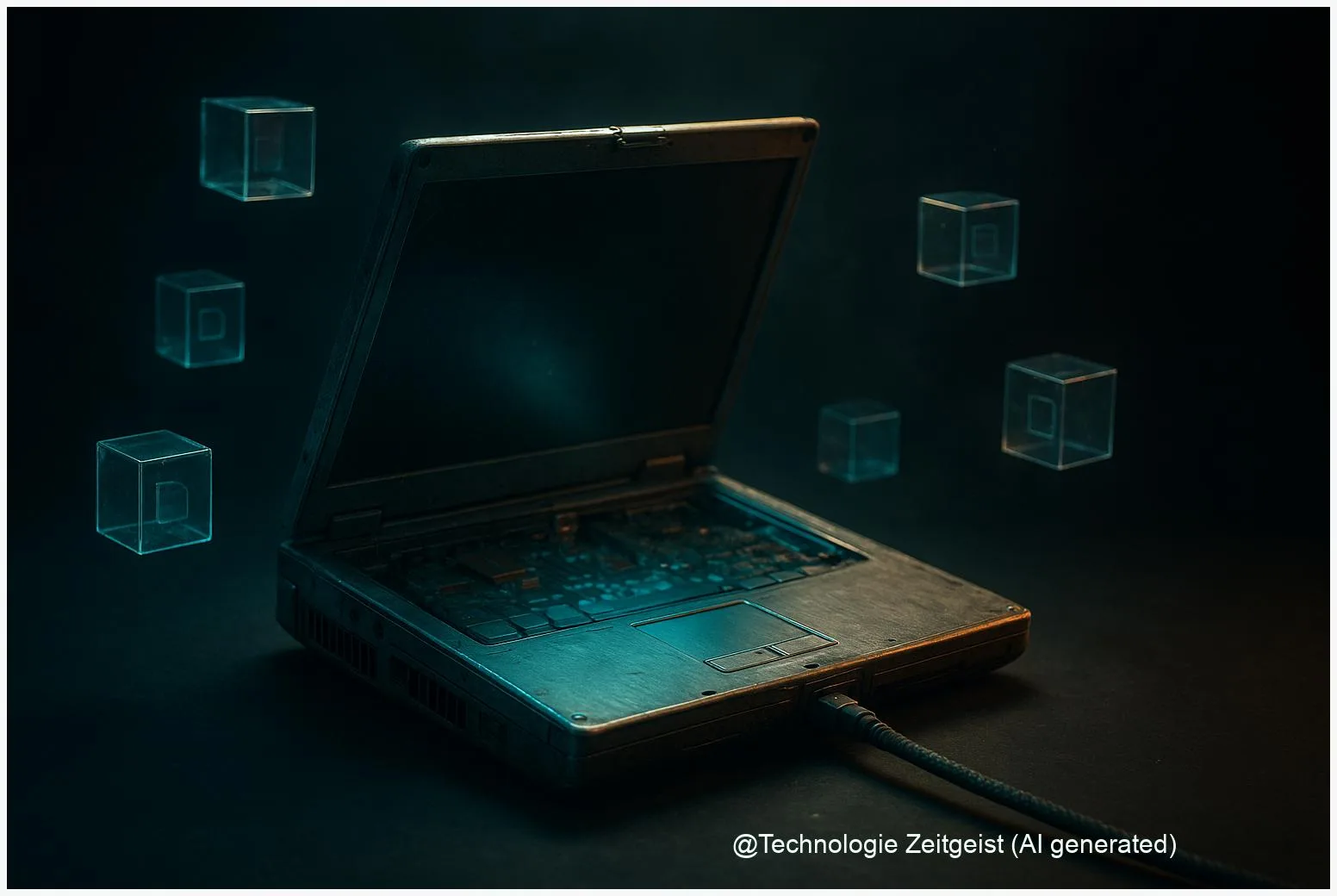
An old laptop can become a useful home server for personal files, backups and small web services. This article shows how to reuse a laptop to run a reliable home server, explains why Ubuntu Server and Nextcloud are common choices, and highlights practical trade-offs such as energy use, network reachability and data safety. The home server approach keeps your data under your control while remaining affordable for most households.
Introduction
Many households keep an old laptop that still runs but is no longer fast enough for daily use. Repurposing it as a home server offers a low‑cost way to host personal cloud storage, media libraries, home automation hubs or test environments. The laptop’s built‑in Wi‑Fi and battery can be helpful during setup; swapping an HDD for an SSD and increasing memory often makes the experience noticeably smoother.
Running a home server is not purely technical: it changes where your data lives and how you manage it. That matters for privacy, convenience and cost. This article guides you through the essential choices—operating system, software (Nextcloud as a common file‑cloud), how to handle network limitations such as CG‑NAT, and simple safety measures so the system stays resilient and private over time.
What is a home server?
A home server is a computer that offers services to devices on a home network or, when configured, to the internet. Typical services include file syncing, media streaming, backups and small web apps. Using an old laptop reduces waste and upfront cost compared with buying a new NAS box or cloud subscription.
The most useful home servers balance modest hardware with careful software choices: efficient server OS, lightweight services and reliable backups.
Software choices determine how easy the system is to maintain. Ubuntu Server LTS releases are common because they provide long‑term updates and broad hardware support. For user‑facing clouds, Nextcloud is a popular open‑source option that provides file sync, calendar, contacts and web access. Nextcloud can be installed in several ways: Snap (quick and integrated), manual LAMP/LEMP (more control), or Docker (portability).
If numbers help with planning, consider these recommendations: aim for at least 4 GB of RAM (8 GB for smoother multi‑user use), prefer an SSD over an old HDD for responsiveness, and plan for regular backups to an external drive or an off‑site location. Laptop batteries are convenient as a short UPS but do not replace a proper external backup power supply for long outages.
If a compact table clarifies hardware trade‑offs, see the summary below.
| Component | Recommended | Why it matters |
|---|---|---|
| Storage | SSD (120–500 GB) | Faster boot and file access; reduces noise and power use |
| Memory | 4–8 GB RAM | Keeps server responsive under concurrent access |
| CPU | Modern dual/quad core | Helps with compression, encryption and simultaneous users |
| Network | Wired Ethernet if possible | Lower latency and higher throughput than Wi‑Fi |
Practical setup: from laptop to server
Begin by backing up any remaining personal files on the laptop, then perform a clean installation of Ubuntu Server LTS (for example the 24.04 release). A fresh OS avoids leftover software that can cause conflicts and improves security baseline. During install, create a non‑root administrative user and enable SSH key authentication so you can manage the machine headless.
Nextcloud installation can follow one of three common paths. Snap is the fastest: it packages Nextcloud with most dependencies and handles updates centrally, which is handy for single‑user home setups. A manual LAMP/LEMP install (Linux, Apache/Nginx, MariaDB/PostgreSQL, PHP‑FPM) gives more control for tuning PHP, caching and database settings and is preferred when you expect many concurrent users or office integrations. Docker or Docker Compose is a middle ground: portable and easier to move between machines.
Domain and reachability are the next considerations. To serve your Nextcloud from the internet you need a domain name and a way to reach your home network. If your ISP assigns a public IPv4 address and you can forward ports 80/443, Let’s Encrypt provides free TLS certificates. Many home ISPs use carrier‑grade NAT (CG‑NAT), which prevents direct inbound connections. In that case, an outbound tunnel such as Cloudflare Tunnel (cloudflared) or a VPN mesh like Tailscale provides a reliable workaround; Cloudflare’s documentation explains how the agent creates an outbound connection so your server is reachable without a public IP.
Security basics are essential: enable ufw (a simple firewall), lock down SSH to keys and nonstandard ports if you prefer, install Fail2Ban to slow brute‑force attempts, and enable HTTPS for all web services. For Nextcloud, add APCu or Redis for caching and file‑locking to improve responsiveness; Nextcloud’s official docs list recommended tuning steps and hardening options.
Opportunities and risks
Repurposing a laptop for a home server has clear advantages. It reduces e‑waste and subscription costs, provides local control of personal data and enables direct integration with home automation or private media libraries. For students or hobbyists it is also a low‑cost learning platform for Linux, networking and web services.
At the same time, hosting services at home introduces responsibilities. Public exposure increases the risk of attacks if services are misconfigured. Data loss remains possible unless you keep regular backups: at minimum keep a scheduled local copy on an external drive and an off‑site copy such as an encrypted backup to cloud storage. Energy use is another trade‑off; a laptop runs more efficiently than a desktop server but still adds to household consumption, so check typical idle power draw and consider scheduling heavy tasks like backups for nighttime when electricity may be cheaper.
Network limitations matter for user experience. If you host media for streaming outside the home, your upload bandwidth will likely be the bottleneck. For remote access under CG‑NAT, Cloudflare Tunnel and similar services avoid the need for port forwarding but introduce an external dependency and potential latency overhead. Decide which services must be publicly reachable (files, web apps) and which should remain internal (home automation controllers) and restrict access accordingly.
Where this can lead next
A home server is rarely a one‑time project; it evolves. Start with a single reliable service such as Nextcloud for file sync and backups. As confidence grows, add media streaming (Plex or Jellyfin), a private Git or CI runner, or home automation hubs. Containerizing services with Docker simplifies upgrades and migration: you can move containers from the laptop to a more powerful machine or to a VPS if you need higher availability.
Maintenance will be the constant: apply OS and application updates, monitor disk health, and test restore procedures at least a few times a year. For critical data, consider a two‑tier approach: an on‑site backup for fast restores plus an encrypted off‑site backup for disaster recovery. If uptime becomes important, move externally visible services to a low‑cost VPS and keep the laptop for local tasks to limit exposure to network outages or ISP restrictions.
Finally, think about power and automation: run cron jobs for nightly backups, use systemd services to ensure key processes restart automatically, and add simple monitoring so you receive alerts when disk space or CPU temperature crosses safe thresholds. These steps keep the system useful with little daily attention.
Conclusion
Turning an old laptop into a home server is an affordable, practical way to host personal cloud services while learning useful system administration skills. Choose a stable OS such as Ubuntu Server LTS, decide whether you want the speed of Snap installs or the control of a manual LAMP/LEMP setup, and plan for backups, encrypted connections and network realities such as CG‑NAT. Using an outbound tunnel service can avoid complex router changes, and basic hardening—SSH keys, firewall rules and periodic updates—keeps the system resilient. With modest hardware upgrades like an SSD and more RAM, a repurposed laptop can provide a fast, private home cloud for years.
Share your experience or questions about home servers — the community benefits from practical tips and lessons learned.




Leave a Reply