
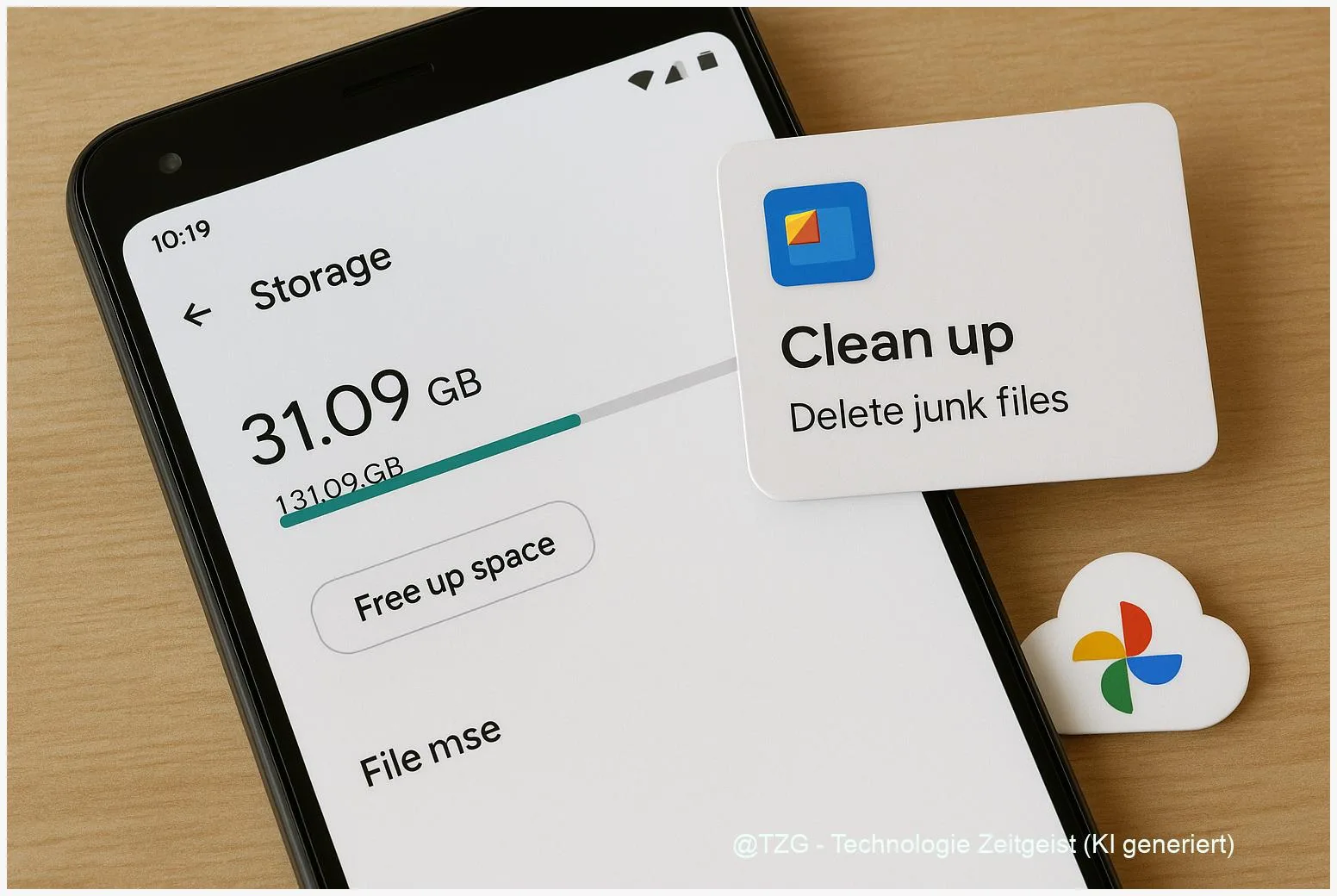
Your phone says “Storage full” and suddenly updates fail, photos won’t save, and apps behave oddly. This guide shows how to free up storage on Android safely: clear app cache, delete junk files, find space-hogging downloads, and move photos to Google Photos so you keep memories without filling the device. You’ll finish with a cleaner storage overview and a simple routine that prevents the warning from coming back.
Introduction
“Storage full” rarely happens at a good moment: you’re trying to record a video, install an app, or download a ticket for travel. On Android, space can disappear slowly (photos, podcasts, offline maps) or suddenly (a few big videos, one chat app that keeps media, or a game update). The tricky part is that deleting random files often doesn’t help much, because the real storage hogs are usually hidden in categories like app data, downloads, duplicates, and backed-up photos that still sit on the device.
The good news: you can usually recover a meaningful amount of space in under 20 minutes without wiping your phone. The steps below keep your personal data safe and focus on actions that work across many Android versions and brands, even if menu names differ slightly.
Basics: how to free up storage on Android without losing data
Android storage problems come in two flavors: device storage (the memory inside your phone) and cloud storage (your Google Account storage shared across Google Photos, Google Drive, and Gmail). This tutorial focuses on freeing device storage first, because that’s what blocks installs, camera saves, and system updates. After that, it’s worth checking your Google Account storage so backups keep working.
Two terms matter when you clean up apps: cache and storage/data. Cache is temporary data (for example thumbnails or recently used files) that apps can rebuild. Clearing cache is usually low-risk. Clearing storage/data resets an app more deeply and can log you out or remove offline content. Android’s settings often show both options side by side—so it helps to know which one you are tapping.
If you want quick wins with low risk, start with “Free up space” suggestions and clearing cache—save “Clear storage/data” for stubborn app problems.
Modern Android also offers guided cleanup via system settings and Google’s Files app. Many phones label this as “Storage”, “Device care”, or “Free up space”. If you want to go deeper later, TechZeitGeist also explains related everyday maintenance topics like smartphone performance basics and cloud backup habits (links for orientation; steps in this guide work without them).
| Option or Variant | Description | Suitable for |
|---|---|---|
| Clear app cache | Removes temporary files; apps may load a bit slower the first time afterwards. | Quick, safe cleanup when storage is tight. |
| Google Photos “Free up space” | Deletes local copies of photos/videos that are already backed up to Google Photos. | Phones where camera media is the main storage eater. |
Preparation and Prerequisites
Before deleting anything, take two minutes to avoid the classic “I needed that file offline” moment. Android cleanup is safe if you know what is local-only and what is already backed up.
Check these prerequisites first:
- Know your goal: aim to free at least 2–5 GB so apps and updates have breathing room. More is better if you record lots of video.
- Confirm photo backup status (if you plan to delete local photos): open Google Photos and ensure backup is enabled and up to date.
- Charging and Wi‑Fi: if you’ll upload photos/videos, connect to Wi‑Fi and (ideally) a charger to prevent interruptions.
- Be careful with “Clear storage/data”: for apps like messaging, maps, music, or password managers, clearing storage can remove offline downloads or local databases.
- Optional: use a computer or SD card: if you prefer not to use cloud backup, plan to copy large folders (like DCIM/Camera) to a PC or SD card instead.
If your device belongs to a family member or is managed by a school or employer, some storage options may be restricted. In that case, stick to deleting personal media and uninstalling non-essential apps.
Step-by-Step Instruction
The exact labels can vary by brand, but the path is usually similar. Use the search bar in Settings if you don’t see the same menu names.
- Check what’s actually filling your phone. Open Settings and search for Storage (sometimes “Device care”). Look at the biggest categories (often Photos/Videos, Apps, Downloads, Other). This prevents guesswork.
- Run Android’s built-in “Free up space” suggestions. In the Storage screen, tap a cleanup button such as Free up space, Clean up, or Manage storage. Delete obvious items like Downloads you no longer need and Trash/Recently deleted content if you’re sure.
- Delete junk files with Files by Google (fast win). Install/open Files by Google, then go to the Clean area and review Junk files, Duplicate files, and Large files. Confirm deletions only after you recognize what’s being removed.
- Clear Android app cache safely (target the biggest apps). Go to Settings > Apps, open a large app (social, streaming, browser), then Storage & cache and tap Clear cache. Repeat for a few big offenders. Avoid Clear storage unless you understand the reset effect.
- Move photos off the device with Google Photos. In Google Photos, use Free up space on this device. This removes only the local copies of items that are already backed up, while keeping them available in Google Photos. Afterward, check the device Gallery app: you should see fewer local items, while Google Photos still shows your full library.
- Uninstall or archive apps you don’t use. In Settings > Apps or the Play Store’s app management, remove games and tools you haven’t opened in months. Some Android versions offer archive for unused apps, which keeps parts of the app for easier restore later.
- Reboot and re-check Storage. Restarting can help Android recalculate storage categories. Return to Settings > Storage and confirm how much space you gained.
When it worked, you’ll typically notice that app installs complete again, the camera saves normally, and system updates stop complaining about missing space.
Tips, Troubleshooting, and Variants
Problem: “I deleted things, but storage didn’t change.” First, empty Trash/Recently deleted in apps like Photos or Files; deleted items can sit there for a while. Also give Android a moment—some phones update storage totals after a short delay or after a reboot.
Problem: Google Photos “Free up space” removes photos from my Gallery. That’s expected: the Gallery usually shows local files only. Your photos stay in Google Photos (cloud) as long as backup completed. If you need offline access for travel, keep a local album or download selected items before going offline.
Tip: Find large files without hunting manually. Files by Google can highlight Large files and duplicates. Videos from messaging apps are common culprits—review the preview before deleting.
Variant: Use an SD card (if your phone supports it). Moving photos, videos, and offline music to an SD card can keep device storage free. The menu is usually in the file manager: Move or Change storage location. Not every app can use SD storage reliably, so treat it mainly as a media vault.
Safety note: Avoid “cleaner” apps that promise miracles with one tap. Android already provides safe cleanup paths, and unknown cleaners can be aggressive with deletions or request unnecessary permissions.
Conclusion
When Android storage runs low, the best fix is a calm, targeted cleanup: check the Storage overview, delete downloads and junk, clear cache for a few large apps, and remove or archive unused apps. For most people, the biggest long-term win is handling photos and videos: once Google Photos backup is confirmed, the “Free up space on this device” option can reclaim a lot of room without deleting memories. After a quick reboot and a second storage check, your phone should feel less constrained and more reliable again.
Did one step make the biggest difference for your phone (photos, apps, or downloads)? Share your result and what Android version you’re on—small details help others follow the same path.




Leave a Reply