
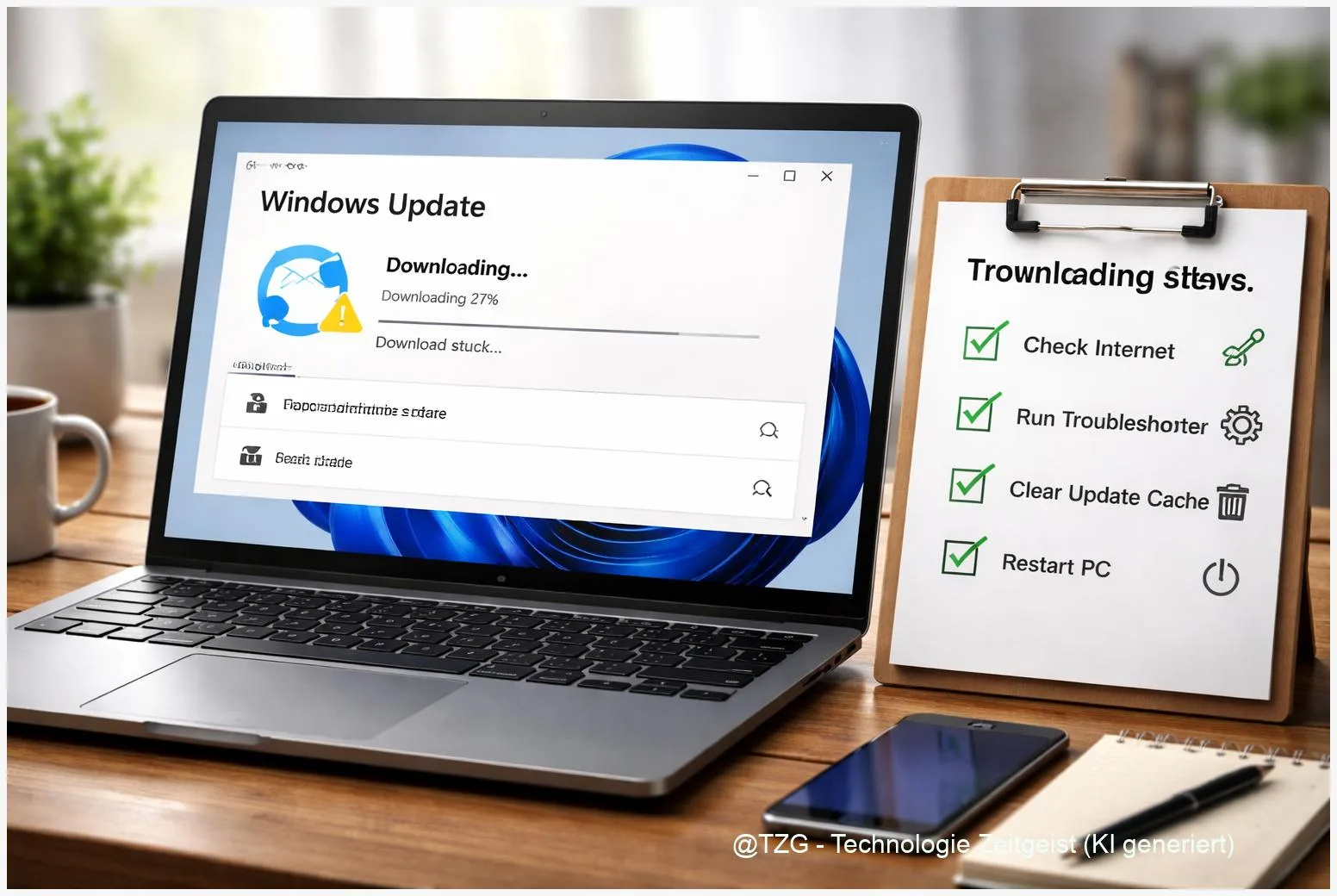
If a Windows 11 update stuck download blocks your PC at 0 % or keeps looping, you can usually fix it without reinstalling Windows. This guide walks you through safe checks, then proven repairs: running the built-in troubleshooter, resetting Windows Update components, and repairing system files with DISM and SFC. After these steps, Windows Update should download and install normally again.
Introduction
Updates are supposed to run quietly in the background—until the download bar freezes, the percentage never moves, or Windows 11 keeps retrying the same update. That can happen on fast home Wi‑Fi just as well as on a school laptop or a gaming PC on Ethernet. Often the cause is not “your computer is broken”, but something simpler: a stuck update service, a corrupted download cache, or system files that Windows Update relies on.
The good news: you can troubleshoot this in a calm, predictable order. First you check the basics (power, storage, connection). Then you let Windows repair itself with the Windows Update troubleshooter. If the download is still stuck, you reset the update components (the local cache and related services). Finally, you repair the Windows image with DISM and system files with SFC—tools Microsoft documents for fixing corruption that can block updates.
Take your time; none of these steps are exotic, but a careful order prevents unnecessary risks.
Basics and Overview: Why a Windows 11 update stuck download happens
Windows Update is not one single program. It is a set of services and folders that work together: Windows downloads update files, stores them locally, verifies signatures, and then installs. If one piece gets “out of sync”, downloads may stall or installations may fail with an error code.
Two folders matter in many cases:
- SoftwareDistribution: the main local download cache for Windows Update.
- Catroot2: a folder used during update verification and cryptographic processing.
Most “stuck at 0 %” cases are not a mystery—Windows is usually waiting on a service, a cache file, or a repairable system component.
When people talk about “resetting Windows Update components”, they typically mean stopping update-related services, renaming these folders (so Windows recreates them cleanly), and starting services again. If corruption is deeper than the cache, Microsoft’s DISM and SFC tools can repair the Windows image and protected system files that updates depend on.
| Option or Variant | Description | Suitable for |
|---|---|---|
| Windows Update troubleshooter | Built-in automated checks and fixes for common update issues. | First attempt when downloads stall or installs fail. |
| Reset Windows Update components | Stop services and rebuild the local update cache (SoftwareDistribution/Catroot2). | Stuck downloads, repeated failures, persistent error loops. |
Preparation and Prerequisites
Before you run deeper repairs, set yourself up for success. These checks often solve the issue on their own—and they also prevent a “fix” from failing halfway.
- Restart once (properly): Use Start > Power > Restart. This clears many stuck services.
- Keep the PC on power: On laptops, plug in the charger. Avoid sleep mode during repairs.
- Check storage: Make sure your system drive (usually C:) has free space. If it’s nearly full, updates can stall.
- Verify date and time: Incorrect time can break update verification.
- Stable connection: If you use Wi‑Fi, move closer to the router or try Ethernet for the update run.
- Pause VPNs/proxies: If you use a VPN, temporarily disconnect it to rule out download issues.
- Know your account rights: Several steps require an administrator account. If you are on a managed work/school PC, some actions may be restricted.
- Optional safety net: Save open work and consider a basic backup of important files. The steps below are standard troubleshooting, but it’s still smart to be cautious.
If the update is in the middle of an actual installation (not just “Downloading”), wait a bit longer and don’t force shutdowns. For a download stuck at 0 % or a never-ending “Pending download”, the next section is the right path.
Step-by-Step Instruction
Work through the steps in order. After each major step, go to Settings and try Windows Update again. If it starts moving, you can stop and let it finish.
-
Run the Windows Update troubleshooter
Open Settings > System > Troubleshoot > Other troubleshooters. Find Windows Update and select Run. Follow the prompts and apply suggested fixes, then restart your PC.
-
Try Windows Update again
Go to Settings > Windows Update and select Check for updates. If the Windows 11 update stuck download is still at 0 % after a few minutes, continue.
-
Reset Windows Update components (cache rebuild)
This follows Microsoft’s documented approach: stop update-related services, rename the cache folders, then restart services.
Open Windows Terminal (Admin) (or Command Prompt (Admin)). Then run these commands one by one:
Stop services
net stop wuauserv
net stop cryptSvc
net stop bits
net stop msiserverRename cache folders (renaming is safer than deleting)
ren C:\\Windows\\SoftwareDistribution SoftwareDistribution.old
ren C:\\Windows\\System32\\catroot2 Catroot2.oldStart services again
net start wuauserv
net start cryptSvc
net start bits
net start msiserverRestart Windows once more, then check for updates again.
-
Repair the Windows image with DISM
Still in an admin terminal, run:
DISM /Online /Cleanup-Image /RestoreHealth
This can take a while and may appear to pause at certain percentages. Let it finish.
-
Repair system files with SFC
After DISM completes, run:
sfc /scannow
Restart when it’s done, then try Windows Update again.
If everything worked, you should see Windows Update move from “Downloading” to “Installing” and eventually request a restart. When the download percentage increases steadily, the underlying problem is usually resolved.
Tips, Troubleshooting, and Variants
If the update is still stuck, these focused checks often reveal what’s blocking progress—without guessing.
Common stumbling blocks and fixes
- Commands say “Access is denied”: You likely didn’t open the terminal as admin. Close it and use “Run as administrator”.
- Folder rename fails because it is in use: One of the services may still be running. Repeat the net stop commands, then retry. A restart can also release locks.
- DISM fails or hangs for a long time: Make sure your internet is stable (DISM may use Windows Update as a source). If you use a VPN, disconnect it for the repair run.
- Update keeps failing after download: That points more toward installation errors than download problems. Microsoft documents separate troubleshooting for setup/upgrade errors.
- Managed devices (work/school): Policies can control update behavior. If options are greyed out, contact your admin instead of forcing changes.
Helpful variants
- Try a different network: A quick hotspot test can show whether your router or ISP path is the issue.
- Temporarily unplug non-essential USB devices: Rarely, drivers or peripherals interfere with update installation.
- Check Microsoft’s release health dashboard: If there is a known issue with a specific update, waiting for a revised release can be the safest option.
Security note: Avoid downloading “update fixer” tools from random websites. For Windows Update repairs, stick to built-in troubleshooters and Microsoft-documented commands.
Conclusion
A stuck Windows 11 update download is frustrating, but it’s often fixable with a clean, repeatable routine. Start with the Windows Update troubleshooter, then reset the Windows Update components to rebuild the local cache. If the problem is deeper, DISM and SFC can repair the Windows image and system files that updates rely on. After these steps, most systems return to normal update behavior—without a reinstall and without risky third‑party tools.
If one step solved your issue (or if you hit a specific error code), share what happened—details like “stuck at 0 %” vs. “fails after restart” can help others troubleshoot faster.




Leave a Reply